Revset
Book a Free Audit

30-minute call · No obligation

HomeGHL HubSub-Accounts & AgencyHow to Create a User or Admin for Multiple GoHighLevel Locations
REVSET LABS · EXPERT GUIDE·Sub-Accounts & Agency

How to Create a User or Admin for Multiple GoHighLevel Locations

880 words·4 min read·Updated 28 April 2026·beginner·
Arsalan ZaffarArsalan ZaffarLinkedIn

👉 Resell GoHighLevel as your own SaaS.

Start SaaS Pro Trial
Quick Answer

To create a user or admin to manage multiple GoHighLevel sub-accounts without agency access, go to Agency View → Settings → Team. This process typically takes 3-5 minutes to complete, allowing you to assign specific locations and permissions.

Key Takeaways
  • Always set the 'User Type' to **Account** to prevent agency-level dashboard access.
  • Carefully define user permissions using the 'User Role' (Admin/User) and individual feature toggles.
  • Assign multiple sub-accounts to a single user for efficient management across various client locations.
  • Regularly review and update user permissions as roles change or new sub-accounts are added.
  • Test new user accounts with a separate browser or incognito window to confirm correct access levels.

Why Create Account-Level Users in GoHighLevel?

Creating account-level users in GoHighLevel allows you to delegate management tasks for specific sub-accounts without granting full access to your agency dashboard. This approach is essential for maintaining security and control over your entire agency operations. By setting up users with restricted access, you ensure that team members or clients can only see and manage the locations relevant to their responsibilities. This provides granular control, secure delegation, and flexible management capabilities for your growing team.

How to Add a New Account-Level User in GoHighLevel?

Follow these steps to create a new user or admin who can manage specific GoHighLevel sub-accounts without seeing your agency dashboard. This process ensures secure and controlled access for your team.
1
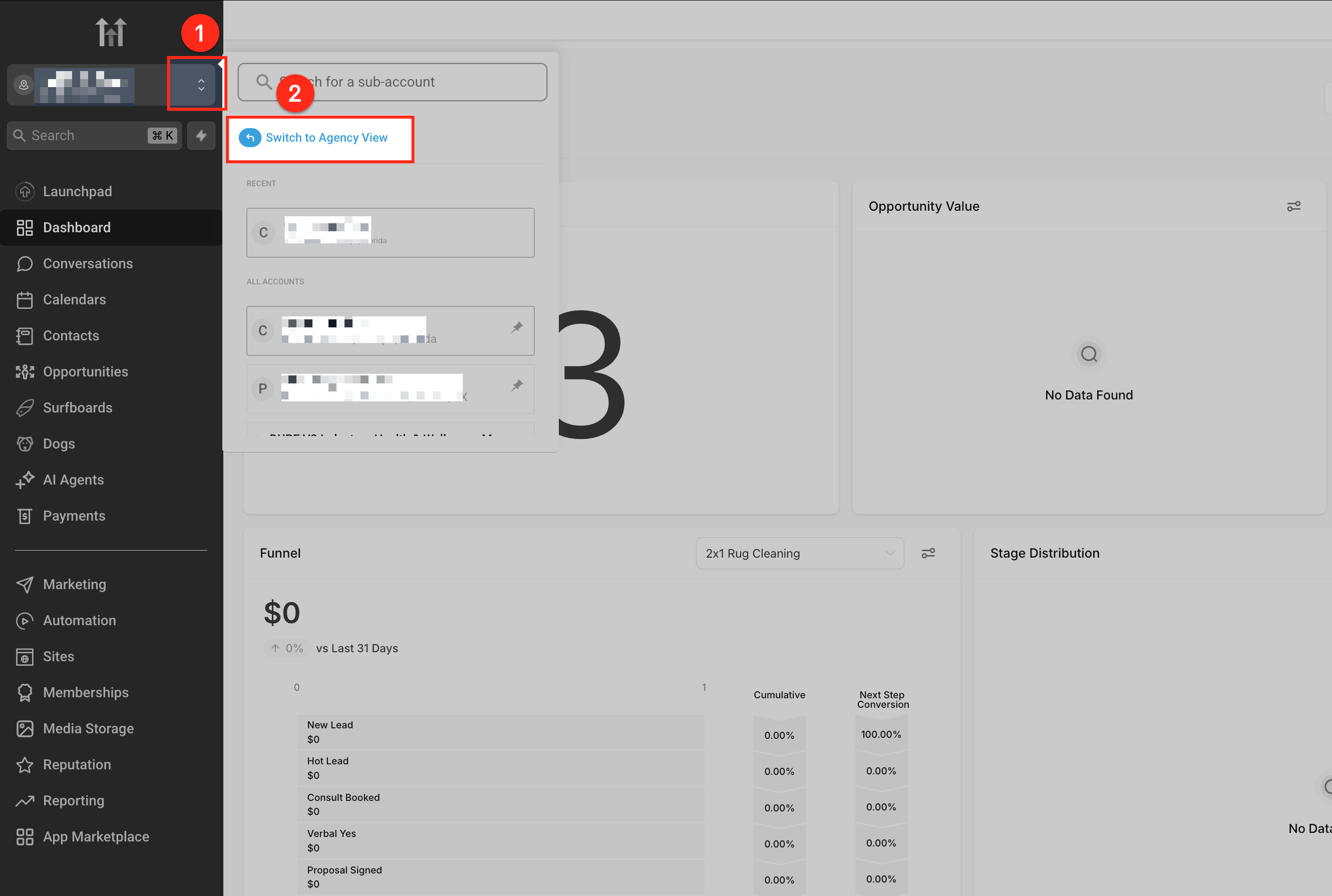
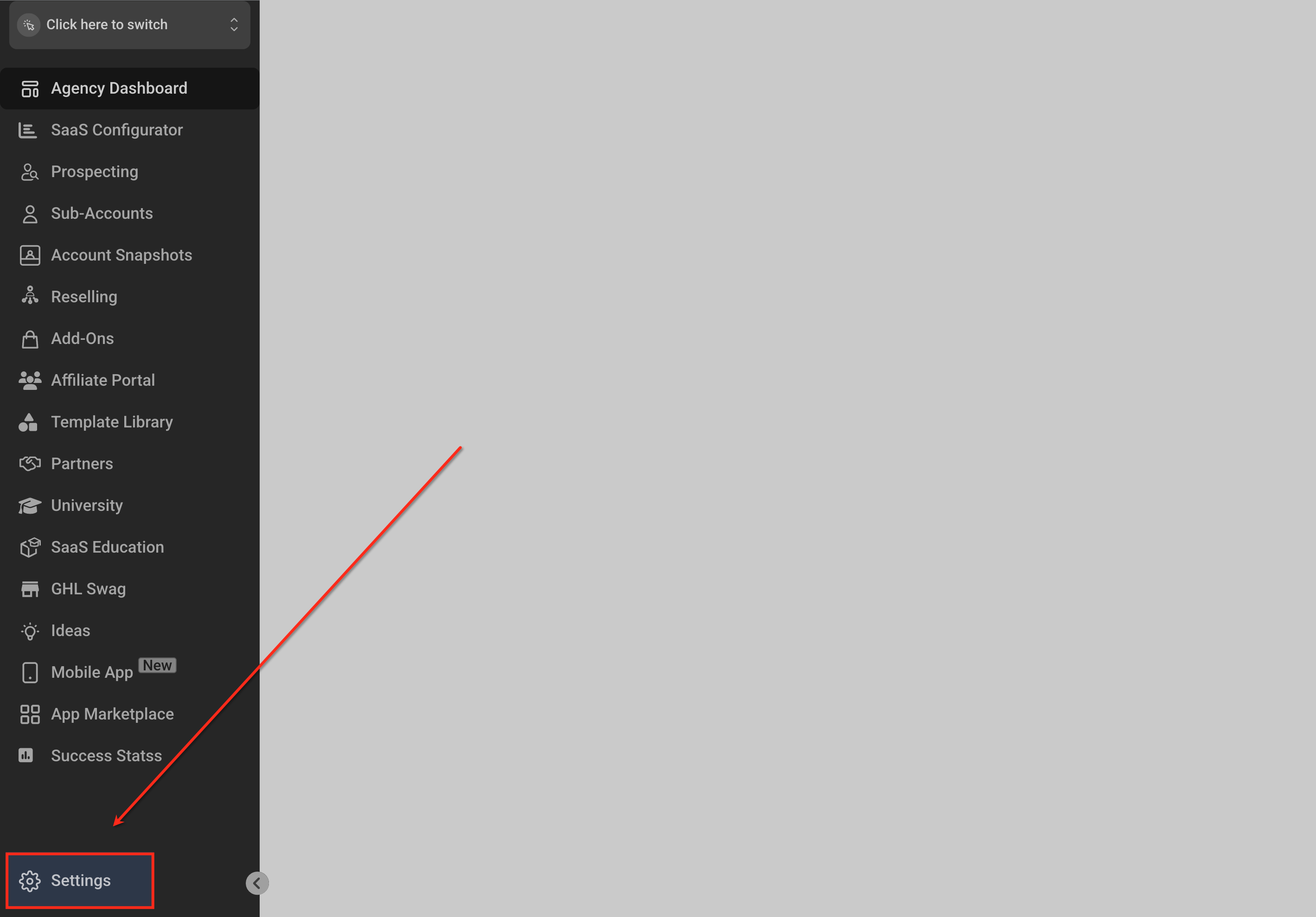
Switch to Agency ViewFirst, click the location dropdown menu found in the top-left corner of your GoHighLevel dashboard. Select Switch to Agency View to access your agency-level settings.
2
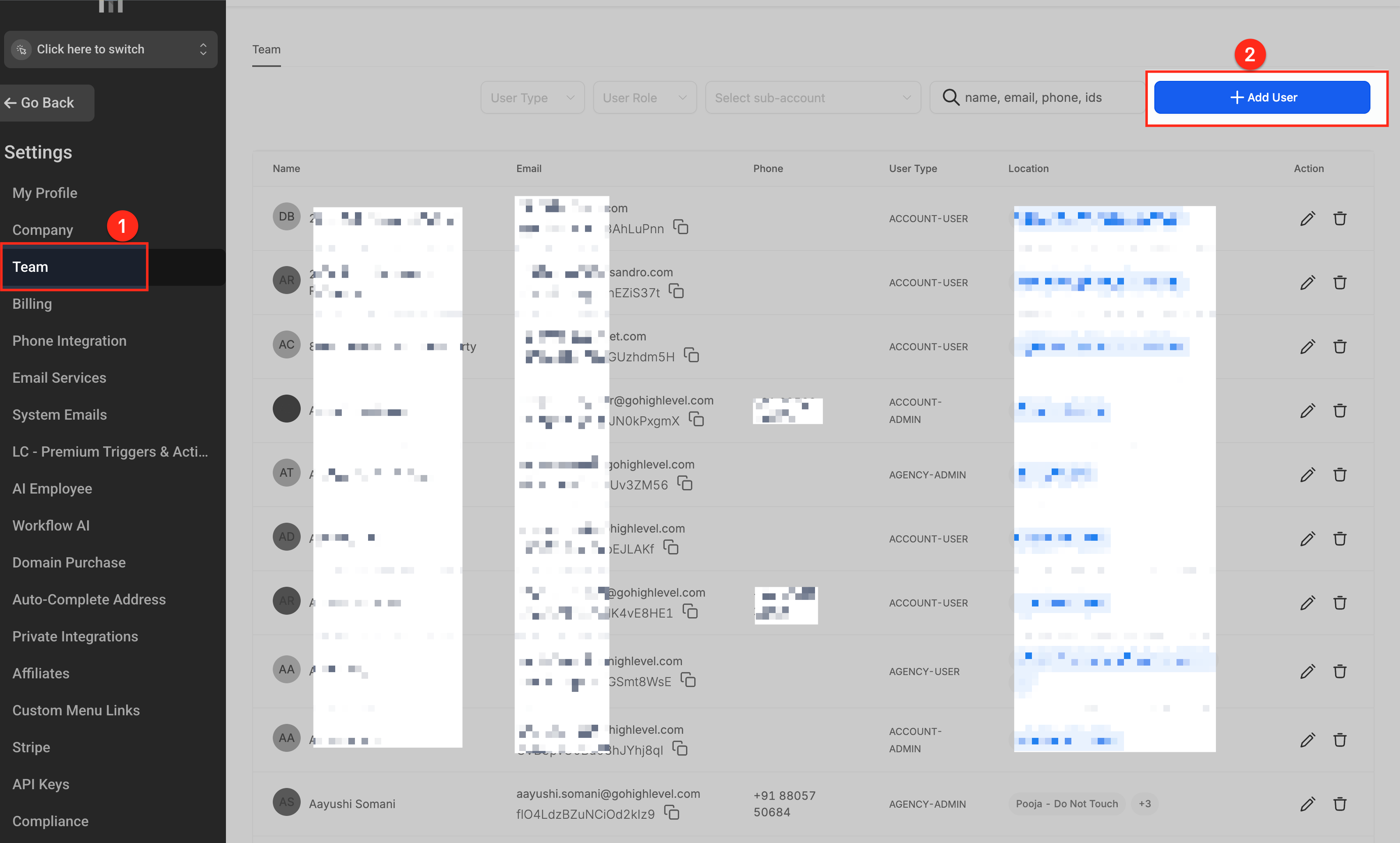
Access Team SettingsIn the Agency View sidebar, scroll down and click on Settings. Next, select the Team tab from the available options to manage your agency's users.
GoHighLevel screenshot
0
3
Start Adding a New UserLocate and click the + Add User button in the top-right corner of the Team page. This action opens the user creation form.
4
Enter User DetailsFill in the required information for the new user, including their name, email address, and phone number. Ensure the email address is correct, as this is where their invitation will be sent.
GoHighLevel screenshot
1
5
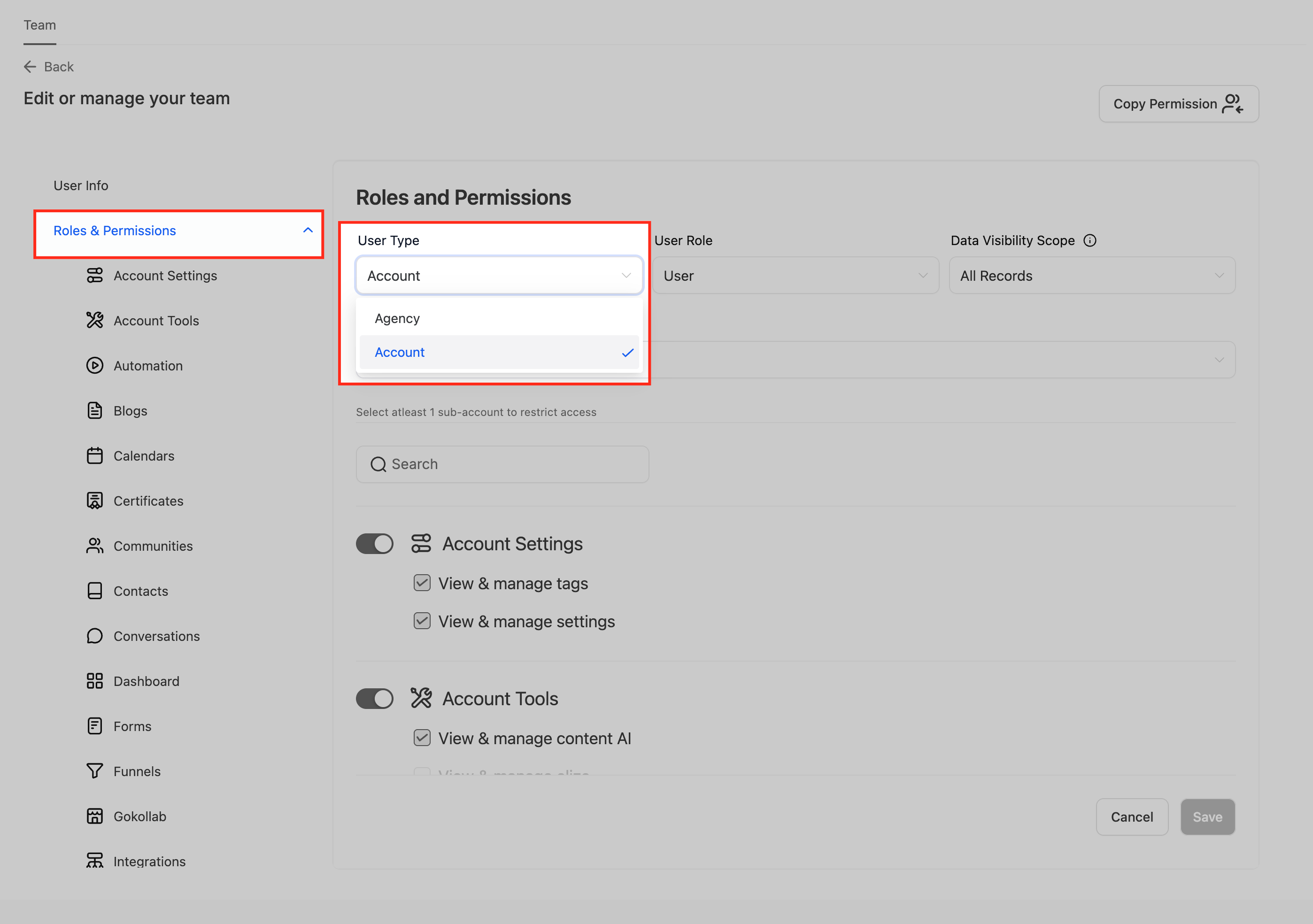
Set User Type to AccountUnder the 'Roles and Permissions' section, find the 'User Type' field and select Account. This crucial step ensures the user has no access to your agency-level interface.
6
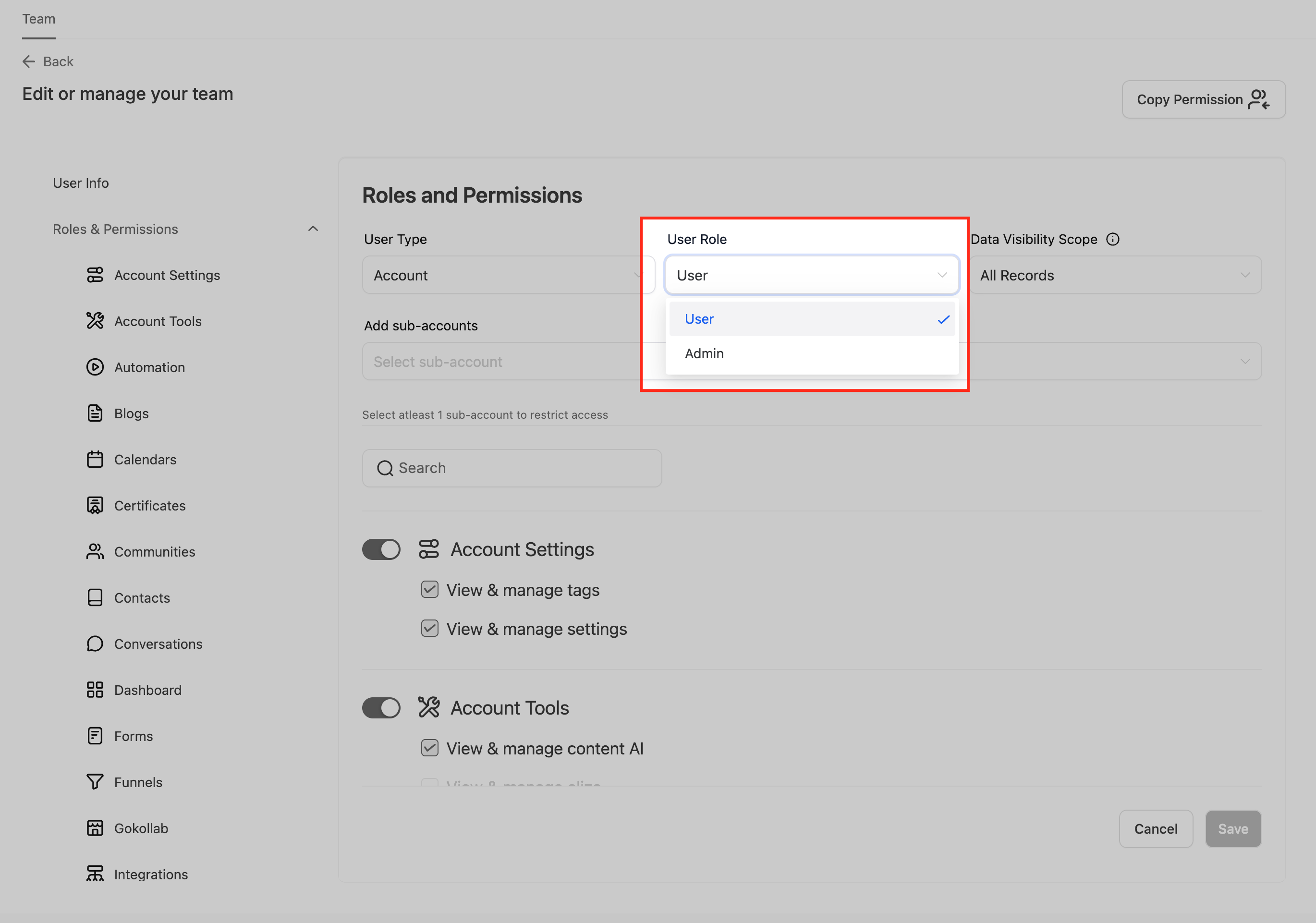
Choose User RoleDecide between User or Admin under the 'User Role' dropdown. An 'Admin' can manage most settings within assigned sub-accounts, while a 'User' typically has restricted access based on specific toggled permissions.
GoHighLevel screenshot
2
7
Assign Sub-Accounts (Locations)Use the search field to find and select one or more specific sub-accounts (locations) that this user should have access to. You can assign multiple locations to a single user.
8
Configure Feature Permissions and SaveCustomize feature-specific permissions as needed by toggling the switches for each sub-account. Once all settings are configured, click Save to create the user and send their invitation.
GoHighLevel screenshot
3
GoHighLevel screenshot
🔥 Pro Tip

Always use a descriptive name for your users, such as 'Client Manager - John Doe' or 'Support Team - Jane Smith', to easily identify roles and responsibilities within your team.

GoHighLevel SaaS Pro

Resell GoHighLevel as your own SaaS

Launch your own software business on the platform behind 78+ agencies. SaaS Mode, rebilling, unlimited sub-accounts.

Start SaaS Pro Trial

Some links are affiliate links — if you sign up we may earn a commission, at no extra cost to you. We only recommend GoHighLevel because we build on it every day.

What Permissions Can You Set for Account Users?

When creating an account-level user, you have precise control over their access within the assigned sub-accounts. This ensures they can perform their tasks without unnecessary privileges. The two main layers of control are the User Role and feature-specific permissions. The 'User Role' determines the general scope of access: an 'Admin' role grants broad management capabilities within their assigned sub-accounts, while a 'User' role requires you to individually enable specific features. Below the role selection, you will find toggle switches for various features like 'Conversations', 'Calendars', 'Opportunities', and more. Carefully review and enable only the features essential for the user's responsibilities within each assigned sub-account.

⚠️ Granting 'Admin' access to an account-level user gives them significant control over the assigned sub-accounts. Only use this role for trusted team members who require broad management capabilities.

🔥 Pro Tip

For new team members, start with minimal permissions and gradually add more as needed. This 'least privilege' approach enhances security and prevents accidental changes.

How to Edit an Existing Account User's Access?

You can easily modify an existing account-level user's access, roles, or assigned locations at any time. This is useful when a team member's responsibilities change or they need access to new sub-accounts.

1
Navigate to Team SettingsFrom your Agency View, go to Settings → Team. This page lists all your agency and account-level users.
2
Select User for EditingFind the user you wish to modify in the list and click the pencil icon next to their name. This opens their user profile for editing.
3
Adjust Roles and PermissionsUpdate their 'User Role' (Admin or User), modify assigned sub-accounts, or toggle specific feature permissions as required. Remember to keep the 'User Type' set to Account to maintain restricted access.
4
Save ChangesAfter making all necessary adjustments, click Save at the bottom of the user profile. The changes will take effect immediately for the user.

Troubleshooting Common Issues

⚠️ The user cannot see any assigned locations or sub-accounts.
Check the user's profile under Agency View → Settings → Team. Ensure you have explicitly assigned one or more sub-accounts in the 'Assigned Locations' section. If none are assigned, the user will see an empty dashboard.
⚠️ The user has too much access or can see the agency dashboard.
Go to the user's profile via Agency View → Settings → Team and verify the 'User Type' is set to Account. If it is set to 'Agency', change it to 'Account' and save. Also, review their 'User Role' and specific feature permissions.
⚠️ The user did not receive an invitation email.
First, check the email address entered for the user in their profile for typos. If correct, ask the user to check their spam or junk folder. You can also resend the invitation from the user's profile page if necessary.
⚠️ The user has access to a sub-account but cannot perform certain actions (e.g., send emails, manage calendars).
Edit the user's profile under Agency View → Settings → Team. Review the individual feature permission toggles for each assigned sub-account. Ensure the specific features required (e.g., 'Email Marketing', 'Calendars') are enabled.
⚠️ I cannot find the '+ Add User' button.
Confirm that you are in Agency View. The '+ Add User' button is only visible when you are managing your agency-level settings, not when you are in a specific sub-account view.

Common Mistakes to Avoid

  • Forgetting to set the 'User Type' to Account, accidentally granting agency-level access.
  • Not assigning any specific sub-accounts, leading to a user seeing an empty dashboard.
  • Granting an 'Admin' role when a 'User' role with specific feature toggles would be more appropriate and secure.
  • Overlooking individual feature permissions, causing the user to have restricted access for essential tasks within their assigned sub-accounts.
  • Not communicating clearly with the new user about their specific access limits and how to navigate their GoHighLevel dashboard.

Frequently Asked Questions

QCan one user manage more than one location or sub-account in GoHighLevel?
Yes, absolutely. When you are configuring the user's profile under 'Roles and Permissions', you can select multiple sub-accounts in the 'Assigned Locations' field. This allows a single team member or client to efficiently manage several different businesses or campaigns from one GoHighLevel login, streamlining their workflow and your delegation process.
QWhat is the difference between an Account User and an Account Admin in GoHighLevel?
An 'Account Admin' has broad management capabilities within the specific sub-accounts they are assigned to. They can typically access and modify most settings and features within those locations. An 'Account User', on the other hand, has more restricted access. Their capabilities are limited to the specific features you enable via the toggle switches in their permission settings. Choose 'Admin' for full control within a sub-account, and 'User' for fine-grained, task-specific access.
QCan I promote an existing account user to an admin role later?
Yes, you can easily update a user's role at any time. Simply navigate to **Agency View → Settings → Team**, find the user in the list, and click the pencil icon to edit their profile. Within their profile, you can change their 'User Role' from 'User' to 'Admin' (or vice-versa) and save the changes. The updated permissions will apply immediately.
QWill an Account user be able to access the Agency Dashboard in GoHighLevel?
No, an Account user cannot access the Agency Dashboard. The fundamental purpose of setting the 'User Type' to **Account** is to restrict access solely to the assigned sub-accounts. This design ensures that your agency-level settings, billing information, and other sensitive data remain secure and visible only to authorized agency-level personnel.
QWill the new GoHighLevel user receive an invite email after I create their account?
Yes, once you click the **Save** button after creating or updating a user's profile, an invitation email is automatically sent to the email address you provided for them. This email contains a link that allows the user to set up their password and gain access to the GoHighLevel sub-accounts you have assigned to them.
GoHighLevel SaaS Pro

Resell GoHighLevel as your own SaaS

Launch your own software business on the platform behind 78+ agencies. SaaS Mode, rebilling, unlimited sub-accounts.

Start SaaS Pro Trial

Some links are affiliate links — if you sign up we may earn a commission, at no extra cost to you. We only recommend GoHighLevel because we build on it every day.

Arsalan Zaffar
Arsalan Zaffar
Revset Labs · Revenue Systems · 78+ GHL Builds

Arsalan writes GHL guides from real build experience — 78+ systems, $9.2M in client pipeline. Wharton, CXL & Google certified.

Connect on LinkedIn
Tags:GoHighLevelUser ManagementAdmin AccessSub-AccountPermissionsTeam Settings