Revset
Book a Free Audit

30-minute call · No obligation

HomeGHL HubSub-Accounts & AgencyHow to Load Snapshots into an Existing GoHighLevel Sub-Account
REVSET LABS · EXPERT GUIDE·Sub-Accounts & Agency

How to Load Snapshots into an Existing GoHighLevel Sub-Account

921 words·4 min read·Updated 27 April 2026·beginner·
Arsalan ZaffarArsalan ZaffarLinkedIn

👉 Resell GoHighLevel as your own SaaS.

Start SaaS Pro Trial
Quick Answer

To load a snapshot into an existing GoHighLevel sub-account, go to your Agency Dashboard → Sub-Accounts, select Manage Client for the desired account, then click Actions → Load Snapshot. This process typically takes 5-10 minutes, depending on the snapshot's size and the number of conflicts to resolve.

Key Takeaways
  • Always review asset selections and conflict options carefully to prevent unintended data overrides in your sub-account.
  • You can selectively import assets from a snapshot, choosing specific categories or individual items rather than everything.
  • Conflict resolution during the import process allows you to either 'Override' existing items or 'Skip' the snapshot version for each conflict.
  • After initiating the load, GoHighLevel processes the snapshot in the background and notifies you via email upon completion.
  • Loading multiple snapshots into the same sub-account is possible but significantly increases the likelihood of encountering asset conflicts.

How to Load a Snapshot into an Existing GoHighLevel Sub-Account

Loading a GoHighLevel snapshot into an existing sub-account allows you to quickly add new features, workflows, and assets without starting from scratch. This powerful capability is ideal for upgrading client accounts with new marketing funnels, integrating specialized tools, or deploying pre-built campaign structures. By following these clear steps, you can seamlessly import a snapshot, enhancing your sub-account's capabilities while maintaining full control over which assets are imported and how any conflicts with existing data are handled. This process ensures your client accounts stay updated and optimized with minimal effort.
1
Access the Agency DashboardLog into your GoHighLevel account and navigate to the Agency Dashboard. This central hub provides an overview of all your managed sub-accounts and agency-level settings.
2
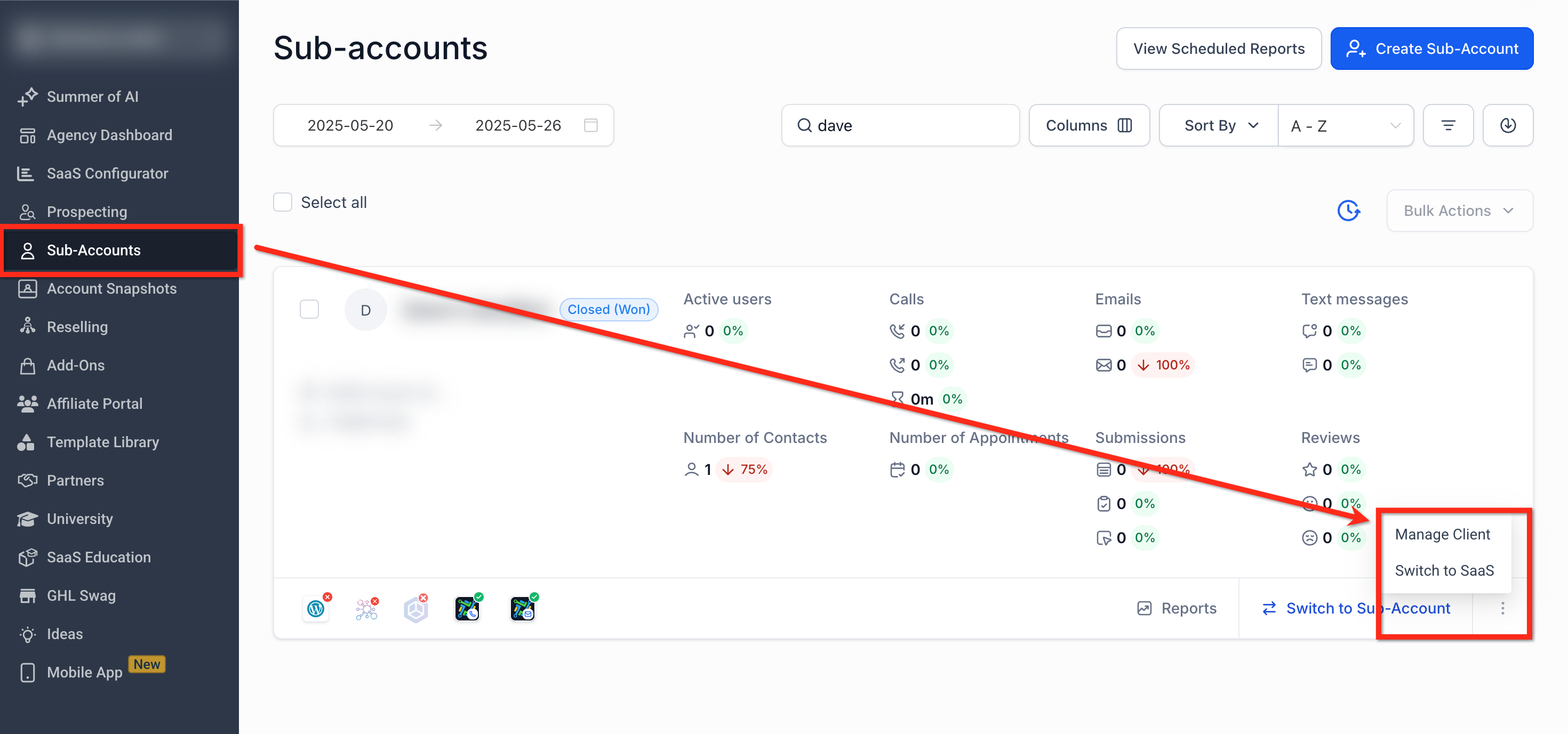
Go to Sub-AccountsIn the left-hand menu, click on Sub-Accounts. This page displays a comprehensive list of all the client accounts managed under your agency.
GoHighLevel screenshot
0
3
Locate the Target Sub-AccountFind the specific sub-account you want to update. You can efficiently locate it by scrolling through the list or using the search bar at the top to filter by name.
4
Manage the ClientClick the three-dot icon (ellipses) located on the right side of the sub-account's row. From the dropdown menu that appears, select Manage Client to access the client's specific management view.
GoHighLevel screenshot
1
5
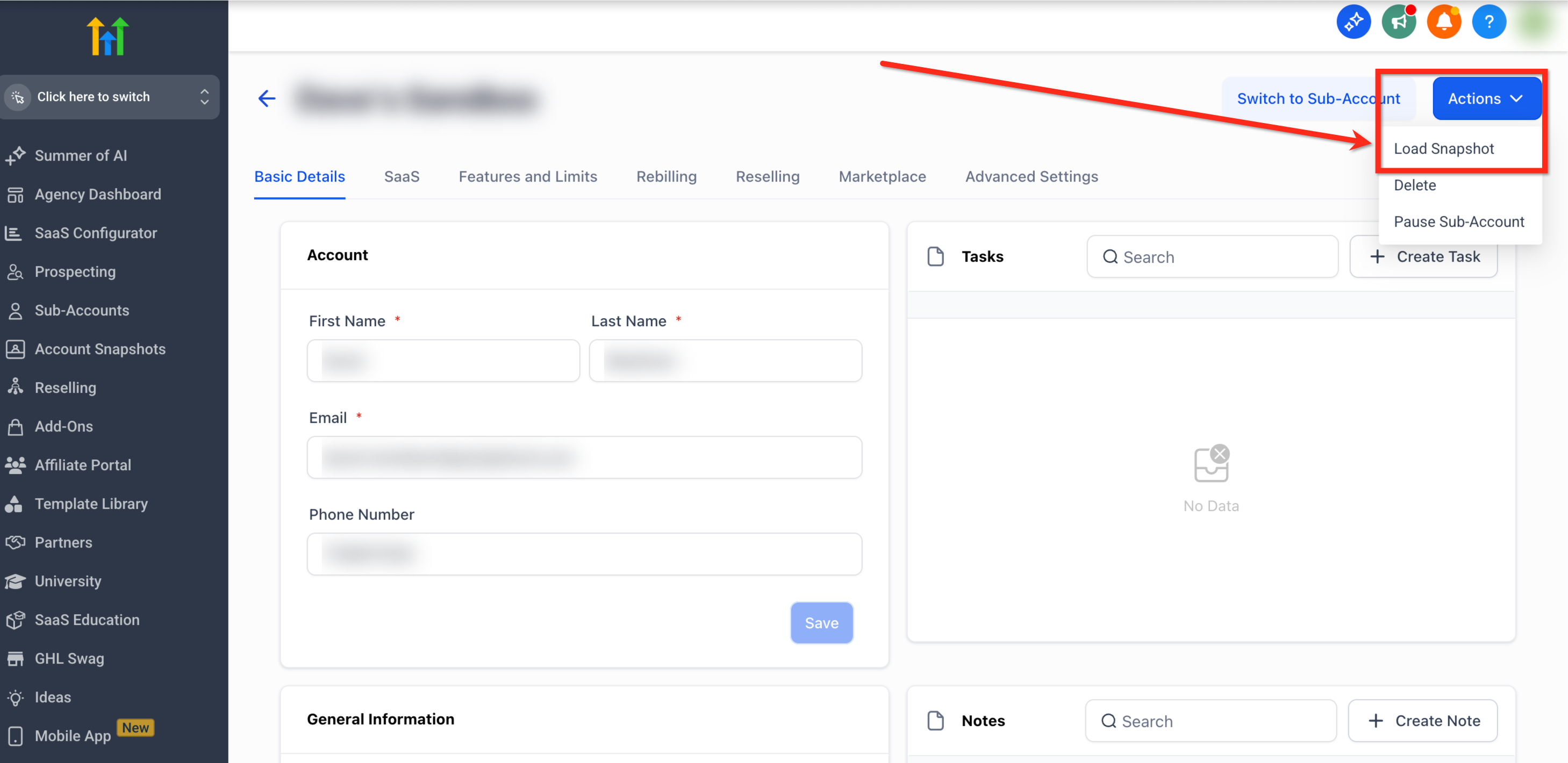
Initiate Snapshot LoadOn the client management screen, click the blue Actions button in the upper right corner. A dropdown menu will appear; select Load Snapshot from this list to initiate the import process.
6
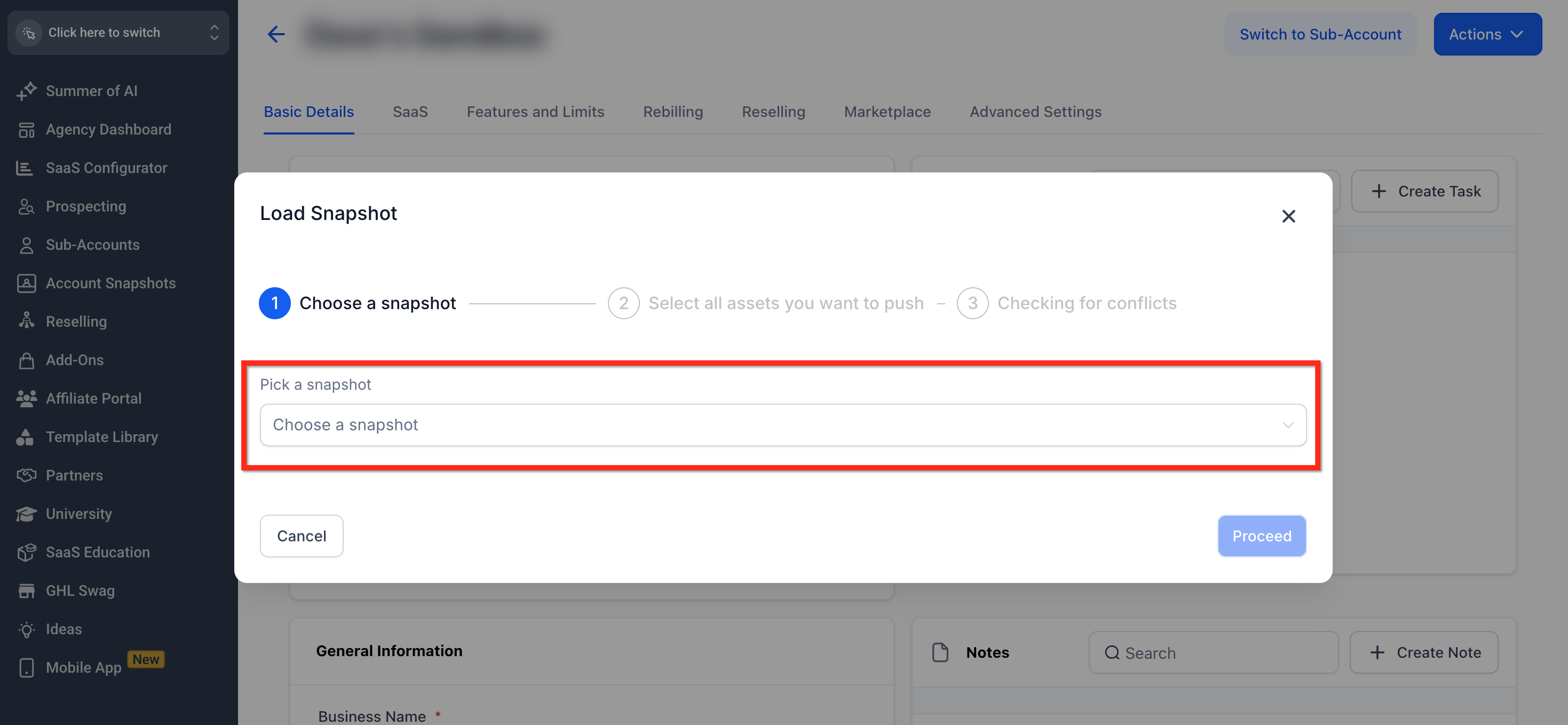
Pick Your SnapshotA 'Load Snapshot' popup will appear, prompting you to select a snapshot. Click the dropdown labeled Pick a Snapshot and carefully choose the specific snapshot you wish to load into this sub-account.
GoHighLevel screenshot
2
7
Proceed to Asset SelectionAfter selecting your snapshot, click the blue Proceed button. This action moves you to the next stage, where you will specify which assets from the snapshot to import.
8
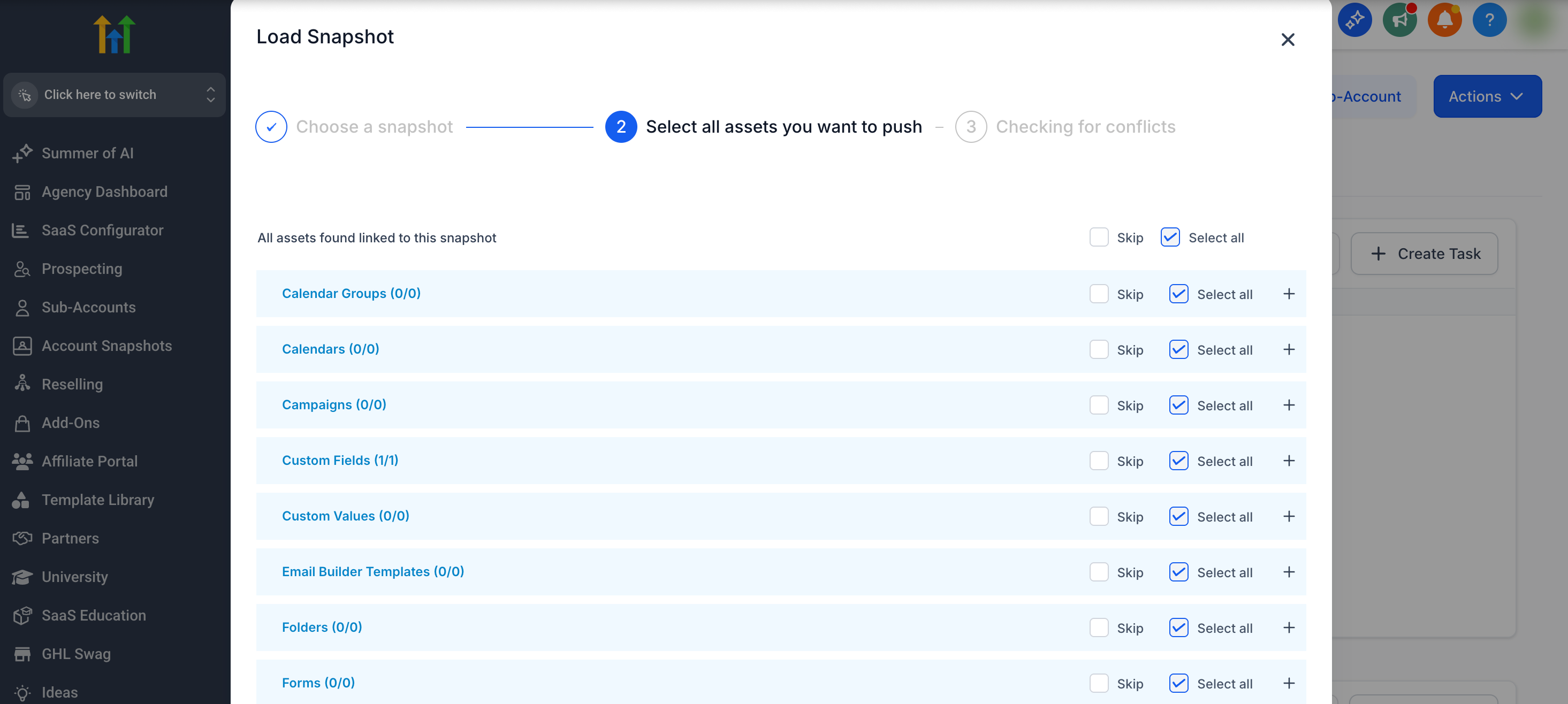
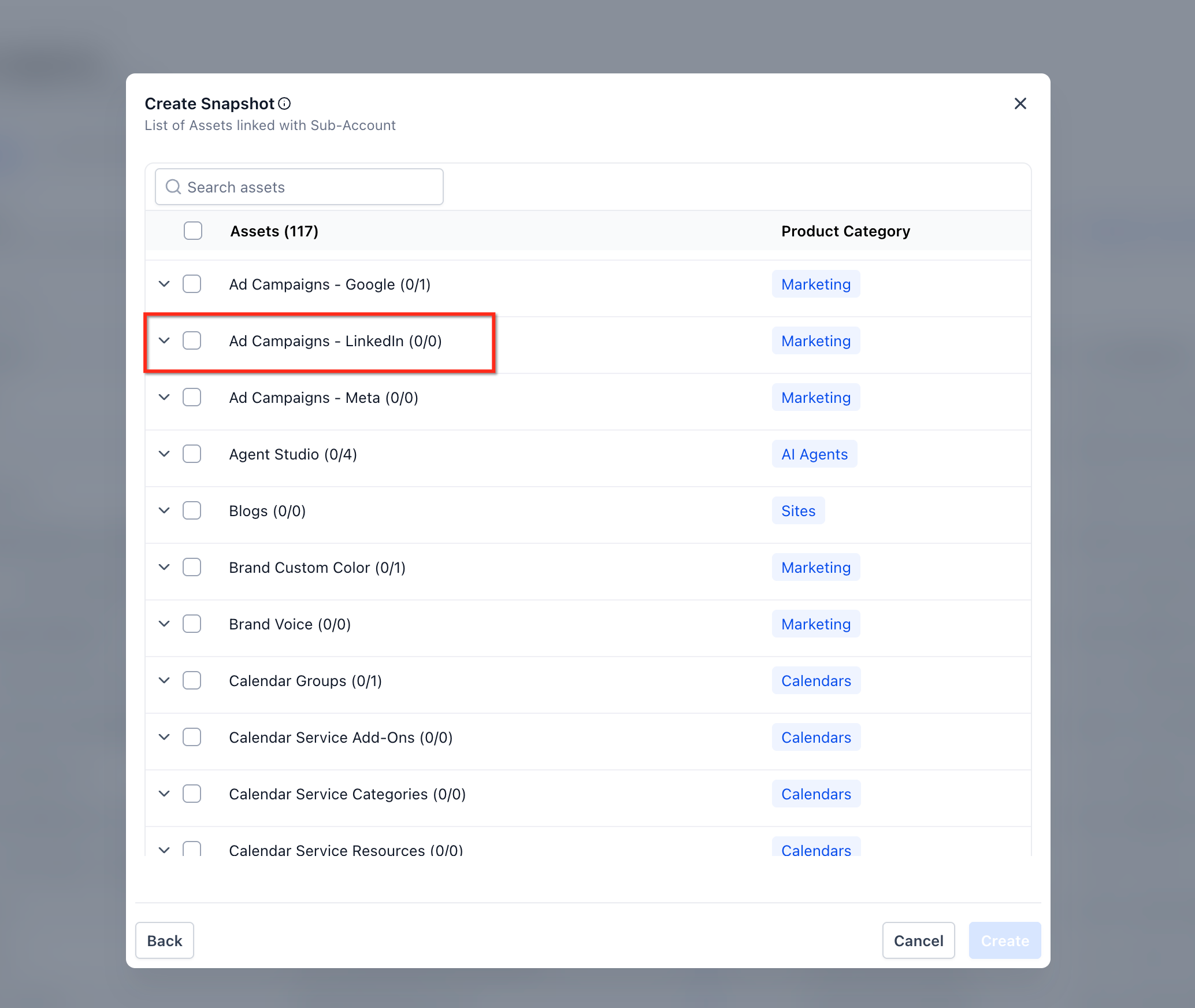
Select Assets to ImportReview the comprehensive list of assets contained within the snapshot. You have granular control: click Select All for a full import, check individual categories like Workflows or Funnels, or expand categories with the + icon to select specific items. If your snapshot includes LinkedIn Ad Campaigns, remember to explicitly select Ad Campaigns - LinkedIn from the asset list.
GoHighLevel screenshot
3
9
Confirm Asset SelectionOnce you have made your precise asset selections, click the blue Proceed button. The system will then begin its preparation for checking conflicts with existing data in your sub-account.
10
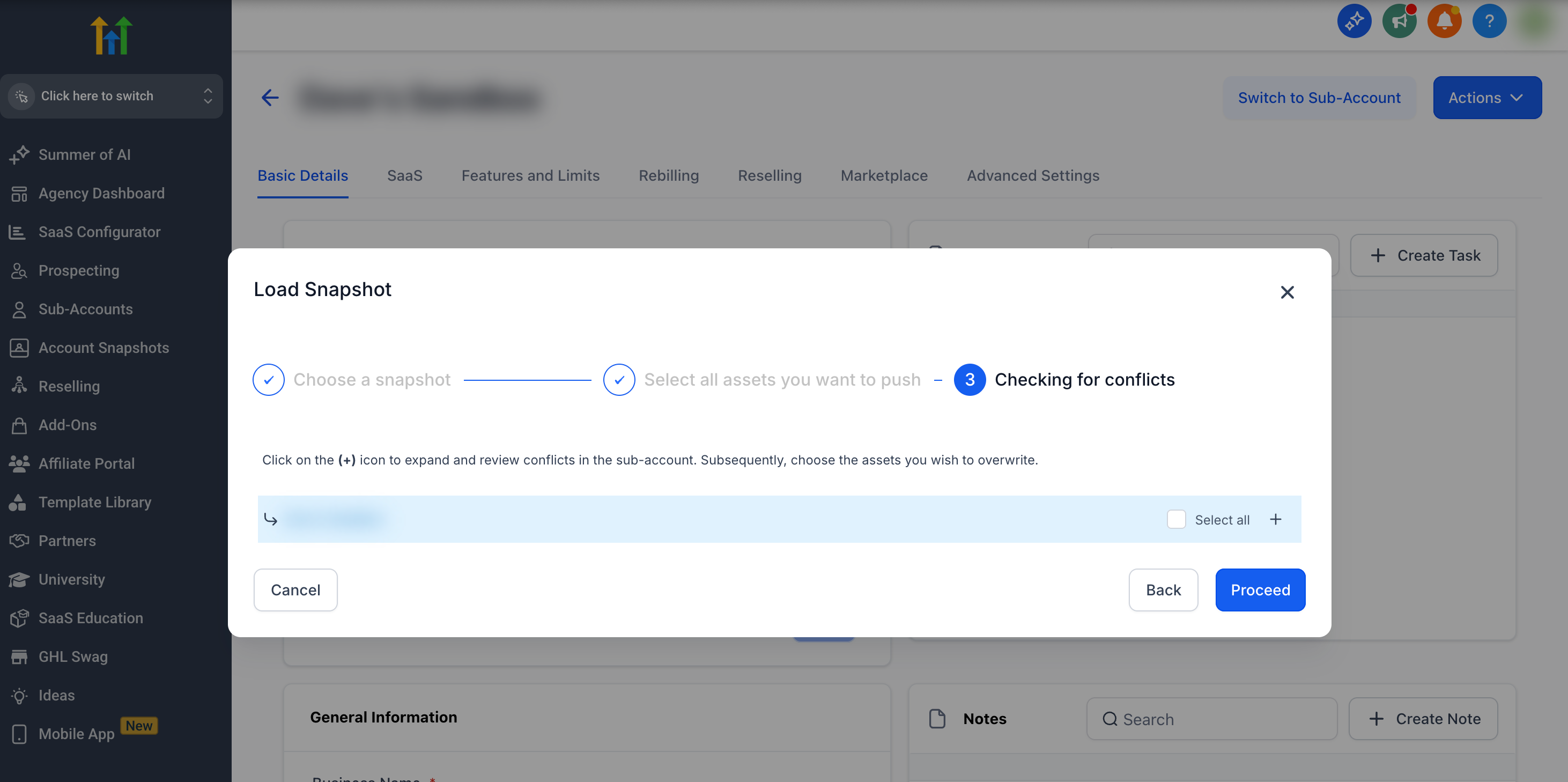
Resolve ConflictsGoHighLevel will now perform a thorough conflict check, identifying any duplicate assets. For each identified conflict, you must choose between Override (replaces the existing sub-account item with the snapshot version) or Skip (keeps the current sub-account item and excludes the conflicting snapshot item). Carefully evaluate each conflict to prevent unintended data changes.
GoHighLevel screenshot
4
11
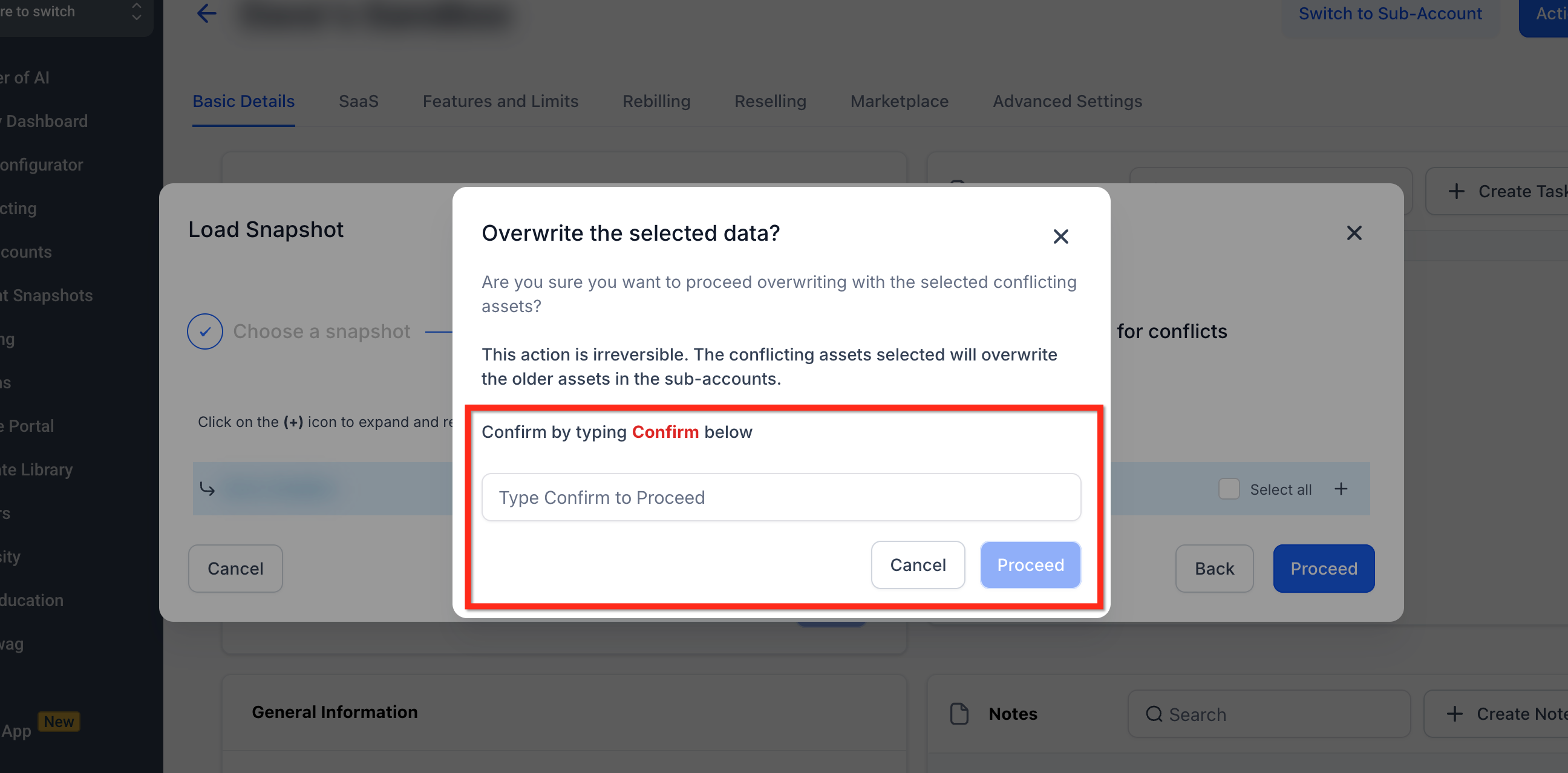
Final ConfirmationAfter meticulously resolving all identified conflicts, click the blue Proceed button. A final security prompt will ask you to type the word 'confirm' into a text box to explicitly approve all the proposed changes.
12
Complete the LoadType 'confirm' exactly as requested into the provided field, then click the blue Proceed button. A success notification will instantly appear, confirming that the snapshot is actively being pushed to the sub-account, and you will receive an email notification upon full transfer completion.
GoHighLevel screenshot
5
GoHighLevel screenshot

✅ Conflict resolution applies to Webinars in the same way it applies to other asset types. Choose Override to replace an existing webinar asset with the snapshot version, or Skip to keep the current version.

🔥 Pro Tip

Before loading any snapshot, consider creating a backup snapshot of your existing sub-account. This provides a safe rollback point if any unexpected issues arise or if you accidentally override critical assets.

GoHighLevel SaaS Pro

Resell GoHighLevel as your own SaaS

Launch your own software business on the platform behind 78+ agencies. SaaS Mode, rebilling, unlimited sub-accounts.

Start SaaS Pro Trial

Some links are affiliate links — if you sign up we may earn a commission, at no extra cost to you. We only recommend GoHighLevel because we build on it every day.

Troubleshooting Common Issues

⚠️ Snapshot assets are not appearing after import.
Check your email for the completion notification first. If received, revisit your asset selections and conflict resolution choices during the import process, as essential items might have been accidentally 'skipped' or deselected. If still missing, verify the snapshot's content itself.
⚠️ My existing workflows/funnels were unexpectedly replaced.
This outcome directly results from choosing 'Override' during the conflict resolution step for those specific assets. This action is irreversible, as the original data is replaced. Always exercise extreme caution during conflict resolution; consider performing a full sub-account backup before any major snapshot import.
⚠️ The 'Load Snapshot' option is missing or greyed out.
Ensure you are logged into your Agency Dashboard and have navigated to a specific sub-account via Manage Client. The 'Load Snapshot' option is an agency-level function. Verify that your user role has the necessary permissions to perform this action.
⚠️ Some LinkedIn Ad Campaigns did not import.
During the asset selection step, it's crucial to explicitly check the box for Ad Campaigns - LinkedIn. These specific campaigns are often not automatically included with a general 'Select All' if the snapshot wasn't primarily focused on them, requiring manual selection.
⚠️ The import process seems stuck or takes too long.
Large snapshots containing many assets, complex workflows, or extensive historical data will naturally take longer to process. GoHighLevel handles these operations in the background. Patiently wait for the official email notification of completion. If several hours pass without an update, contact GoHighLevel support with your sub-account details and the snapshot name.

Common Mistakes to Avoid

  • Not creating a backup snapshot of the existing sub-account before loading a new snapshot.
  • Carelessly choosing 'Override' for conflicts, leading to irreversible data loss or changes to live assets.
  • Forgetting to explicitly select specific asset categories, such as LinkedIn Ad Campaigns, during the import process.
  • Not waiting for the email confirmation, assuming the snapshot import is instant and fully complete immediately.
  • Attempting to load a snapshot from a user-level account instead of through the Agency Dashboard.

Frequently Asked Questions

QWhat is the primary benefit of loading a snapshot into an existing sub-account instead of creating a new one?
Loading a snapshot into an existing sub-account is highly beneficial because it allows you to enhance or update an active client account with new features, marketing assets, or specialized tools without disrupting their current operations or existing data. This method preserves the client's established contacts, opportunities, and custom fields, simply adding or updating specific components. It provides a flexible and efficient way to deploy pre-built solutions to an established account, saving significant setup time compared to creating a brand new sub-account.
QCan I undo an 'Override' decision if I realize I made a mistake during conflict resolution?
No, an 'Override' decision during the snapshot loading process is a permanent and irreversible action. Once you choose to override an existing asset, it is immediately replaced by the version from the snapshot, and the original data is lost. This critical step underscores the importance of carefully reviewing each conflict. For added security, it is always recommended to create a backup snapshot of your existing sub-account before initiating any major import.
QHow can I ensure only specific assets from a snapshot are imported, and not everything?
To ensure only specific assets from a snapshot are imported, you must exercise granular control during the 'Select Assets to Import' step. Avoid clicking 'Select All.' Instead, click the **+ icon** next to each relevant asset category (e.g., **Workflows**, **Funnels**, **Forms**) to expand it. Then, individually check the boxes next to only the specific items or components you wish to add to your sub-account. This method allows for precise customization of the import.
QWhat happens if I try to load a snapshot that contains assets already present in the sub-account?
When you attempt to load a snapshot containing assets that already exist in the target sub-account, GoHighLevel automatically performs a conflict check. For each identified conflict, the system will present you with two clear options: 'Override' (which replaces the existing sub-account item with the snapshot's version) or 'Skip' (which keeps the current sub-account item and ignores the conflicting snapshot version). This crucial step allows you to manage data integrity effectively.
QWill loading a snapshot affect the live campaigns or automations currently running in my existing sub-account?
Yes, loading a snapshot can significantly impact live campaigns or automations if you choose to 'Override' them during the conflict resolution step. Overriding these assets will replace their current settings, content, and possibly their active status with the snapshot's version. If you 'Skip' them, the existing live versions will remain untouched and continue to function as before. Always conduct a thorough assessment of the potential impact on live operations before confirming any overrides to prevent service interruptions.
GoHighLevel SaaS Pro

Resell GoHighLevel as your own SaaS

Launch your own software business on the platform behind 78+ agencies. SaaS Mode, rebilling, unlimited sub-accounts.

Start SaaS Pro Trial

Some links are affiliate links — if you sign up we may earn a commission, at no extra cost to you. We only recommend GoHighLevel because we build on it every day.

Arsalan Zaffar
Arsalan Zaffar
Revset Labs · Revenue Systems · 78+ GHL Builds

Arsalan writes GHL guides from real build experience — 78+ systems, $9.2M in client pipeline. Wharton, CXL & Google certified.

Connect on LinkedIn
Tags:GoHighLevelsnapshotssub-accountsasset managementGHL featuresworkflow import