
Revset
Book a Free Audit

30-minute call · No obligation

HomeGHL HubCRM & ContactsCreate Perfect Voicemail & Voicemail Drop Audio for GoHighLevel
REVSET LABS · EXPERT GUIDE·CRM & Contacts

Create Perfect Voicemail & Voicemail Drop Audio for GoHighLevel

879 words·4 min read·Updated 27 April 2026·beginner·
Arsalan ZaffarArsalan ZaffarLinkedIn

👉 Start your 30-day GoHighLevel free trial.

Start 30-Day Free Trial
Quick Answer

To create an audio file for GoHighLevel voicemail and drops, record your message using an online tool, then convert it to a low-bitrate WAV (U-Law) format for maximum carrier compatibility. This entire process typically takes 10-15 minutes.

Key Takeaways
  • Always record your voicemail message in a quiet environment for professional sound quality.
  • Use online audio recorders for convenience, or Audacity for more control over your recording.
  • Convert your audio file to WAV format with U-Law (or mu-law) encoding and an 8000 Hz project rate for universal carrier compatibility.
  • Lowering the audio quality to 64 kbps or 8000 Hz is crucial for voicemail drops to function correctly.
  • Always test your finalized audio file before deploying it in GoHighLevel to ensure clarity and proper playback.

Why Specific Audio Settings Matter for GoHighLevel

Creating an effective voicemail or voicemail drop in GoHighLevel requires more than just a good message. The technical specifications of your audio file are critical. Standard phone networks use older, lower-bandwidth audio codecs. If your audio file is too high quality, too large, or in an incompatible format, carriers may reject it, leading to garbled messages or failed drops. By following these steps, you ensure your message reaches every contact clearly and reliably.

Step 1: Record Your Voicemail Message

The first step is to record your clear, concise voicemail message. You can use various online tools for this, ensuring you have a digital audio file to work with. Focus on a professional tone and a quiet recording environment.
1
Choose an Online Voice RecorderSelect a reliable online tool to record your message. Popular options include Rev's Online Voice Recorder or Record MP3 Online.
2
Prepare Your Recording EnvironmentFind a quiet space free from background noise. Speak clearly and at a moderate pace, as if you are leaving a real voicemail.
3
Record Your MessageClick the Record button on your chosen online tool and deliver your message. Keep it brief and to the point, typically 30-60 seconds.
4
Review and Download Your AudioListen to your recording to ensure it's clear and error-free. Once satisfied, download the audio file to your computer, usually as an MP3 or WAV.
GoHighLevel screenshot
0

⚠️ Avoid recording directly on your phone or using low-quality headset microphones. These often introduce background noise or poor sound fidelity that will worsen during optimization.

🔥 Pro Tip

Write a script for your voicemail beforehand. This ensures your message is concise, impactful, and recorded efficiently without needing multiple takes.

Try GoHighLevel Free

Start your 30-day GoHighLevel free trial

Everything in this guide is in your free trial. 30 days, no credit card — the platform behind 78+ revenue systems.

Start 30-Day Free Trial

Some links are affiliate links — if you sign up we may earn a commission, at no extra cost to you. We only recommend GoHighLevel because we build on it every day.

Step 2: Optimize Audio Quality for Carrier Compatibility

Once recorded, your audio file needs specific adjustments to ensure it works across all phone carriers for GoHighLevel voicemail drops. This involves converting it to a specific format with reduced quality, which is standard for telecommunication systems.

1
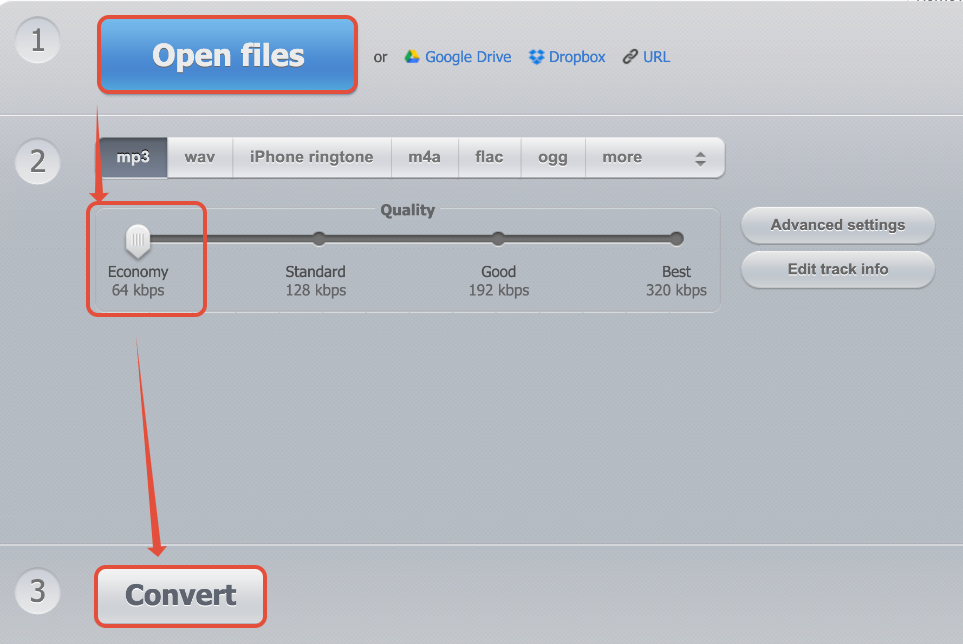
Select an Online Audio ConverterChoose an online audio conversion tool to adjust your file's specifications. Websites like Online Audio Converter or OnlineAudioConverter.com are good choices.
2
Upload Your Audio FileClick the Upload or Choose File button and select the audio file you recorded in Step 1. Wait for it to fully upload to the converter.
3
Configure Conversion SettingsLook for options to adjust the output format and quality. You need to set the output to WAV format.
4
Select U-Law EncodingWithin the WAV format options, find the encoding setting and choose U-Law (sometimes called mu-law). This is crucial for carrier compatibility.
5
Set Bitrate or Quality to Lowest OptionAdjust the quality settings to the lowest available. This is often labeled as 'Economy,' '64 kbps,' or a sample rate of '8000 Hz'.
6
Convert and Download Your Optimized FileClick the Convert or Start button to process your file. Once complete, download the newly optimized WAV (U-Law) audio file to your computer.

✅ U-Law (or mu-law) encoding is a legacy audio compression standard used by telephone networks. Using this specific encoding guarantees the widest compatibility for your voicemail drops across all phone carriers.

🔥 Pro Tip

Keep the optimized file name clear, like 'MyVoicemail_ULaw_Final.wav'. This helps you easily identify it when uploading to GoHighLevel.

Alternative: Optimize Audio Using Audacity

For greater control or if you prefer desktop software, Audacity is a free, open-source audio editor that can precisely optimize your audio file. This method offers more granular control over the conversion process.

1
Download and Install AudacityVisit audacityteam.org to download and install the Audacity software on your computer. Ensure you also download and install the LAME MP3 encoder if prompted, though it's not strictly needed for WAV U-Law.
2
Open Audacity and Import Your AudioLaunch Audacity. Go to File → Import → Audio... and select the recorded audio file from your computer.
3
Adjust Project RateLocate the Project Rate (Hz) setting in the bottom-left corner of the Audacity window. Change this value to 8000.
4
Resample the Audio TrackClick on Tracks in the top menu, then select Resample.... In the dialog box, set the New sample rate to 8000 and click OK.
5
Export Audio with Specific SettingsGo to File → Export → Export Audio.... This opens the 'Export Audio' dialog box.
6
Configure Export Format and EncodingIn the 'Export Audio' dialog, set the Format to Other Uncompressed Files. Click Options.
7
Select WAV Header and U-Law EncodingIn the 'Options' dialog, set the Header to WAV (Microsoft). For Encoding, select U-Law (or mu-law). Click OK.
8
Name and Save Your FileIn the 'Export Audio' dialog, give your file a descriptive name (e.g., 'VoicemailDrop_Final.wav') and choose a save location. Click Save.
9
Confirm Metadata (Optional)An 'Edit Metadata' window may appear; you can leave it blank and click OK to complete the export.

⚠️ Ensure you click 'OK' through all export dialogues in Audacity to apply the U-Law encoding. Forgetting this step will result in an incompatible file.

🔥 Pro Tip

Audacity allows you to trim silence from the beginning and end of your recording. Select the silent parts and press the Delete key before exporting for a cleaner message.

Troubleshooting Common Issues

⚠️ My audio sounds garbled or distorted after conversion.
This often happens if the original recording was too loud or had poor quality. Re-record in a quiet environment, speak clearly, and ensure you selected the correct U-Law encoding during conversion.
⚠️ The file is still too large or won't upload to GoHighLevel.
Double-check that you selected the lowest quality setting (e.g., 64 kbps or 8000 Hz) and U-Law encoding. High-quality files are typically rejected. If using Audacity, ensure the 'Project Rate' was set to 8000 Hz and 'Resample' was applied before export.
⚠️ My voicemail drop cuts off prematurely.
This can be due to an overly long message or an incompatible file. Keep messages under 60 seconds. Verify the file is WAV (U-Law) and optimized to 8000 Hz, as higher quality files can sometimes cause truncation.
⚠️ The online converter doesn't have a 'U-Law' option.
Some converters might label it 'mu-law' or simply 'telephone quality' within the WAV format options. If not available, try a different online converter or use Audacity, which explicitly offers U-Law encoding.

Common Mistakes to Avoid

  • Using high-fidelity (high-quality) audio files: Voicemail systems require low-quality, compressed audio.
  • Forgetting to convert to WAV (U-Law): Other formats or encodings are often incompatible with carrier networks.
  • Recording in a noisy environment: Background noise becomes more prominent and irritating after compression.
  • Not testing the audio after conversion: Always listen to the final, optimized file to ensure it's clear and plays correctly.
  • Making the message too long: Keep voicemail drops concise, ideally under 60 seconds, to maximize effectiveness and avoid truncation.

Frequently Asked Questions

QWhy do I need to convert my audio to U-Law encoding for GoHighLevel voicemail drops?
U-Law (or mu-law) is a specific audio compression standard used by traditional telephone networks. Modern high-quality audio formats are incompatible with these older systems. By converting to U-Law, you ensure your voicemail message is properly formatted for all phone carriers, preventing issues like garbled audio, failed deliveries, or messages cutting off.
QCan I just record my voicemail message on my smartphone and upload that directly?
While you can record on your smartphone, it's generally not recommended for direct upload. Smartphone recordings are often in higher quality formats (like AAC or high-bitrate MP3) and contain background noise. You would still need to transfer the file to a computer and optimize it using the steps outlined to ensure carrier compatibility and professional sound quality.
QWhat is the ideal length for a GoHighLevel voicemail drop?
The ideal length for a voicemail drop is typically between 30 to 60 seconds. This allows you to deliver your key message concisely without overwhelming the recipient or risking the message being cut off by carrier limits. Longer messages also reduce the chances of a prospect listening to the entire message.
QWhat if my audio sounds too quiet or too loud after conversion?
If your audio is too quiet or loud after conversion, the issue likely lies with the original recording's volume. Online converters and Audacity don't typically adjust volume during the specific U-Law conversion steps. You should re-record your message, adjusting your speaking volume, or use Audacity's 'Normalize' or 'Amplify' effects *before* starting the conversion steps to achieve optimal loudness.
QDo I need to pay for Audacity or the online converters mentioned?
No, Audacity is a free, open-source software, and the online audio converters listed (Rev, Record MP3 Online, Online Audio Converter) typically offer their basic conversion services for free. You do not need to purchase any software or subscriptions to create your optimized audio file.
Try GoHighLevel Free

Start your 30-day GoHighLevel free trial

Everything in this guide is in your free trial. 30 days, no credit card — the platform behind 78+ revenue systems.

Start 30-Day Free Trial

Some links are affiliate links — if you sign up we may earn a commission, at no extra cost to you. We only recommend GoHighLevel because we build on it every day.

Arsalan Zaffar
Arsalan Zaffar
Revset Labs · Revenue Systems · 78+ GHL Builds

Arsalan writes GHL guides from real build experience — 78+ systems, $9.2M in client pipeline. Wharton, CXL & Google certified.

Connect on LinkedIn
Tags:GoHighLevelVoicemail DropsAudio OptimizationU-LawAudacityOnline Tools