
Set Up Professional Email Signatures for Your Staff in GHL
👉 Start your 30-day GoHighLevel free trial.
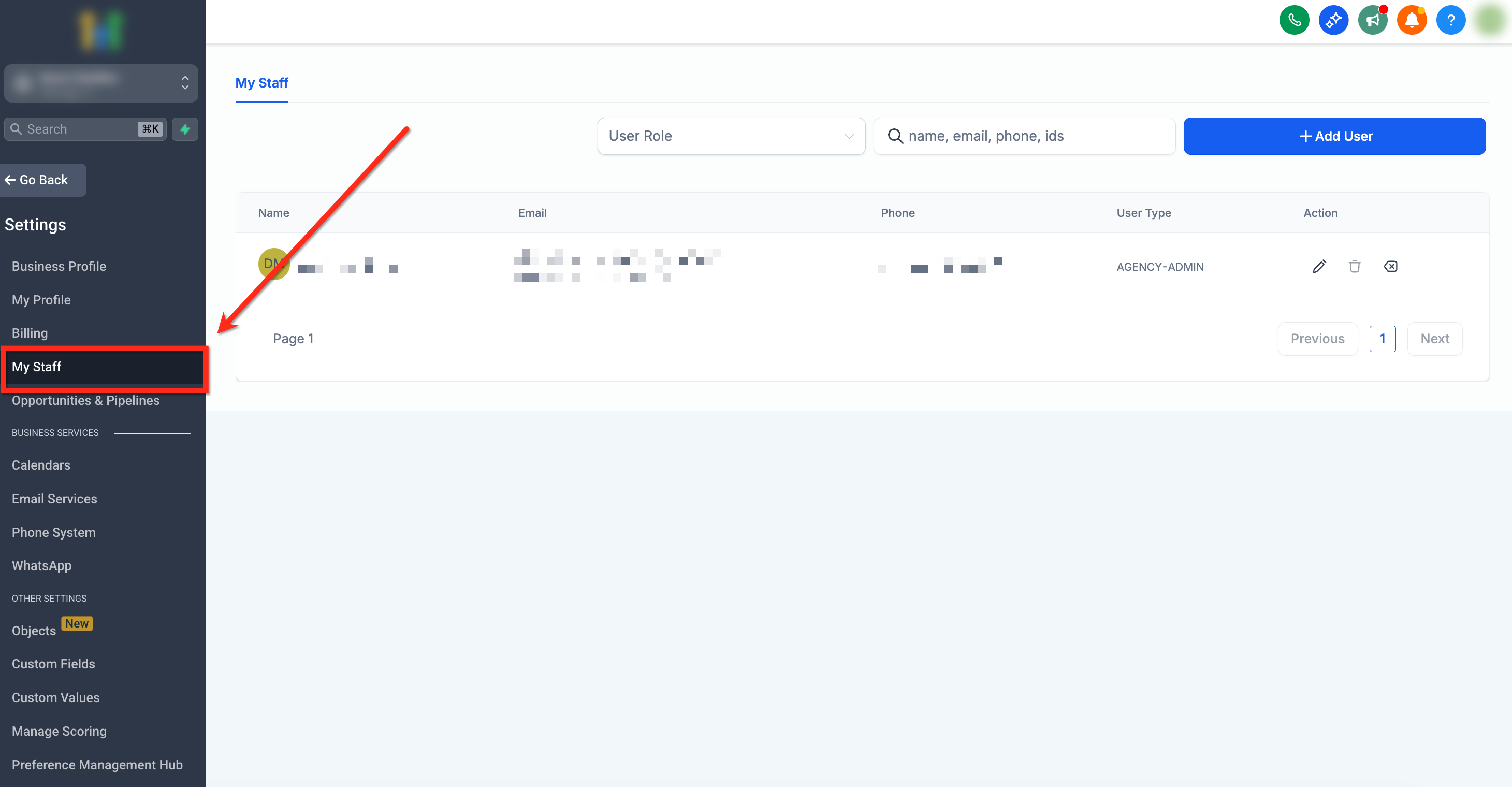
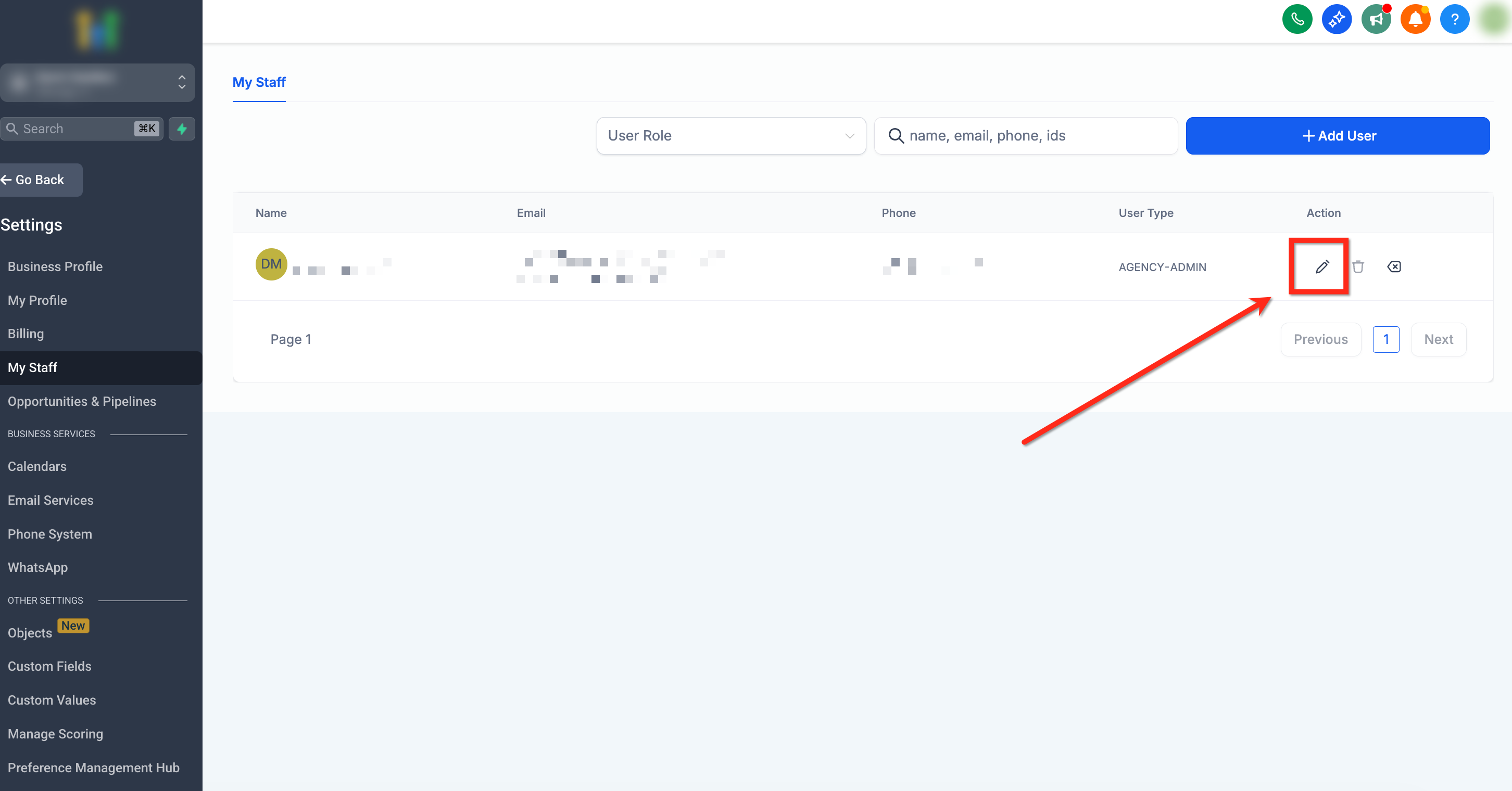
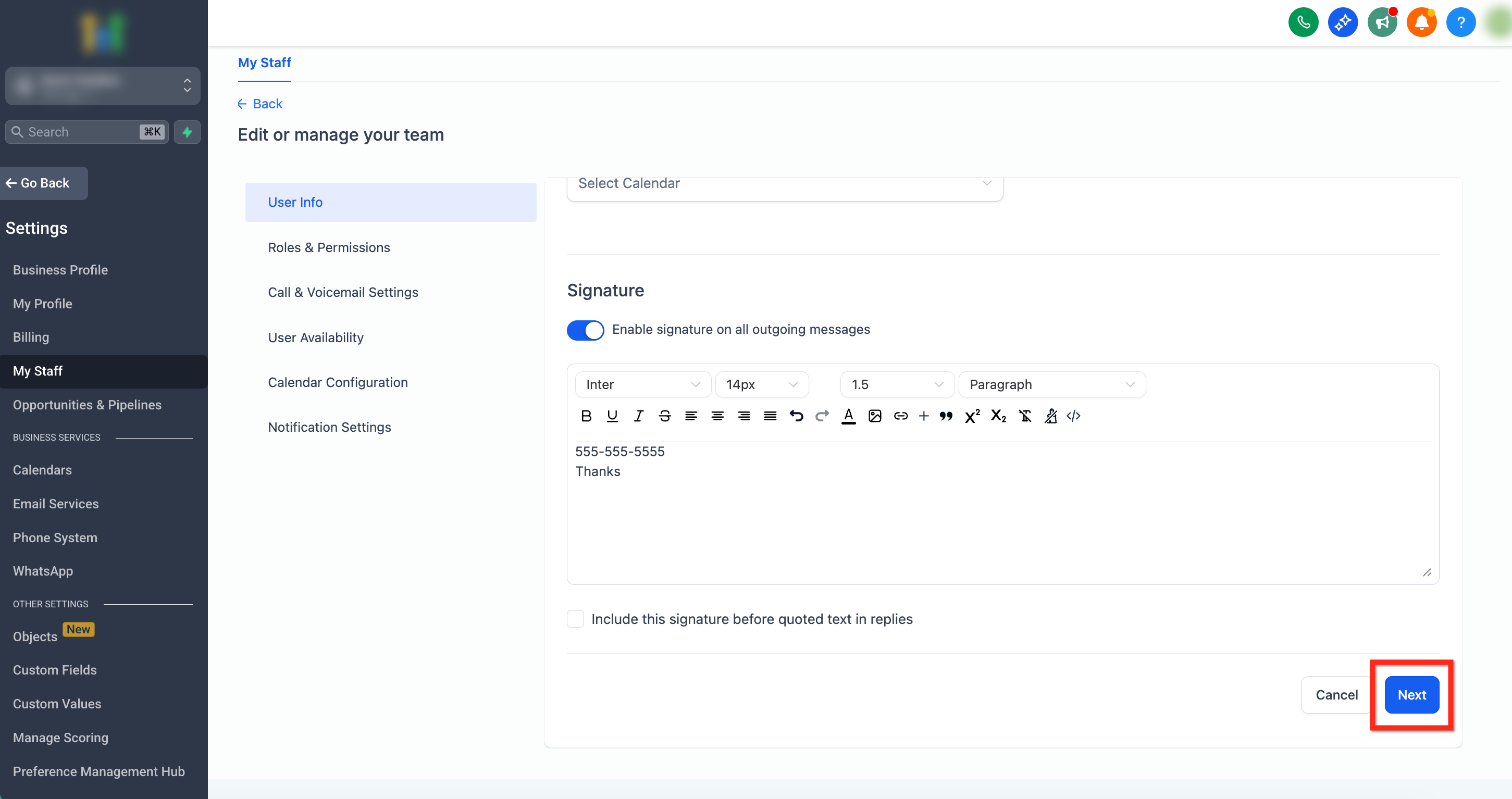
Start 30-Day Free Trial →To set up or edit a staff member's email signature in GoHighLevel, go to Settings → My Staff, then select and edit the desired staff member. This process typically takes 2-3 minutes per staff member to complete.
- ✓Each staff member in your GoHighLevel sub-account can have their own unique, personalized email signature.
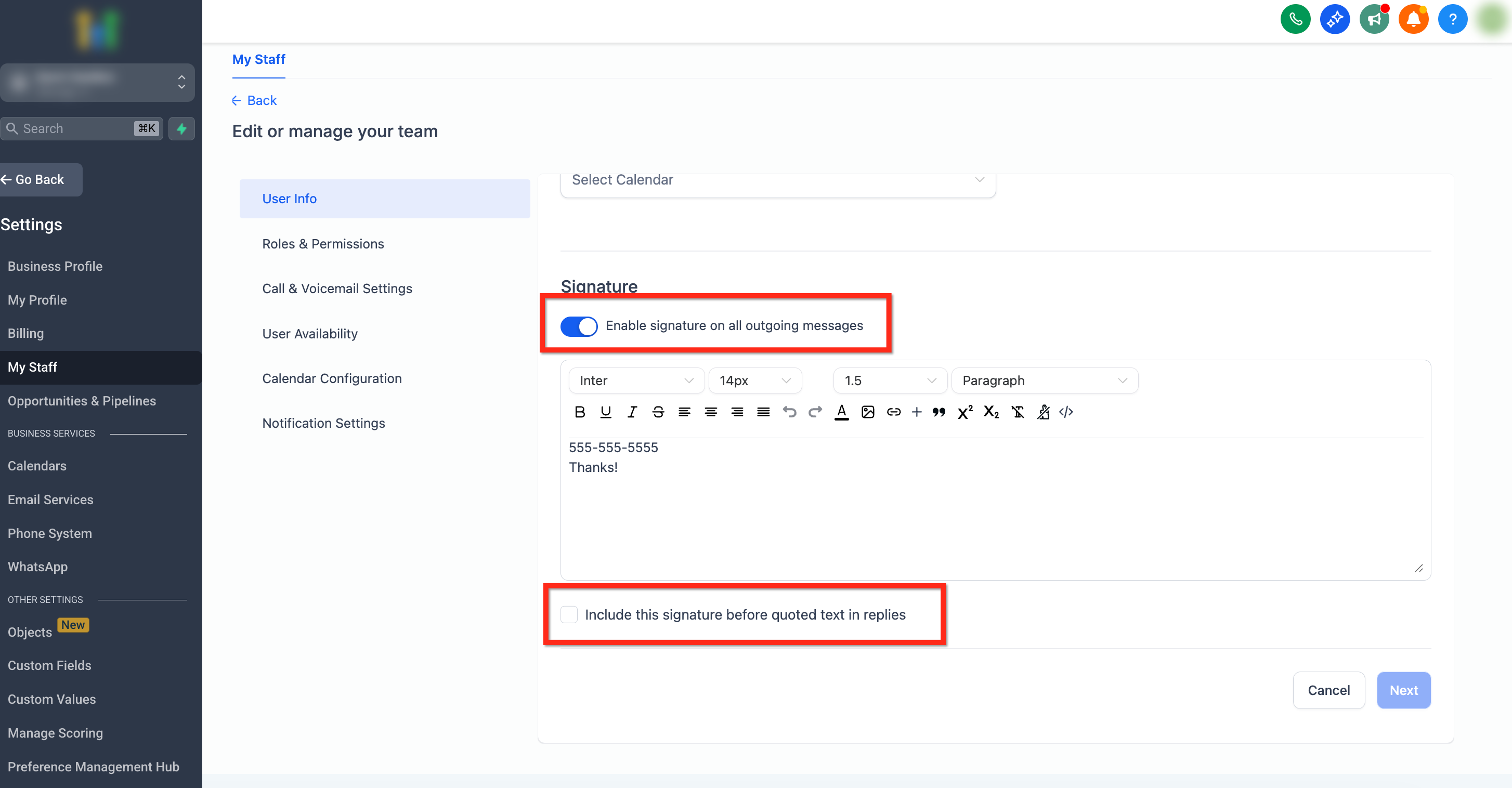
- ✓You can configure signatures to automatically appear in all outgoing emails or manually insert them using a custom value.
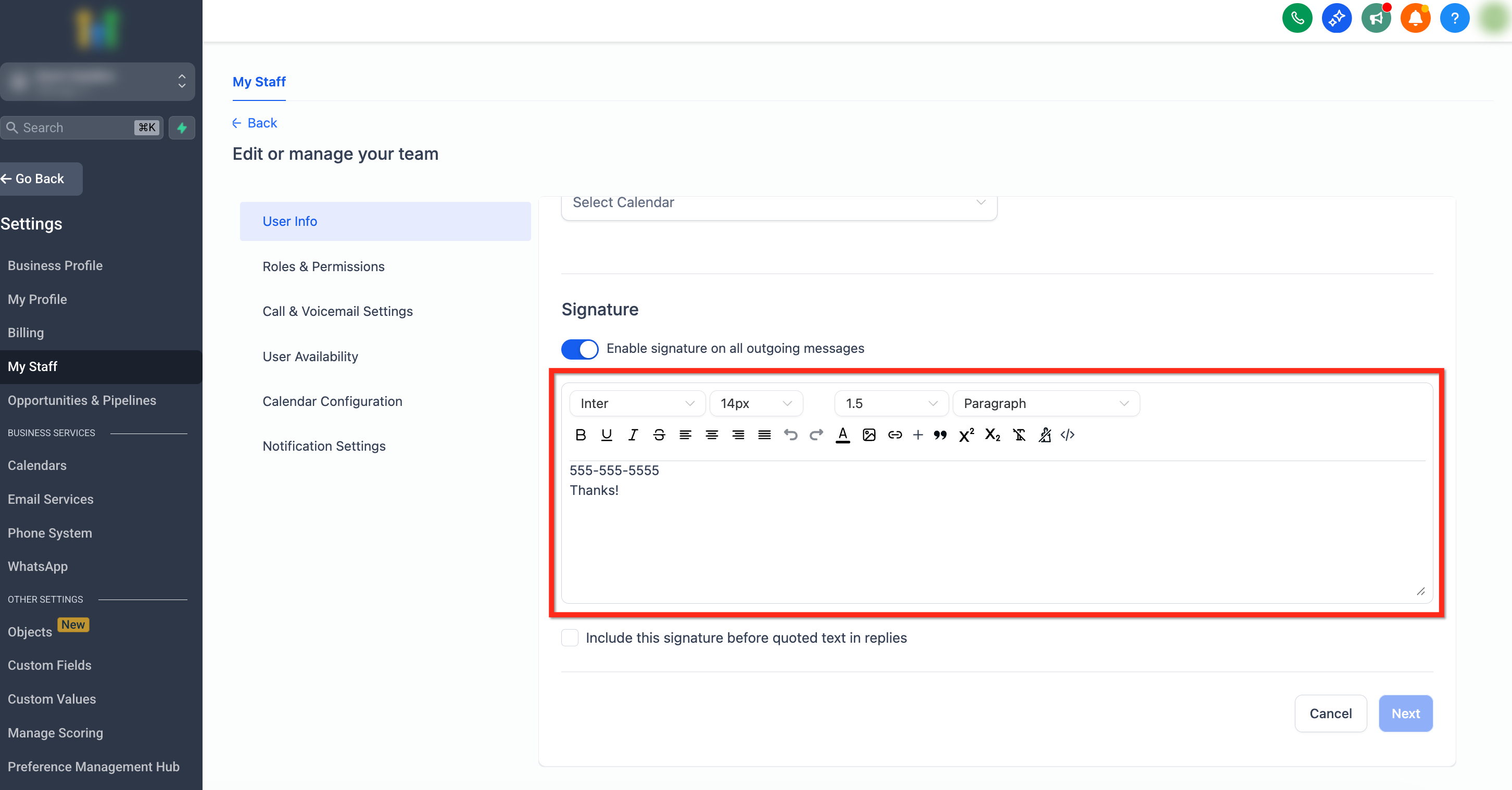
- ✓Use the built-in editor to format your signature with text styles, links, and even custom HTML for advanced designs.
- ✓Control whether your signature appears above or below quoted text in email replies for cleaner conversations.
- ✓Leverage the `{{user.email_signature}}` custom value for consistent branding in email templates and automated campaigns.
How to Set Up and Edit Staff Email Signatures
Creating professional email signatures for your staff in GoHighLevel ensures every message reflects your brand's identity. This helps maintain consistency, build trust, and provide essential contact information. You can customize each staff member's signature with their name, title, contact details, and even social media links. Follow these steps to set up a new signature or update an existing one for any staff member within your sub-account. This process gives you full control over how your team communicates.
For a consistent look across all emails, consider creating a base HTML signature template outside GoHighLevel. Then, paste this code into each staff member's signature editor, only changing their personal details. This saves time and ensures brand uniformity.
Start your 30-day GoHighLevel free trial
Everything in this guide is in your free trial. 30 days, no credit card — the platform behind 78+ revenue systems.
Some links are affiliate links — if you sign up we may earn a commission, at no extra cost to you. We only recommend GoHighLevel because we build on it every day.
How to Insert an Email Signature Using Custom Values
While automatic signature application is convenient, sometimes you need more control over placement. Using a custom value allows you to insert a staff member's signature precisely where you want it within specific emails, such as automated campaign emails or custom templates. This method is especially useful for maintaining consistent branding in marketing communications where the signature might need to appear in a unique position or only under certain conditions. The custom value for the email signature is `{{user.email_signature}}`.
✅ Remember: The custom value `{{user.email_signature}}` will dynamically pull the signature of the staff member assigned as the 'sender' for that specific email or workflow step.
Always use the custom value `{{user.email_signature}}` for emails sent through workflows or campaigns. This ensures the correct sender's signature is dynamically pulled and displayed, personalizing automated outreach.
Troubleshooting Common Issues
Common Mistakes to Avoid
- →Forgetting to enable 'Enable Signature in All Outgoing Messages' for automatic application.
- →Not clicking both 'Next' and 'Save' buttons to finalize signature updates.
- →Expecting signatures to automatically appear in email templates without using the `{{user.email_signature}}` custom value.
- →Trying to set a single, global signature for all staff members instead of customizing each one individually.
- →Overlooking the 'Include This Signature Before Quoted Text in Replies' option, leading to signatures appearing in unexpected places in threads.
Frequently Asked Questions
Start your 30-day GoHighLevel free trial
Everything in this guide is in your free trial. 30 days, no credit card — the platform behind 78+ revenue systems.
Some links are affiliate links — if you sign up we may earn a commission, at no extra cost to you. We only recommend GoHighLevel because we build on it every day.

Arsalan writes GHL guides from real build experience — 78+ systems, $9.2M in client pipeline. Wharton, CXL & Google certified.
Connect on LinkedIn