
Revset
Book a Free Audit

30-minute call · No obligation

HomeGHL HubCRM & ContactsInstall GoHighLevel's Chat Widget: A Step-by-Step Guide
REVSET LABS · EXPERT GUIDE·CRM & Contacts

Install GoHighLevel's Chat Widget: A Step-by-Step Guide

1,002 words·4 min read·Updated 27 April 2026·beginner·
Arsalan ZaffarArsalan ZaffarLinkedIn

👉 Start your 30-day GoHighLevel free trial.

Start 30-Day Free Trial
Quick Answer

To install the GoHighLevel chat widget, go to Sites → Chat Widget to configure its settings and copy the embed code. Then, paste this code into your website's or funnel's custom CSS/HTML header section. This process typically takes 5-10 minutes to complete.

Key Takeaways
  • Always ensure you have an A2P registered phone number for SMS replies to function correctly.
  • Customize your chat widget's appearance and messaging to match your brand and engage visitors effectively.
  • For GoHighLevel funnels/websites, paste the chat widget code into the 'Custom CSS/HTML' section in **Settings**.
  • For WordPress sites, use a plugin like 'Insert Headers and Footers' or your theme's customizer to embed the code.
  • Set up a 'Customer Replied' workflow trigger with the 'Chat Widget' filter to receive timely notifications.

How to Configure Your Chat Widget Settings in GoHighLevel

Before you can install the chat widget on your website, you need to customize its appearance, messages, and behavior within GoHighLevel. This ensures the widget reflects your brand and provides a seamless experience for your visitors.
1
Access Chat Widget SettingsFrom your GoHighLevel dashboard, click Sites in the left menu. Then, select Chat Widget from the submenu to open the configuration panel.
2
Customize Widget AppearanceIn the Chat Widget settings, go to the General tab. Here, you can change the widget's color, icon, and position on your website. Adjust these to match your brand's aesthetic.
3
Set Up Welcome Message and AvailabilityNavigate to the Chat Bubble tab. Write a compelling welcome message that greets visitors. Define your office hours and set an 'Out of Office' message for when you are unavailable.
GoHighLevel screenshot
0
4
Configure Contact Info and LegalGo to the Acknowledgement tab. Add your business contact information and any legal disclaimers or privacy policy links required. This builds trust with your visitors.
5
Save Your Widget ConfigurationAfter making all desired changes, click the Save button at the top right of the screen. This applies your settings and generates the embed code for installation.
GoHighLevel screenshot

✅ Ensure you have purchased a phone number and completed the required A2P registration in the sub-account. This is crucial for SMS replies to be sent from the chat widget. Without A2P registration, SMS functionality will not work.

🔥 Pro Tip

Use a clear, action-oriented welcome message like 'Hi there! How can we help you today?' to encourage engagement. Test different messages to see what performs best.

How to Install the Chat Widget on a GoHighLevel Funnel or Website

Once your chat widget is configured, you need to embed its code into your GoHighLevel funnels or websites. This makes the widget appear and function on your live pages, allowing visitors to start conversations directly.

1
Copy the Widget Embed CodeAfter saving your chat widget settings, return to Sites → Chat Widget. At the bottom of the configuration panel, locate the 'Install Code' section and click Copy Code.
2
Open Your Funnel or Website EditorNavigate to Sites → Funnels or Sites → Websites, depending on where you want to install the widget. Select the specific funnel or website you wish to edit.
3
Access Website/Funnel SettingsInside the selected funnel or website, click on Settings in the top right corner. This opens the site-wide settings panel.
4
Paste Code into Custom CSS/HTMLScroll down in the Settings panel to find the 'Custom CSS/HTML' section. Paste the copied chat widget code into the 'Head Tracking Code' box. You can also place it in the 'Body Tracking Code' if preferred.
5
Save and Test Your ChangesClick Save in the Settings panel, then save the entire funnel or website. Visit your live page to confirm the chat widget appears and functions correctly in the bottom right corner.
GoHighLevel screenshot
0

⚠️ Always paste the chat widget code into the 'Head Tracking Code' or 'Body Tracking Code' section, not directly into an HTML element on the page. Incorrect placement can prevent the widget from loading correctly.

Try GoHighLevel Free

Start your 30-day GoHighLevel free trial

Everything in this guide is in your free trial. 30 days, no credit card — the platform behind 78+ revenue systems.

Start 30-Day Free Trial

Some links are affiliate links — if you sign up we may earn a commission, at no extra cost to you. We only recommend GoHighLevel because we build on it every day.

How to Install the Chat Widget on a WordPress Site

Integrating the GoHighLevel chat widget into a WordPress site requires adding the embed code to your theme's files or using a plugin. This ensures the widget loads on every page of your WordPress site.

1
Copy the Widget Embed CodeIn GoHighLevel, go to Sites → Chat Widget. Locate the 'Install Code' section at the bottom and click Copy Code. This copies the necessary JavaScript snippet to your clipboard.
2
Access Your WordPress DashboardLog in to your WordPress admin area. This is where you will add the chat widget code.
3
Option 1: Use a Plugin (Recommended)Install and activate a plugin like 'Insert Headers and Footers'. Go to Settings → Insert Headers and Footers and paste the copied chat widget code into the 'Scripts in Header' or 'Scripts in Body' section. Click Save.
4
Option 2: Use Theme Customizer or EditorGo to Appearance → Customize. Look for options like 'Additional CSS & JS' or a custom code section. Alternatively, navigate to Appearance → Theme File Editor, select your theme's `header.php` file, and paste the code before the `` tag. Be cautious with direct file editing.
5
Save Changes and TestAfter pasting the code using either method, save your changes in WordPress. Clear any caching plugins if you use them. Visit your WordPress site to verify the chat widget is visible and working.

⚠️ Directly editing your theme's `header.php` file can break your site if done incorrectly. Always back up your site before making manual code changes. Using a plugin is generally safer for beginners.

🔥 Pro Tip

For WordPress, using a dedicated plugin like 'Insert Headers and Footers' is safer and easier than directly editing theme files. It prevents your code from being overwritten during theme updates.

How to Set Up Workflow Notifications for Chat Widget Replies

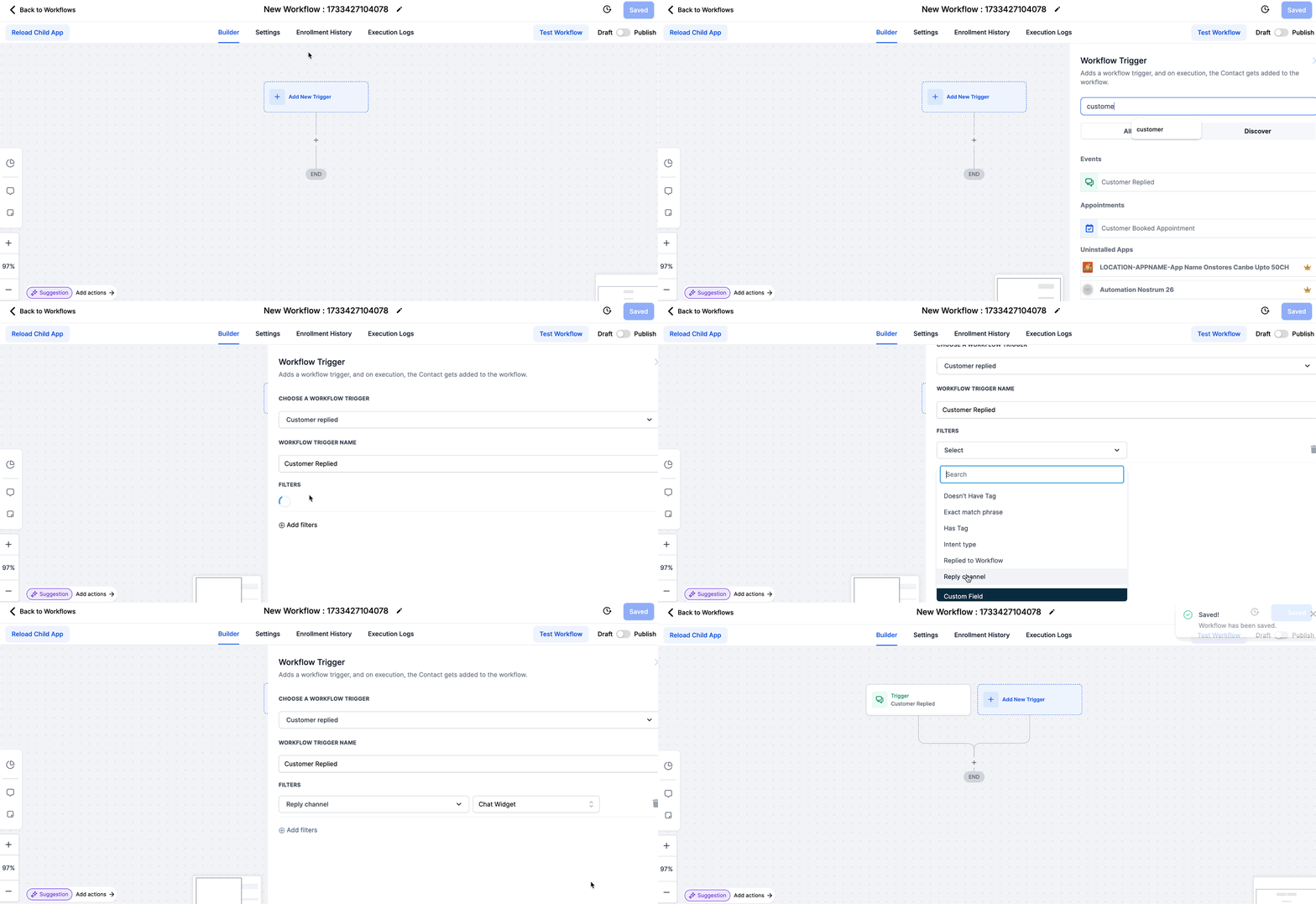
Once your chat widget is live, you need a system to notify your team when a new conversation starts. GoHighLevel workflows automate this, ensuring you never miss a lead or support request.

1
Create a New WorkflowIn GoHighLevel, go to Automation → Workflows. Click Create new workflow, then Start from scratch to build a new automation sequence.
2
Add a New Workflow TriggerClick Add new workflow trigger. Search for and select the 'Customer Replied' trigger event. This initiates the workflow when a contact sends a message.
3
Add a Filter for Reply ChannelUnder the 'Customer Replied' trigger, click Add Filter. Select 'Reply Channel' and set its value to 'Chat Widget'. This ensures the workflow only triggers for chat widget interactions.
4
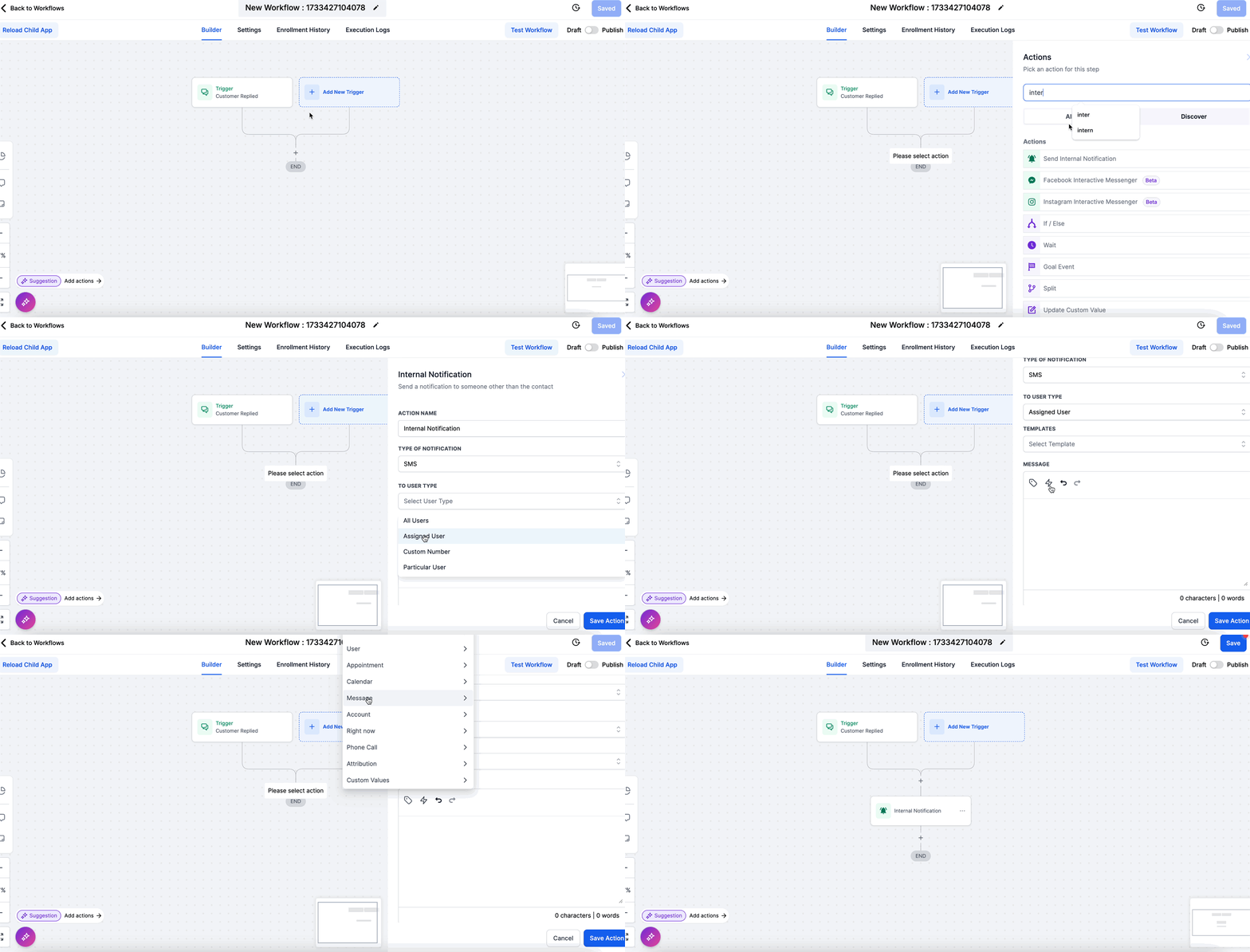
Add Notification ActionsBelow the trigger, click the '+' icon to add an action. Choose 'Send Internal Notification' to alert team members via email or SMS. You can also add 'Assign Contact' to a specific user.
5
Save and Publish Your WorkflowName your workflow clearly (e.g., 'Chat Widget Reply Notification'). Set the workflow to Active at the top right. Click Save to publish it. Test by sending a message through your live chat widget.

✅ Each 'Reply channel' (e.g., Chat Widget, Google Messages, Facebook Messenger) requires its own respective workflow trigger. If you want to receive notifications from multiple channels, you must create separate triggers or workflows for each specific event.

Troubleshooting Common Issues

⚠️ The chat widget is not appearing on my website.
Check that the embed code is correctly pasted into the 'Head Tracking Code' or 'Body Tracking Code' section of your GoHighLevel page settings or WordPress header. Ensure you saved all changes and cleared any website cache.
⚠️ I am not receiving notifications when someone uses the chat widget.
Verify your 'Customer Replied' workflow trigger is active and has the 'Reply Channel is Chat Widget' filter correctly applied. Also, check that your 'Send Internal Notification' action is configured to send to the correct email or user.
⚠️ SMS replies are not being sent from the chat widget.
Confirm that you have purchased a phone number in your sub-account and completed the A2P registration process. Without A2P registration, SMS functionality for the chat widget will not work.
⚠️ The chat widget appears, but its colors or messages are incorrect.
Go to Sites → Chat Widget in GoHighLevel and review your settings under the 'General' and 'Chat Bubble' tabs. Make sure you clicked 'Save' after making any adjustments to the widget's appearance or messages.

Common Mistakes to Avoid

  • Forgetting to save chat widget settings after customization.
  • Pasting the embed code into the wrong section of a website or funnel.
  • Not setting up a workflow for chat widget notifications, leading to missed leads.
  • Skipping A2P registration for the phone number, which disables SMS replies.
  • Placing the WordPress embed code in a way that gets overwritten by theme updates.

Frequently Asked Questions

QCan I customize my chat widget messaging per page on my website?
No, the current configuration of the GoHighLevel webchat widget does not allow for dynamic messaging per page. Although the widget can be used on multiple pages, the welcome message and other settings will remain consistent with the initial setup you define in **Sites → Chat Widget**.
QCan I create multiple chat widgets in a single GoHighLevel sub-account?
Yes, you can create more than one chat widget per sub-account in GoHighLevel. This allows you to have different configurations or styles if you manage multiple distinct brands or services within the same sub-account, though each will require its own embed code.
QWhy isn't my chat widget showing up on my GoHighLevel funnel page?
If your chat widget isn't appearing, first ensure you've copied the correct embed code from **Sites → Chat Widget**. Then, verify that you pasted this code into the 'Head Tracking Code' or 'Body Tracking Code' section within the specific funnel's **Settings**. Remember to save both the funnel settings and the funnel itself after pasting.
QDo I need a phone number and A2P registration for the chat widget to work?
You need a phone number and completed A2P registration if you want the chat widget to send or receive SMS replies. While the basic chat functionality (web-based messaging) will work without it, the ability for contacts to reply via SMS to your messages, or for you to send SMS messages, relies entirely on having a registered phone number.
QHow do I ensure my team is notified when a new chat conversation starts?
To ensure your team is notified, you must set up an automation workflow. Create a new workflow in **Automation → Workflows** with a 'Customer Replied' trigger. Add a filter for 'Reply Channel is Chat Widget', then include an 'Send Internal Notification' action to alert your team via email or SMS.
Try GoHighLevel Free

Start your 30-day GoHighLevel free trial

Everything in this guide is in your free trial. 30 days, no credit card — the platform behind 78+ revenue systems.

Start 30-Day Free Trial

Some links are affiliate links — if you sign up we may earn a commission, at no extra cost to you. We only recommend GoHighLevel because we build on it every day.

Arsalan Zaffar
Arsalan Zaffar
Revset Labs · Revenue Systems · 78+ GHL Builds

Arsalan writes GHL guides from real build experience — 78+ systems, $9.2M in client pipeline. Wharton, CXL & Google certified.

Connect on LinkedIn
Tags:GoHighLevelChat WidgetInstallation GuideWebsite IntegrationWordPress IntegrationLead CaptureAutomationCustomer Support