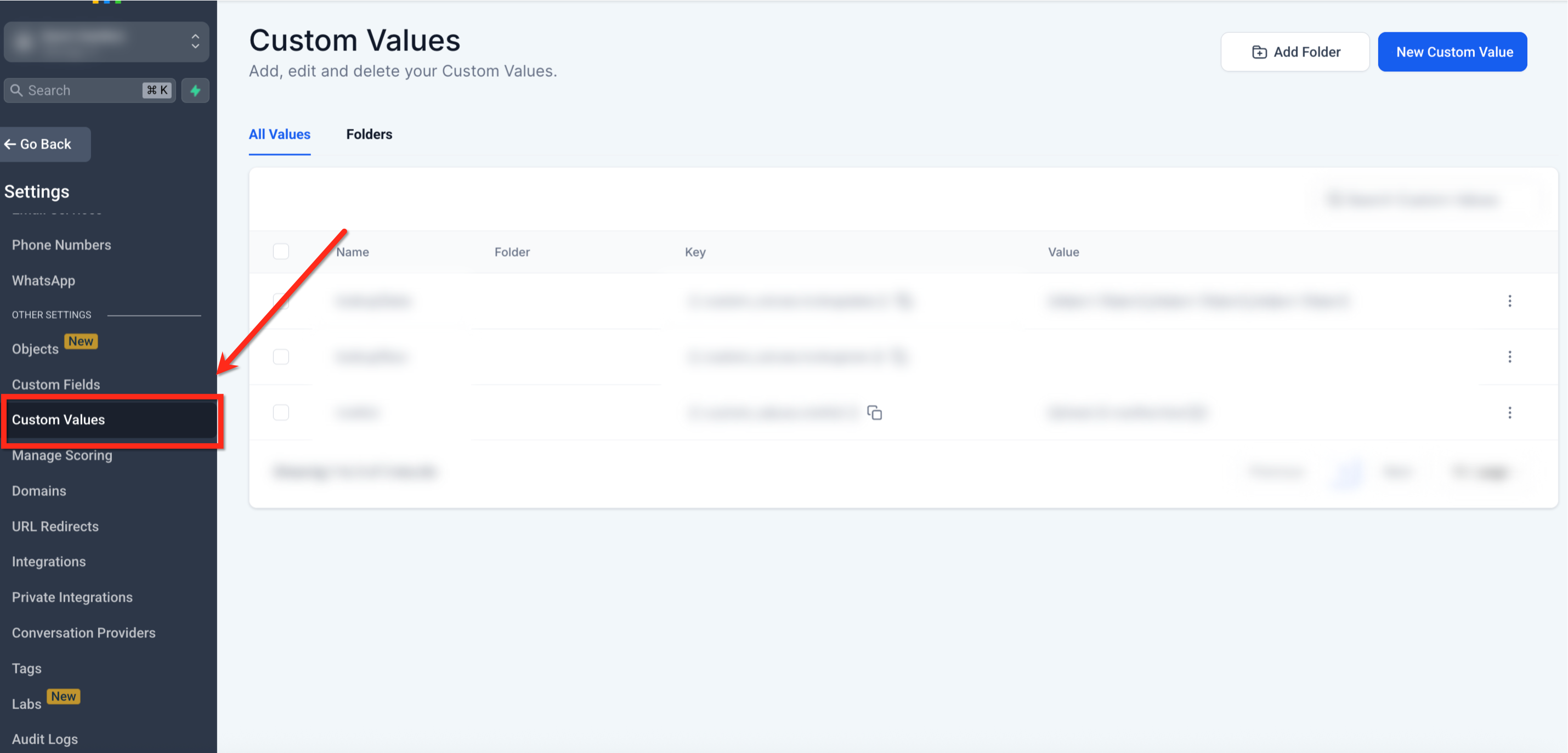
To create and manage Custom Values, go to Settings → Custom Values in your GoHighLevel sub-account. You can then insert these values across various GoHighLevel features like emails, workflows, and websites. This process takes about 2-3 minutes to set up each value, but saves significant time in personalizing communications.
Key Takeaways
✓Custom Values are dynamic placeholders that store reusable information, crucial for personalization and automation in GoHighLevel.
✓Always use clear, descriptive names for your Custom Values to ensure easy identification and prevent confusion.
✓Regularly organize Custom Values into folders based on category or use-case to maintain a tidy and efficient workspace.
✓Test all Custom Values in preview mode or with test contacts before deploying them live to ensure they populate correctly.
✓GoHighLevel offers both pre-built and user-defined Custom Values, allowing you to tailor content from contact details to company information.
What Are GoHighLevel Custom Values?
GoHighLevel Custom Values are dynamic placeholders that store specific pieces of information you define. Think of them as smart tags that automatically pull in data, making your content personalized and reusable. These values allow you to manage and retrieve standardized or personalized data efficiently across your GoHighLevel account.
In GoHighLevel, Custom Values store details such as contact names, company addresses, or unique promotional codes. By using them, you can automatically populate messages, emails, website pages, and funnels with relevant information, significantly enhancing customer interactions and engagement.
Why Use Custom Values in GoHighLevel?
Leveraging Custom Values in GoHighLevel empowers you to maximize your data's potential. They enhance personalization, automate repetitive tasks, ensure data accuracy, and enable more effective decision-making. Custom Values are essential for optimizing data-driven workflows and delivering tailored experiences to your clients and prospects.
They play a significant role in making your marketing and communication efforts more impactful. For example, you can automatically insert a client's first name into an email, making each message feel uniquely crafted for them.
1
Boost Personalization — Store individualized information for each contact, such as their name, contact details, preferences, or unique identifiers. This allows you to tailor communications to each recipient, making them more relevant and impactful.
2
Improve Efficiency — Access and manipulate data easily across different parts of your system without re-entering information. This reduces manual effort and minimizes the likelihood of errors, saving you time on repetitive tasks.
0
3
Enable Automation — Use Custom Values to auto-populate fields, generate personalized emails, customize messages, and streamline workflows. For instance, an email marketing campaign can automatically address each recipient by their first name.
4
Ensure Consistency — Maintain uniformity for data that remains constant across a group of entities. This is valuable for details like your company's address, support contact information, or branding elements, ensuring brand cohesion.
1
5
Gain Flexibility — Define Custom Values based on your specific needs, adapting them to various scenarios, industries, and organizational structures. This makes Custom Values highly versatile for any business model.
6
Simplify Updates — Modify a Custom Value's data at its source, and it automatically updates everywhere it is used. This eliminates the need to manually change every instance of that data, ensuring accuracy across your platform.
2
✅ GoHighLevel provides many built-in Custom Values (also called merge tags) for common data like contact names and appointment times. You can also create your own unique values to fit your specific business needs.
🔥 Pro Tip
Always consider if a piece of information is reusable across multiple communications or areas. If so, it's a strong candidate for a Custom Value, saving you countless hours of manual updates.
How to Create, Edit, and Delete Custom Values?
Managing Custom Values is essential for maintaining consistent, reusable content throughout your funnels, forms, emails, and automations. Follow these steps to efficiently create, update, or remove Custom Values in your GoHighLevel sub-account.
1
Step 1: Access Custom Values Settings — From your sub-account dashboard, click Settings in the left-hand navigation menu. Then, select Custom Values from the list of settings options to open the Custom Values management page.
2
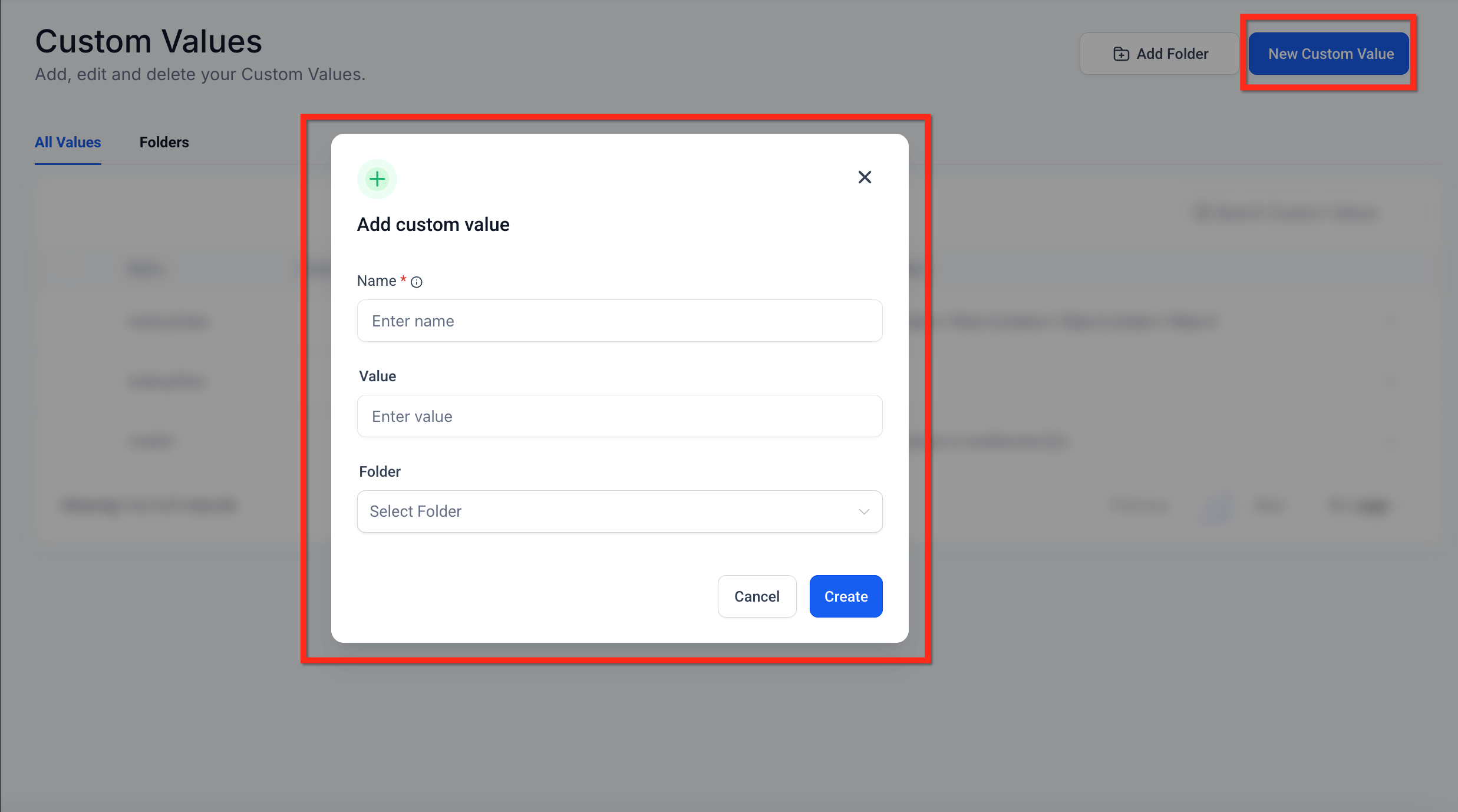
Step 2: Add a New Custom Value — Click the blue + Add Custom Value button located at the top right of the Custom Values page. A pop-up window will appear, prompting you to define your new value.
0
3
Step 3: Define Name and Value — Enter a descriptive name for your custom value in the 'Name' field (e.g., `agency_support_email`). Then, input the actual value you want it to display (e.g., `support@youragency.com`) in the 'Value' field. Select a folder to store the custom value if you have created any.
4
Step 4: Save Your Custom Value — Click Save to create your new Custom Value. It will now appear in your list and be available for use across your GoHighLevel account.
1
5
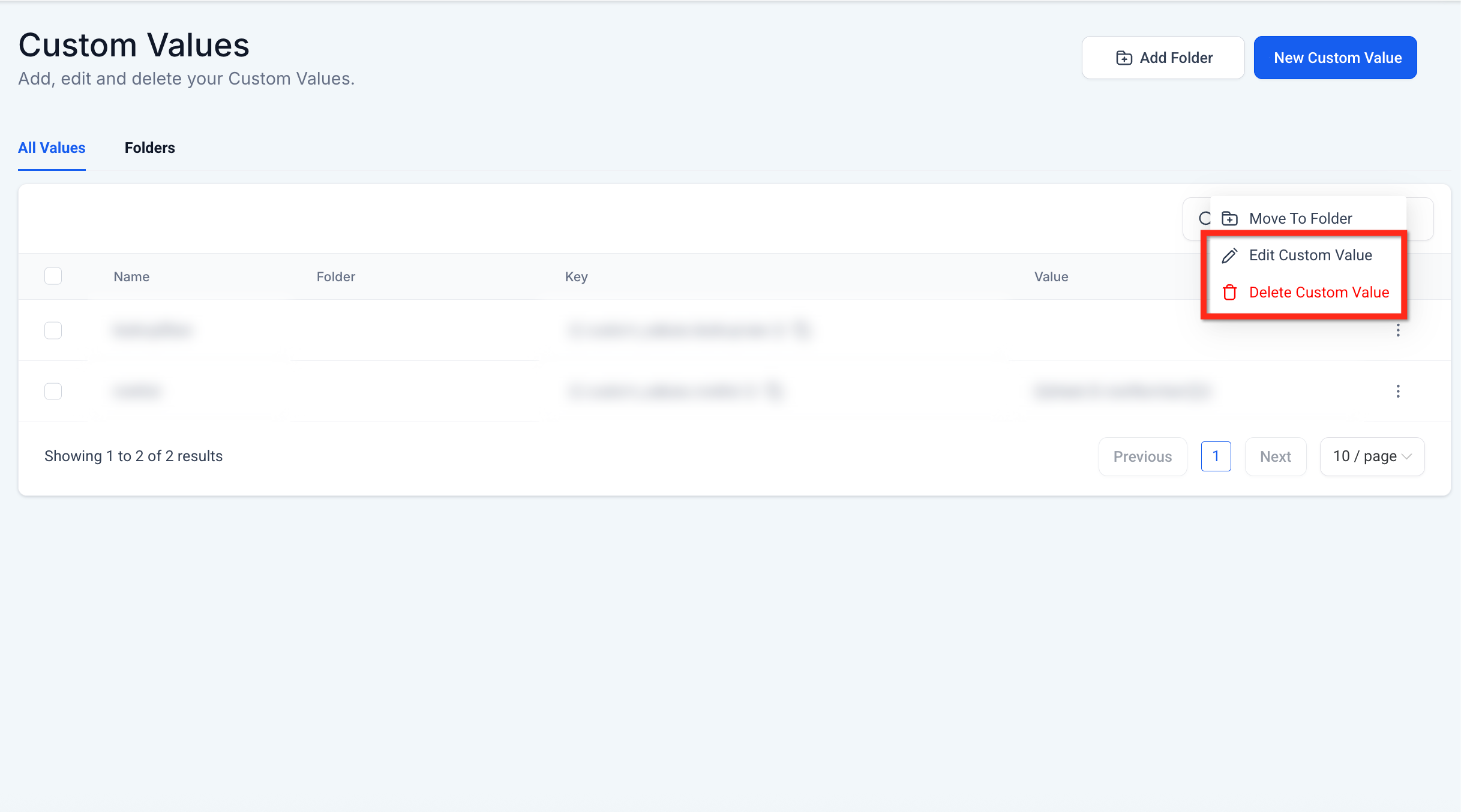
Step 5: Edit an Existing Custom Value — Locate the value you want to update in the list. Click the 3 Dots icon (⋮) next to the entry, then select Edit Custom Value. Make your changes in the pop-up window and click Save.
6
Step 6: Delete a Custom Value — Find the value you wish to remove from the list. Click the 3 Dots icon (⋮) next to it and select Delete Custom Value. Confirm your action when prompted, understanding that this action is permanent.
2
⚠️ Deleting a Custom Value permanently removes it. Any campaigns, emails, or pages using that value will display a blank space or an error where the value used to be. Always check dependencies before deleting.
✅ Organizing your Custom Values into folders from the start saves time and prevents clutter as your list grows. Create folders for 'Contact Info', 'Company Details', or 'Promotion Codes' to keep everything categorized.
🔥 Pro Tip
Use clear, descriptive names for your Custom Values (e.g., `{{agency.support_email}}` instead of `{{email1}}`) to make them easy to identify and use later. This prevents confusion, especially as your list grows.
Try GoHighLevel Free
Start your 30-day GoHighLevel free trial
Everything in this guide is in your free trial. 30 days, no credit card — the platform behind 78+ revenue systems.
Some links are affiliate links — if you sign up we may earn a commission, at no extra cost to you. We only recommend GoHighLevel because we build on it every day.
Where Can You Use Custom Values in GoHighLevel?
GoHighLevel's Custom Values are incredibly versatile, allowing you to inject personalized and dynamic content across almost every part of your sub-account. This section details how and where you can implement Custom Values to maximize your outreach and efficiency.
1
Use in Conversations (SMS, Email, Chat) — When messaging prospects and customers in the Conversations section, you can quickly insert Custom Values. Simply type `{{` to bring up a list of available values (e.g., `{{contact.first_name}}`) and select the one you need. This works across SMS, Email, Facebook Messenger, Instagram, and WhatsApp.
2
Implement in Workflows (Automations) — Within the Automations → Workflows builder, Custom Values personalize your automated messages, emails, and internal notifications. Insert values into 'Send SMS,' 'Send Email,' or 'Internal Notification' actions to dynamically populate contact details, appointment times, or other relevant data based on the workflow's context.
0
3
Integrate into Websites & Funnels — Add Custom Values directly to text elements on your website and funnel pages. This allows you to greet returning visitors by name or display personalized offers. Ensure the visitor has submitted data (e.g., through a form) previously for the values to populate correctly.
4
Enhance Email Templates & Campaigns — When building email templates or campaigns in Marketing → Emails, Custom Values are essential for personalization. Insert them into the email body, subject line, email description, and even the 'from name' or 'from address' to create highly engaging and relevant emails.
1
5
Personalize Social Planner Posts — In the Marketing → Social Planner, Custom Values help you create personalized social media posts quickly. Use them to insert company details or general greetings, making your scheduled posts adaptable without manual editing for each platform or context.
6
Apply for Dynamic Colors — GoHighLevel allows you to use Custom Values in color inputs for elements like background, body, or button colors. Enter a Custom Value token (e.g., `{{agency.brand_color}}`) in the color picker, and the builder instantly applies the color, providing dynamic branding across your assets.
2
⚠️ Be cautious when using raw phone number formats (`{{contact.phone_raw}}`) directly in messages, as they lack formatting and may not be user-friendly. Use `{{contact.phone}}` for display and `{{contact.phone_raw}}` for trigger links or technical integrations like sending to external APIs.
✅ For dynamic content on websites and funnels, ensure the contact has submitted information (like through a form or booking an appointment) previously. Otherwise, the Custom Value will appear blank for new visitors.
🔥 Pro Tip
Always test your Custom Values thoroughly in preview mode or with a test contact before sending live campaigns or publishing pages. This ensures they populate correctly and your personalization efforts are successful.
How to Organize Custom Values with Folders?
As your GoHighLevel account grows, you will accumulate many Custom Values. Organizing them into folders is crucial for maintaining a clean, efficient, and easy-to-navigate system. This helps you quickly find the values you need and prevents clutter.
1
Step 1: Access Custom Values Settings — Navigate to Settings → Custom Values in your sub-account. This page displays all your existing Custom Values and allows you to manage them.
2
Step 2: Create a New Folder — Click the + Add Folder button located near the top of the Custom Values page. Enter a clear, descriptive name for your new folder (e.g., 'Company Branding' or 'Client Specific Data') and click Save.
0
3
Step 3: Assign Custom Values to a Folder — When creating a new Custom Value, you can select an existing folder from the 'Folder' dropdown during Step 3 of the creation process. For existing values, click the 3 Dots icon (⋮) next to a value, select Edit Custom Value, and then choose a folder.
4
Step 4: Manage Existing Folders — You can edit or delete folders by clicking the 3 Dots icon (⋮) next to the folder name on the Custom Values page. Renaming helps keep your organization current, while deleting a folder will not delete the Custom Values inside it; they will become unassigned.
1
🔥 Pro Tip
Create folders based on data type (e.g., 'Company Info', 'Contact Details', 'Promotions') or by specific campaigns/clients. This logical grouping makes it significantly faster to locate the correct Custom Value when building your assets.
Essential GoHighLevel Custom Values (Merge Tags)
GoHighLevel provides a comprehensive set of pre-built Custom Values, often referred to as merge tags, that automatically pull data from various sources within your account. These values cover common information categories like contact details, user information, appointment specifics, and account-level data.
1
Step 1: Understand Custom Value Categories — GoHighLevel organizes pre-built Custom Values into categories like Contact, User, Appointment, Account, and Right Now. Each category contains specific data points you can use. For example, `{{contact.first_name}}` pulls the contact's first name.
2
Step 2: Access Pre-built Custom Values — In any text editor within GoHighLevel (e.g., email builder, workflow action), type `{{` to open a dynamic dropdown list. This list categorizes all available Custom Values, including both pre-built and your custom-created ones.
0
3
Step 3: Insert a Pre-built Value — Browse or search the dropdown list for the desired value. Click on the value to insert its token (e.g., `{{contact.email}}`) directly into your content. The system will automatically replace this token with the actual data when the content is used.
✅ You may sometimes need to use the 'raw' format of Custom Values, such as `{{contact.phone_raw}}`. This format removes special characters and can be ideal for trigger links, international phone numbers, or integrations requiring plain data.
🔥 Pro Tip
When working in text editors (like email builders or workflow actions), type an open curly brace `{{` to bring up a searchable list of available Custom Values. This helps you find the correct token quickly and prevents typos.
Troubleshooting Common Issues
⚠️ Custom Value displays as `{{value_name}}` or is blank.
Check for typos in the Custom Value token; it must exactly match the name defined in Settings → Custom Values. Also, ensure the contact or context has data for that specific value. For website pages, the contact must have submitted data previously.
⚠️ Custom Value isn't updating after I changed its source.
GoHighLevel's Custom Values update instantly from their source. If you changed a contact's email, `{{contact.email}}` will reflect the new one. If you changed a *Custom Value you created*, ensure you saved the change in Settings → Custom Values.
⚠️ I can't find my Custom Value in the dropdown list.
Ensure you saved the Custom Value correctly in Settings → Custom Values. If it's saved, try typing `{{` to refresh the list, or search for its exact name. If it's a pre-built value, check the correct category (e.g., `contact.` for contact details).
⚠️ Custom Value populates incorrectly on a web page or in an email.
Verify the Custom Value is being used in the correct context. For contact-specific values, ensure you are sending to a contact with that data. For page personalization, confirm the contact has submitted information via a form or survey on that funnel/website.
⚠️ My Custom Value is showing up as 'null' or 'undefined'.
This usually means the system cannot find data for that specific Custom Value in the current context. Double-check if the contact has that information filled in their profile, or if the Custom Value itself has a default value defined.
Common Mistakes to Avoid
→Misspelling Custom Value tokens (e.g., `{{contact.fist_name}}` instead of `{{contact.first_name}}`).
→Not saving newly created or edited Custom Values in Settings → Custom Values before trying to use them.
→Using contact-specific Custom Values on a website or funnel page for a visitor who hasn't previously submitted their information.
→Failing to organize Custom Values into folders, leading to a cluttered and difficult-to-manage list as the account grows.
→Expecting Custom Values to update automatically if the *source* data (e.g., a contact's phone number) changes, but forgetting to update a *custom-created* value that holds static text.
Frequently Asked Questions
QWhat is the difference between GoHighLevel Custom Values and Custom Fields?
Custom Values store reusable static or dynamic information you define at the sub-account level (e.g., your company's support email). Custom Fields are specific data points attached to a contact's profile (e.g., 'Preferred Workout Type') and are used to capture unique information for each individual contact.
QCan I use Custom Values in SMS messages sent through GoHighLevel?
Yes, absolutely. You can insert Custom Values into any SMS message sent through the Conversations tab or via a workflow's 'Send SMS' action. This allows you to personalize text messages with contact-specific details like their name or appointment time, making your communication more engaging.
QWhat happens if I delete a Custom Value that is actively being used?
If you delete a Custom Value that is in use, any email, workflow, or page where that value was inserted will no longer display the intended data. Instead, it will likely show a blank space or the literal Custom Value token (e.g., `{{my_custom_value}}`). Always check where a value is used before deleting it.
QHow do I ensure Custom Values populate correctly on a GoHighLevel website or funnel page?
For Custom Values to populate correctly on a website or funnel page, the visitor must have previously submitted their information through a form or survey on that specific funnel/site. GoHighLevel then stores this data and can dynamically display it when the contact revisits the page, recognizing them via cookies.
QAre there any default Custom Values provided by GoHighLevel that I can use?
Yes, GoHighLevel provides many pre-built Custom Values (merge tags) that pull common data from your contacts, users, appointments, and account settings. Examples include `{{contact.first_name}}`, `{{user.email}}`, `{{appointment.start_time}}`, and `{{location.name}}`. You can find a complete list by typing `{{` in any text editor.
Try GoHighLevel Free
Start your 30-day GoHighLevel free trial
Everything in this guide is in your free trial. 30 days, no credit card — the platform behind 78+ revenue systems.
Some links are affiliate links — if you sign up we may earn a commission, at no extra cost to you. We only recommend GoHighLevel because we build on it every day.
Arsalan Zaffar
Revset Labs · Revenue Systems · 78+ GHL Builds
Arsalan writes GHL guides from real build experience — 78+ systems, $9.2M in client pipeline. Wharton, CXL & Google certified.