To configure inbound call routing in GoHighLevel, you manage settings under Settings → Phone Numbers and Settings → My Staff. This process ensures calls reach the right person or destination based on your defined hierarchy. It typically takes 10-15 minutes to set up or adjust basic routing.
Key Takeaways
✓Always understand the GoHighLevel call routing hierarchy: User Phone > Dedicated Call Forwarding > Company Phone.
✓Ensure all phone numbers are voice-capable before assigning them for inbound calls.
✓Assigning a phone number directly to a user provides the most direct and consistent routing for that number.
✓Configure a company-wide forwarding number and voicemail as fallback options for unassigned calls.
✓Regularly review your **Phone Numbers** and **My Staff** settings to prevent routing errors.
GoHighLevel routes inbound calls through a specific, layered hierarchy. Understanding this order is crucial to ensure calls reach the correct destination. If a call doesn't hit a higher priority rule, it falls back to the next one in the sequence. This section explains the three main layers of inbound call routing within your GoHighLevel sub-account.
1
Layer 1: User-Assigned Phone Number — This is the highest priority. If a contact is assigned to a specific user, and that user has a GoHighLevel phone number assigned to them within their staff profile, inbound calls from that contact will route directly to the user's personal forwarding number. This also applies if the specific GoHighLevel number called is directly assigned to a user.
2
Layer 2: Dedicated Call Forwarding Number — If Layer 1 conditions are not met (e.g., the contact is not assigned to a user, or the dialed number is not assigned to a user), GoHighLevel checks the dedicated call forwarding number for the specific GoHighLevel phone number that was dialed. You configure this number within the individual phone number's settings. This is a powerful way to direct calls from a specific number to a general line or department.
0
3
Layer 3: Company Phone Number — This is the final fallback. If neither Layer 1 nor Layer 2 conditions are met, GoHighLevel attempts to forward the call to the overall Company Phone Number. You set this number in your Business Information settings. If no Company Phone Number is configured, the call will drop immediately.
🔥 Pro Tip
Always configure a Company Phone Number and a general forwarding number for your primary inbound lines. This prevents calls from dropping if specific user assignments or dedicated forwarding rules fail.
Assigning GoHighLevel Phone Numbers to Users
Assigning a GoHighLevel phone number to a specific user ensures that all calls to that number, or calls from contacts assigned to that user, are routed directly to them. This is ideal for sales teams or dedicated account managers. You must first have a user created in your staff settings to complete this process.
1
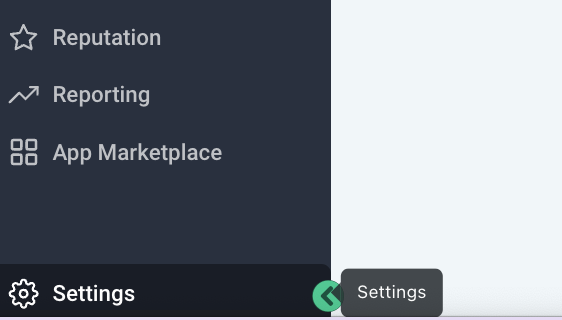
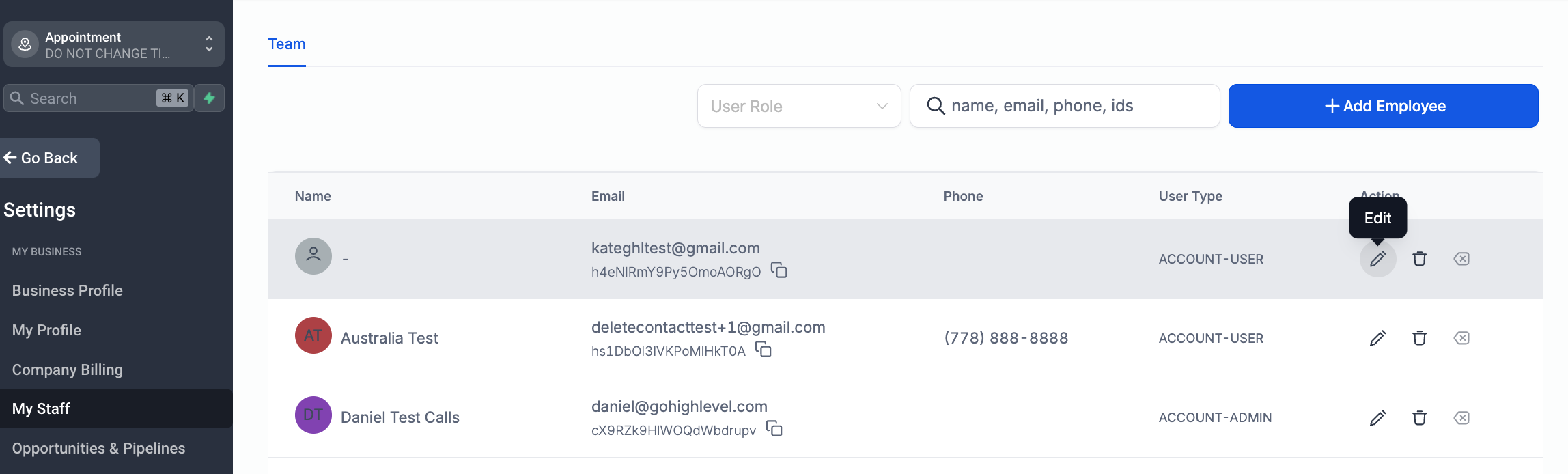
Access Staff Settings — From your GoHighLevel sub-account, click Settings in the bottom left corner. Then, select My Staff from the left-hand menu.
2
Edit User Profile — Locate the user you want to assign a phone number to and click the Edit icon (pencil) next to their name. This opens their user profile settings.
0
3
Configure Call & Voicemail Settings — Scroll down and expand the Call & Voicemail Settings section. Here you can manage how calls are handled for this specific user.
4
Assign a GoHighLevel Phone Number — Click the Select Phone Number dropdown menu. Choose the GoHighLevel phone number you wish to assign to this user. All inbound calls to this specific number will now route to this user's forwarding number.
1
5
Set User's Forwarding Phone Number — Ensure the User Info section at the top of the profile contains the correct Phone number where the user will receive forwarded calls. This is the personal number GoHighLevel will dial when routing calls to this user.
6
Save User Settings — After making your changes, scroll to the bottom of the user profile and click Save. Your changes are now active.
2
⚠️ If a GoHighLevel phone number is already assigned to another user, you cannot assign it to a new user without first unassigning it. You must edit each user profile to find which user currently holds the number.
🔥 Pro Tip
If you want calls to *always* go to one specific number, assign that GoHighLevel number to a dedicated user, and ensure that user's forwarding number is correctly set. This overrides most other routing rules.
Configuring Dedicated Call Forwarding Numbers
Beyond user assignments, you can set a dedicated call forwarding number for any specific GoHighLevel phone number in your account. This acts as the second layer of the routing hierarchy, catching calls that aren't directed to a user. This is useful for general inquiry lines or departmental numbers.
1
Access Phone Number Settings — From your GoHighLevel sub-account, click Settings in the bottom left corner. Then, select Phone Numbers from the left-hand menu.
2
Select a Phone Number to Edit — Locate the GoHighLevel phone number for which you want to configure forwarding. Click the Edit icon (pencil) next to the number.
3
Set Call Forwarding Number — In the Voice Calls section, find the Call Forwarding Number field. Enter the external phone number where you want calls to this specific GoHighLevel number to be forwarded.
4
Review Advanced Inbound Call Options — Under Advanced Settings → Voice Calls → Inbound Call, you can find additional options. Check or uncheck Ring user assigned to called number to control if calls should prioritize ringing the assigned user, and Forward calls to business phone number for a general fallback.
5
Save Phone Number Settings — After entering the forwarding number and adjusting any advanced options, click Save to apply your changes. This dedicated forwarding now takes effect.
0
⚠️ If you enable 'Forward calls to business phone number' AND have a dedicated call forwarding number set, the dedicated number will typically take precedence. Always test your routing to confirm the intended flow.
🔥 Pro Tip
Use unique dedicated forwarding numbers for different GoHighLevel lines (e.g., sales, support) to better segment incoming calls before they even hit your team. This improves organization and response times.
Setting Up Your Company Phone Number (Fallback Routing)
The Company Phone Number acts as the final fallback in your GoHighLevel inbound call routing hierarchy. If no user assignment or dedicated call forwarding rule applies, the call will attempt to route to this number. It's essential to have this configured to prevent calls from dropping.
1
Access Company Settings — From your GoHighLevel sub-account, click Settings in the bottom left corner. Then, select Company from the left-hand menu.
0
2
Update Company Phone Field — Locate the Company Phone field within your business information. Enter the primary phone number where your business receives general inbound calls as a last resort.
1
3
Update Company Information — After entering or updating the phone number, click Update Company to save your changes. This number is now your default fallback for all unrouted inbound calls.
2
⚠️ If no Company Phone Number is set and no other routing rules apply, incoming calls will immediately disconnect. This leads to a poor caller experience and missed opportunities.
🔥 Pro Tip
Consider using a main office line or a general inquiry number for your Company Phone. This ensures that even unassigned or misrouted calls have a destination, preventing a 'call dropped' scenario.
Try GoHighLevel Free
Start your 30-day GoHighLevel free trial
Everything in this guide is in your free trial. 30 days, no credit card — the platform behind 78+ revenue systems.
Some links are affiliate links — if you sign up we may earn a commission, at no extra cost to you. We only recommend GoHighLevel because we build on it every day.
Configuring Voicemail Options in GoHighLevel
Voicemail is a critical component of any robust inbound call routing strategy. GoHighLevel allows you to configure voicemail for both individual users and as a company-wide fallback. This ensures that even when calls aren't answered, callers can leave a message.
1
Set Up Voicemail for a User — Go to Settings → My Staff, edit the desired user, and expand Call & Voicemail Settings. Here, you can enable and configure voicemail specifically for this user, including their voicemail greeting.
2
Set Up Company Voicemail — Navigate to Settings → Phone Numbers, edit your primary inbound number, and look for voicemail options under Advanced Settings. You can often upload a company-wide voicemail greeting here.
3
Adjust Incoming Call Timeout — Within the phone number's settings, adjust the Incoming Call Timeout to control how long the phone rings before routing to voicemail or another destination. A shorter timeout (e.g., 10-15 seconds) sends calls to voicemail faster.
4
Consider Voicemail-Only Routing — To route calls directly to voicemail, assign the GoHighLevel number to a user, enable their voicemail, and set the Incoming Call Timeout to a very low duration (e.g., 1 second). This will cause the call to quickly go to the user's voicemail.
0
✅ You can also integrate third-party voicemail services like Google Voice by placing their forwarding number in your GoHighLevel forwarding settings. This gives you more advanced voicemail features if needed.
🔥 Pro Tip
Record professional and clear voicemail greetings for both users and the company. A good greeting reassures callers and encourages them to leave a message, improving lead capture.
Identifying Which GoHighLevel Number a Contact Called
If you use multiple GoHighLevel phone numbers, it's important to know which specific number a contact dialed, especially for troubleshooting or lead source tracking. GoHighLevel provides a straightforward way to check this information directly from the contact's conversation history.
1
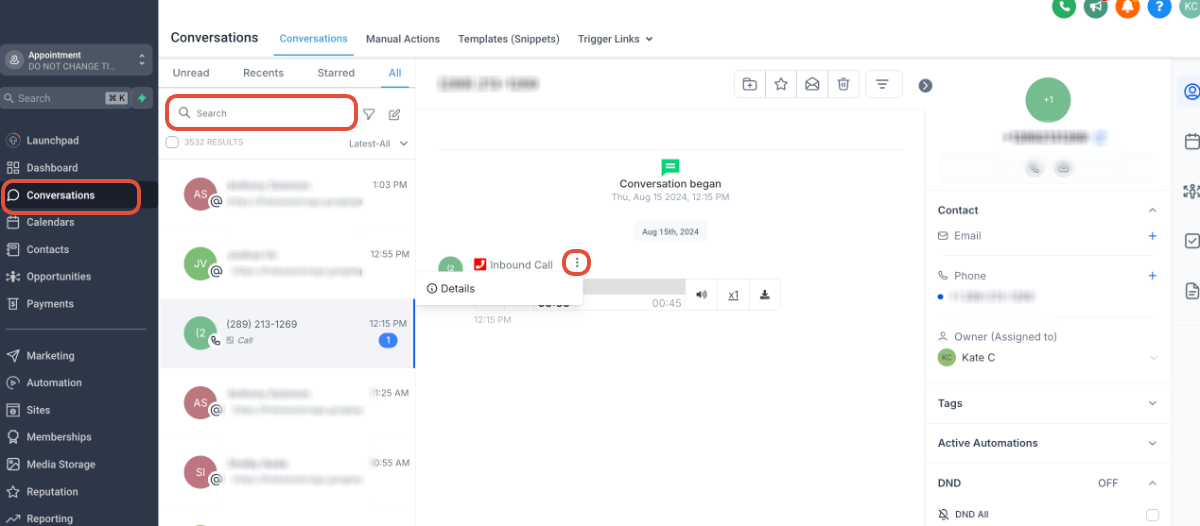
Access Conversations — From your GoHighLevel sub-account, click Conversations from the left-hand menu. This displays all your ongoing and past communications.
2
Locate the Contact's Call — Find the contact in the conversation list or use the search bar to locate them. Scroll through their conversation history to find the inbound call you want to investigate.
3
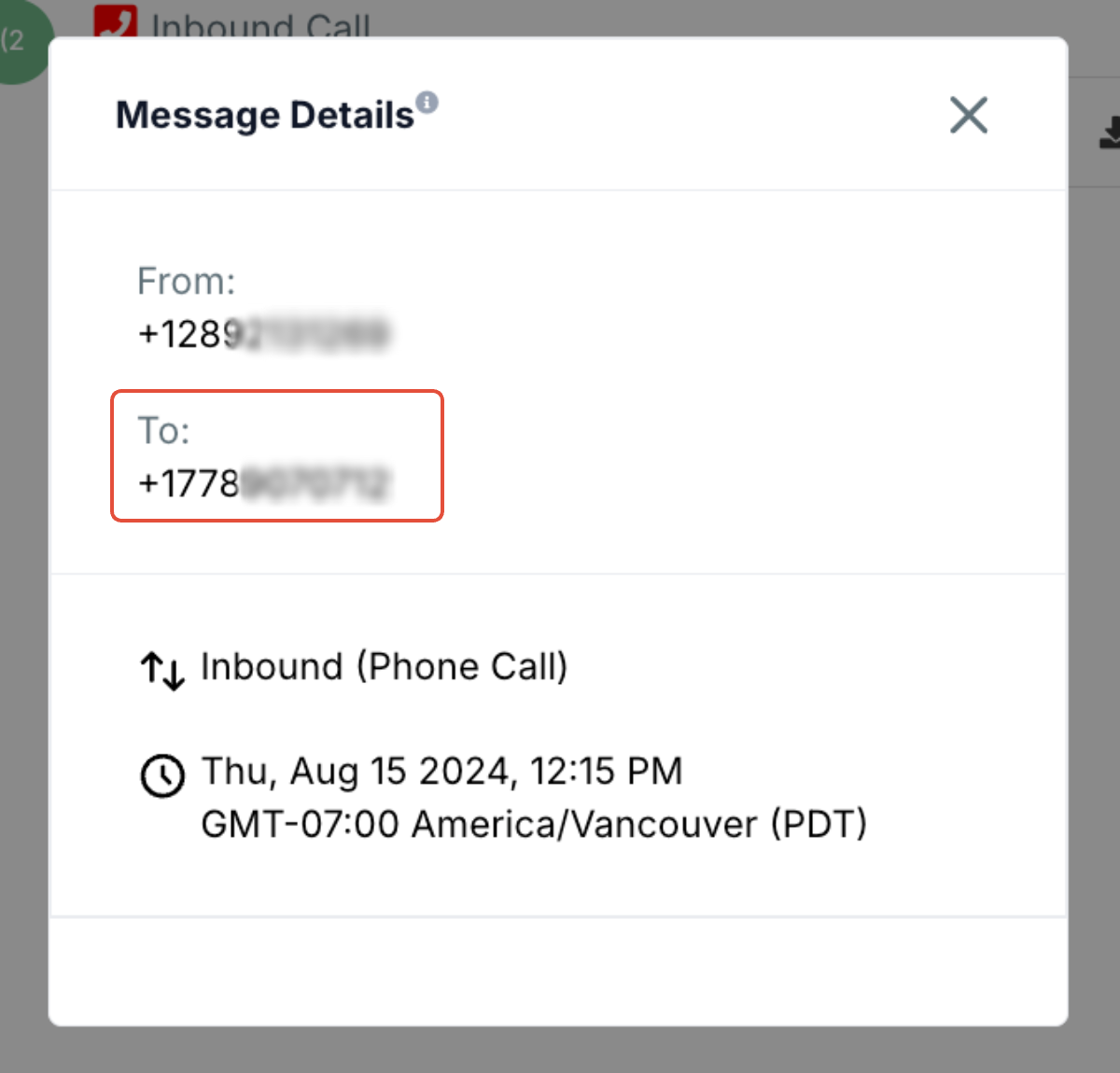
View Call Details — Hover over the inbound call entry in the conversation. Click the three dots (...) that appear next to it, then select Details. A pop-up window displays comprehensive call information.
4
Identify the Dialed Number — In the call details pop-up, look for the 'To:' field. This field explicitly shows the GoHighLevel phone number that the contact dialed. The 'From:' field indicates the contact's phone number.
0
🔥 Pro Tip
Regularly reviewing call details helps you understand which marketing channels are driving calls to specific numbers. This insight supports better campaign optimization.
Troubleshooting Common Inbound Call Routing Issues
Even with careful setup, inbound call routing can sometimes present challenges. This section addresses common problems you might encounter and provides direct solutions to get your calls flowing correctly.
1
Call Disconnects Immediately — If an inbound call disconnects without ringing, first check if any custom values are set in the whisper message for that phone number (Settings → Phone Numbers → Edit → Advanced Settings). Broken custom values can cause immediate call drops. Also, verify that the GoHighLevel phone number is voice-capable within your Twilio account logs, as some numbers are SMS-only.
2
Call Forwards to the Wrong Person or Number — Review the routing hierarchy. Check if the contact is assigned to a user (Contacts → Edit Contact). Then, check if the dialed GoHighLevel number is assigned to a user (Settings → My Staff → Edit User → Call & Voicemail Settings). Finally, verify the dedicated Call Forwarding Number for that specific GoHighLevel number (Settings → Phone Numbers → Edit).
3
Phone Number Appears 'Already Assigned' — If you try to assign a GoHighLevel number to a user and it shows as 'already assigned,' you must manually check each user's profile. Go to Settings → My Staff, edit each user, and expand Call & Voicemail Settings to find which user has the number. Unassign it before reassigning.
4
Voicemail Isn't Triggering — Ensure voicemail is enabled for the user or the company number. Check the Incoming Call Timeout setting for the GoHighLevel phone number (Settings → Phone Numbers → Edit). If the timeout is too long, the call might be disconnecting before voicemail activates. Also, verify the forwarding number is correct.
5
Calls Not Ringing on Mobile App — If you expect calls to ring on the GoHighLevel mobile app, ensure the GoHighLevel number is assigned to a user, and that user has 'Receive Inbound Calling on Mobile APP' enabled in their Call & Voicemail Settings. Also, check the user's personal phone number is correctly set in their profile.
🔥 Pro Tip
When troubleshooting, test your routing changes immediately with a real inbound call from an external number. This confirms if your adjustments fixed the issue in real-time.
Troubleshooting Common Issues
⚠️ Inbound calls disconnect immediately without ringing.
Check the GoHighLevel phone number's Advanced Settings for any custom values in the whisper message; remove or correct them. Also, verify the number is voice-capable in your Twilio account.
⚠️ Calls are forwarding to the wrong person or number.
Review the call routing hierarchy: first, check if the contact or phone number is assigned to a user. If not, check the dedicated Call Forwarding Number for the specific GoHighLevel number. Finally, verify the Company Phone Number.
⚠️ A GoHighLevel phone number cannot be assigned to a user; it says 'already assigned'.
Manually check each user profile under Settings → My Staff. Edit each user, expand Call & Voicemail Settings, and identify which user currently has the number assigned. Unassign it before re-assigning.
⚠️ Voicemail is not activating or calls are dropping instead of going to voicemail.
Ensure voicemail is enabled for the user or company. Adjust the Incoming Call Timeout for the GoHighLevel phone number (Settings → Phone Numbers → Edit) to a suitable duration (e.g., 15-20 seconds) to allow time for voicemail to trigger.
⚠️ Calls are not ringing on a user's GoHighLevel mobile app.
Verify the GoHighLevel number is assigned to the user. In the user's Call & Voicemail Settings, ensure 'Receive Inbound Calling on Mobile APP' is enabled and that their personal phone number is correctly entered.
Common Mistakes to Avoid
→Not understanding the GoHighLevel call routing hierarchy, leading to unpredictable call destinations.
→Forgetting to set a Company Phone Number, causing unrouted calls to drop entirely.
→Neglecting to configure voicemail, resulting in missed messages for unanswered calls.
→Using a GoHighLevel phone number that is not voice-capable, causing immediate call disconnections.
→Incorrectly assigning phone numbers to users or failing to save changes after configuration.
Frequently Asked Questions
QWhat is the priority order for inbound call routing in GoHighLevel?
GoHighLevel routes calls in a specific order: first, to a user if the contact or phone number is assigned to them. If not, it routes to the dedicated Call Forwarding Number set for that specific GoHighLevel number. As a final fallback, it directs the call to the Company Phone Number. Understanding this hierarchy is key to effective routing.
QHow can I ensure all calls to a specific GoHighLevel number always go to one person?
To ensure calls always go to one person, assign that specific GoHighLevel phone number directly to that user within their staff profile (**Settings → My Staff → Edit User → Call & Voicemail Settings**). Make sure the user's personal forwarding phone number is correctly entered in their **User Info** section. This setup provides the highest priority routing.
QWhat happens if I don't configure any call forwarding numbers in GoHighLevel?
If no user is assigned, no dedicated call forwarding number is set for the specific GoHighLevel number, and no Company Phone Number is configured, incoming calls will disconnect immediately. This results in a poor caller experience and missed opportunities. Always set at least a Company Phone Number as a fallback.
QCan I use extensions with GoHighLevel call forwarding?
Yes, you can use extensions, but primarily when a GoHighLevel phone number is assigned to a user. There's an 'Extension' field next to the user's phone number in their profile (**Settings → My Staff → Edit User**). Calls forwarded to that user will then include the specified extension, allowing for internal routing within their receiving system.
QHow do I check which specific GoHighLevel phone number a contact called?
To check which number a contact called, go to **Conversations**, find the contact, and locate the inbound call entry. Hover over the call, click the **three dots (...)**, and select **Details**. The 'To:' field in the call details pop-up will show the exact GoHighLevel phone number the contact dialed.
Try GoHighLevel Free
Start your 30-day GoHighLevel free trial
Everything in this guide is in your free trial. 30 days, no credit card — the platform behind 78+ revenue systems.
Some links are affiliate links — if you sign up we may earn a commission, at no extra cost to you. We only recommend GoHighLevel because we build on it every day.
Arsalan Zaffar
Revset Labs · Revenue Systems · 78+ GHL Builds
Arsalan writes GHL guides from real build experience — 78+ systems, $9.2M in client pipeline. Wharton, CXL & Google certified.