Revset
Book a Free Audit

30-minute call · No obligation

HomeGHL HubCRM & ContactsHow to Make Outbound Calls with the Dialer in GoHighLevel
REVSET LABS · EXPERT GUIDE·CRM & Contacts

How to Make Outbound Calls with the Dialer in GoHighLevel

963 words·4 min read·Updated 27 April 2026·beginner·
Arsalan ZaffarArsalan ZaffarLinkedIn

👉 Start your 30-day GoHighLevel free trial.

Start 30-Day Free Trial
Quick Answer

To make outbound calls directly from your GoHighLevel web application, click the green phone icon located in the top bar. This opens the integrated Dialer, allowing you to dial manually, select recent contacts, or search your existing contact list. A typical call setup takes less than one minute.

Key Takeaways
  • Access the GoHighLevel Dialer quickly from the **green phone icon** in the top navigation bar.
  • Initiate outbound calls using three methods: manual dialing, selecting recent numbers, or searching your contact list.
  • Utilize in-call management features like **Mute**, **Hold**, **Warm Transfer**, and **Blind Transfer** for professional call handling.
  • Proactively check browser microphone permissions and disable interfering extensions to prevent common dialer issues.
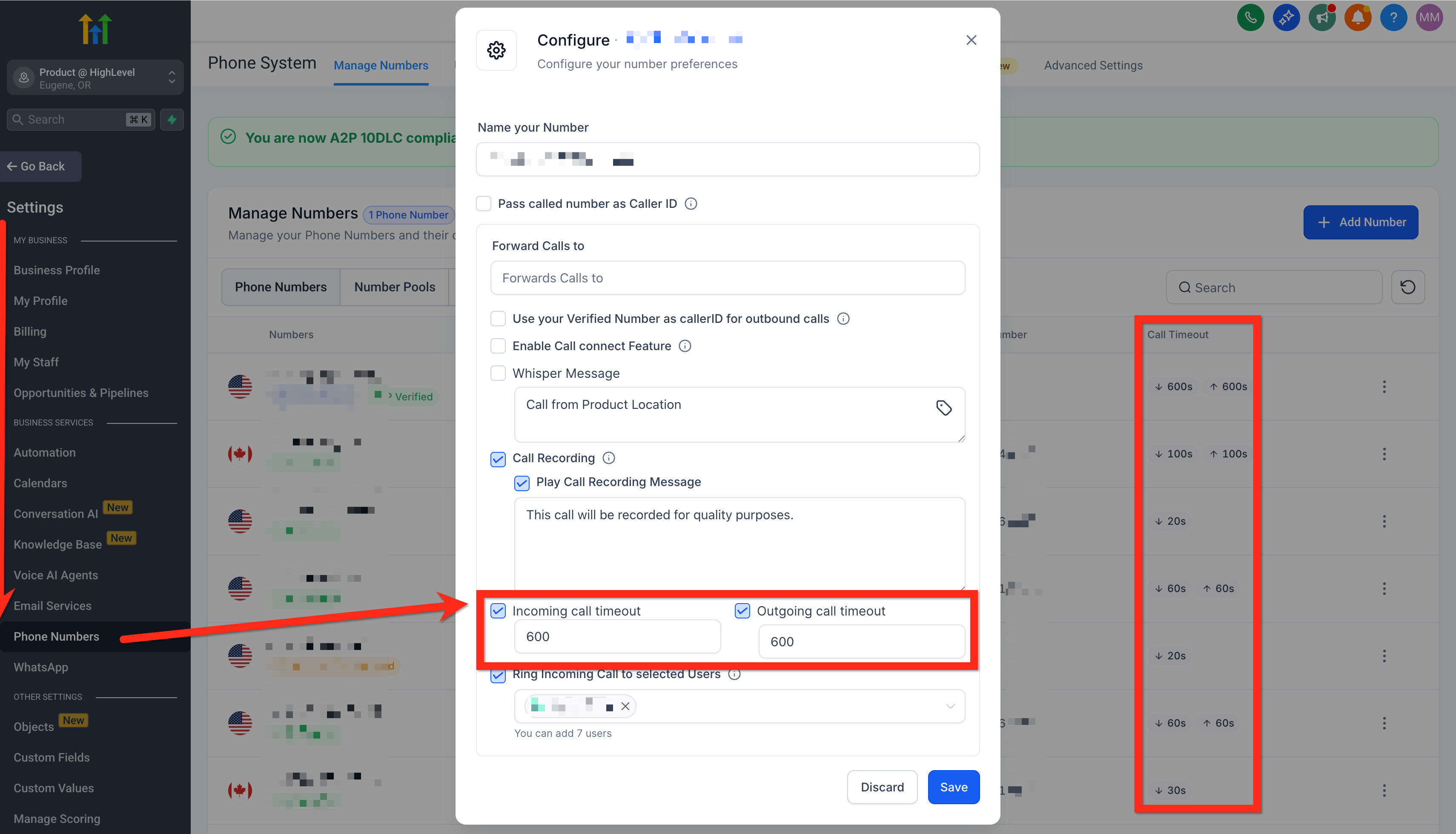
  • Ensure your phone number's outbound call timeout is set to at least 20 seconds for reliable call connections.

How Do You Make an Outbound Call?

The GoHighLevel web dialer, often called a softphone, lets you make calls directly from your browser. This integrates your communication seamlessly with your CRM. Follow these steps to initiate an outbound call to any contact or number.
1
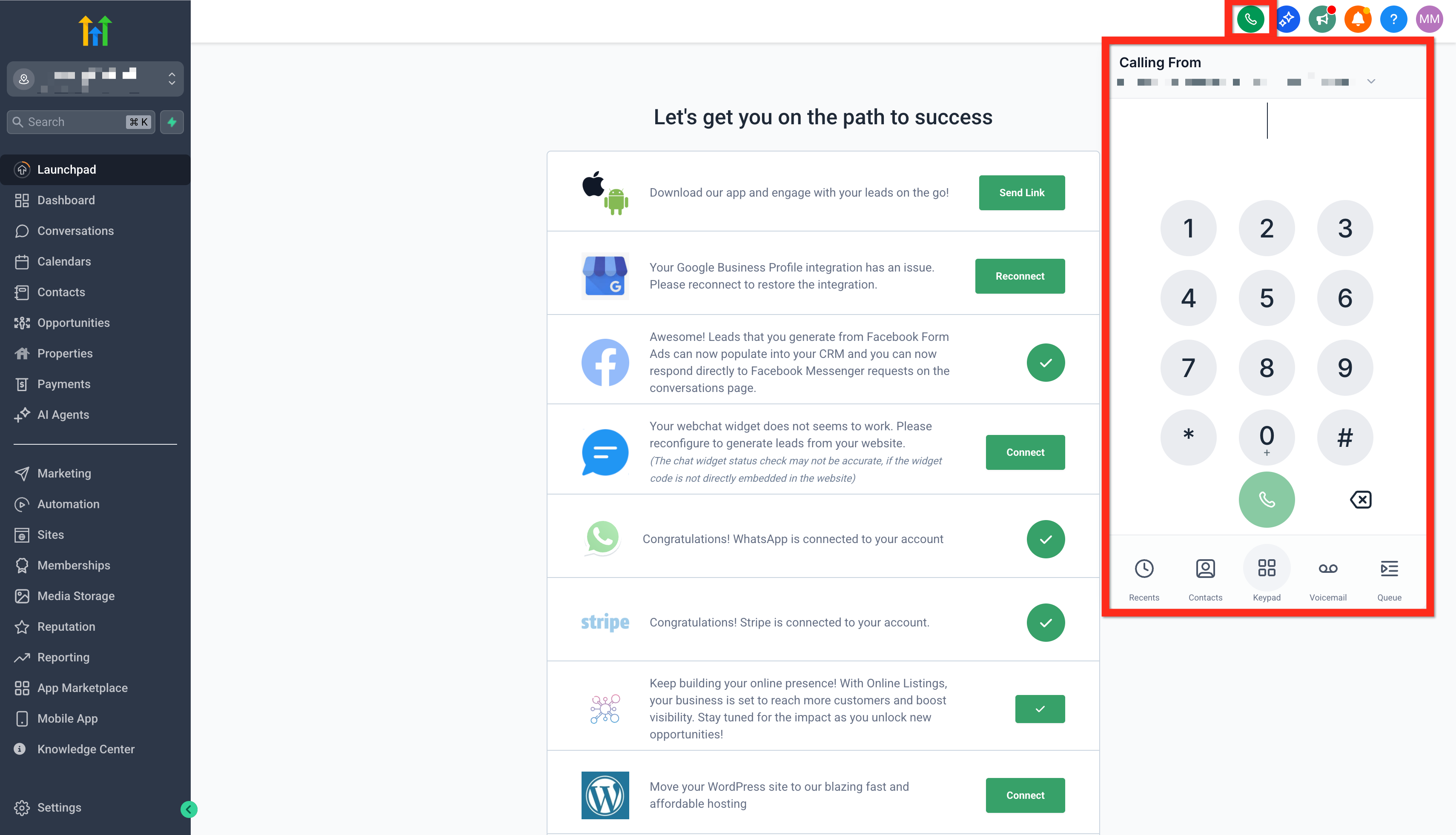
Open the DialerOn almost any page within your GoHighLevel account, locate and click the green phone icon in the top navigation bar. This action opens the dedicated Dialer window.
2
Choose Your Calling MethodOnce the Dialer is open, you have three primary ways to initiate a call. Select the method that best suits your needs for reaching your desired contact.
3
Method 1: Dial ManuallyTo dial a new number, click the numerical buttons on the keypad displayed within the Dialer. You can also type the number directly into the input field above the keypad.
4
Method 2: Select a Recently Used NumberIf you need to call a number you recently contacted, click on the Recent Calls tab. Select the desired number from the list to quickly redial it.
5
Method 3: Search for a ContactTo call an existing contact in your GoHighLevel system, type their name or phone number into the search bar within the Dialer. Select the correct contact from the search results.
6
Initiate the CallAfter entering or selecting the number, click the Call button. The Dialer will connect to the recipient, and you will hear a brief connecting tone before the standard ringing sound.
GoHighLevel screenshot
0
🔥 Pro Tip

If your account has multiple phone numbers, always check the 'Calling From' dropdown in the Dialer. This ensures your outbound call originates from the correct number, especially if you have numbers assigned to specific campaigns or users.

How Do You Manage an Active Call?

Once your outbound call connects, the GoHighLevel Dialer provides several tools to manage the conversation effectively. These features help you maintain professionalism and handle complex call scenarios directly from your web app.
1
Mute Your MicrophoneTo temporarily disable your microphone so the other party cannot hear you, click the Mute button. Click it again to unmute your microphone and resume speaking.
2
Place the Call on HoldTo put the entire call on hold, preventing both parties from hearing each other, click the Hold button. Click it once more to take the call off hold.
3
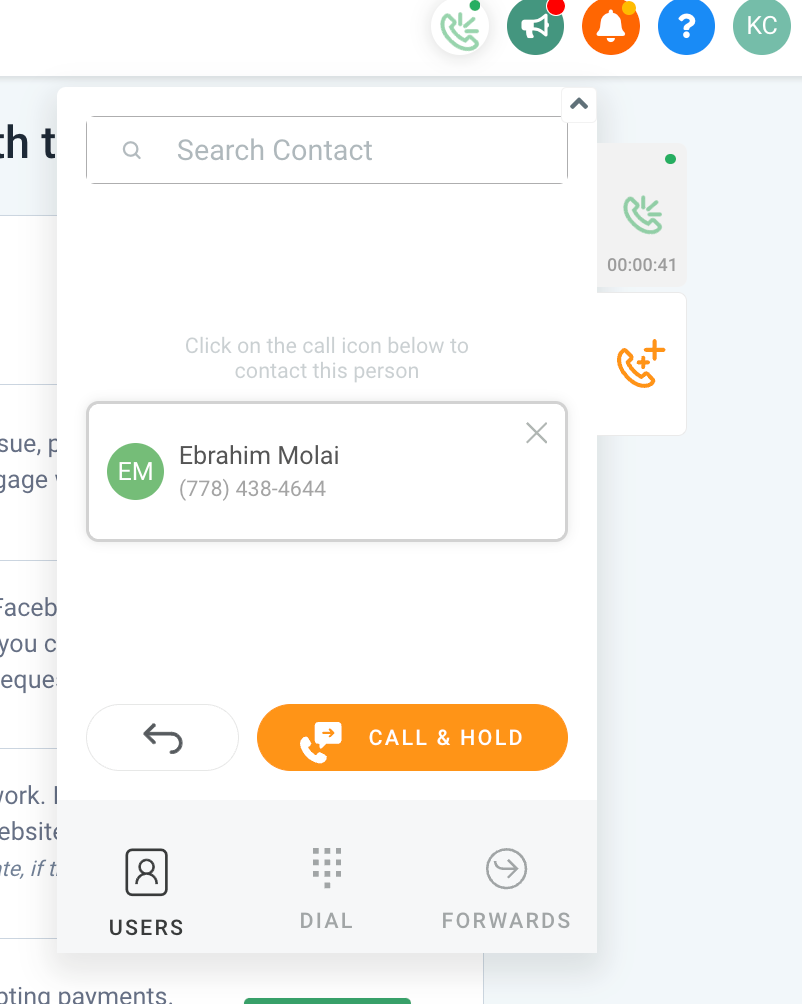
Perform a Warm TransferA warm transfer allows you to speak with another team member or contact before transferring the original caller. This ensures a smooth handover and provides context to the new recipient.
4
Step 1: Initiate a Second Call for Warm TransferWhile on the active call, click the Transfer button. Then, search for another user within your GoHighLevel account or manually dial an external number. This opens a second call line.
5
Step 2: Converse with the Second PartyYou can switch between your original call and the new call to discuss the transfer. This allows you to brief the new recipient before connecting them.
GoHighLevel screenshot
0
6
Step 3: Connect the Calls (Patch Call)Once you've spoken to the second party and are ready to connect them, click the Patch Call button. This merges the two calls, connecting the original caller with the new recipient, and you can then disconnect if your role is complete.
7
Perform a Blind TransferA blind transfer redirects the active call to another number without any prior conversation with the new recipient. You will be disconnected from the call once the transfer is complete.
8
Step 1: Initiate Blind TransferWhile on the active call, click the Transfer button. Enter the number you wish to transfer the call to.
9
Step 2: Complete Blind TransferAfter entering the number, click the Blind Transfer button. The call will be immediately redirected, and your connection to the call will end.
GoHighLevel screenshot
🔥 Pro Tip

For critical client interactions, always opt for a warm transfer. This prevents dropped calls or frustrated customers who might otherwise have to re-explain their situation to a new representative. It significantly improves customer experience.

Try GoHighLevel Free

Start your 30-day GoHighLevel free trial

Everything in this guide is in your free trial. 30 days, no credit card — the platform behind 78+ revenue systems.

Start 30-Day Free Trial

Some links are affiliate links — if you sign up we may earn a commission, at no extra cost to you. We only recommend GoHighLevel because we build on it every day.

What Are the Benefits of Using the GoHighLevel Dialer?

The integrated GoHighLevel Dialer offers more than just making calls; it's a powerful tool designed to enhance your communication workflow and improve productivity. Understanding its benefits helps you leverage it to its full potential.
1
Streamlined CommunicationMake and manage calls directly from your GoHighLevel web application. This eliminates the need to switch between different phone systems or devices, centralizing your communication efforts.
2
Integrated Contact ManagementAccess full contact information, past conversations, and client history while on a call. This provides immediate context, allowing for more personalized and effective interactions.
GoHighLevel screenshot
0
3
Advanced Call Handling FeaturesUtilize professional features like Mute, Hold, Warm Transfer, and Blind Transfer. These tools enable sophisticated call management, crucial for sales, support, and client services.
4
Improved Operational EfficiencyReduce manual data entry and minimize errors by automatically logging call activities and recordings within the contact's timeline. This saves time and ensures accurate record-keeping.
GoHighLevel screenshot
1
5
Enhanced Call Quality and DeliverabilityFeatures like Voice Integrity help improve your phone number's reputation with carriers. This can significantly increase answer rates and reduce the chances of your calls being marked as spam.
GoHighLevel screenshot
🔥 Pro Tip

Regularly review your call logs and recordings, accessible within the contact's activity tab. This data is invaluable for team training, performance analysis, and ensuring compliance with communication standards.

Troubleshooting Common Issues

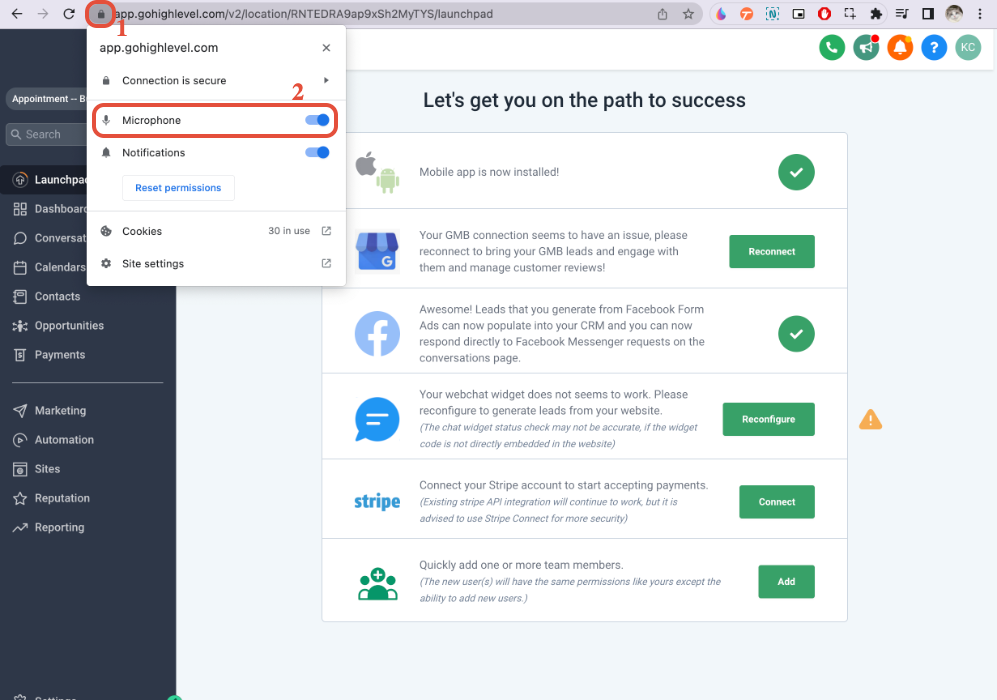
⚠️ You cannot hear or be heard during a call.
Ensure your microphone is enabled and allowed in your browser settings. Click the padlock icon or camera icon to the left of the URL bar in Chrome to verify and grant microphone permissions. You may need to restart your browser after adjusting settings.
⚠️ Calls fail to connect or have poor audio quality.
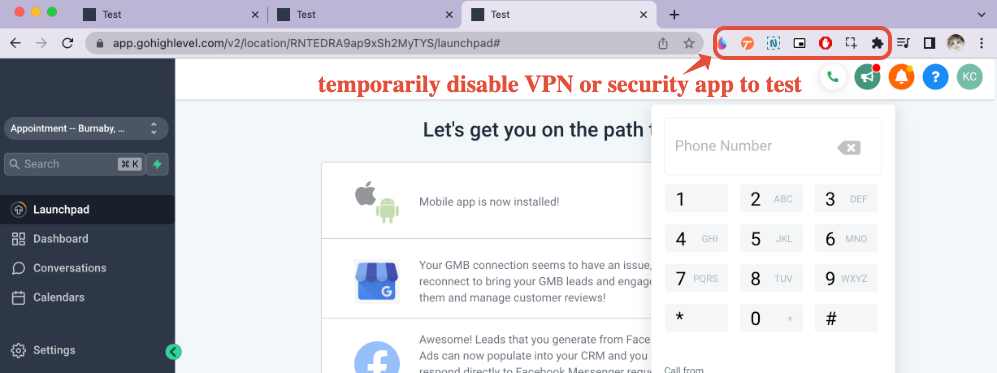
Disable any browser extensions, such as VPNs or ad blockers, that might interfere with the Dialer's functionality. Test the Dialer in an incognito or guest browser window, which typically runs without extensions, to isolate the issue.
⚠️ Outbound calls frequently end prematurely or fail to ring.
Verify that your phone number's outbound call timeout is set to at least 20 seconds. This setting ensures enough time for the call to connect through the recipient's carrier before timing out.
⚠️ Calls are going out from an unexpected phone number.
If you have 'only assigned data' enabled as a user, calls will use your assigned number. If you have 'all records enabled,' check the 'Calling From' dropdown in the Dialer and select the correct outgoing number before placing the call.
⚠️ Your outbound calls are being marked as spam or showing as 'Unknown Caller'.
Improve your phone number's reputation by registering for CNAM (Caller Name Display) and Voice Integrity. Navigate to Settings → Phone Numbers → Trust Center to manage these settings and enhance deliverability.

Common Mistakes to Avoid

  • Forgetting to enable microphone permissions in the browser, leading to one-way audio issues.
  • Not checking for interfering browser extensions (like VPNs or ad blockers) that can block or degrade dialer performance.
  • Setting the outbound call timeout too low, causing calls to prematurely disconnect before fully connecting.
  • Misunderstanding which phone number is used for outbound calls when multiple numbers or user roles are involved.
  • Neglecting to use warm transfers for important handoffs, resulting in less professional client experiences.

Frequently Asked Questions

QWhy are my calls going out from the default number instead of my assigned number?
If your user role has 'only assigned data' enabled, calls automatically dial out from your assigned number. However, if your user role has 'all records enabled,' you will need to manually select your desired outgoing number from the 'Calling From' dropdown menu within the Dialer before placing the call. This allows flexibility but requires conscious selection.
QHow can I remove or change the 'this call will be recorded for quality purposes' warning?
While generally not recommended due to legal compliance, you can modify or disable the call recording warning. This setting is typically managed within your phone number's configuration in **Settings → Phone Numbers**. Refer to the 'Phone Number Settings Explained' article for detailed instructions on adjusting these prompts.
QWhat is the 'connecting' tone I hear before the normal ringing sound?
GoHighLevel plays a brief 'connecting' tone to indicate that it is actively reaching the recipient's carrier. You will only hear the familiar ringback tone once the carrier confirms the destination device is actually ringing. If the carrier cannot be reached, the call ends after this connecting tone, preventing 'phantom ringing' when a connection isn't established.
QHow do I use the manual actions or power dialer feature?
The power dialer functionality is accessed via **Conversations → Manual Actions**. You typically use a workflow to assign calls to be made as manual actions. The 'Manual Actions' interface then guides you through these calls one by one, automatically opening the contact card and utilizing the Dialer for each assigned task, streamlining your outreach.
QWhy do I see a Voice Integrity tooltip after an unanswered call?
If an outbound call from the web dialer goes unanswered, GoHighLevel may display a tooltip recommending Voice Integrity. This feature helps improve answer rates by registering your numbers to avoid spam lists used by major U.S. carriers. Following the prompt to register can significantly boost your call deliverability and connection success.
Try GoHighLevel Free

Start your 30-day GoHighLevel free trial

Everything in this guide is in your free trial. 30 days, no credit card — the platform behind 78+ revenue systems.

Start 30-Day Free Trial

Some links are affiliate links — if you sign up we may earn a commission, at no extra cost to you. We only recommend GoHighLevel because we build on it every day.

Arsalan Zaffar
Arsalan Zaffar
Revset Labs · Revenue Systems · 78+ GHL Builds

Arsalan writes GHL guides from real build experience — 78+ systems, $9.2M in client pipeline. Wharton, CXL & Google certified.

Connect on LinkedIn
Tags:GoHighLevelDialerOutbound CallsSoftphoneCall ManagementTroubleshootingVoice Integrity