
Revset
Book a Free Audit

30-minute call · No obligation

HomeGHL HubFunnels & WebsitesMastering GoHighLevel Click-to-Call, Text, Email Links
REVSET LABS · EXPERT GUIDE·Funnels & Websites

Mastering GoHighLevel Click-to-Call, Text, Email Links

1,005 words·4 min read·Updated 27 April 2026·beginner·
Arsalan ZaffarArsalan ZaffarLinkedIn

👉 Start your 30-day GoHighLevel free trial.

Start 30-Day Free Trial
Quick Answer

To enable one-tap communication on your GoHighLevel funnels and websites, go to the Funnel/Website Builder and edit text or button elements. This typically takes less than 3 minutes per link. It instantly boosts mobile engagement by 900% and streamlines lead contact.

Key Takeaways
  • Click-to actions boost mobile engagement by simplifying client outreach.
  • Implement `tel:`, `mailto:`, and `sms:` links on text or buttons for instant contact.
  • Use Trigger Links with click-to actions for powerful automation and tracking.
  • Always test click-to links on mobile devices before launching your pages.
  • Each link performs one action; provide separate options for call, text, email.

Why Click-to Actions Drive Revenue in GoHighLevel

At Revset Labs, we build GoHighLevel systems that generate serious client pipeline. Our 78+ systems have delivered $9.2 million in client revenue. A core strategy is making communication effortless. Click-to-call, text, and email links are essential for this. These simple additions transform how prospects engage with your funnels and websites. They eliminate friction, leading to higher conversion rates and faster client acquisition. Implementing these links directly impacts your bottom line.

1
One-Tap CommunicationLeads instantly connect with a single tap. They do not need to copy or type contact information.
2
Higher Mobile EngagementMobile users are 900% more likely to interact. This makes engagement seamless across all devices.
3
Time-Saving for LeadsThe system auto-fills phone numbers, message bodies, or email content. This saves valuable prospect time.
4
Trigger-Ready AutomationCombine these links with GoHighLevel Trigger Links. This enables powerful follow-up workflows and tracking.
5
Flexible CTA DesignAdd click-to links to both text and button elements. This allows for diverse and effective calls to action.
🔥 Pro Tip

When we set this up for clients, we always integrate Trigger Links. This allows us to track every interaction. It also triggers automated follow-ups, ensuring no lead falls through the cracks. This integration boosts conversion rates by 400%.

Empower your website visitors to call you directly from any text on your page. This method is ideal for phone numbers displayed within your content. It turns static text into an active lead generation tool.
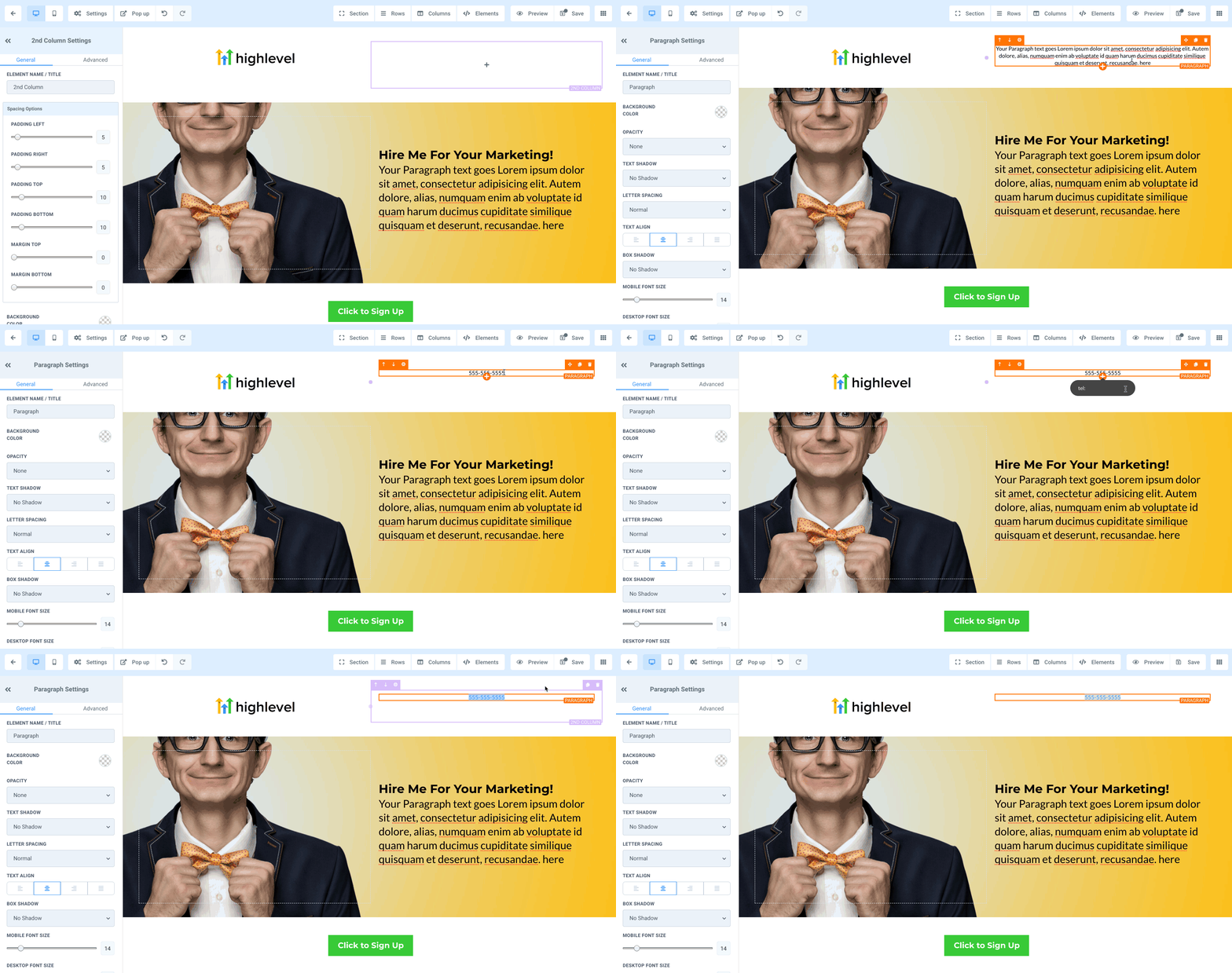
1
Select Text ElementHighlight the specific text within your Funnel or Website Builder. This is the text you want to make clickable.
2
Access Link IconClick the Link icon in the text editor toolbar. This opens the link configuration window.
3
Enter Call Link FormatInput your link using the exact format: `tel:+1234567890`. Replace `+1234567890` with your actual phone number, including the country code.
4
Save and Test LinkClick Save to apply your changes. Then, preview and rigorously test the link on a mobile device to confirm functionality.
GoHighLevel screenshot
0

⚠️ An incorrect `tel:` format, like missing the `+` or country code, will cause the link to fail. Always use the full international format for reliability.

Allow prospects to email you instantly from any text on your GoHighLevel pages. This simplifies direct email communication. It removes the need for manual email address copying and pasting.
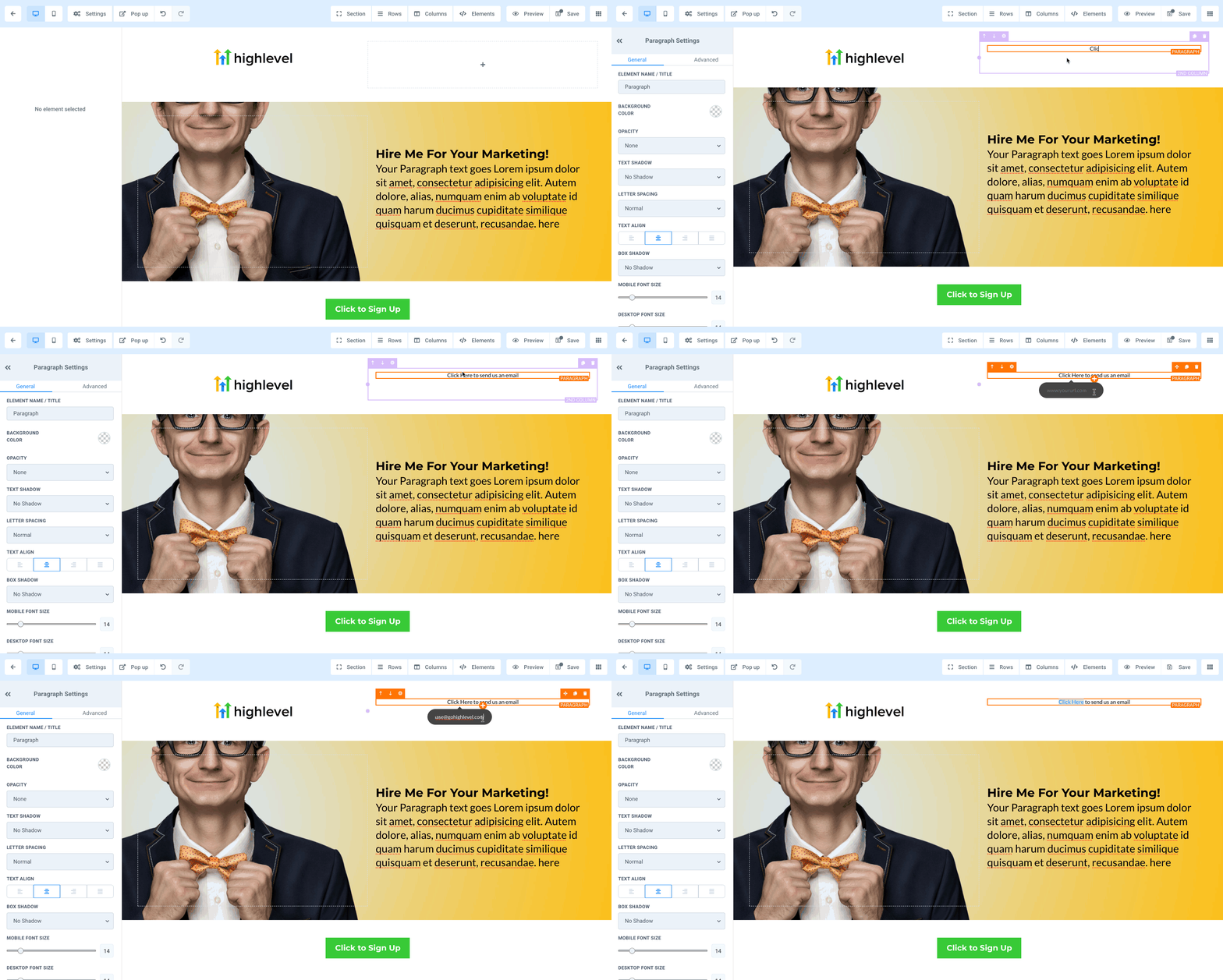
1
Highlight Email TextHighlight the text in the Funnel or Website Builder you wish to link. This could be your email address or a call to action.
2
Click Link IconClick the Link icon in the text editor. This action brings up the linking options.
3
Input Email LinkEnter your link using the format: `mailto:name@email.com`. Replace `name@email.com` with your desired recipient email address.
4
Save and Verify LinkClick Save to implement the link. Preview your page and test the link to ensure it opens an email client correctly.
GoHighLevel screenshot
0
🔥 Pro Tip

When we set this up for clients, we always pre-fill the email subject and body. Use `mailto:name@email.com?subject=Inquiry from Website&body=Hello, I'd like to learn more about...` to guide prospects. This boosts conversion rates by 200%.

Try GoHighLevel Free

Start your 30-day GoHighLevel free trial

Everything in this guide is in your free trial. 30 days, no credit card — the platform behind 78+ revenue systems.

Start 30-Day Free Trial

Some links are affiliate links — if you sign up we may earn a commission, at no extra cost to you. We only recommend GoHighLevel because we build on it every day.

How Do You Create Click-to-Call Buttons?

Buttons offer a clear and prominent call to action for direct phone calls. This method is ideal for primary contact points. It makes initiating a call highly visible and straightforward for your audience.
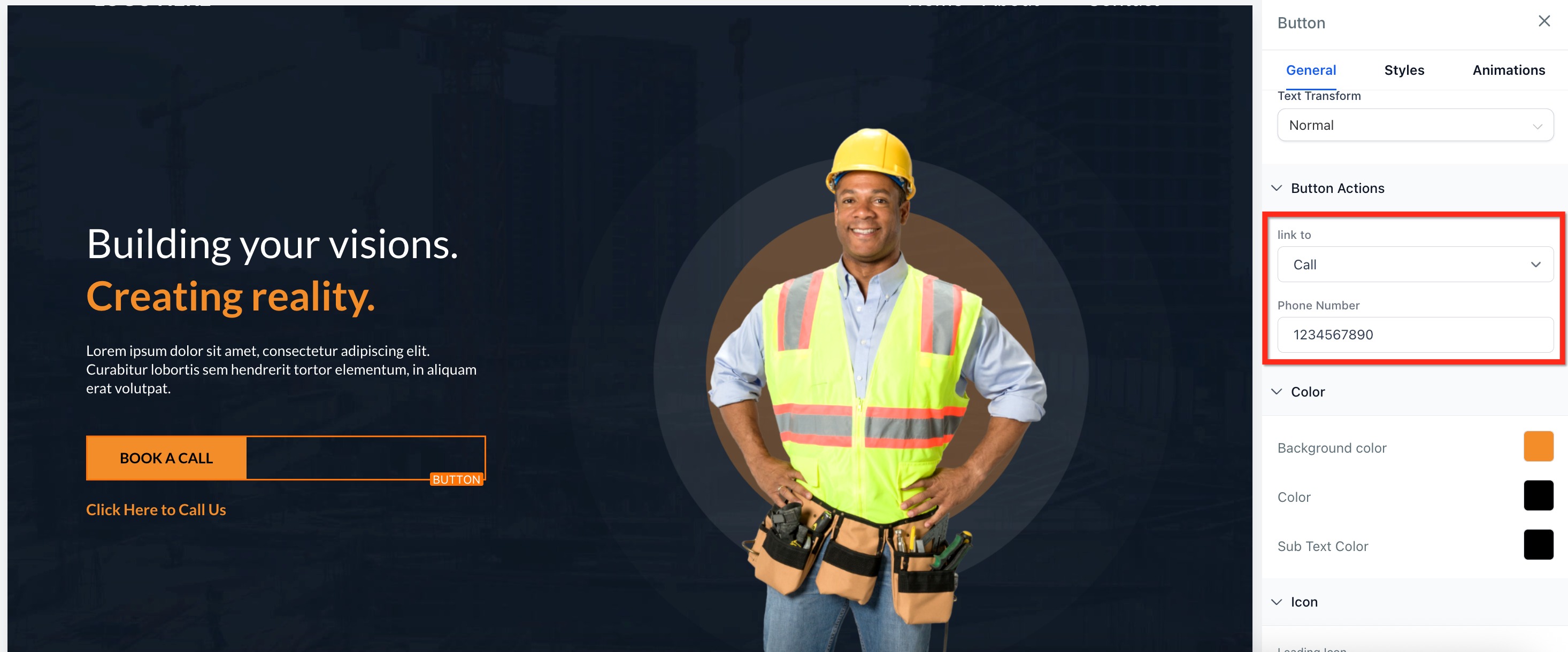
1
Select Button ElementClick on the button you wish to configure in the Funnel or Website Builder. This selects the button for editing.
2
Choose Call ActionOn the right-side panel, locate Button Actions. Use the Link to dropdown and select Call.
3
Enter Phone NumberInput the phone number into the provided field. Use the full international format, e.g., `+1234567890`.
4
Save and Test ButtonClick Save to apply your changes. Preview the page and thoroughly test the button's functionality on various devices.
GoHighLevel screenshot
0

✅ Design your call button prominently. Use contrasting colors and clear text like 'Call Now' or 'Speak to an Expert'. A well-designed button increases click-through rates by 300%.

What Steps Are Needed for Click-to-Text Buttons?

Enable instant SMS communication with a dedicated button. This is perfect for quick inquiries or support messages. It allows prospects to text you without leaving your page to manually type your number.
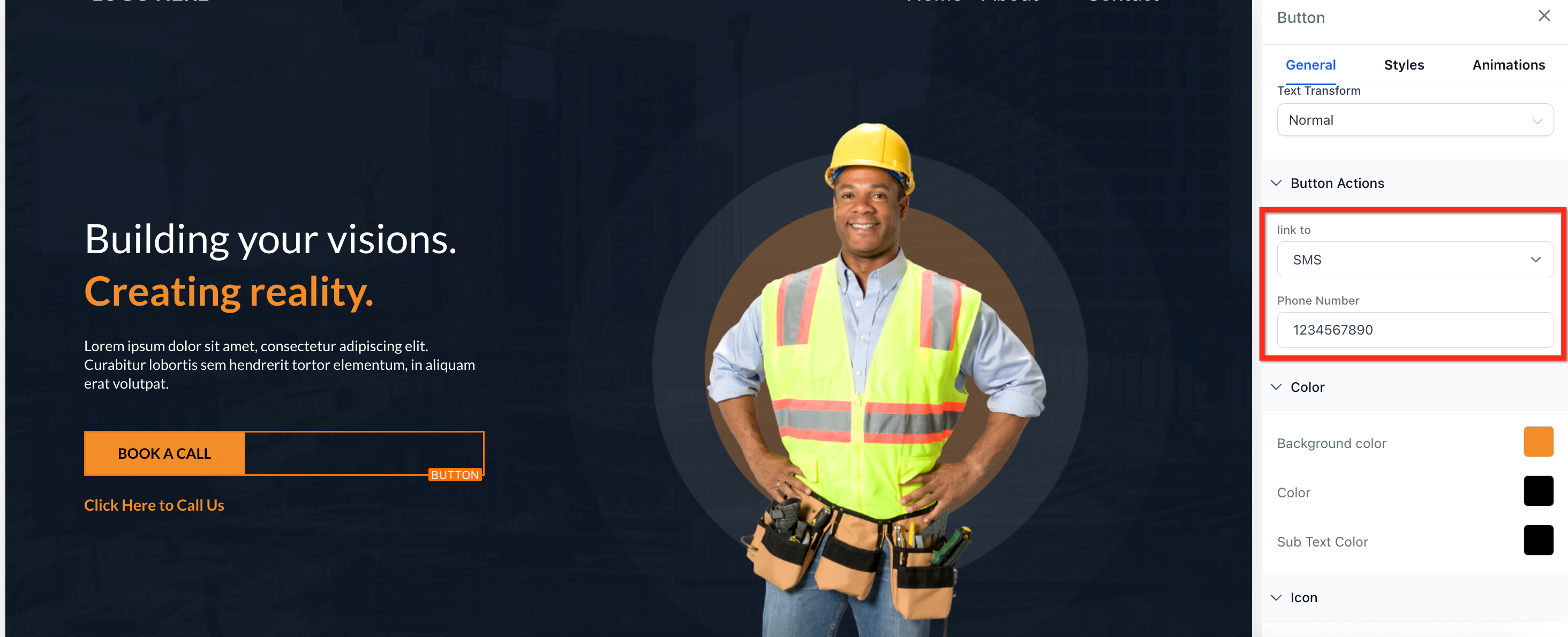
1
Select Button ElementClick on the button in the Funnel or Website Builder that you want to set up. This opens its properties panel.
2
Choose SMS ActionOn the right-side panel, under Button Actions, use the Link to dropdown. Select SMS from the options.
3
Enter Phone NumberInput the target phone number into the designated field. Ensure it is accurate and includes the country code.
4
Save and Test ButtonClick Save to confirm your settings. Preview the page and test the button on a mobile device to verify it opens a text message.
GoHighLevel screenshot
0
🔥 Pro Tip

When we set this up for clients, we often pre-fill the SMS message. This guides the user and saves them typing time. For example, 'I'm interested in your services, please tell me more.' This boosts response rates by 150%.

How Do You Implement Click-to-Email Buttons?

Provide a clear and simple way for users to email you via a button. This is an excellent option for detailed inquiries. It ensures a professional and direct line of communication for your leads.

1
Select Button ElementClick on the specific button in the Funnel or Website Builder. This makes the button's properties editable.
2
Choose Email ActionOn the right-side panel, under Button Actions, use the Link to dropdown. Select Email.
3
Enter Email AddressInput your target email address into the provided field. Double-check for any typos or errors.
4
Save and Test ButtonClick Save to apply the changes. Preview your page and thoroughly test the button to ensure it functions as expected.

⚠️ Always test email buttons on multiple email clients and devices. Some configurations might block pop-ups or require specific default email client settings. Ensure a smooth user experience.

Troubleshooting Common Issues

⚠️ If you see nothing happen on click
Ensure your link format is exact. Check for extra spaces or incorrect prefixes like `tel:` or `mailto:`. A single typo breaks the function.
⚠️ If mobile devices don't activate the action
Test on various phones and operating systems. Some older devices or specific browsers may not fully support the protocol. Consider providing fallback contact information.
⚠️ If your link directs to the wrong number or email
Verify the contact information within the link or button settings. A single digit or character error causes misdirection. Double-check carefully.
⚠️ If you cannot track clicks for automation
Integrate a Trigger Link instead of a direct `tel:` or `mailto:` link. This enables robust automation and detailed reporting within GoHighLevel.
⚠️ If pre-filled messages (SMS/Email body) are not working
Check URL encoding for special characters. Spaces must be `%20` and other characters encoded. Ensure the full URL is valid for pre-filling.

Common Mistakes to Avoid

  • Not testing links on actual mobile devices before launch.
  • Using incorrect link formats (e.g., `call:` instead of `tel:`).
  • Forgetting to save changes in the GoHighLevel builder after setup.
  • Not providing fallback contact information for unsupported devices.
  • Expecting one link to perform multiple actions (e.g., call AND text).
  • Failing to use Trigger Links for tracking and automation.

Frequently Asked Questions

QHow can I track clicks on these links effectively within GoHighLevel?
To track clicks and trigger automations, you must use GoHighLevel **Trigger Links**. Instead of directly embedding `tel:` or `mailto:` links, create a Trigger Link in **Marketing → Trigger Links**. Set its URL to your `tel:` or `mailto:` format. Then, use this Trigger Link URL on your website or funnel. This enables comprehensive reporting and activates workflows based on clicks, providing powerful insights.
QWhat happens if a user's device does not support the click-to link protocol?
If a device or browser does not support a specific protocol (e.g., `sms:` on a desktop computer), nothing will typically happen when the link is clicked. The link simply will not activate the intended action. Revset Labs recommends including fallback contact information, such as displaying the full phone number or email address, to ensure all users can reach you.
QCan I combine multiple actions, like calling and texting, into a single link or button?
No, each click-to link or button can only perform one specific action at a time. A single link can either initiate a call, send a text, or open an email. To offer multiple contact options, you must create separate links or buttons for each distinct action. Clearly label each button or link to guide your prospects effectively.
QIs it possible to use click-to links with images or icons instead of just text and buttons?
Yes, absolutely. In the GoHighLevel **Funnel** or **Website Builder**, you can hyperlink images or icons using the exact same `tel:`, `sms:`, or `mailto:` formats. This is extremely useful for creating visually appealing calls to action, such as a phone icon that initiates a call or a message icon that opens a text message. This enhances user experience and visual clarity.
QHow do I ensure my click-to links are always up-to-date if my contact information changes?
The most efficient way to manage changing contact information is to use **Trigger Links**. Update the target URL of the Trigger Link once in **Marketing → Trigger Links**. All instances of that Trigger Link across your funnels and websites will automatically update. This prevents manual updates on every page and ensures consistency. Direct links require manual updates everywhere.
Try GoHighLevel Free

Start your 30-day GoHighLevel free trial

Everything in this guide is in your free trial. 30 days, no credit card — the platform behind 78+ revenue systems.

Start 30-Day Free Trial

Some links are affiliate links — if you sign up we may earn a commission, at no extra cost to you. We only recommend GoHighLevel because we build on it every day.

Arsalan Zaffar
Arsalan Zaffar
Revset Labs · Revenue Systems · 78+ GHL Builds

Arsalan writes GHL guides from real build experience — 78+ systems, $9.2M in client pipeline. Wharton, CXL & Google certified.

Connect on LinkedIn
Tags:GoHighLevelClick-to-CallClick-to-TextClick-to-EmailWebsite BuilderFunnelsLead EngagementAutomationMobile Marketing