
Create Navigation Menu Categories in GoHighLevel Funnels & Websites
👉 Start your 30-day GoHighLevel free trial.
Start 30-Day Free Trial →To create categories (drop-down menus) in your GoHighLevel navigation, open your funnel or website in the builder, select the Navigation Menu element, then add new items and drag them slightly indented under a parent item. This process typically takes 3-5 minutes and significantly improves site organization.
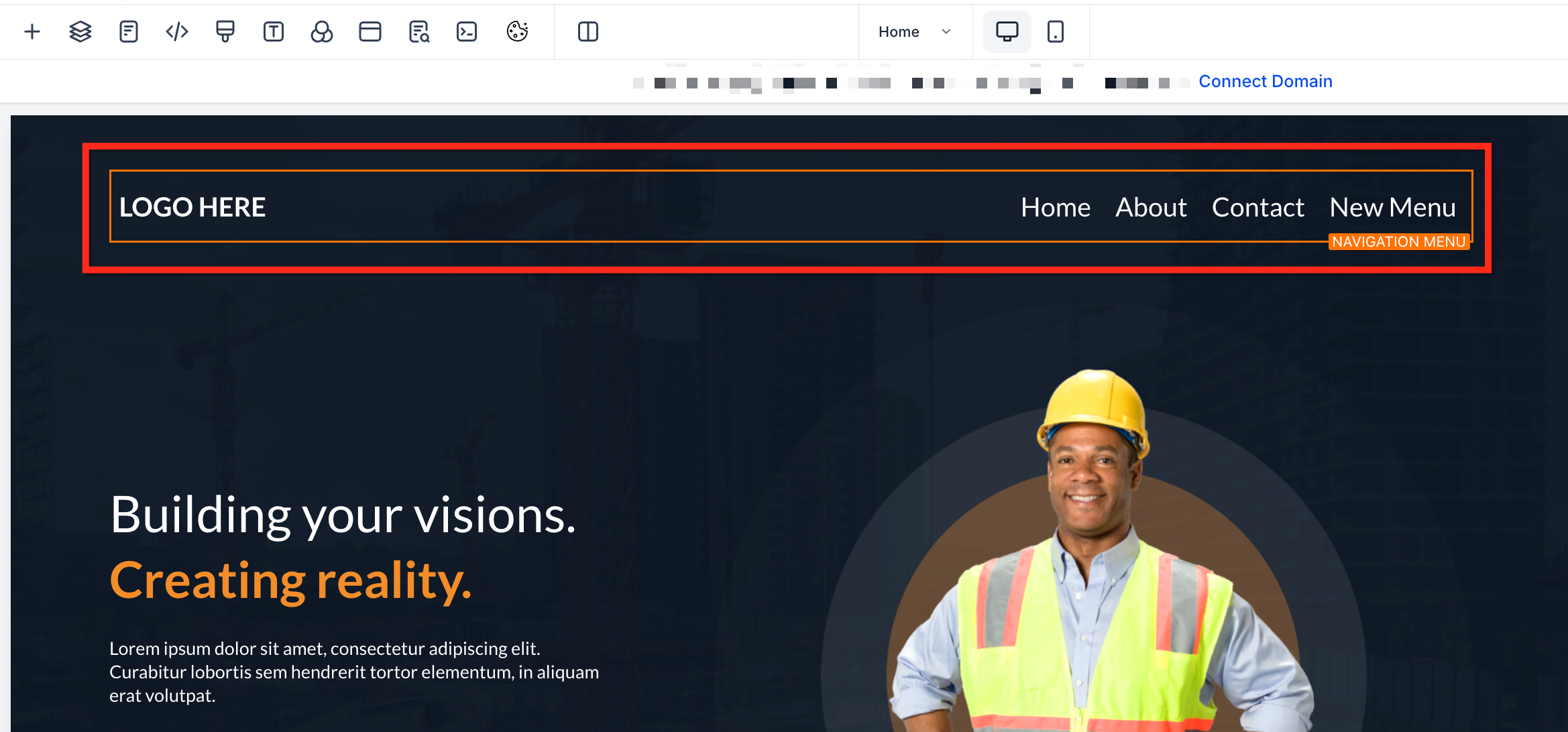
- ✓Always locate and select the **Navigation Menu** element directly within the GoHighLevel page builder to make edits.
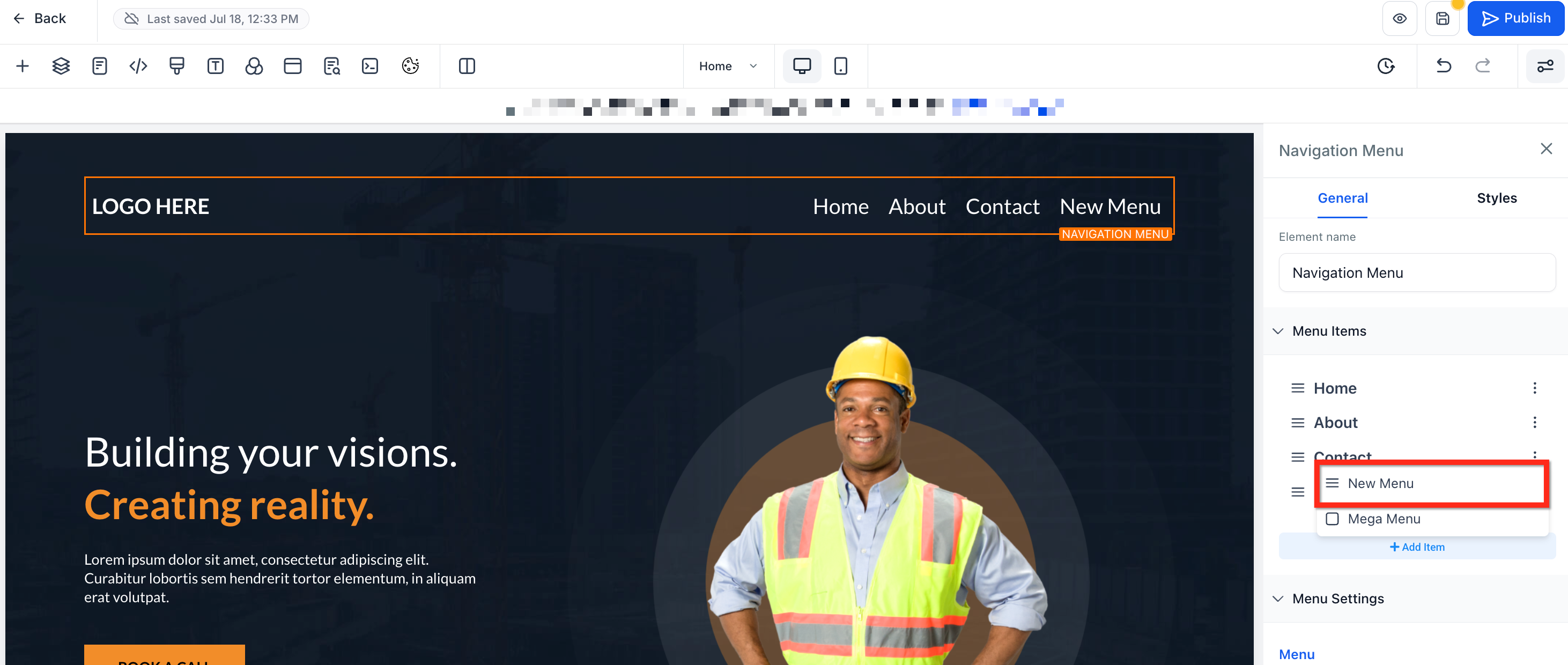
- ✓Creating a drop-down menu involves dragging a new menu item slightly to the right, indenting it under an existing parent item.
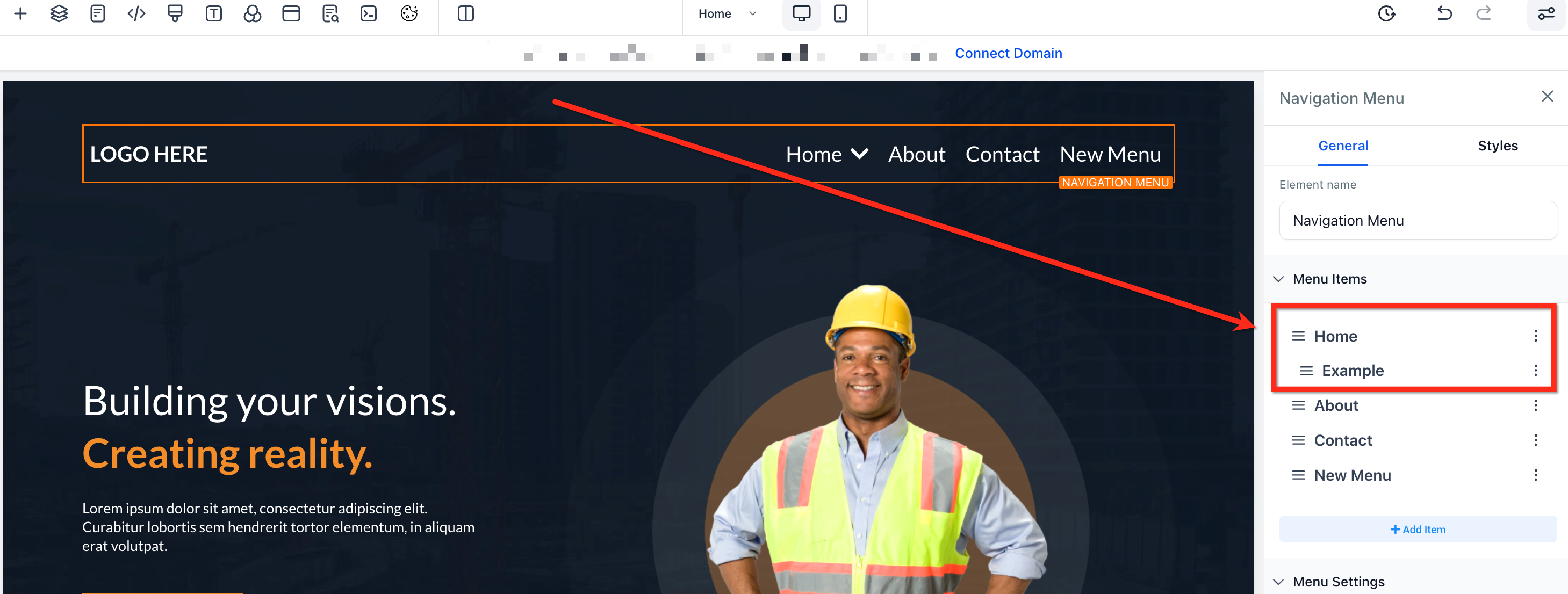
- ✓GoHighLevel navigation menus support only one level of nested drop-downs to maintain clarity and mobile responsiveness.
- ✓Regularly use the **Preview** function to verify your menu's structure and ensure all categories function as intended.
- ✓Leverage the drag-and-drop interface to efficiently reorder, rename, or restructure your menu items without coding.
Why Organized Navigation Matters for Your GoHighLevel Site
A well-structured navigation menu is crucial for any successful website or funnel in GoHighLevel. It does more than just look good; it directly impacts how visitors interact with your content, find information, and ultimately, convert. By organizing your pages into clear categories, you guide users effortlessly through your site.
How to Create Navigation Menu Categories Step-by-Step
Creating drop-down menu categories in your GoHighLevel funnels or websites is a straightforward process. Follow these steps carefully to organize your site's navigation and enhance user accessibility.
Always plan out your menu structure and category names on paper or a digital document before you start building. This foresight saves time and ensures a logical, intuitive flow for your visitors.
Start your 30-day GoHighLevel free trial
Everything in this guide is in your free trial. 30 days, no credit card — the platform behind 78+ revenue systems.
Some links are affiliate links — if you sign up we may earn a commission, at no extra cost to you. We only recommend GoHighLevel because we build on it every day.
Managing and Refining Your Menu Categories
Once your categories are set up, GoHighLevel provides simple tools to manage and refine them. You can easily reorder items, rename existing entries, or remove them entirely to keep your navigation current and efficient.
✅ Remember that GoHighLevel navigation menus are limited to one layer of nested pages. This design choice helps maintain clarity and responsiveness, especially for mobile users.
Troubleshooting Common Issues
Common Mistakes to Avoid
- →Forgetting to click the Save button after making any changes to the navigation menu, leading to lost work.
- →Not previewing the menu after making changes, which can result in broken links or incorrect nesting on the live site.
- →Attempting to create more than one level of nested drop-downs, which is not supported by GoHighLevel's navigation builder.
- →Failing to select the Navigation Menu element itself before trying to add or modify items, preventing the settings panel from appearing.
- →Using generic or unclear names for menu categories, making it harder for visitors to understand your site's structure.
Frequently Asked Questions
Start your 30-day GoHighLevel free trial
Everything in this guide is in your free trial. 30 days, no credit card — the platform behind 78+ revenue systems.
Some links are affiliate links — if you sign up we may earn a commission, at no extra cost to you. We only recommend GoHighLevel because we build on it every day.

Arsalan writes GHL guides from real build experience — 78+ systems, $9.2M in client pipeline. Wharton, CXL & Google certified.
Connect on LinkedIn