Revset
Book a Free Audit

30-minute call · No obligation

HomeGHL HubFunnels & WebsitesConnect Your Root or Subdomain to GoHighLevel Funnels & Websites
REVSET LABS · EXPERT GUIDE·Funnels & Websites

Connect Your Root or Subdomain to GoHighLevel Funnels & Websites

1,037 words·4 min read·Updated 28 April 2026·beginner·
Arsalan ZaffarArsalan ZaffarLinkedIn

👉 Start your 30-day GoHighLevel free trial.

Start 30-Day Free Trial
Quick Answer

To connect your root or subdomain to GoHighLevel funnels and websites, first configure CNAME or A records with your domain registrar. Then, navigate to Settings → Domains & URL Redirects in GoHighLevel to add and link your domain. This process typically takes 15-30 minutes, plus DNS propagation time.

Key Takeaways
  • Always configure DNS records (CNAME or A) with your domain registrar *before* adding the domain in GoHighLevel.
  • For subdomains like `www` or `funnels`, a CNAME record pointing to `sites.ludicrous.cloud` is generally recommended.
  • For root domains (e.g., `yourdomain.com`), or if CNAME isn't an option, use an A record pointing to `162.159.140.166`.
  • Ensure only one DNS record (A or CNAME) exists for a specific host (e.g., `www` or `@`) to avoid conflicts.
  • If using Cloudflare, set your domain's DNS records to "DNS only" (grey cloud) for GoHighLevel connections to prevent SSL errors.

How to Prepare Your Domain with Your Registrar

Connecting your custom domain to GoHighLevel funnels and websites begins with configuring your DNS records. This crucial first step takes place within your domain registrar or DNS provider, such as GoDaddy, Cloudflare, or Namecheap. You will add either a CNAME or an A record, depending on whether you're connecting a root domain or a subdomain.


1
Access Your Domain RegistrarLog in to your domain registrar or DNS provider. This is the platform where you purchased your domain and manage its DNS settings.
GoHighLevel screenshot
0
2
Choose Your Domain TypeDecide if you are connecting a root domain (e.g., `yourdomain.com`) or a subdomain (e.g., `www.yourdomain.com` or `funnels.yourdomain.com`). Your choice dictates the type of DNS record you need to create.
GoHighLevel screenshot
1
3
Add a CNAME Record for Subdomains (Recommended)If connecting a subdomain, create a CNAME record. Set the Host/Name to your subdomain (e.g., `www` or `funnels`) and the Value/Target to `sites.ludicrous.cloud`.
GoHighLevel screenshot
2
4
Add an A Record for Root Domains or Subdomains (Alternative)If connecting a root domain, create an A record with Host/Name set to `@` and Value/IP to `162.159.140.166`. For subdomains, you can also use an A record by setting Host/Name to your subdomain (e.g., `www`) and Value/IP to `162.159.140.166`.
GoHighLevel screenshot
3
5
Save Your DNS RecordsConfirm and save the new DNS records within your domain registrar's interface. DNS changes can take some time to propagate globally, often up to 24 hours, but usually occur much faster.
GoHighLevel screenshot
4
GoHighLevel screenshot

⚠️ After adding your DNS records, it can take up to 24 hours for changes to propagate across the internet. If your domain doesn't work immediately, allow some time before trying again.

Once your DNS records are configured with your domain registrar, the next step is to link your domain inside your GoHighLevel account. This process connects your custom domain to your funnels, websites, blogs, or stores, making them live online.
1
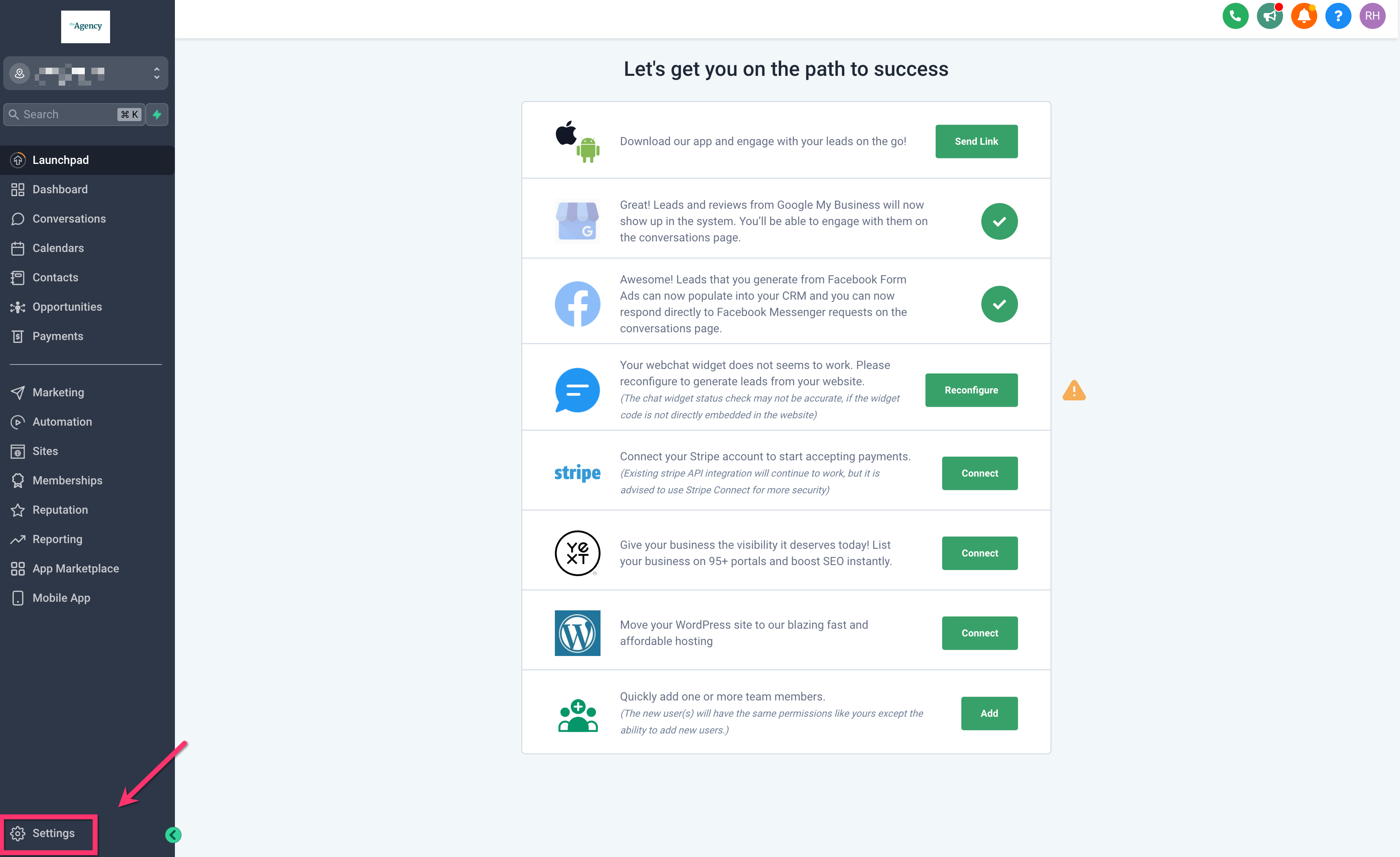
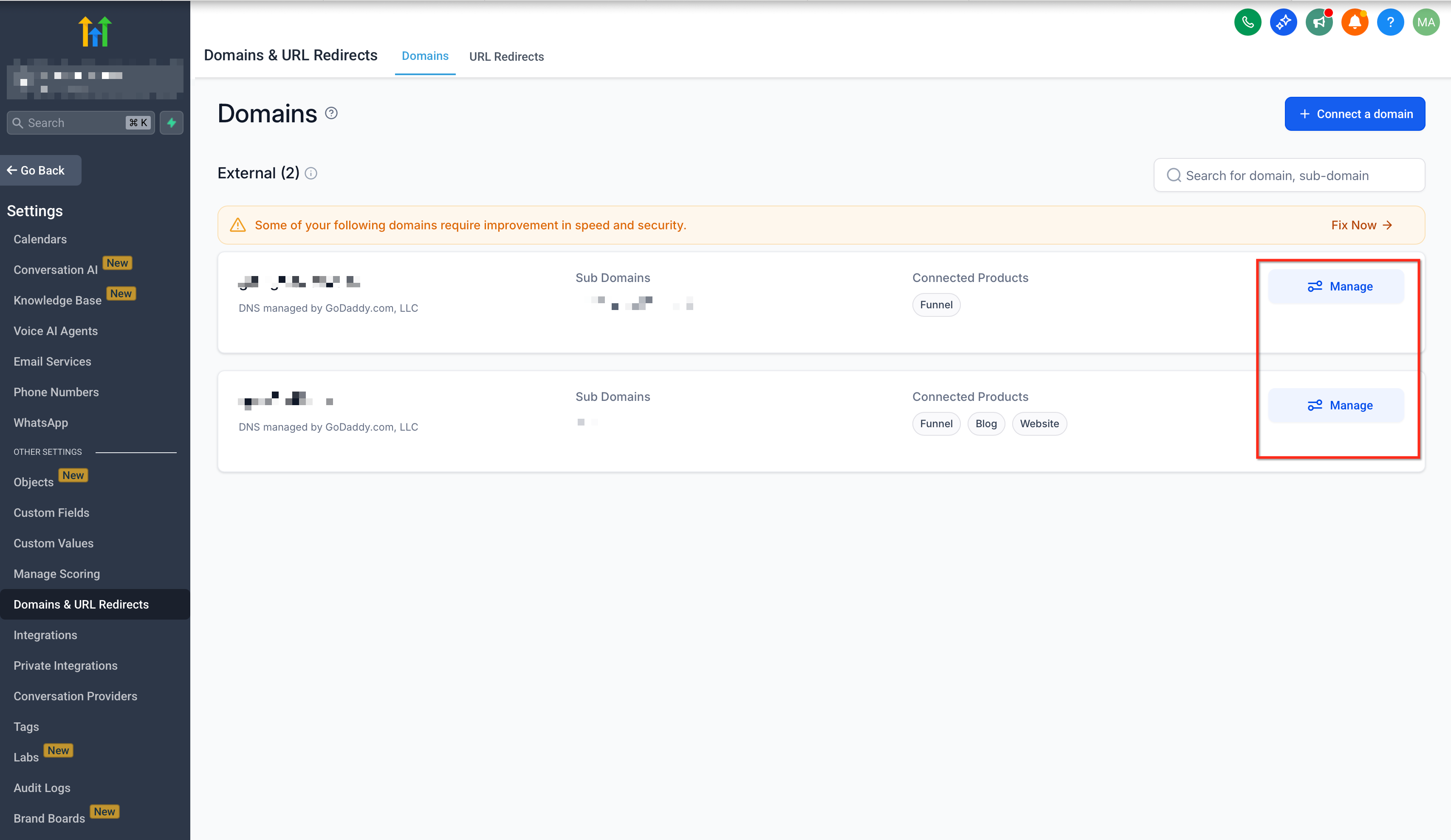
Go to Domain SettingsIn your GoHighLevel account, click on Settings in the left navigation menu. Then, select Domains & URL Redirects to manage your domain connections.
2
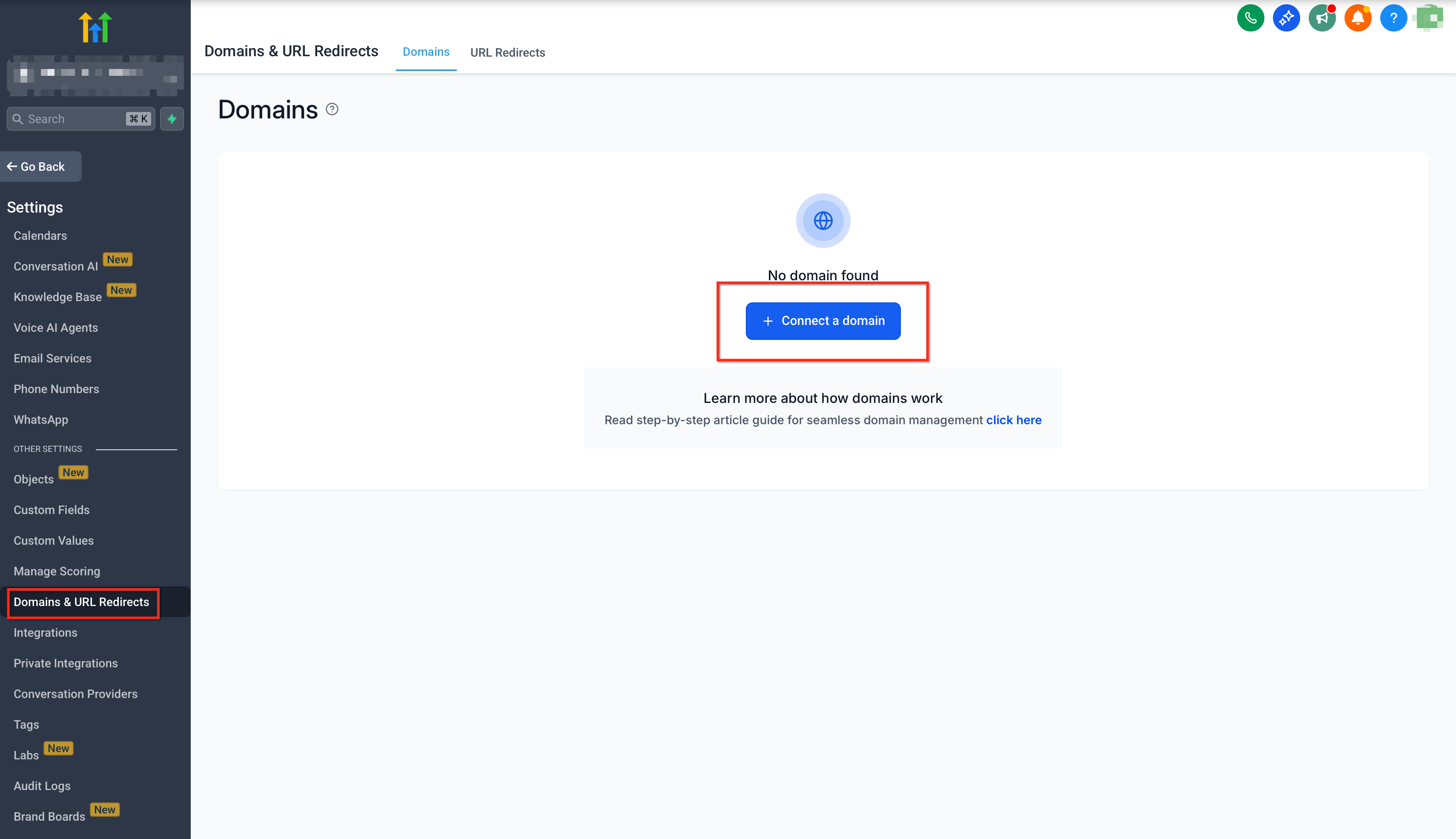
Connect a New DomainClick the + Connect a domain button located at the top right of the Domains & URL Redirects page. This will launch the domain connection wizard.
3
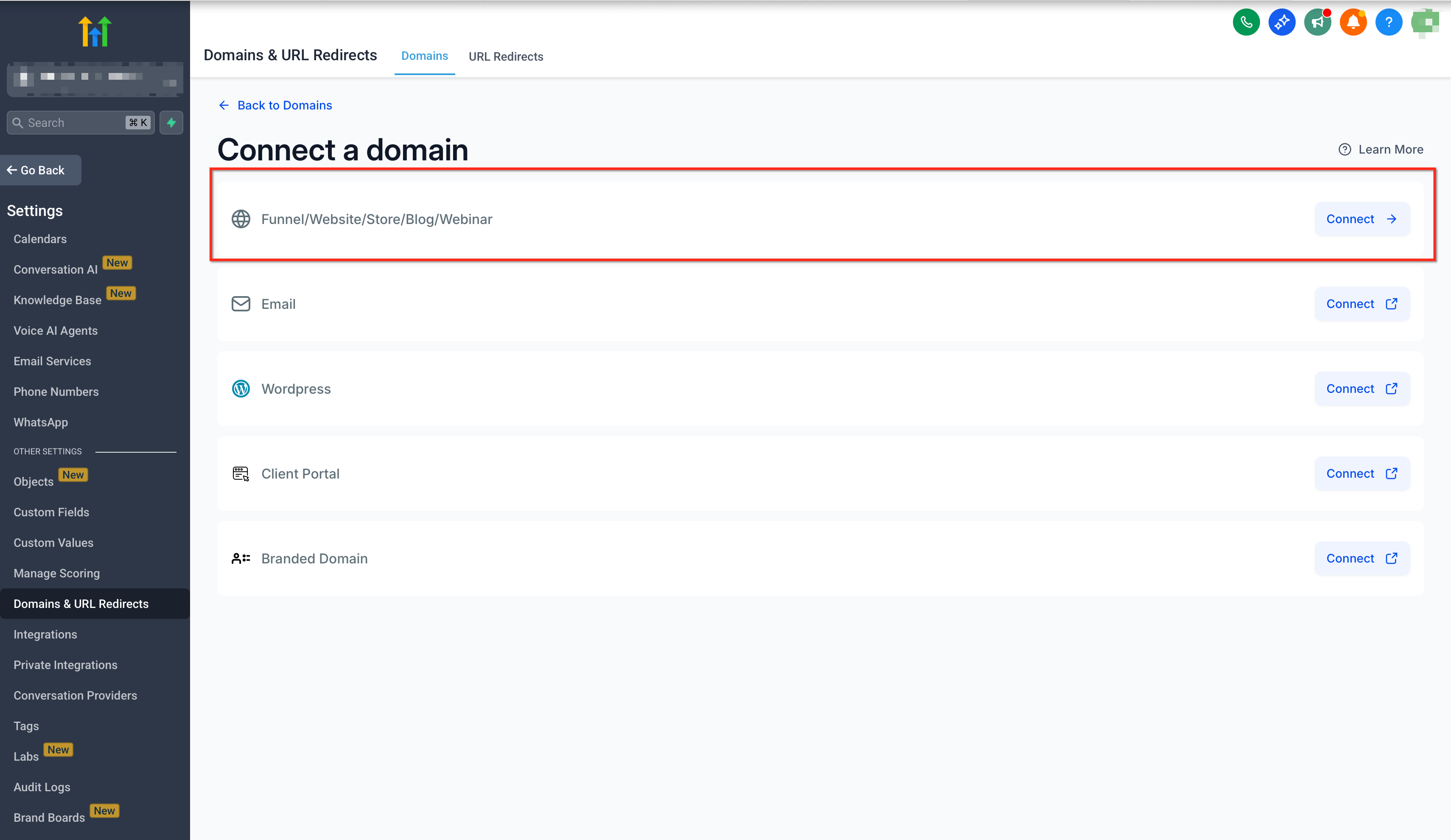
Select Connection TypeChoose the Connect option for 'Funnel/Website/Store/Blog/Webinar'. This specifies that you are linking the domain to your marketing assets.
GoHighLevel screenshot
0
4
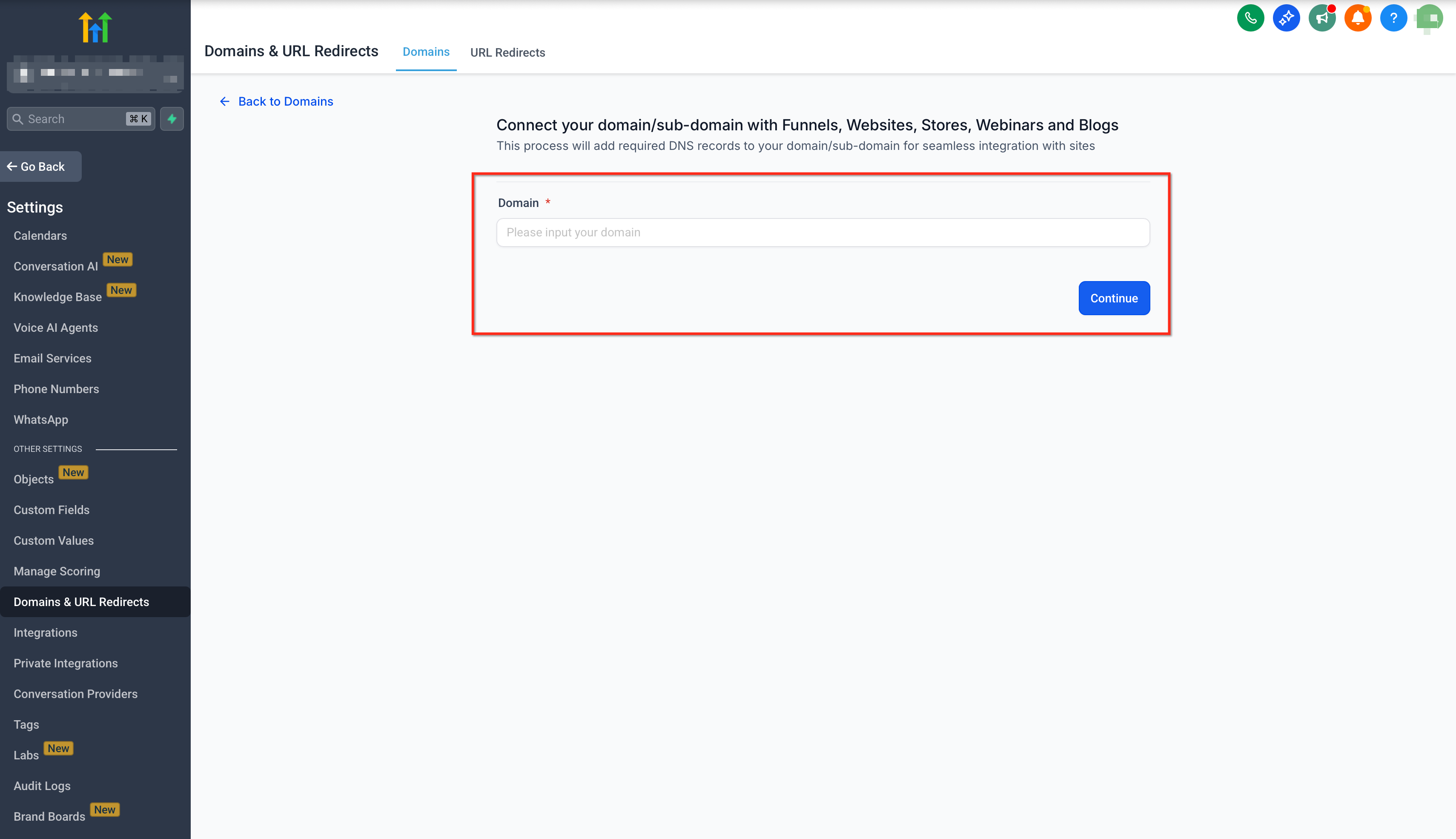
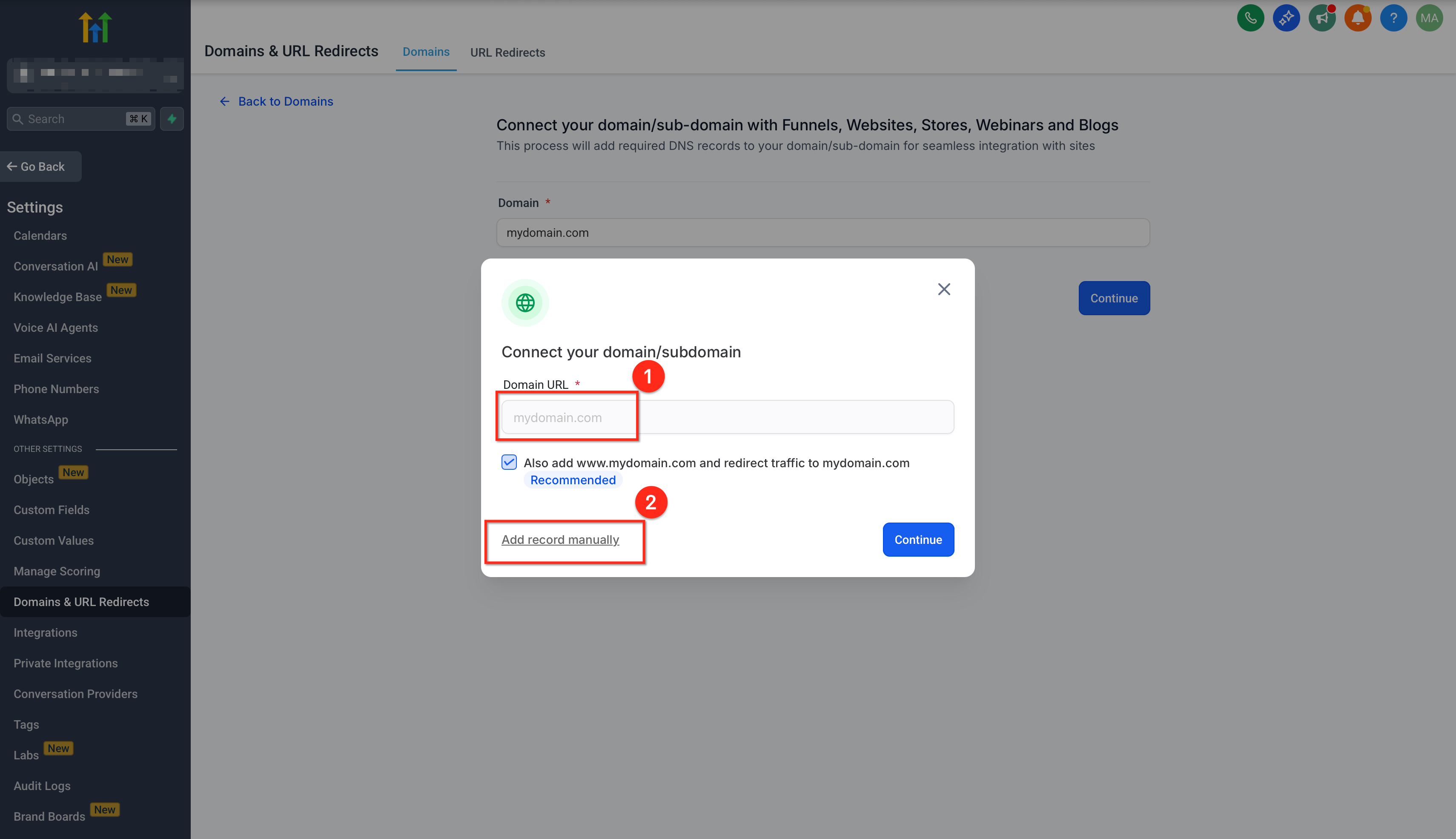
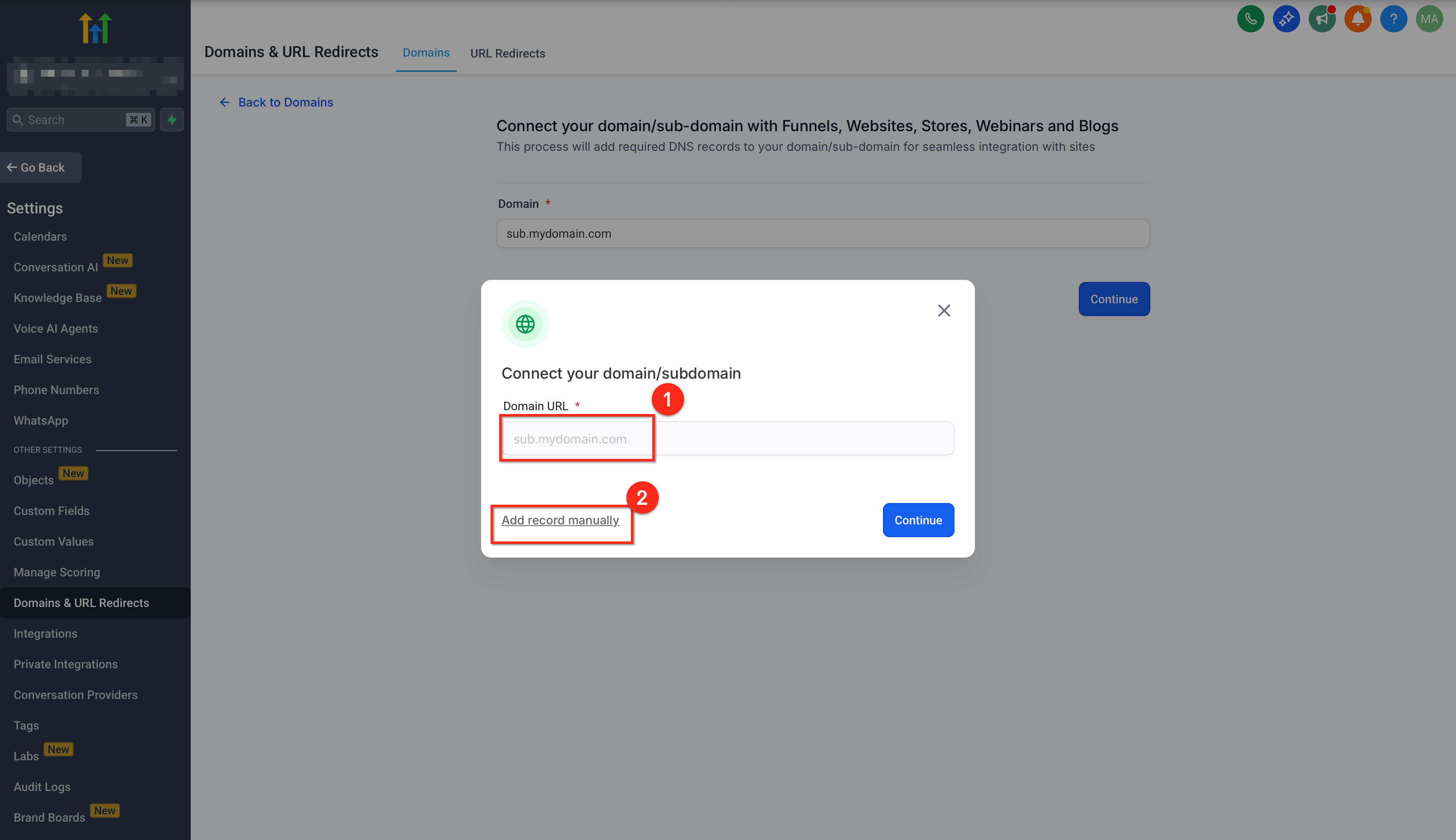
Enter Your DomainType your full domain or subdomain (e.g., `www.yourdomain.com` or `yourdomain.com`) into the provided field. Click Continue; GoHighLevel will attempt to verify your DNS records.
5
Verify DNS Records (If Prompted)If GoHighLevel cannot automatically verify your DNS, click Add record manually. Review the suggested records to ensure they match what you configured with your registrar.
6
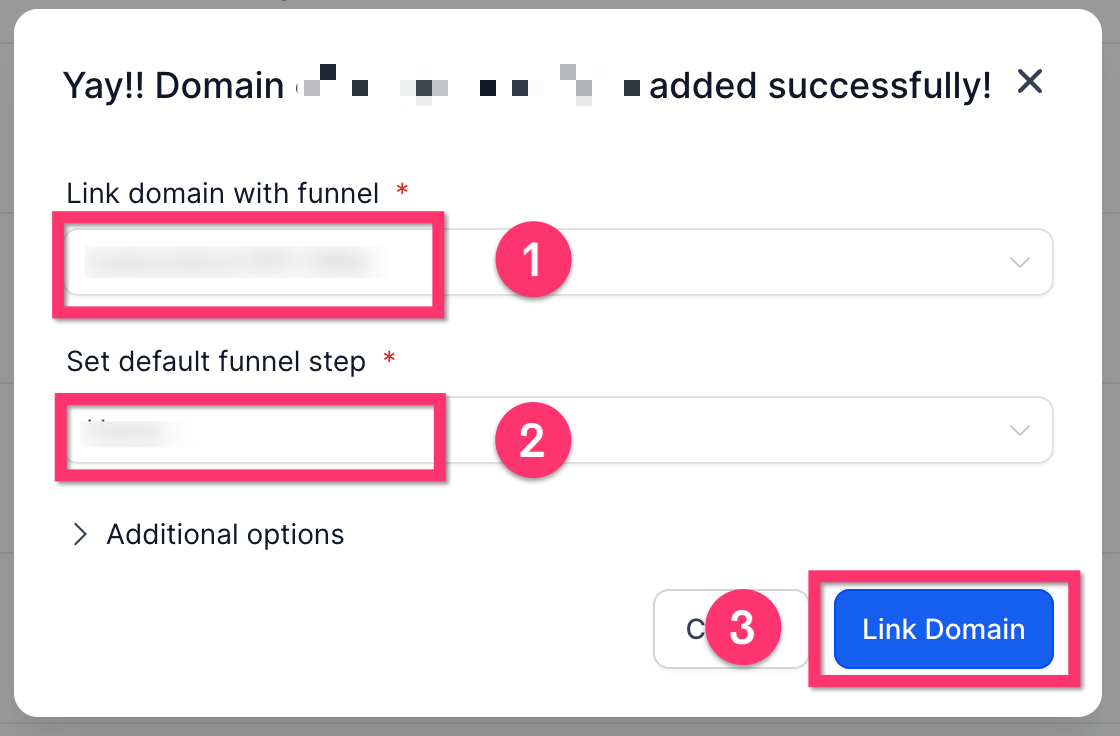
Link to Funnel or WebsiteOnce DNS is verified, a new screen appears. Select the specific Funnel or Website you wish to link from the dropdown menu.
GoHighLevel screenshot
1
7
Set Default PageChoose which funnel step or website page should serve as the default landing page for your domain. This page will load when someone visits `yourdomain.com` without a specific path.
8
Complete Linking and SSL ProvisioningClick the Link Domain button to finalize the connection. GoHighLevel automatically provisions a free SSL certificate for your domain, which typically takes a few minutes to complete in the background.
GoHighLevel screenshot

✅ To have a funnel step or website page open directly without a path (e.g., `domain.com` instead of `domain.com/home`), select that specific page as the default for your domain during setup. You can always adjust this default page later by going to Settings → Domains & URL Redirects → Manage Domain → Edit Domain.

🔥 Pro Tip

When you connect a root domain (e.g., `yourdomain.com`), GoHighLevel automatically sets up a 301 redirect. This ensures visitors typing `www.yourdomain.com` are seamlessly redirected to your root domain, providing a consistent user experience.

Try GoHighLevel Free

Start your 30-day GoHighLevel free trial

Everything in this guide is in your free trial. 30 days, no credit card — the platform behind 78+ revenue systems.

Start 30-Day Free Trial

Some links are affiliate links — if you sign up we may earn a commission, at no extra cost to you. We only recommend GoHighLevel because we build on it every day.

How to Verify Your DNS Records with an Online Tool

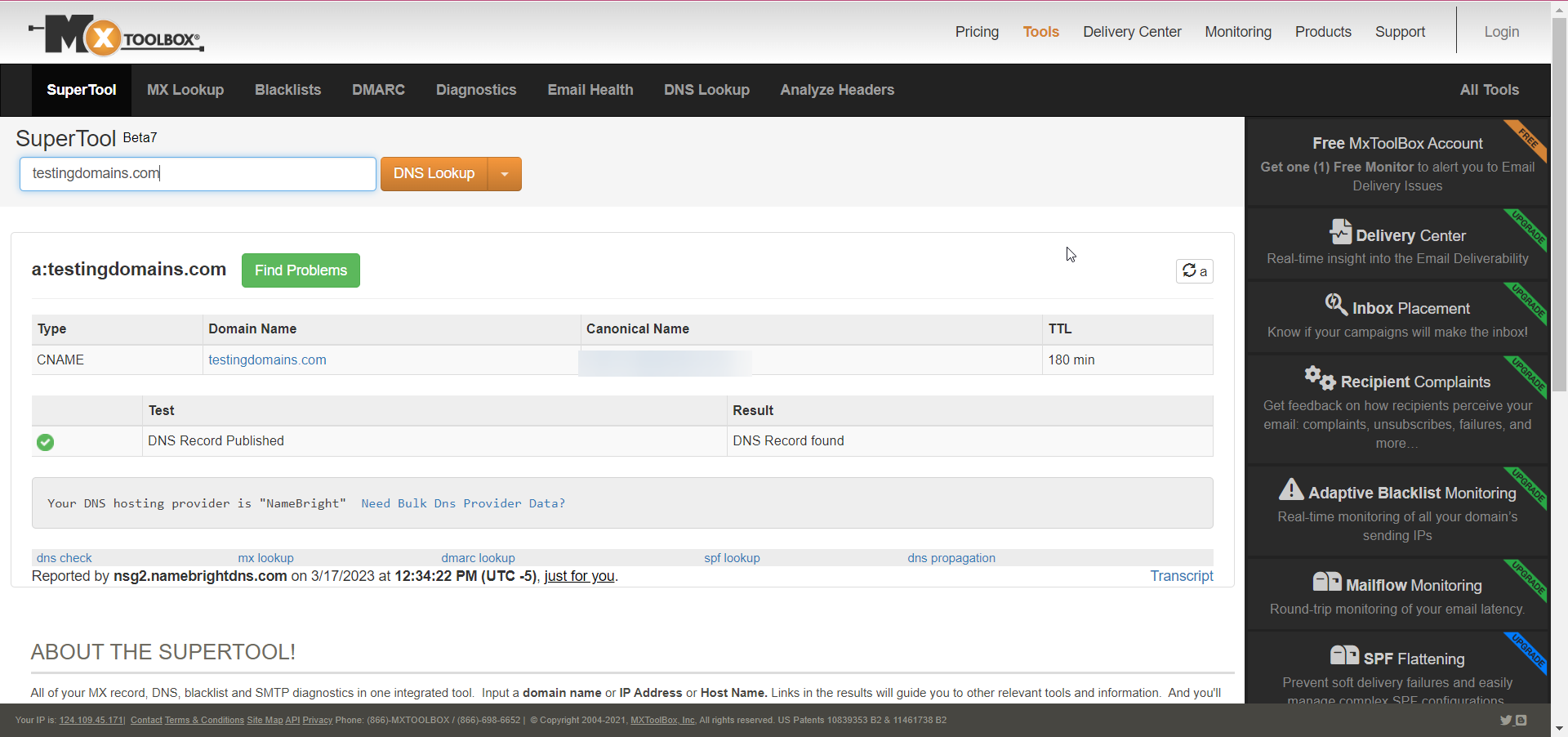
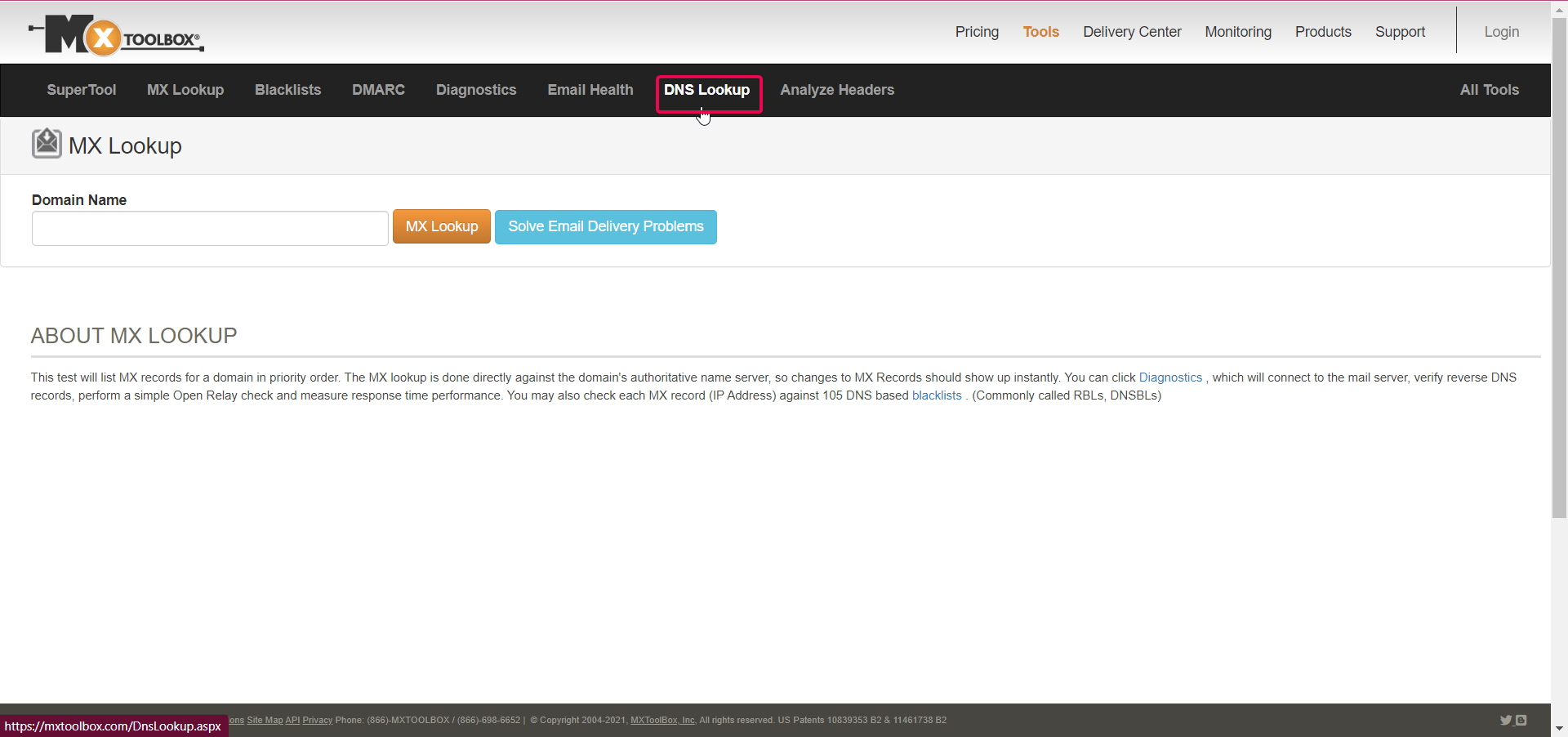
After making DNS changes at your domain registrar, it's wise to verify that these records have propagated correctly across the internet. An online DNS lookup tool like MXtoolbox can help you confirm your settings before you proceed with linking your domain in GoHighLevel.
1
Visit MXtoolbox WebsiteOpen your web browser and navigate to `https://mxtoolbox.com`. This is a free online tool for checking various DNS records.
2
Select Lookup TypeOn the homepage, click the dropdown menu and select 'DNS Lookup' or 'CNAME Lookup'. These options are most relevant for confirming your GoHighLevel domain connection.
3
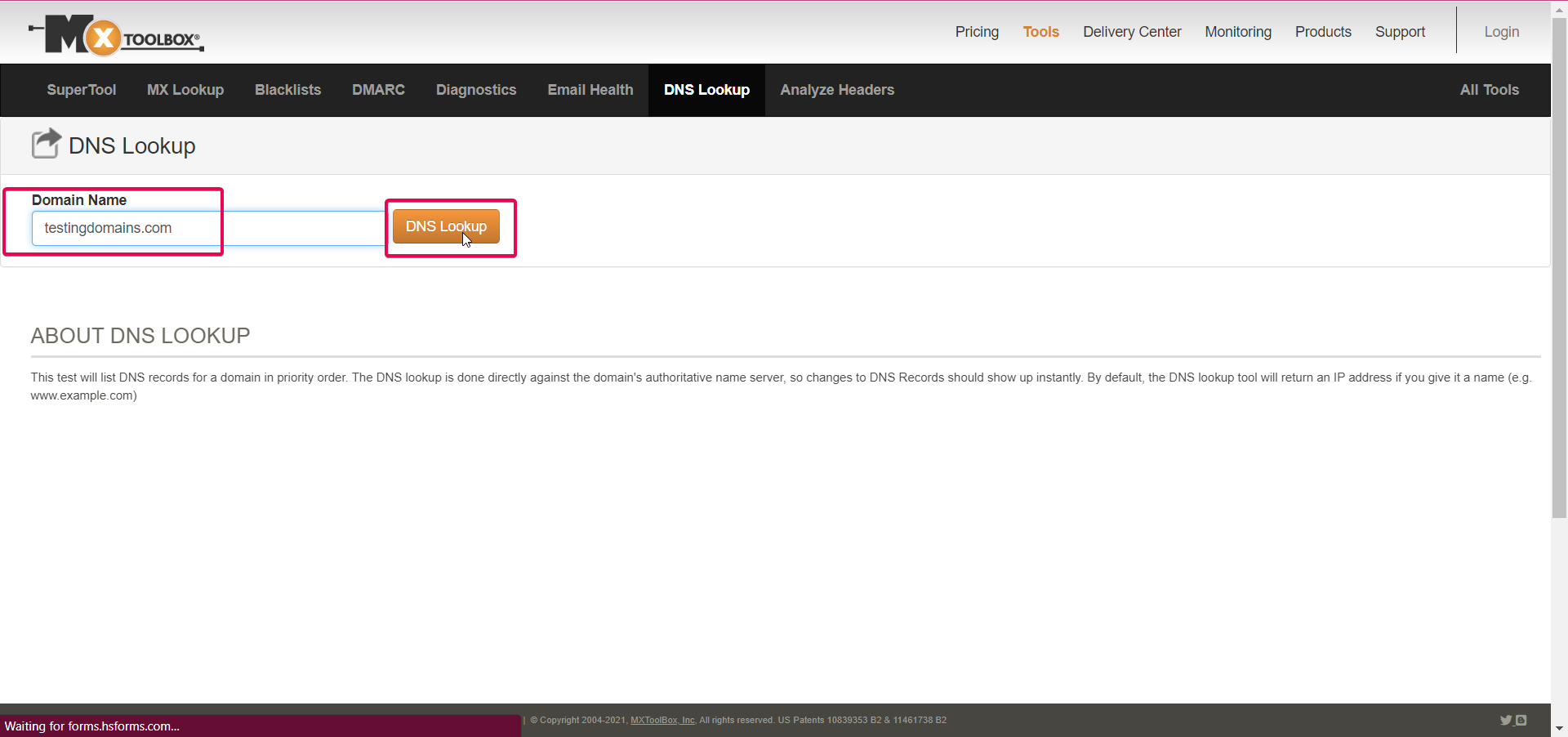
Enter Your DomainType your full domain name (e.g., `yourdomain.com` or `www.yourdomain.com`) into the input field next to the dropdown menu. Ensure accuracy to get correct results.
GoHighLevel screenshot
0
4
Initiate SearchClick the DNS Lookup button to start the search. The tool will then query DNS servers and display the records for your domain.
5
Review ResultsExamine the displayed records to confirm that your CNAME or A record is correctly pointing to `sites.ludicrous.cloud` or `162.159.140.166`. Remember that DNS propagation can take time, so check again if you don't see immediate updates.
GoHighLevel screenshot

How to Remove an Existing Domain from Your Account

If you no longer need a domain connected to your GoHighLevel account, you can easily remove it. This action unlinks the domain from your funnels or websites within the platform, allowing you to reassign or manage it elsewhere.

1
Go to Domain SettingsNavigate to Settings in the left menu, then click on Domains & URL Redirects.
2
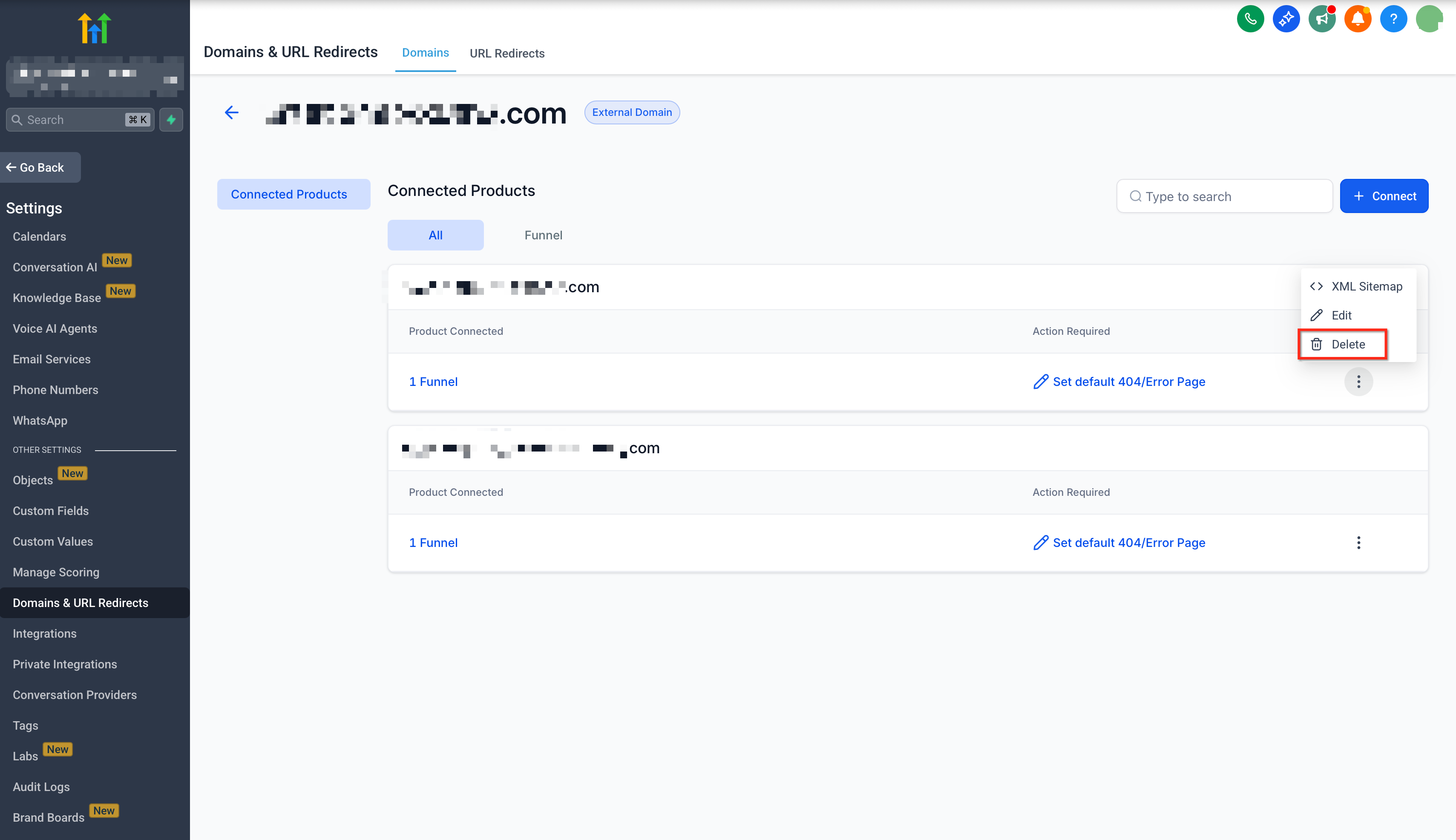
Initiate Domain RemovalLocate the domain you wish to remove in the list. Click the three dots icon next to that domain's entry.
GoHighLevel screenshot
0
3
Delete DomainSelect Delete from the dropdown menu that appears. This action prepares the domain for removal.
4
Confirm RemovalA confirmation dialog box will appear. Click Delete to permanently remove the domain from your GoHighLevel account.
GoHighLevel screenshot
1
GoHighLevel screenshot

Troubleshooting Common Issues

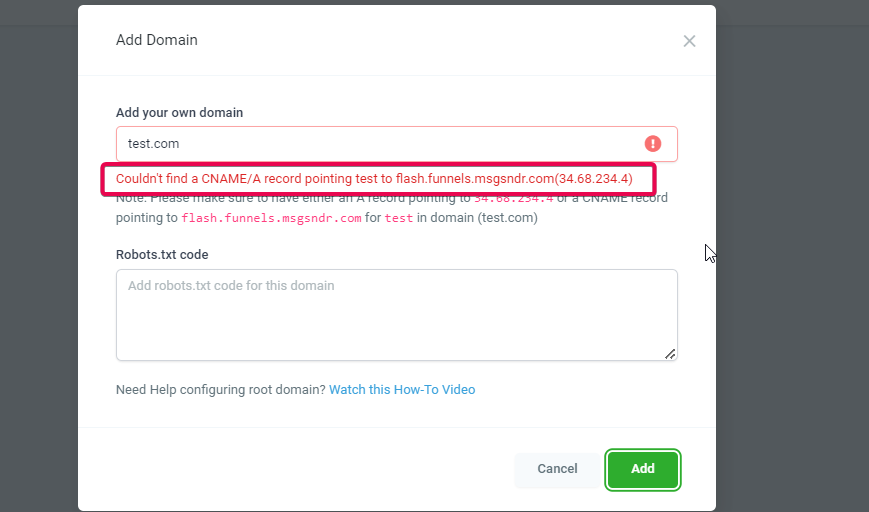
⚠️ Couldn't find a CNAME/A record pointing `www` to `sites.ludicrous.cloud/162.159.140.166`
This error means GoHighLevel cannot verify your DNS. First, confirm your DNS is hosted at the correct provider (e.g., Cloudflare, not GoDaddy, if nameservers point to Cloudflare). Next, check for existing `www` records and remove or update any that don't point to GoHighLevel. Finally, create *either* a CNAME for `www` to `sites.ludicrous.cloud` *or* an A record for `www` to `162.159.140.166`. Do not use both for the same host.
⚠️ Privacy/SSL error or images not loading, even with correct DNS settings.
If you are using Cloudflare, ensure the CNAME or A record for your domain/subdomain is set to 'DNS only' (indicated by a grey cloud icon). GoHighLevel does not support Cloudflare's proxy (orange cloud) for the records used to connect funnels/websites, as it interferes with SSL provisioning.
⚠️ 404 error intermittently appearing on your domain.
Ensure you have correctly configured redirects between your `www` and non-`www` (root) domains. While GoHighLevel automatically handles this when linking a root domain, specific subdomain setups or manual alterations might require checking your registrar's redirect settings or ensuring your GoHighLevel default page is correctly set.
⚠️ Domain added but not working immediately, or verification fails.
DNS propagation takes time, often up to 24 hours globally, though usually much faster. Wait for a minimum of 15-30 minutes, then try refreshing the GoHighLevel domain verification screen or checking with a DNS lookup tool like MXtoolbox to confirm your records are live.
⚠️ Cannot add the domain, or it shows multiple DNS records conflict.
A single domain or subdomain can only point to one platform at a time. Check your registrar for duplicate A or CNAME records for the same host (e.g., `www` or `@`). Remove any conflicting records that do not point to GoHighLevel. Also, ensure no AAAA (IPv6) records are present unless specifically instructed, as these can cause conflicts.

Common Mistakes to Avoid

  • Editing DNS at the Wrong Provider: Users often configure DNS records at their domain registrar (e.g., GoDaddy) when their nameservers are actually pointing to another service (e.g., Cloudflare). Always edit DNS records where your nameservers are managed.
  • Using Both CNAME and A Records for the Same Host: You should use *either* a CNAME record *or* an A record for a specific host (e.g., `www` or `@`), not both. Having both can cause conflicts and prevent your domain from resolving correctly.
  • Forgetting to Set Cloudflare to 'DNS Only': If using Cloudflare, failing to set the proxy status to 'DNS only' (grey cloud) for GoHighLevel-connected records will cause connection and SSL provisioning issues.
  • Entering Full Domain in Host Field: When creating DNS records at your registrar, the 'Host/Name' field should only contain the subdomain (e.g., `www`, `funnels`) or `@` for the root, not the full domain (e.g., `www.yourdomain.com`).
  • Impatience with DNS Propagation: DNS changes are not instant. Expect a delay, sometimes up to 24 hours, for records to update across the internet. Trying to verify too quickly can lead to frustration and false error messages.

Frequently Asked Questions

QCan I use the same domain with more than one platform at a time (e.g., GoHighLevel and WordPress)?
No, a single domain or subdomain can only point to one platform or server at a time. For example, if `yourdomain.com` is already used for a WordPress site, you must use a different domain or a unique subdomain like `funnels.yourdomain.com` for your GoHighLevel content. This ensures proper routing and avoids conflicts that would prevent your content from being accessible.
QDo I need to purchase a separate SSL certificate for my domain connected to GoHighLevel?
No, you do not. GoHighLevel automatically generates and provisions a free SSL (Secure Sockets Layer) certificate for your domain as soon as it is successfully linked within the platform. This automated process ensures your website traffic is secure and encrypted, displaying the padlock icon in browsers, all without any additional cost or manual setup from your side.
QCan I connect the same domain to multiple sub-accounts within my GoHighLevel agency?
Yes, you can. GoHighLevel allows you to connect the same domain to multiple sub-accounts under the same agency. This flexibility is highly beneficial for agencies managing different client sites or internal projects that utilize a central domain structure, enabling efficient management and deployment of various marketing assets across accounts.
QHow many domains can I add to a single GoHighLevel account?
GoHighLevel places no practical limit on the number of domains you can add to a single account. You can connect as many domains and subdomains as needed for your funnels, websites, and other content. This offers extensive scalability for your online presence, supporting a wide range of marketing strategies and client needs without restriction.
QWhat is the purpose of setting a 'default page' when linking a domain?
Setting a 'default page' determines which specific funnel step or website page loads automatically when someone visits your domain (e.g., `yourdomain.com`) without a specific path (like `/about-us`). This ensures visitors land on your intended primary content directly, such as your homepage, a main sales funnel step, or a key landing page, providing a seamless and directed user experience from the moment they type your domain.
Try GoHighLevel Free

Start your 30-day GoHighLevel free trial

Everything in this guide is in your free trial. 30 days, no credit card — the platform behind 78+ revenue systems.

Start 30-Day Free Trial

Some links are affiliate links — if you sign up we may earn a commission, at no extra cost to you. We only recommend GoHighLevel because we build on it every day.

Arsalan Zaffar
Arsalan Zaffar
Revset Labs · Revenue Systems · 78+ GHL Builds

Arsalan writes GHL guides from real build experience — 78+ systems, $9.2M in client pipeline. Wharton, CXL & Google certified.

Connect on LinkedIn
Tags:GoHighLeveldomain setupcustom domainsfunnelswebsitesDNSSSL