
How to Scroll to Elements or Sections in Websites or Funnels
👉 Start your 30-day GoHighLevel free trial.
Start 30-Day Free Trial →To make an element scroll to a section, first copy the target section's CSS Selector from its Advanced tab. Then, for a button, set its Button Action to Scroll to Element and select the section, or for a link, paste the page URL followed by the CSS selector (e.g., `yourdomain.com/#css_selector`). This takes about 2 minutes.
- ✓Always copy the CSS Selector from the *destination* section's **Advanced** tab.
- ✓The "Scroll to Element" button action is the easiest method and doesn't require manual linking.
- ✓For text links or navigation menus, you must use the full page URL followed by the copied CSS Selector (e.g., `https://domain.com/page#selector`).
- ✓Smooth scrolling is enabled by default; you don't need to configure it.
- ✓This feature only works for scrolling on the *same* page, not between different funnel steps or website pages.
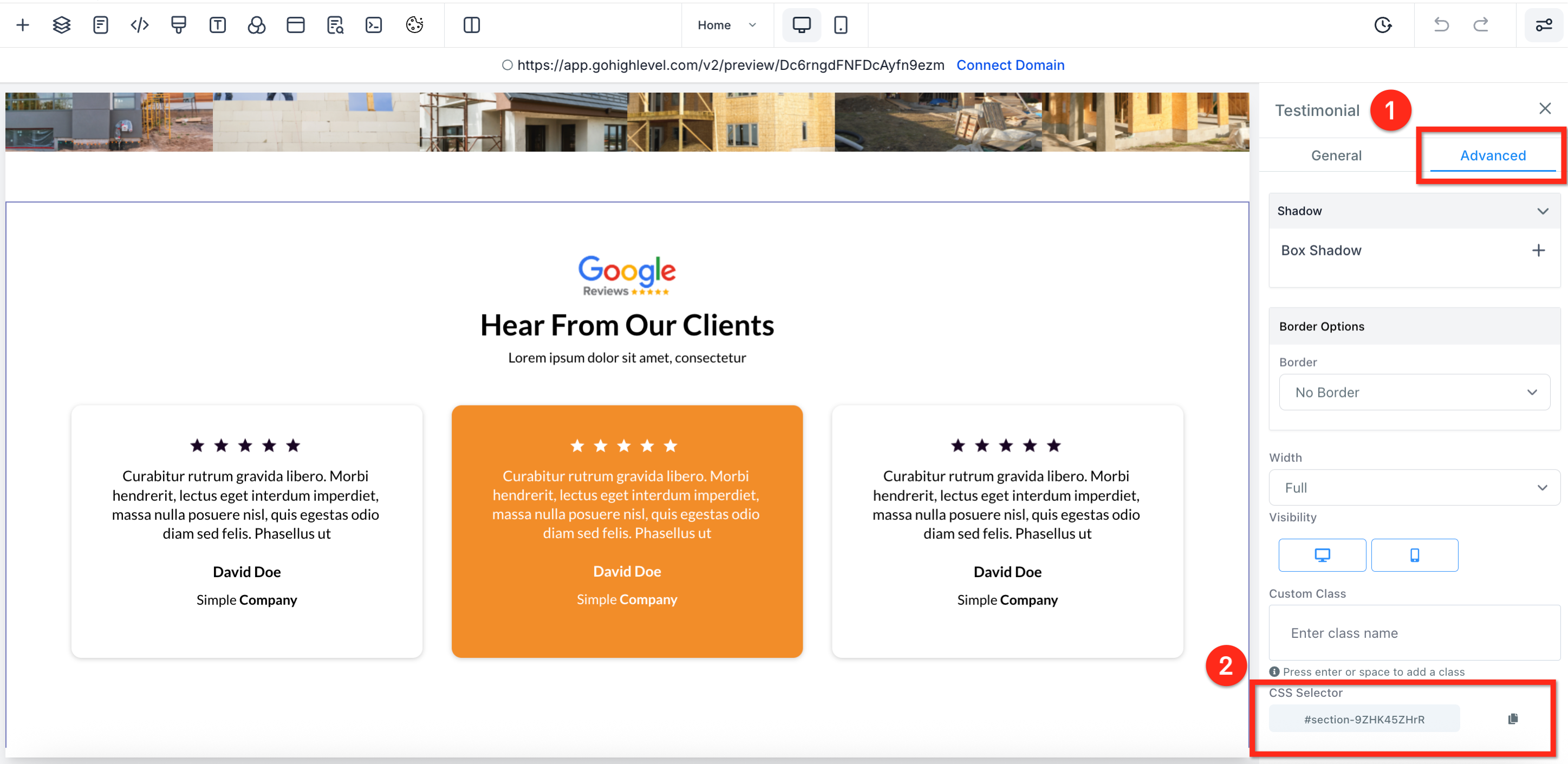
Step 1: How to Find and Copy the Target Section's CSS Selector
Before you can create a scroll link, you need to identify the destination. Every section, row, and element in the builder has a unique ID called a CSS Selector. This is the 'address' you will tell your button or link to scroll to. You must complete this step first, regardless of which method you use later.
✅ You can copy the CSS Selector from any element, not just a section. Click on a specific headline, image, or form to get its unique selector if you want to scroll to that exact point.
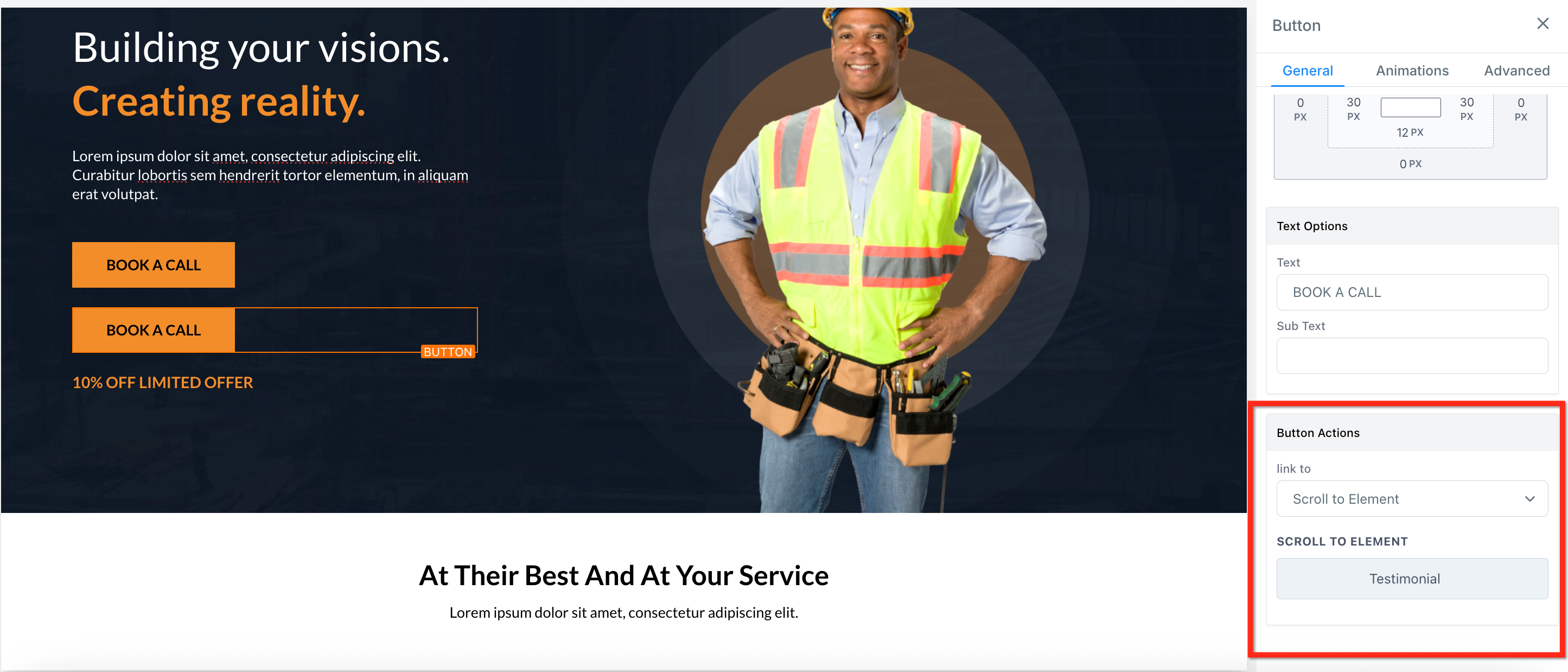
Step 2, Method A: How to Make a Button Scroll (Easiest Method)
This is the simplest and most reliable way to create a scroll link for a button. It uses the builder's built-in functionality, so you don't need to paste any URLs or selectors manually. We recommend this method for all button scroll links.
Name your sections in the Layers panel (e.g., 'Pricing Section') to make them easier to find in the 'Scroll to' dropdown list. Otherwise, you'll have to choose from generic names like 'Section 12'.
Start your 30-day GoHighLevel free trial
Everything in this guide is in your free trial. 30 days, no credit card — the platform behind 78+ revenue systems.
Some links are affiliate links — if you sign up we may earn a commission, at no extra cost to you. We only recommend GoHighLevel because we build on it every day.
Step 2, Method B: How to Manually Create a Scroll Link for Text
If you want to turn a line of text into a scroll link, you must use the manual method. This involves combining your page's full URL with the CSS Selector you copied in Step 1. This method also works for images and other elements that have a link option.
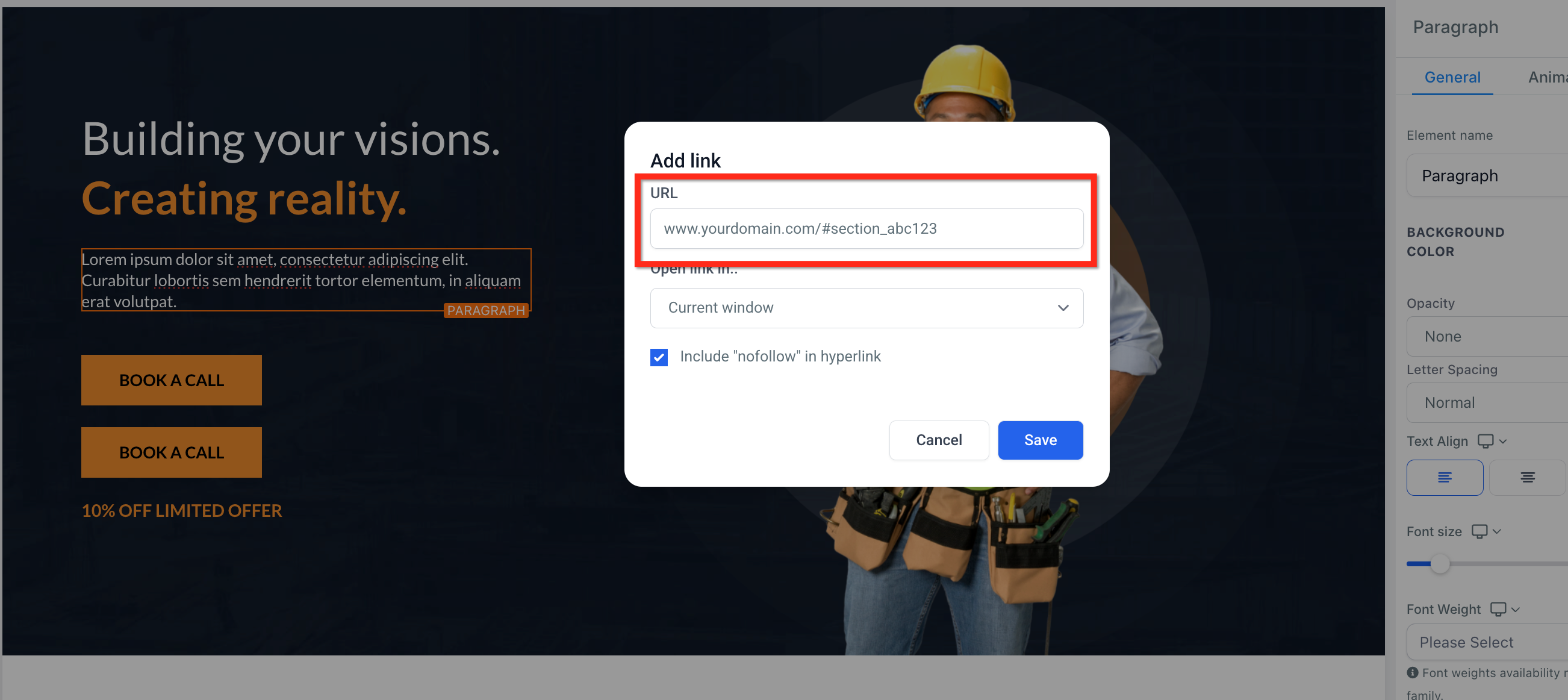
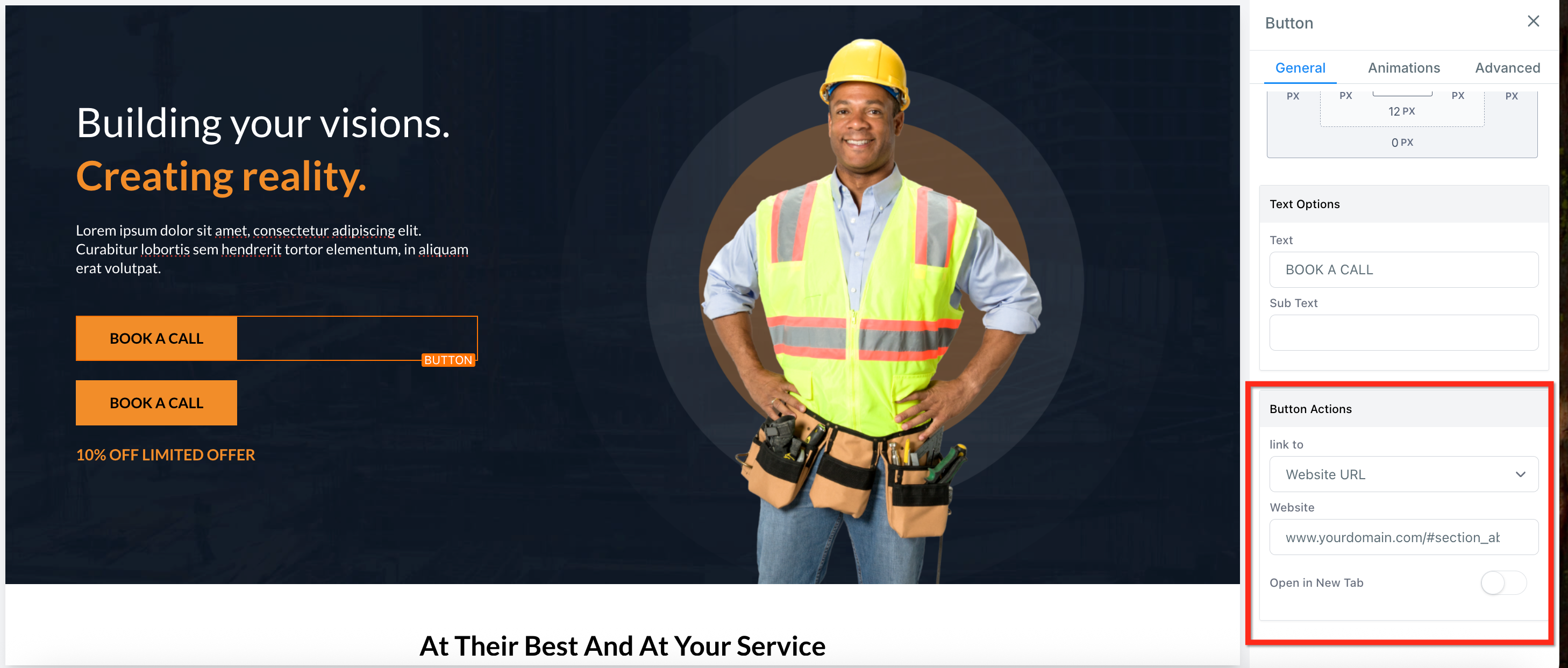
⚠️ Do not just paste the CSS Selector (e.g., `#section--12345`) into the URL field by itself. It will not work. You must always include the full page URL before the selector for text links.
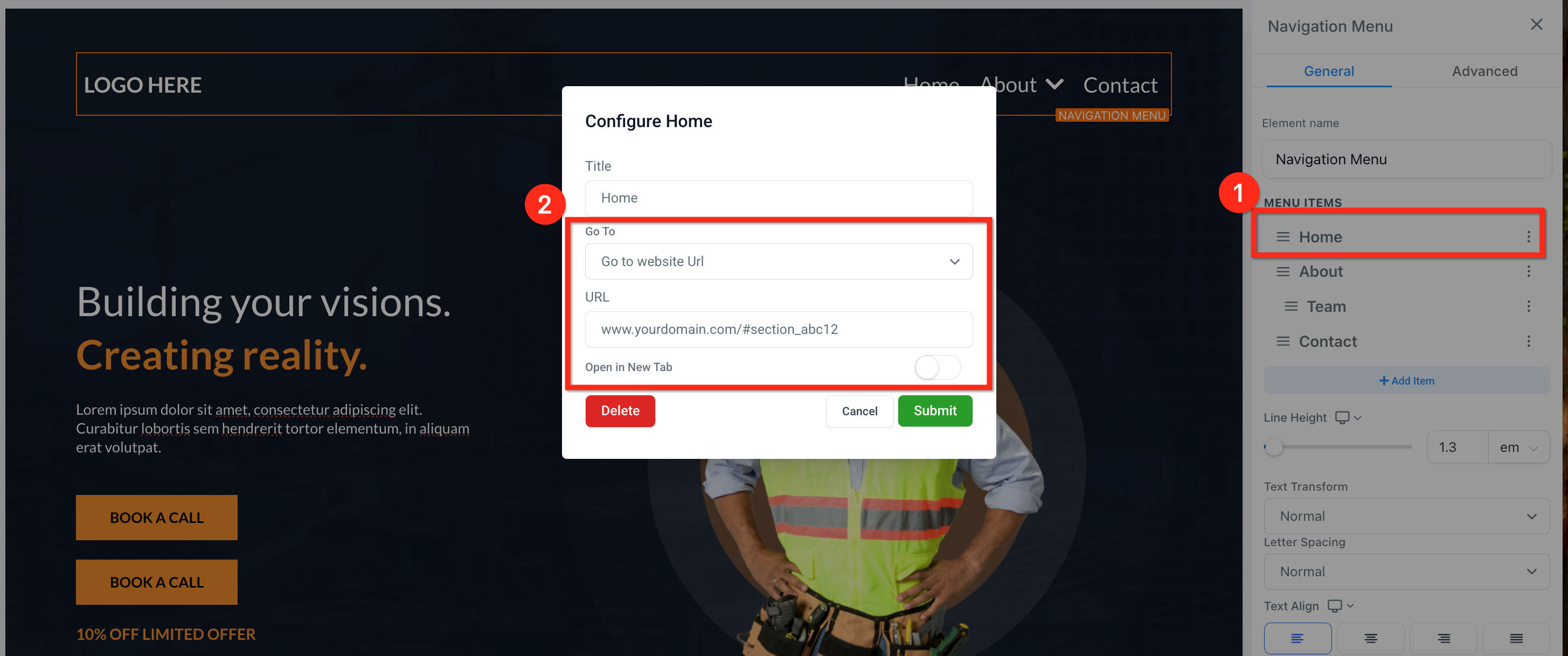
Step 2, Method C: How to Add a Scroll Link to a Navigation Menu
You can make items in your navigation menu scroll to different sections on the same page. This is perfect for one-page websites or long-form sales pages where the menu helps users jump to important content like pricing or contact information.
Troubleshooting Common Issues
Common Mistakes to Avoid
- →Forgetting to include the full page URL before the CSS selector for text and menu links.
- →Trying to use the scroll-to feature to link between different funnel steps or website pages (it only works on the same page).
- →Accidentally deleting a character from the CSS Selector when pasting it, which breaks the link.
- →Not saving the page after making changes and wondering why the live version isn't updated.
- →Testing the scroll link inside the page builder itself, where it is not active, instead of using the Preview button or live URL.
Frequently Asked Questions
Start your 30-day GoHighLevel free trial
Everything in this guide is in your free trial. 30 days, no credit card — the platform behind 78+ revenue systems.
Some links are affiliate links — if you sign up we may earn a commission, at no extra cost to you. We only recommend GoHighLevel because we build on it every day.

Arsalan writes GHL guides from real build experience — 78+ systems, $9.2M in client pipeline. Wharton, CXL & Google certified.
Connect on LinkedIn