
Revset
Book a Free Audit

30-minute call · No obligation

HomeGHL HubFunnels & WebsitesHow to Show a Popup on Page Load in GoHighLevel Funnels & Websites
REVSET LABS · EXPERT GUIDE·Funnels & Websites

How to Show a Popup on Page Load in GoHighLevel Funnels & Websites

650 words·3 min read·Updated 28 April 2026·beginner·
Arsalan ZaffarArsalan ZaffarLinkedIn

👉 Start your 30-day GoHighLevel free trial.

Start 30-Day Free Trial
Quick Answer

To make a popup appear automatically after a page loads in GoHighLevel, go to Sites → Funnels/Websites → [Your Page] → Edit → Popup Settings. Select 'Delay' from the 'Show Popup on' dropdown and set your desired time. This process takes about 2-3 minutes to set up.

Key Takeaways
  • Automatically trigger popups on any funnel or website page using the 'Delay' setting.
  • Customize the popup's appearance time by setting a delay in seconds after page load.
  • Utilize page load popups for immediate lead capture, special offers, or important announcements.
  • Ensure you 'Save' or 'Publish' your changes in the page editor for the popup settings to take effect.
  • This feature works identically across both GoHighLevel Funnels and Websites, offering consistent functionality.

Why Use a Page Load Popup in GoHighLevel?

Page load popups are a powerful tool for engaging visitors the moment they land on your GoHighLevel funnel or website. Unlike click-triggered popups, these appear automatically, ensuring your message reaches every visitor without requiring any action from them. This immediate visibility is crucial for capturing attention and driving specific actions right away. You can use them for various purposes, from building your email list to promoting limited-time offers. Setting up a delayed popup allows you to control exactly when your message appears, creating a less intrusive yet highly effective user experience. This automation helps you convert more visitors into leads or customers efficiently.

🔥 Pro Tip

Consider the user experience when setting your delay. A 3-5 second delay often provides enough time for visitors to start reading the page content before the popup appears, making it less disruptive yet still timely for your offer.

Try GoHighLevel Free

Start your 30-day GoHighLevel free trial

Everything in this guide is in your free trial. 30 days, no credit card — the platform behind 78+ revenue systems.

Start 30-Day Free Trial

Some links are affiliate links — if you sign up we may earn a commission, at no extra cost to you. We only recommend GoHighLevel because we build on it every day.

How Do You Set a Popup to Show Automatically on Page Load?

Configuring a popup to appear automatically after a page loads in GoHighLevel is a straightforward process. You will access your site editor and adjust the popup settings for the specific page where you want the popup to display. Follow these steps carefully to ensure your popup triggers exactly when and how you intend, providing a seamless experience for your visitors.
1
Access Your Sites AreaFrom your GoHighLevel sub-account dashboard, click on Sites in the left-hand menu. This takes you to your Funnels and Websites overview.
2
Select Your Funnel or WebsiteChoose either the Funnels tab or the Websites tab at the top. Then, open the specific funnel or website where you want to add the popup.
3
Open the Desired PageClick on the specific funnel step or website page name where your popup should appear. This opens the page details.
4
Launch the Page EditorClick the blue Edit button to open the page in the GoHighLevel website builder. This is where you will configure the popup settings.
GoHighLevel screenshot
0
5
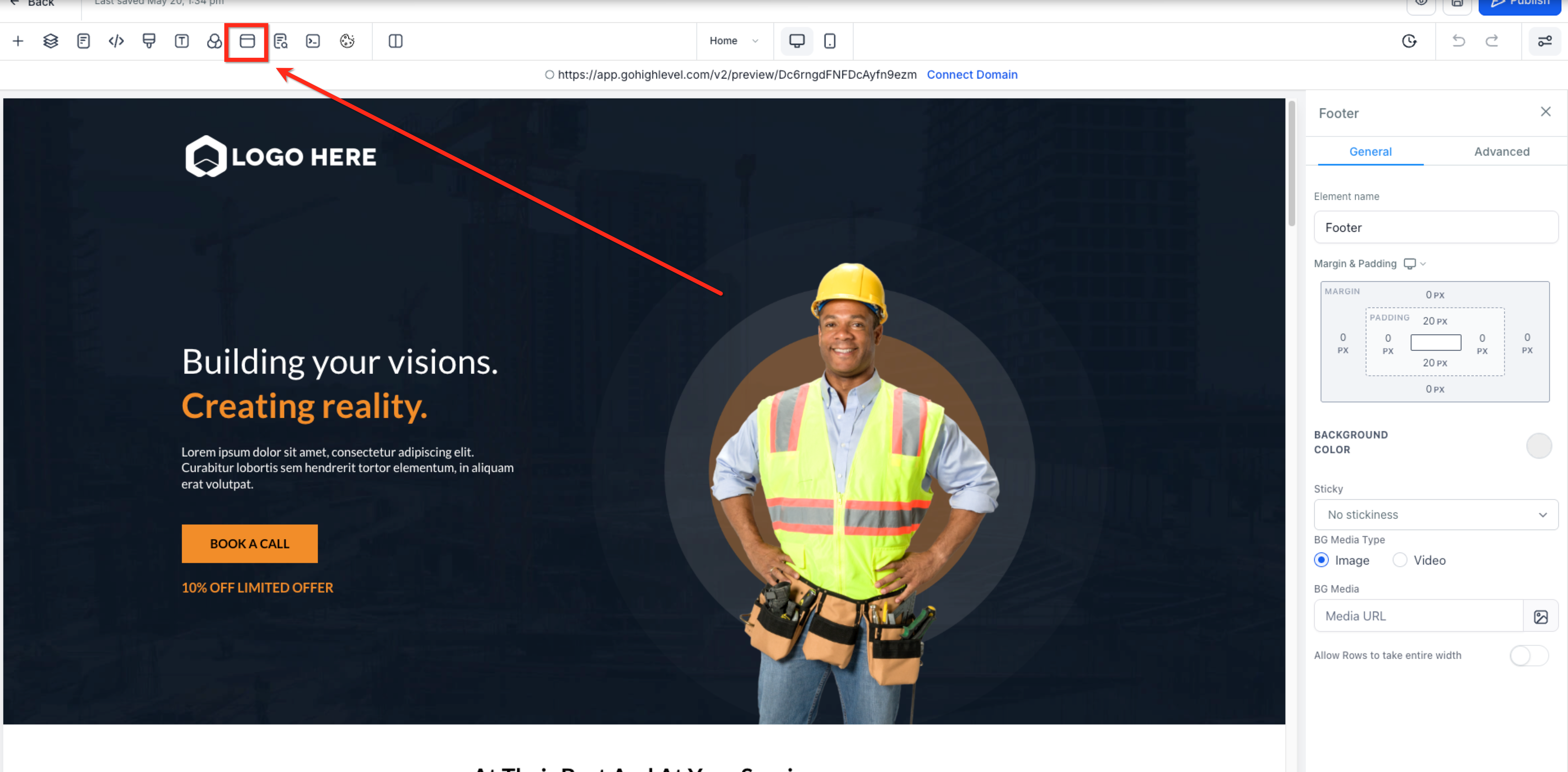
Access Popup SettingsIn the top menu bar of the page editor, locate and click the PopupSettings icon. This opens the Popup Settings panel on the right side of your screen.
6
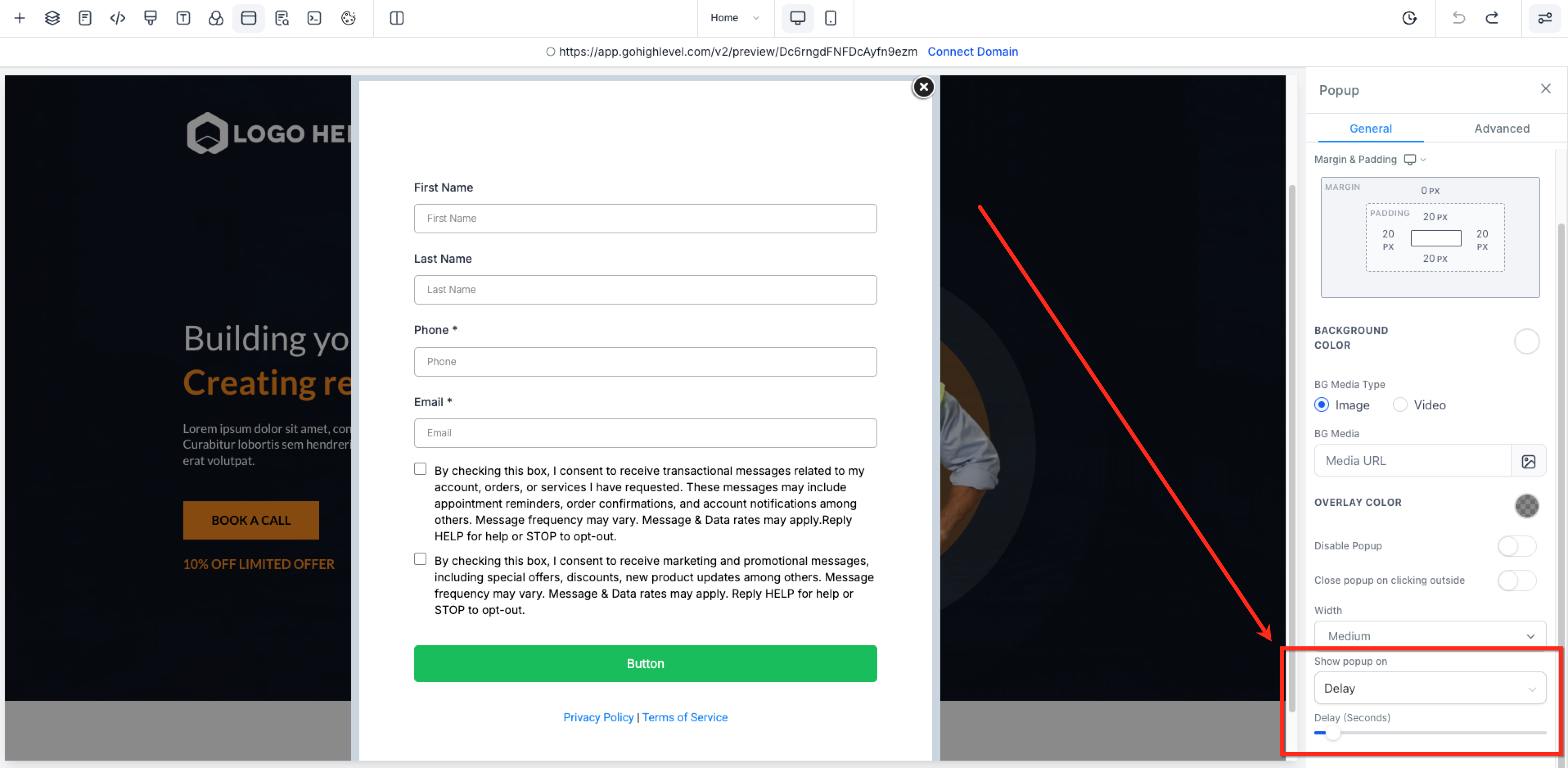
Configure 'Show Popup on' to 'Delay'Within the Popup Settings panel, scroll down to find the 'Show Popup on' dropdown menu. Click it and select Delay from the available options.
7
Set the Delay TimeJust below the 'Show Popup on' dropdown, use the provided slider to select the number of seconds you want the popup to wait before appearing after the page loads. Choose a value between 0 and 60 seconds.
8
Save Your ChangesClick Save or Publish in the top-right corner of the editor to apply your new popup settings. Your popup will now appear automatically after the specified delay on that page.
GoHighLevel screenshot
1
🔥 Pro Tip

Test your popup on both desktop and mobile devices after saving. Different screen sizes and loading times can affect user perception of the delay.

Troubleshooting Common Issues

⚠️ My popup isn't showing up at all.
First, ensure you clicked Save or Publish in the page editor. Also, check that you selected 'Delay' in the 'Show Popup on' setting and that the delay time is not set to 0 seconds, which might cause it to appear and disappear too quickly if not configured correctly.
⚠️ The popup appears too fast or too slow.
Go back into the Popup Settings within the page editor. Adjust the slider for the delay time to increase or decrease the waiting period. Remember to Save or Publish your changes after adjusting.
⚠️ The popup appears on the wrong page or not on the intended page.
Double-check that you opened and edited the correct funnel step or website page in the GoHighLevel editor. Popup settings are specific to each individual page, so ensure you made the changes on the right one.
⚠️ My popup sometimes doesn't appear automatically, even with a delay.
If a visitor manually triggers the popup (e.g., by clicking a button linked to the popup) before the delay timer finishes, the automatic popup will be canceled for that page view. This prevents the same popup from appearing twice during the same visit.
⚠️ The popup appears every time I load the page, even if I've already seen it.
This is the default behavior for 'Delay' popups in GoHighLevel. The popup will appear on every page load unless the visitor navigates away and then returns to the same page. There is no built-in option to show it only once per session for this specific trigger type.

Common Mistakes to Avoid

  • Forgetting to click 'Save' or 'Publish' after making changes to the popup settings, which prevents the settings from taking effect.
  • Setting an excessively long delay time, causing visitors to leave the page before the popup appears, or too short a delay, making it disruptive.
  • Not testing the popup's appearance and timing on different devices (desktop, mobile) to ensure a consistent and positive user experience.
  • Using a generic or irrelevant popup message that doesn't align with the page content or offer clear value to the visitor.
  • Overlooking that manual popup triggers will override and cancel any pending automatic delay popups on the same page view.

Frequently Asked Questions

QCan I set the popup to show only once per visit or session in GoHighLevel?
No, the 'Delay' popup in GoHighLevel is designed to appear each time the page loads. There isn't a built-in setting to limit its appearance to only once per visitor session. If a visitor navigates away from the page and then returns, the popup will trigger again after the set delay.
QWhat if I want the popup to show when someone tries to leave the page?
To create a popup that triggers when a user attempts to exit your page, you should use the 'Exit' option in the 'Show Popup on' dropdown. This setting detects when a user moves their cursor towards the browser's toolbar, signaling an intent to leave, and then displays your popup.
QDoes the page load popup feature work on both Funnels and Websites in GoHighLevel?
Yes, absolutely! The 'Delay' popup feature is fully compatible with both Funnels and Websites within the GoHighLevel platform. The setup process is identical for both, allowing you to consistently apply this engagement strategy across all your digital properties.
QWhat happens if the popup is opened manually before the delay time is reached?
If your popup is manually triggered by a button click or another action before the automatic delay timer finishes, the automatic popup will be canceled for that specific page view. This intelligent design prevents the same popup from appearing twice during a single interaction with the page.
QWhat is a good starting delay time for my page load popup?
A good starting point for your popup delay is typically between 3 to 7 seconds. This allows visitors a moment to orient themselves on the page before your message appears, making it less intrusive. Test different delays to see what performs best for your specific audience and content.
Try GoHighLevel Free

Start your 30-day GoHighLevel free trial

Everything in this guide is in your free trial. 30 days, no credit card — the platform behind 78+ revenue systems.

Start 30-Day Free Trial

Some links are affiliate links — if you sign up we may earn a commission, at no extra cost to you. We only recommend GoHighLevel because we build on it every day.

Arsalan Zaffar
Arsalan Zaffar
Revset Labs · Revenue Systems · 78+ GHL Builds

Arsalan writes GHL guides from real build experience — 78+ systems, $9.2M in client pipeline. Wharton, CXL & Google certified.

Connect on LinkedIn
Tags:GoHighLevelPopupsFunnelsWebsitesLead GenerationConversion Optimization