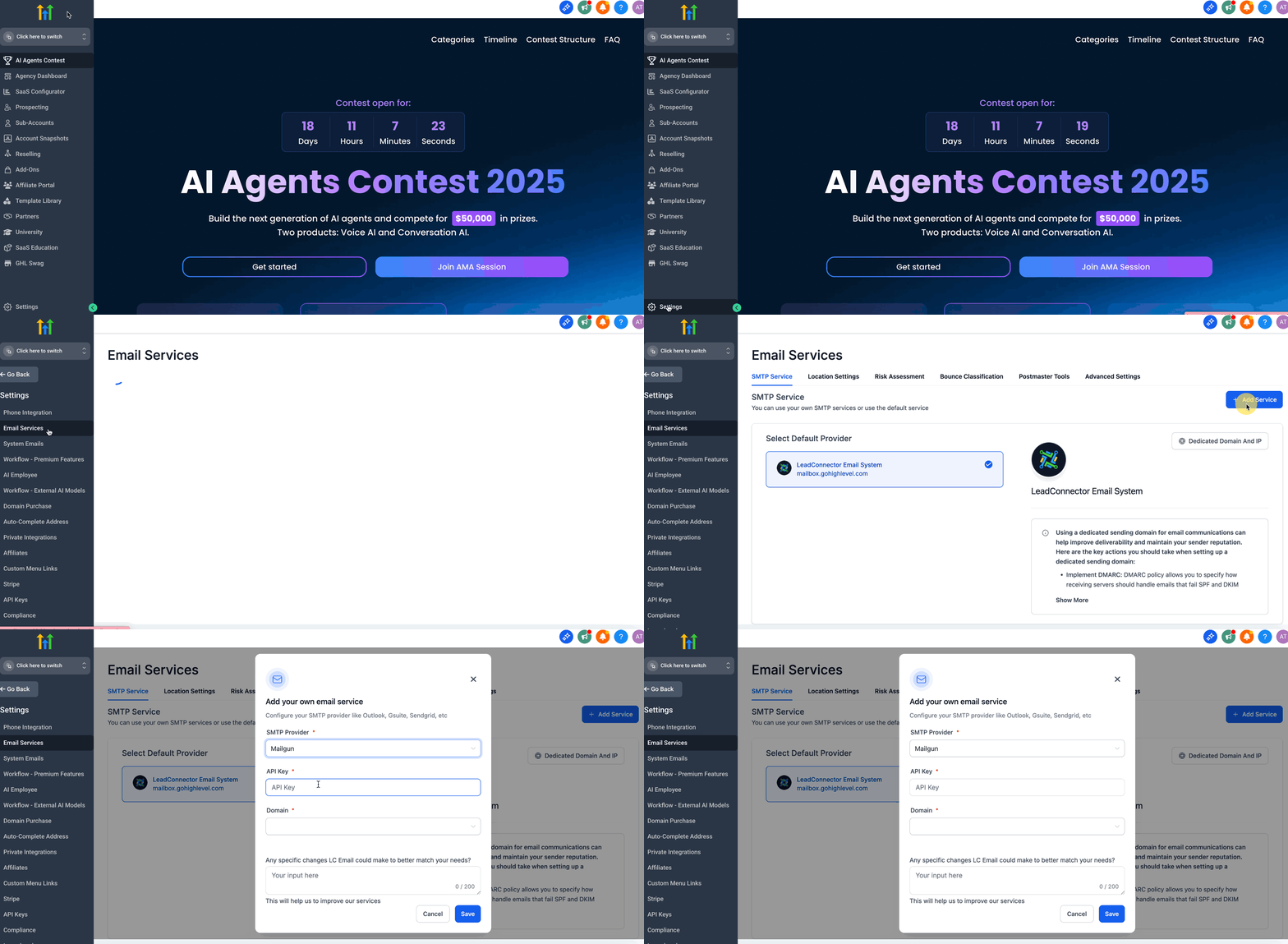
To connect Mailgun to GoHighLevel, go to GoHighLevel Agency or Location Settings → Email Services. You will paste your Mailgun Private API Key and select a verified US-region domain. This setup takes about 5 minutes.
Key Takeaways
✓Always use the Mailgun Private API Key, not the Public one, for authentication with GoHighLevel.
✓Ensure your Mailgun sending domains are verified and created specifically in the US region.
✓Configure the API key at the Agency level for broad use, or at the Location level for specific client needs and overrides.
✓Temporarily remove any Mailgun IP allowlist during the initial setup if your domains do not appear.
✓Regularly rotate your Mailgun Private API key to maintain security, updating it in both Mailgun and GoHighLevel.
Understanding the Mailgun Private API Key in GoHighLevel
Connecting Mailgun to GoHighLevel is vital for reliable email communication. The Mailgun Private API Key acts as a secure bridge, allowing GoHighLevel to access your Mailgun account. This connection ensures your emails send correctly, your domains are visible, and replies are processed smoothly.
This key authenticates GoHighLevel with Mailgun, giving it permission to use your verified sending domains. Once set up, you can send emails directly from GoHighLevel campaigns, workflows, and conversations. A correct setup prevents sending failures and improves overall email deliverability.
✅ IMPORTANT: Treat your Private API keys as highly confidential. Never share them in support tickets or screenshots. Rotate your key periodically or immediately if you suspect it has been exposed. Generate a new key in Mailgun and update it in GoHighLevel at the Agency or Location where it is stored.
Essential Prerequisites for Setup
Before you begin setting up your Mailgun Private API Key, confirm you meet a few critical requirements. Preparing your environment prevents common issues like domains not appearing or emails failing to send. Review each item below to ensure a smooth setup process.
1
Obtain a Mailgun Account with a US-Region Verified Domain — You need an active Mailgun account with at least one sending domain already set up and fully verified. This domain must reside in the US region; EU domains will not appear in GoHighLevel.
2
Verify GoHighLevel Access Permissions — Confirm you have appropriate access to your GoHighLevel account. You need permissions to access the Agency view or the specific Location's Settings → Email Services.
3
Configure DNS Records for Your Mailgun Domain — Ensure your Mailgun sending domain's DNS records are correctly configured. This includes SPF, DKIM, MX, and a tracking CNAME if you plan to use link tracking. Improper DNS setup will prevent email sending.
4
Temporarily Disable Mailgun IP Allowlist — If you have an IP allowlist enabled in Mailgun, temporarily relax it during the initial setup. This allows GoHighLevel to sync your domains. You can re-enable your allowlist after successful validation.
🔥 Pro Tip
Always double-check your Mailgun domain's region. GoHighLevel only pulls verified sending domains created within Mailgun's US region. If your domain is in the EU, you must create a new domain in the US region for use with GoHighLevel.
Retrieving Your Mailgun Private API Key
The first step is to log into your Mailgun account and locate your Private API Key. This key is unique to your account and grants GoHighLevel the necessary permissions. Follow these steps to find or generate your key.
1
Log In to Your Mailgun Account — Open your web browser and go to the Mailgun login page. Enter your credentials to access your Mailgun dashboard.
2
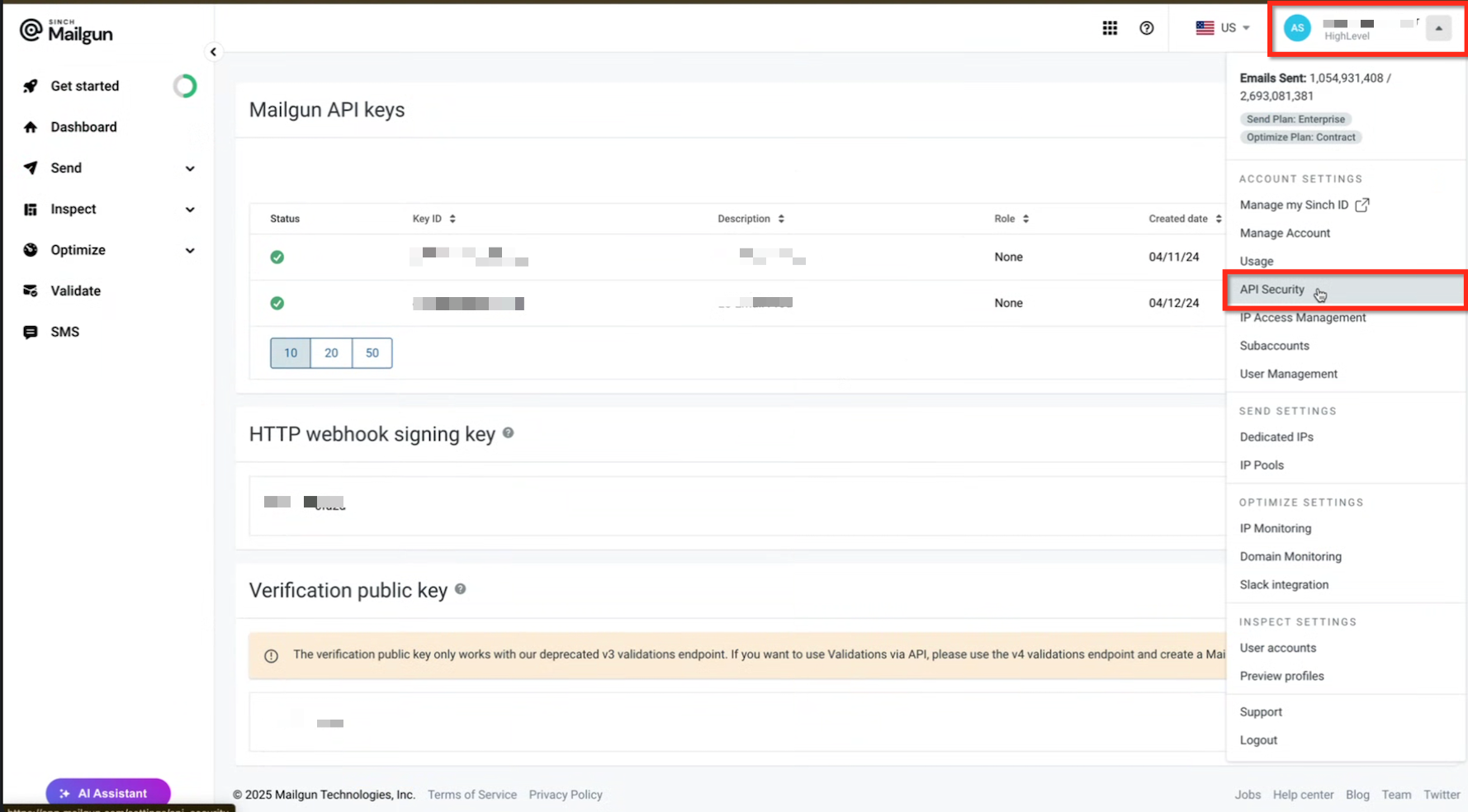
Access API Security Settings — Click on your profile avatar, usually located in the top-right corner of the Mailgun dashboard. From the dropdown menu, select API Security.
3
Locate or Generate Your Private API Key — On the API Security page, find the section for your Private API Key. If you already have one, click the 'Copy' button next to it. If you need a new key, follow the prompts to generate one, then copy it. Do not use the Public API Key.
🔥 Pro Tip
Mailgun keys are long strings of characters. Use the copy button provided by Mailgun to avoid transcription errors. Store this key securely; do not paste it into unencrypted documents.
Try GoHighLevel Free
Start your 30-day GoHighLevel free trial
Everything in this guide is in your free trial. 30 days, no credit card — the platform behind 78+ revenue systems.
Some links are affiliate links — if you sign up we may earn a commission, at no extra cost to you. We only recommend GoHighLevel because we build on it every day.
Adding the API Key to GoHighLevel (Agency Level)
Configuring the Mailgun Private API Key at the Agency level allows all your Locations to potentially use the same Mailgun account and verified domains. This is ideal for agencies managing multiple clients with shared email infrastructure. This setup takes precedence unless overridden at a specific Location.
1
Navigate to Email Services in Agency Settings — Log in to your GoHighLevel Agency account. From the left-hand menu, go to Settings → Email Services.
2
Select Mailgun as the Provider — On the Email Services page, locate the Mailgun option. Click on Mailgun to open its configuration settings.
3
Paste Your Private API Key — In the designated field, paste the Mailgun Private API Key you copied earlier. Ensure no extra spaces are copied before or after the key.
4
Select Your Verified US-Region Domain — From the dropdown menu, choose one of your verified US-region Mailgun sending domains. Only domains verified in the US region will appear here.
5
Save the Configuration — Click the Save button to apply your Mailgun API key and domain settings. GoHighLevel will attempt to connect and verify the key.
✅ Make sure the selected domain is set up for the US region and displays a green checkmark in Mailgun as 'Verified'. If it's not verified or not in the US region, it will not appear in GoHighLevel.
🔥 Pro Tip
Using a single Mailgun key at the Agency level streamlines setup for multiple Locations. This is perfect when all client communication originates from a central Mailgun account.
Adding the API Key to GoHighLevel (Location Level Override)
Sometimes, a specific client or Location needs its own dedicated Mailgun account and sending domain, separate from the Agency's setup. You can override the Agency-level Mailgun configuration by adding a unique API key directly at the Location level. This gives you granular control over email sending for that specific sub-account.
1
Access Location Email Services Settings — Log in to your GoHighLevel account. Navigate to the specific Location you wish to configure. From the left-hand menu, go to Settings → Email Services.
2
Select Mailgun as the Provider — On the Email Services page, find and click on Mailgun to open its settings.
0
3
Paste the Unique Private API Key — Paste the Mailgun Private API Key specific to this client's Mailgun account. This key will override any Agency-level Mailgun configuration for this Location.
4
Select the Client-Specific Domain — Choose the client's verified US-region Mailgun sending domain from the dropdown. This ensures emails from this Location use the client's dedicated domain.
1
5
Save the Location Configuration — Click Save to apply these unique Mailgun settings for the Location. This Location will now use its own Mailgun account for email sending.
🔥 Pro Tip
You can use the same Mailgun API key and domain for multiple Locations, or different keys and domains for each. This flexibility allows you to align with client-owned infrastructure or centralize as needed.
Verifying Your Mailgun Setup
After setting up your Mailgun Private API Key in GoHighLevel, it's crucial to verify that the connection is successful. A quick check ensures your domains are visible and ready for use in your email campaigns and workflows. This step confirms GoHighLevel can communicate with Mailgun effectively.
1
Check Domain Visibility in a Location — If you configured the key at the Agency level, open any Location and navigate to its Settings → Email Services. Confirm the Mailgun domain appears in the dropdown menu.
2
Send a Test Email from GoHighLevel — Create a simple test workflow or send a manual email from the Conversations tab within a Location. Send it to a personal email address to confirm successful delivery and correct sender domain.
3
Monitor Mailgun Sending Logs — Log into your Mailgun account and check the 'Logs' section. Look for recent sending events corresponding to your test email to confirm Mailgun processed it.
🔥 Pro Tip
Always send a test email after any Mailgun configuration changes. This immediate validation helps catch potential issues before they impact your live campaigns.
Troubleshooting Common Issues
⚠️ My Mailgun domain does not appear in the GoHighLevel dropdown menu.
First, confirm your domain is verified and set up under the US region in Mailgun. If it is, temporarily remove any IP allowlist configurations in your Mailgun account. GoHighLevel needs unrestricted access to pull domain information during setup.
⚠️ Emails are failing to send from GoHighLevel, or I see sending errors.
Verify that your Mailgun domain's DNS records (SPF, DKIM, MX, CNAME) are correctly configured and propagated. Also, ensure you have used the Mailgun Private API key, not the Public one, during setup in GoHighLevel.
⚠️ Replies to my emails are not appearing in GoHighLevel Conversations.
Check your Mailgun account for proper 'receiving routes' configuration. A valid Private API key combined with a correctly set up receiving route ensures replies are forwarded to the appropriate GoHighLevel sub-account.
⚠️ I receive an 'Invalid API Key' error when trying to save in GoHighLevel.
Carefully re-copy the Private API key from Mailgun, ensuring no leading or trailing spaces are included. Confirm you are copying the Private key and not the Public key. Also, check your GoHighLevel user permissions to ensure you have the authority to modify email service settings.
⚠️ The Mailgun API key saves, but no domains appear, and I'm not using an IP allowlist.
Double-check the Mailgun dashboard to ensure your domain is fully 'Verified' and explicitly located in the 'US' region. If it shows as 'Unverified' or is in the 'EU' region, it will not sync with GoHighLevel.
Common Mistakes to Avoid
→Using the Mailgun Public API key instead of the required Private API key for authentication.
→Configuring Mailgun sending domains in the EU region, which GoHighLevel does not support for domain visibility.
→Neglecting to properly set up essential DNS records (SPF, DKIM, MX, CNAME) for the Mailgun domain.
→Keeping a Mailgun IP allowlist active during initial GoHighLevel integration, preventing domain syncing.
→Forgetting to click the 'Save' button in GoHighLevel after pasting the API key and selecting the domain.
Frequently Asked Questions
QDo I need the Private or Public API key for Mailgun in GoHighLevel?
You must use the Mailgun Private API Key for integration with GoHighLevel. The Private key provides the necessary authentication for GoHighLevel to access your sending domains and send emails. The Public API key does not offer the required permissions and will prevent a successful connection, leading to authentication failures.
QMy Mailgun domain is verified in the EU region. Why can't I select it in GoHighLevel?
GoHighLevel is designed to read and display verified sending domains exclusively from Mailgun's US region. If your domain is currently set up in the EU region, it will not appear in the GoHighLevel domain dropdown. To resolve this, you need to create a new sending domain within the US region of your Mailgun account or migrate your existing domain to the US region.
QWhat happens if I paste a Mailgun API key at both the Agency and Location levels?
If you configure a Mailgun API key at both the Agency level and a specific Location level, the Location-level configuration will override the Agency-level settings for that particular Location. This allows you to provide client-specific Mailgun accounts and domains for individual sub-accounts, even if a default Agency-level key is present.
QCan multiple GoHighLevel Locations share one Mailgun API key?
Yes, multiple GoHighLevel Locations can share a single Mailgun API key. To achieve this, paste the Mailgun Private API key at the Agency level in GoHighLevel. All verified US-region domains associated with that Mailgun account will then become available across all your Locations. Use Location-level keys only when a client requires isolated email sending infrastructure.
QMy domain doesn't appear in GoHighLevel even after saving the key. What should I do next?
First, re-verify in your Mailgun account that the domain is both 'Verified' and correctly configured in the 'US' region. If you have an IP allowlist enabled in Mailgun, temporarily disable it to allow GoHighLevel to sync the domains. Finally, confirm you saved the key at the intended GoHighLevel level (Agency or Location) and refresh the page to ensure changes are reflected.
Try GoHighLevel Free
Start your 30-day GoHighLevel free trial
Everything in this guide is in your free trial. 30 days, no credit card — the platform behind 78+ revenue systems.
Some links are affiliate links — if you sign up we may earn a commission, at no extra cost to you. We only recommend GoHighLevel because we build on it every day.
Arsalan Zaffar
Revset Labs · Revenue Systems · 78+ GHL Builds
Arsalan writes GHL guides from real build experience — 78+ systems, $9.2M in client pipeline. Wharton, CXL & Google certified.