
Revset
Book a Free Audit

30-minute call · No obligation

HomeGHL HubPipelines & OpportunitiesHow to Find GoHighLevel Pipeline and Stage IDs Using Zapier
REVSET LABS · EXPERT GUIDE·Pipelines & Opportunities

How to Find GoHighLevel Pipeline and Stage IDs Using Zapier

961 words·4 min read·Updated 28 April 2026·beginner·
Arsalan ZaffarArsalan ZaffarLinkedIn

👉 Start your 30-day GoHighLevel free trial.

Start 30-Day Free Trial
Quick Answer

To find your GoHighLevel Pipeline and Stage IDs using Zapier, create a new Zap with a GoHighLevel trigger like 'New Opportunity', connect your GHL account, then create a test opportunity in GHL. Zapier will capture this data, allowing you to inspect the received payload for the specific 'pipeline_id' and 'stage_id' values. This process typically takes about 5-10 minutes.

Key Takeaways
  • Always use a dedicated test opportunity in GoHighLevel to trigger Zapier and capture clean data.
  • Pipeline and Stage IDs are crucial for precise targeting in advanced GoHighLevel automations, webhooks, and API calls.
  • Inspect the full data payload received by Zapier to locate both the 'pipeline_id' and 'stage_id' fields.
  • Document found IDs immediately, associating them with their respective pipeline and stage names for future reference.
  • Ensure your Zapier trigger event is relevant to opportunities (e.g., 'New Opportunity' or 'Updated Opportunity') to guarantee ID availability.

Understanding GoHighLevel Pipeline and Stage IDs

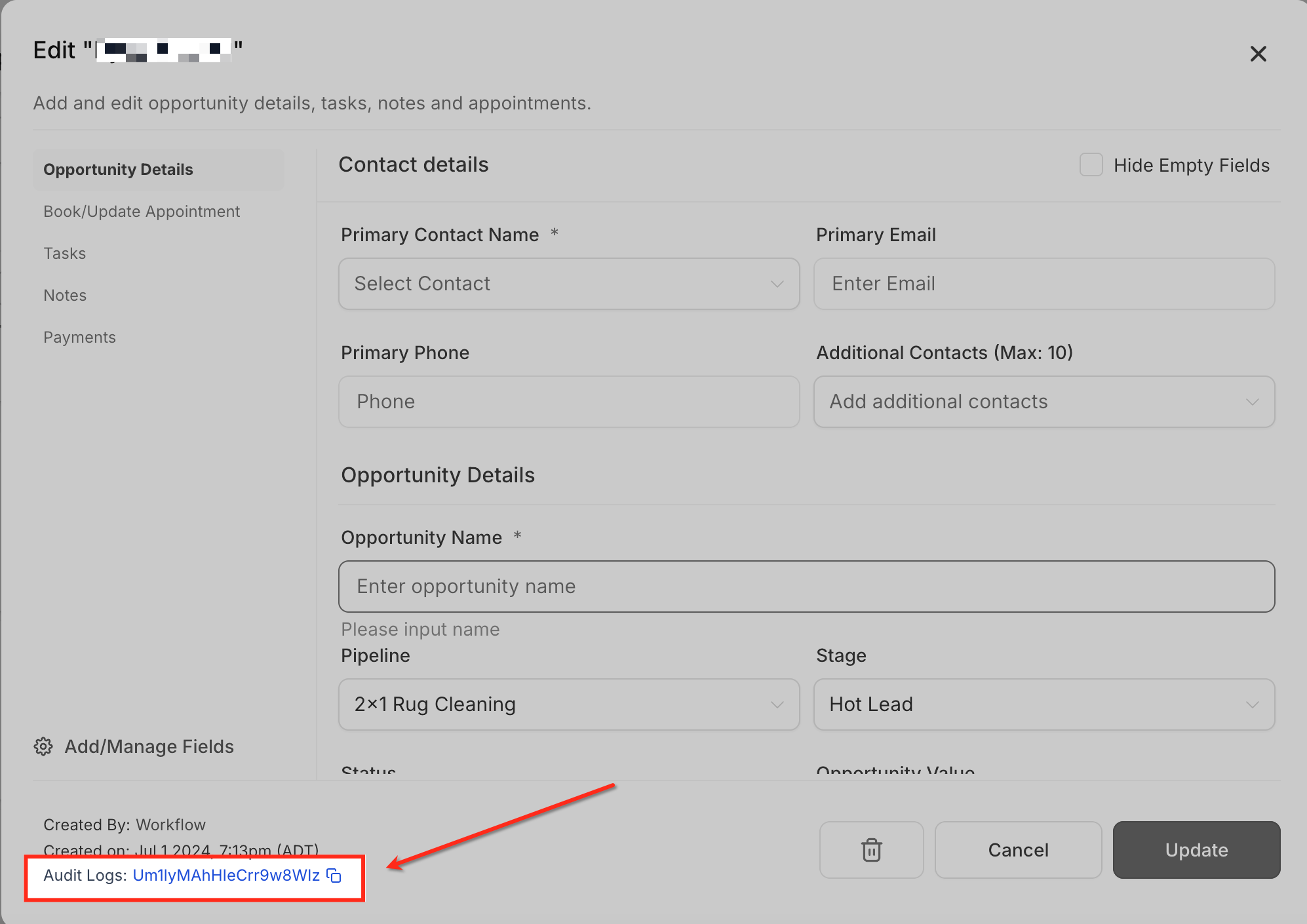
GoHighLevel Pipeline and Stage IDs are unique identifiers that represent specific sales pipelines and their individual stages within your GHL account. These IDs are not typically visible in the standard user interface but are essential for advanced automation, custom integrations, webhooks, and API interactions. Understanding and locating these IDs empowers you to build highly precise and powerful workflows that target specific parts of your sales process. These unique identifiers allow you to programmatically interact with your opportunities. For instance, you can automatically move an opportunity to a specific stage via an external system or update its details using a custom API call. Without these IDs, accurately manipulating opportunities outside of the standard GoHighLevel interface becomes significantly more complex.
1
Why Pipeline and Stage IDs MatterPipeline IDs allow you to monitor changes and audit logs for specific sales funnels, ensuring accountability and tracking performance. Stage IDs provide granular control, letting you target opportunities within a precise step of your sales process for updates or redirects.
2
Uses in Advanced AutomationYou can use Pipeline IDs to check audit logs for any edits made to a certain pipeline, offering a clear history of changes. Opportunity IDs, which are tied to specific pipelines and stages, enable tracking activity in audit logs, redirecting users to particular opportunities, and efficiently updating opportunities using import functions or APIs.
GoHighLevel screenshot
0
🔥 Pro Tip

Keep a master spreadsheet of your GoHighLevel Pipeline and Stage IDs, alongside their corresponding names. This centralized reference saves significant time when configuring webhooks, custom fields, or complex Zapier automations.

Preparing Your GoHighLevel Account for Testing

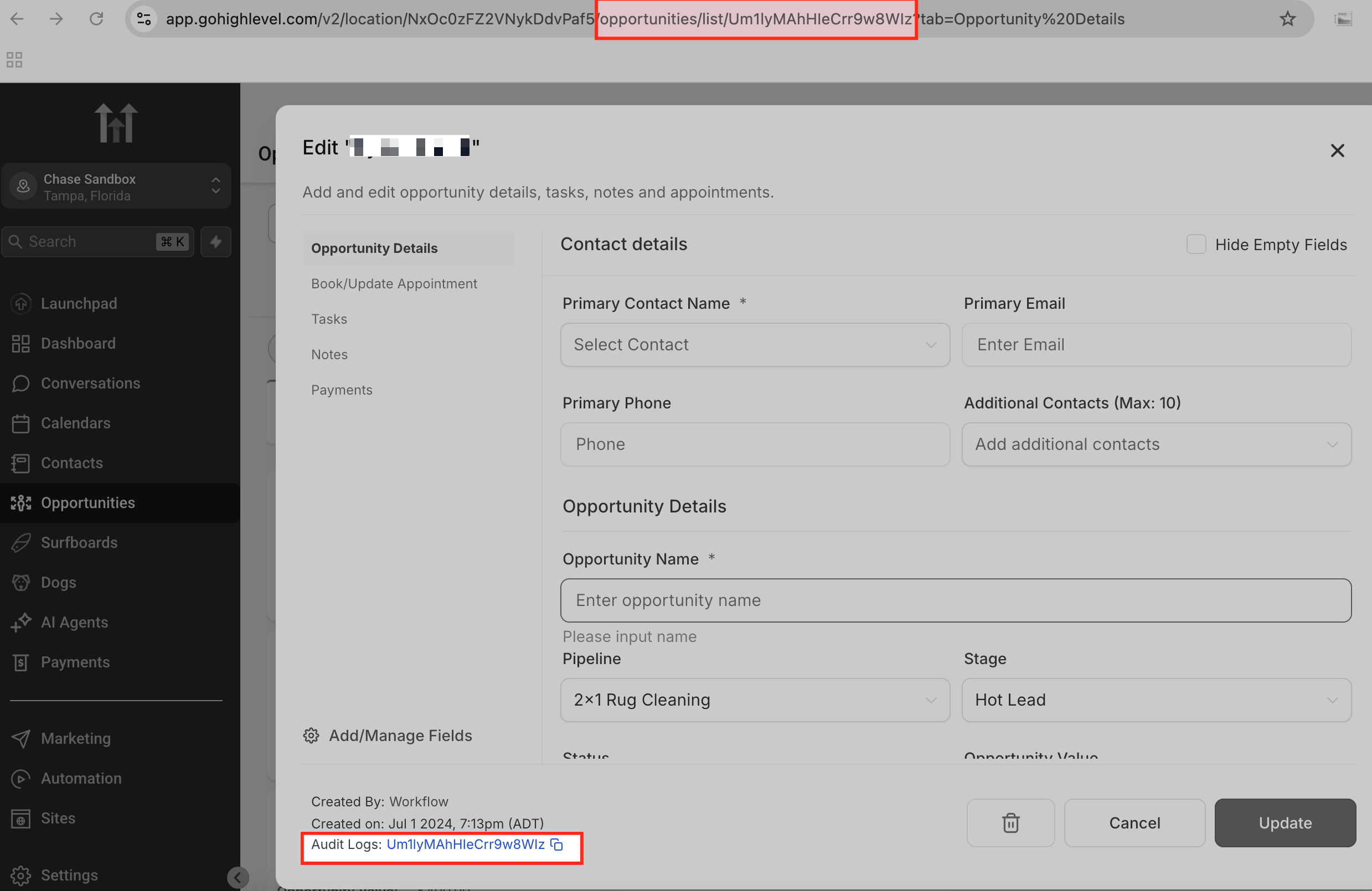
Before you can capture your Pipeline and Stage IDs using Zapier, you need to ensure your GoHighLevel account is ready. This involves having a suitable pipeline and creating a temporary test opportunity. This test opportunity will be the data point that Zapier captures, revealing the hidden IDs.
1
Identify Your Target Pipeline and StageDecide which specific GoHighLevel Pipeline and Stage you need the IDs for. You will create a test opportunity within this exact stage to ensure Zapier captures the correct data.
2
Create a Test OpportunityIn your GoHighLevel account, navigate to Opportunities. Create a new opportunity in the chosen pipeline and stage. Use a distinct name like 'Zapier ID Test - [Date]' so you can easily identify it later. This opportunity will serve as the trigger for Zapier.
GoHighLevel screenshot
0

✅ Always use a new, distinct test opportunity for each ID capture. Re-using old opportunities might not trigger Zapier correctly or could pull outdated data.

Try GoHighLevel Free

Start your 30-day GoHighLevel free trial

Everything in this guide is in your free trial. 30 days, no credit card — the platform behind 78+ revenue systems.

Start 30-Day Free Trial

Some links are affiliate links — if you sign up we may earn a commission, at no extra cost to you. We only recommend GoHighLevel because we build on it every day.

Finding Pipeline and Stage IDs Using Zapier

This section guides you through the process of setting up a temporary Zapier integration to capture the necessary Pipeline and Stage IDs directly from your GoHighLevel account. By triggering a specific event, Zapier acts as a data listener, revealing the underlying identifiers.

1
Step 1: Start a New Zap in ZapierGo to Zapier.com and log in to your account. Click the + Create Zap button in the top left corner to begin building a new automation. This action opens the Zap editor.
2
Step 2: Choose GoHighLevel as Your Trigger AppIn the Trigger section, search for 'GoHighLevel' and select it as your App. Then, choose 'New Opportunity' as the Trigger Event. This tells Zapier to listen for new opportunities created in your GHL account.
3
Step 3: Connect Your GoHighLevel AccountIf you haven't already, you will be prompted to connect your GoHighLevel account. Follow the on-screen instructions, selecting the specific Sub-Account where your target pipeline resides. Authorize the connection to proceed.
4
Step 4: Set Up Your Trigger TestZapier will now ask you to test the trigger. Before clicking Test trigger, go to your GoHighLevel account and create the test opportunity you prepared earlier in the designated pipeline and stage. Ensure this is a *new* opportunity creation.
5
Step 5: Test the Trigger in ZapierReturn to Zapier and click the Test trigger button. Zapier will attempt to find the most recent opportunity created in your GoHighLevel account. It should successfully pull in the test opportunity you just made.
6
Step 6: Inspect the Data for IDsOnce the test is successful, Zapier displays the data payload it received from GoHighLevel. Carefully expand the various data fields and look for entries labeled pipeline_id and stage_id. These will be alphanumeric strings.
7
Step 7: Document and Save Your IDsNote down both the `pipeline_id` and `stage_id` values. You can now discard this Zap or continue building it for other automations, as you have successfully retrieved the necessary identifiers for your GoHighLevel pipeline and stage.

⚠️ Do not delete your test opportunity in GoHighLevel until Zapier has successfully captured its data. Deleting it prematurely will prevent Zapier from finding any data during the test phase.

✅ The `pipeline_id` and `stage_id` are unique to each pipeline and stage. Always double-check that the IDs you capture correspond to the exact pipeline and stage you intend to use.

🔥 Pro Tip

If you struggle to find the IDs, try selecting 'New/Updated Opportunity' as the trigger event in Zapier. This often provides a more comprehensive data payload that includes all relevant opportunity details.

Troubleshooting Common Issues

⚠️ Zapier does not find any test data.
Ensure you created a *new* opportunity in GoHighLevel *after* setting up the Zapier trigger. Old opportunities will not trigger the Zap. Also, verify you connected the correct GoHighLevel sub-account in Zapier.
⚠️ Cannot find 'pipeline_id' or 'stage_id' in the Zapier data.
Expand all available data fields in Zapier's test results. Sometimes the IDs are nested under an 'Opportunity' object or similar. If still missing, try changing your Zapier trigger event to 'New/Updated Opportunity' as it often provides more comprehensive data.
⚠️ Zapier connects to the wrong GoHighLevel sub-account.
In Zapier, when connecting your GoHighLevel account, ensure you specifically select the correct sub-account from the dropdown list. If already connected, disconnect and reconnect, paying close attention to the sub-account selection.
⚠️ The captured IDs do not match the expected pipeline/stage.
This usually happens if you created the test opportunity in the wrong pipeline or stage, or if Zapier pulled an older, unrelated opportunity. Delete the test opportunity, re-create a new one in the *exact* target pipeline/stage, and re-test the Zapier trigger.
⚠️ GoHighLevel account connection fails in Zapier.
Verify your GoHighLevel API key and user permissions. Ensure the API key is valid and the user has sufficient access to create and manage opportunities within the selected sub-account. Try generating a new API key if issues persist.

Common Mistakes to Avoid

  • Using an existing opportunity instead of creating a *new* one to trigger Zapier, leading to no data being pulled.
  • Not expanding the full data payload in Zapier's test results, causing users to miss the nested `pipeline_id` and `stage_id` fields.
  • Connecting the wrong GoHighLevel sub-account in Zapier, resulting in IDs from an unintended account.
  • Forgetting to document the found IDs, requiring the process to be repeated later for other automations.
  • Choosing a Zapier trigger event that does not contain opportunity data (e.g., 'New Contact' instead of 'New Opportunity').

Frequently Asked Questions

QWhat are GoHighLevel Pipeline and Stage IDs, and why are they important?
GoHighLevel Pipeline and Stage IDs are unique alphanumeric codes that identify specific sales pipelines and their stages. They are crucial for advanced automations, webhooks, and API integrations, allowing you to precisely target and manipulate opportunities programmatically. These IDs enable you to build highly customized workflows that go beyond standard GHL features, such as updating opportunities from external systems or triggering specific actions based on stage changes.
QCan I find these IDs directly in GoHighLevel without using Zapier?
While this guide focuses on Zapier, you can sometimes find Pipeline IDs by inspecting the URL when viewing a specific pipeline in GoHighLevel (e.g., `app.gohighlevel.com/v2/pipelines/[pipeline_id]`). Stage IDs are harder to find directly in the UI URL. Using Zapier or GHL's API documentation is generally the most reliable and consistent method to capture both types of IDs accurately for automation purposes.
QWhat GoHighLevel trigger event should I use in Zapier to find the IDs?
The most reliable Zapier trigger event to find Pipeline and Stage IDs is 'New Opportunity' or 'New/Updated Opportunity'. These events specifically capture data related to opportunities, which inherently include the pipeline and stage information you need. Avoid triggers like 'New Contact' as they typically do not contain the necessary opportunity-specific IDs.
QWhat if Zapier doesn't find my test opportunity during the trigger test?
If Zapier fails to find your test opportunity, first ensure you created a *brand new* opportunity in GoHighLevel *after* setting up the Zapier trigger. Zapier only detects new events. Double-check that you connected the correct GoHighLevel sub-account in Zapier and that the opportunity was created in the pipeline associated with that account. You might also try creating another test opportunity with a unique name.
QAre Pipeline and Stage IDs permanent, or do they change?
GoHighLevel Pipeline and Stage IDs are generally permanent once created. However, if you delete and recreate a pipeline or stage, it will receive a new, unique ID. Therefore, it's essential to re-verify IDs if you make significant structural changes to your pipelines. For minor edits to names or settings, the IDs will remain the same.
Try GoHighLevel Free

Start your 30-day GoHighLevel free trial

Everything in this guide is in your free trial. 30 days, no credit card — the platform behind 78+ revenue systems.

Start 30-Day Free Trial

Some links are affiliate links — if you sign up we may earn a commission, at no extra cost to you. We only recommend GoHighLevel because we build on it every day.

Arsalan Zaffar
Arsalan Zaffar
Revset Labs · Revenue Systems · 78+ GHL Builds

Arsalan writes GHL guides from real build experience — 78+ systems, $9.2M in client pipeline. Wharton, CXL & Google certified.

Connect on LinkedIn
Tags:GoHighLevel AutomationZapier IntegrationPipeline ManagementStage ManagementAPI IntegrationsWebhook Configuration