
Revset
Book a Free Audit

30-minute call · No obligation

HomeGHL HubPipelines & OpportunitiesAllow Multiple Opportunities For The Same Person In GoHighLevel
REVSET LABS · EXPERT GUIDE·Pipelines & Opportunities

Allow Multiple Opportunities For The Same Person In GoHighLevel

514 words·3 min read·Updated 27 April 2026·beginner·
Arsalan ZaffarArsalan ZaffarLinkedIn

👉 Start your 30-day GoHighLevel free trial.

Start 30-Day Free Trial
Quick Answer

To allow multiple opportunities for the same person in the same pipeline, go to Sub-Account Settings → Objects → Opportunities. Toggle 'Allow Multiple Opportunities per Contact' ON and click 'Save changes'. This process takes about 1 minute.

Key Takeaways
  • Enable "Allow Multiple Opportunities per Contact" in **Sub-Account Settings** to track multiple deals for one client.
  • This feature is essential for managing renewals, upsells, and parallel product or service offers.
  • Existing opportunities remain unchanged when you enable or disable this setting.
  • Update your workflows to use the "Find Opportunity" action to target specific deals and prevent duplicate communications.
  • Sales forecasts and pipeline totals will reflect all open opportunities, so adjust your reporting accordingly.

Why Allow Multiple Opportunities Per Contact?

Enabling multiple opportunities for the same contact in a single pipeline transforms how you manage customer relationships and track revenue. This feature is crucial for businesses that handle recurring services, sell multiple products, or manage complex client engagements. It ensures your CRM accurately reflects your sales activities and helps prevent lost revenue opportunities.

🔥 Pro Tip

Always test your new settings with a sample contact to ensure all your workflows and automations behave as expected.

How to Enable Multiple Opportunities in GoHighLevel

Setting up GoHighLevel to allow multiple opportunities per contact is a straightforward process. Once enabled, your system will accept new opportunity cards for the same client, even within the same pipeline. Follow these steps carefully to activate the feature.
1
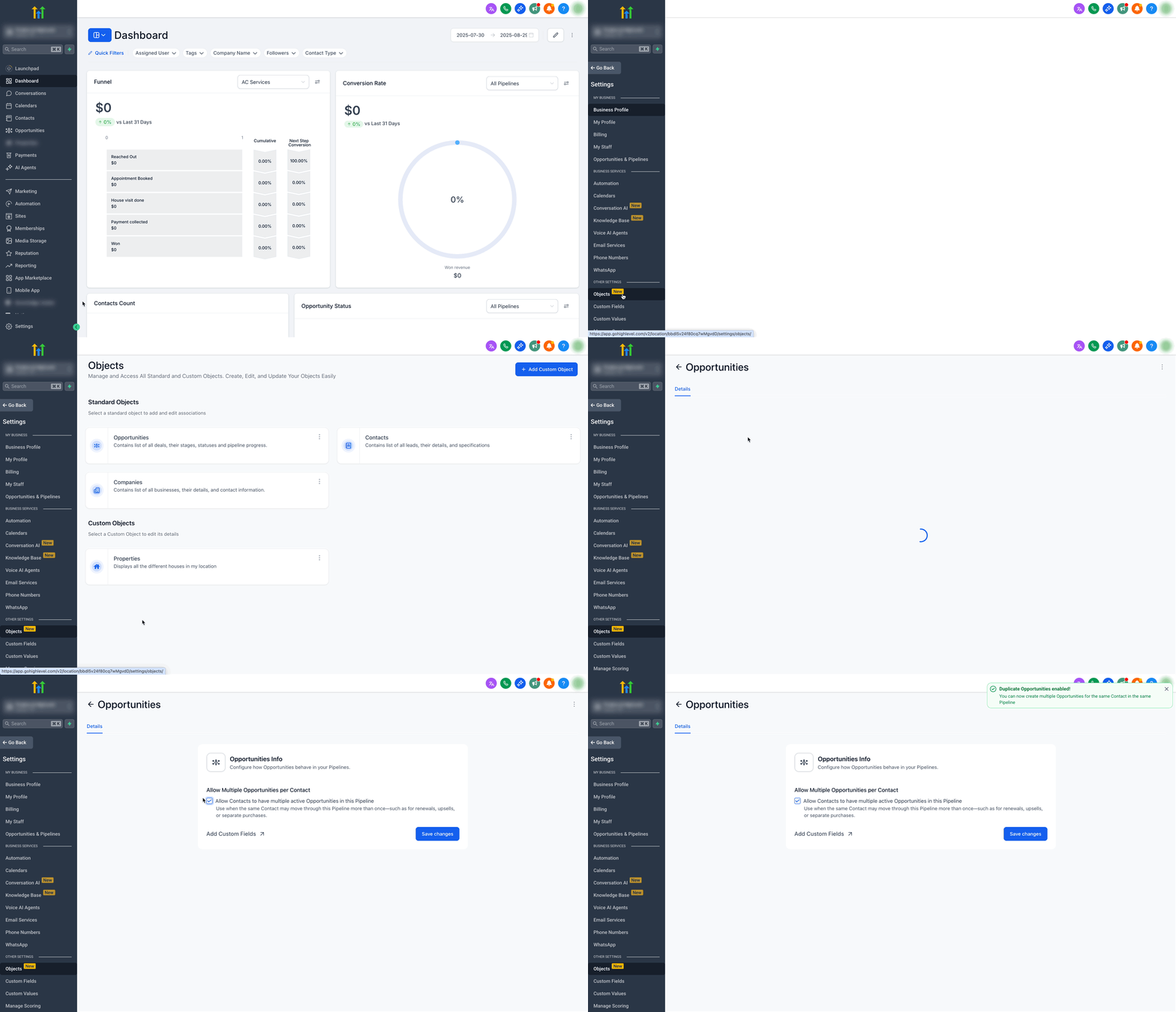
Navigate to Sub-Account SettingsFrom the main dashboard, click Settings in the left-hand navigation menu. Then, select Objects from the sub-menu options.
2
Access Opportunity SettingsOn the Objects page, click on Opportunities. This will display the configuration options for your sales opportunities.
GoHighLevel screenshot
0
3
Enable Multiple OpportunitiesLocate the toggle switch labeled Allow Multiple Opportunities per Contact. Toggle this switch to the ON position. Immediately click Save changes at the bottom of the page to apply your new setting.
GoHighLevel screenshot
🔥 Pro Tip

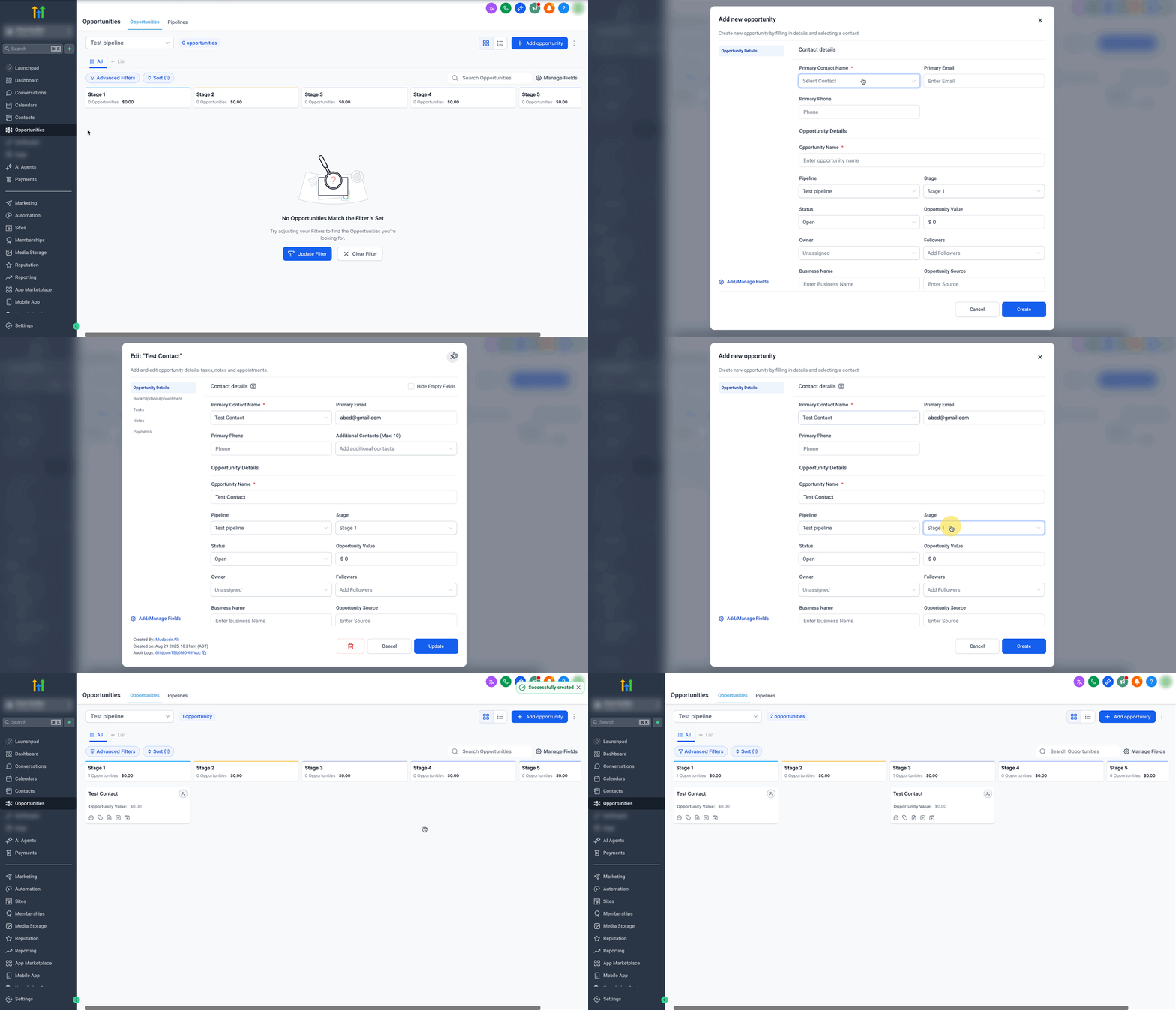
After enabling, create two sample opportunities for the same contact in the same pipeline. This confirms the setting works correctly before you rely on it for live deals.

Try GoHighLevel Free

Start your 30-day GoHighLevel free trial

Everything in this guide is in your free trial. 30 days, no credit card — the platform behind 78+ revenue systems.

Start 30-Day Free Trial

Some links are affiliate links — if you sign up we may earn a commission, at no extra cost to you. We only recommend GoHighLevel because we build on it every day.

Managing Workflows and Automations with Multiple Opportunities

When you enable multiple opportunities per contact, your existing workflows and automations may need adjustments. It is vital to ensure your system targets the correct opportunity for updates, communication, or stage changes. This prevents confusion and ensures your sales process runs smoothly.

⚠️ Disabling 'Allow Multiple Opportunities per Contact' later will not delete existing multiple opportunities. It only prevents *new* duplicates in the same pipeline. Carefully review your automations after disabling to avoid create/update errors.

✅ Review all existing workflows that create or update opportunities. Ensure their entry filters and actions are designed to handle multiple deals for a single contact without errors or unintended re-entries.

🔥 Pro Tip

When designing new workflows or updating existing ones, use the 'Find Opportunity' action. This lets you specify whether to target the earliest, latest, or an opportunity matching specific conditions like a custom field or product name.

Troubleshooting Common Issues

⚠️ New opportunities for the same contact are still being blocked in the same pipeline.
Ensure you clicked Save changes immediately after toggling 'Allow Multiple Opportunities per Contact' ON in Sub-Account Settings → Objects → Opportunities. If the issue persists, clear your browser cache and try again.
⚠️ Workflows are not acting on the correct opportunity when a contact has multiple deals.
Modify your workflow actions. Within the workflow, add or adjust the 'Find Opportunity' step to specify which opportunity (e.g., earliest, latest, or by specific criteria) the workflow should interact with.
⚠️ Contacts are receiving duplicate messages for different opportunities.
Implement stricter entry filters and re-entry rules in your workflows. Use conditional logic based on opportunity stages, custom fields, or specific product tags to ensure messages are sent only for the relevant deal and prevent unintended duplicates.
⚠️ Your pipeline forecast appears to be double-counting revenue.
When this setting is enabled, forecasts include all open opportunities for a contact. This is by design. Adjust your reporting and dashboard views to reflect this reality, designing them to sum all open deals for accurate total pipeline value.
⚠️ Existing opportunities disappeared or changed after enabling the setting.
This setting does not affect existing opportunities; they remain unchanged. Verify you are viewing the correct pipeline and contact record. If an opportunity is truly missing, check the contact's audit log for recent changes.

Common Mistakes to Avoid

  • Not clicking 'Save changes' immediately after toggling the setting, which prevents the changes from taking effect.
  • Failing to update existing workflows and automations to correctly handle scenarios where a contact has multiple opportunities.
  • Not testing the feature with sample contacts before full implementation, leading to unexpected behavior in live campaigns.
  • Confusing the global 'Allow Multiple Opportunities per Contact' setting with the 'Duplicate Opportunity' option within a specific workflow action.
  • Overlooking the impact on sales forecasting and reporting, which will now reflect all open deals for one client, potentially appearing as 'double-counting' without proper understanding.

Frequently Asked Questions

QWill enabling 'Allow Multiple Opportunities per Contact' affect my existing opportunities?
No, turning this setting ON does not change or delete any existing opportunity cards. All your current opportunities will remain exactly as they are. This setting only enables the system to accept *new* additional opportunity cards for the same contact, even within the same pipeline, allowing you to track new deals independently.
QWhat happens if I decide to turn the 'Allow Multiple Opportunities per Contact' setting OFF later?
If you disable the setting, existing opportunity cards will not be deleted. The system will simply restrict the creation of *new* duplicate opportunities for the same contact within the same pipeline. It's crucial to review your automations and workflows after disabling to prevent potential errors related to creating or updating opportunities, as they may expect to create multiple deals.
QHow can I ensure my automations and workflows interact with the correct opportunity when a contact has multiple open deals?
To target the right opportunity, use the 'Find Opportunity' action within your workflows. This allows you to specify criteria such as the earliest, latest, or an opportunity matching certain conditions (e.g., a specific product, custom field value, or pipeline stage). Also, set clear entry filters to prevent workflows from re-entering for unintended opportunities, ensuring precise automation.
QCan a contact have multiple opportunities across different pipelines even if the 'Allow Multiple Opportunities per Contact' setting is OFF?
Yes, the 'Allow Multiple Opportunities per Contact' setting specifically governs duplicates *within the same pipeline*. A contact can generally have opportunities across different pipelines regardless of this setting. Your specific pipeline model and opportunity creation rules in workflows will determine this cross-pipeline behavior, so always test your logic to confirm expected outcomes.
QWill my sales forecasts and pipeline totals accurately reflect revenue with multiple opportunities per contact?
Yes, when this setting is enabled, your forecasts and pipeline totals will accurately reflect the sum of all open opportunities for all contacts. This means if a single contact has multiple open deals, all those deals will contribute to the total pipeline value. Ensure your reporting dashboards are designed to interpret this consolidated view for comprehensive revenue tracking.
Try GoHighLevel Free

Start your 30-day GoHighLevel free trial

Everything in this guide is in your free trial. 30 days, no credit card — the platform behind 78+ revenue systems.

Start 30-Day Free Trial

Some links are affiliate links — if you sign up we may earn a commission, at no extra cost to you. We only recommend GoHighLevel because we build on it every day.

Arsalan Zaffar
Arsalan Zaffar
Revset Labs · Revenue Systems · 78+ GHL Builds

Arsalan writes GHL guides from real build experience — 78+ systems, $9.2M in client pipeline. Wharton, CXL & Google certified.

Connect on LinkedIn
Tags:GoHighLevel settingsopportunity managementCRMsales pipelineautomationGoHighLevel workflows