
Configure GoHighLevel Email Reply & Forward Settings
👉 Start your 30-day GoHighLevel free trial.
Start 30-Day Free Trial →To configure your GoHighLevel email reply and forward settings, go to Settings → Email Services → Reply & Forward Settings. This setup helps you manage how incoming replies are handled and ensures vital communications are tracked or shared internally. The entire configuration process typically takes about 5-10 minutes.
- ✓Always use Mailgun or LC Email as your SMTP provider to enable forwarding and BCC features.
- ✓Set a forwarding address to automatically send copies of lead replies to specific team members' inboxes.
- ✓Understand that setting a custom reply address will route replies outside of GoHighLevel's Conversations tab.
- ✓Utilize BCC emails to maintain an internal record of all 1-on-1, workflow, and billing emails sent from your location.
- ✓Ensure reply tracking is enabled for non-Mailgun/LC Email SMTPs to capture all responses within GoHighLevel's CRM.
Accessing Your Email Reply & Forward Settings
Managing how your GoHighLevel system handles incoming and outgoing email replies is crucial for effective communication and lead management. These settings allow you to control where replies go, who receives copies, and how responses are tracked within your CRM. Correct configuration ensures your team stays informed and your conversations are always recorded.
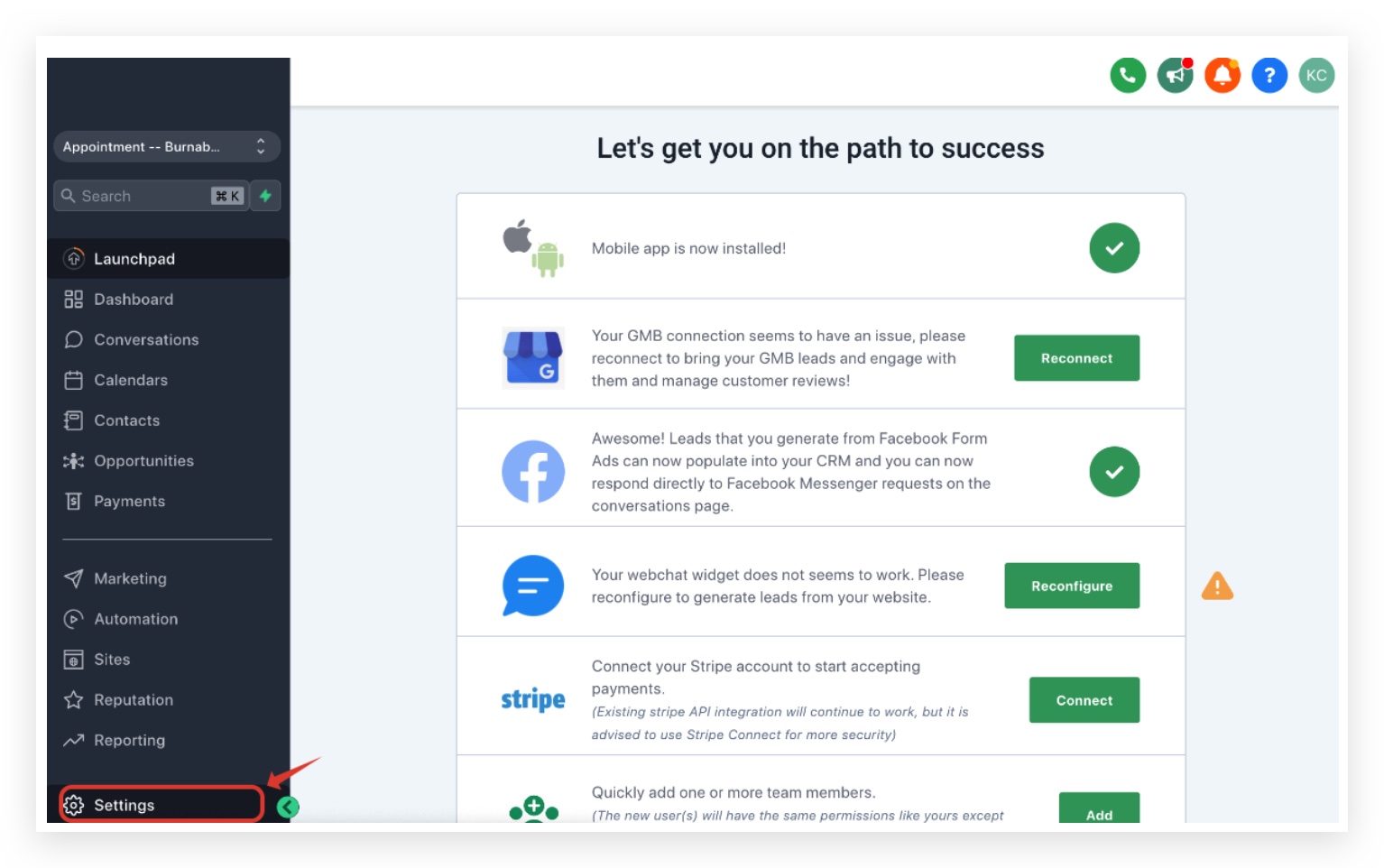
Regularly review your email service settings, especially after adding new team members or changing communication strategies. This helps ensure all lead interactions are handled correctly.
Configuring Email Forwarding Addresses
The Forwarding Address setting allows you to automatically send a copy of every lead's email reply to one or more external email inboxes. While all replies automatically appear in your GoHighLevel Conversations tab, forwarding ensures specific team members or departments receive immediate notifications in their personal or shared inboxes. This is ideal for keeping sales teams, support staff, or managers instantly updated.
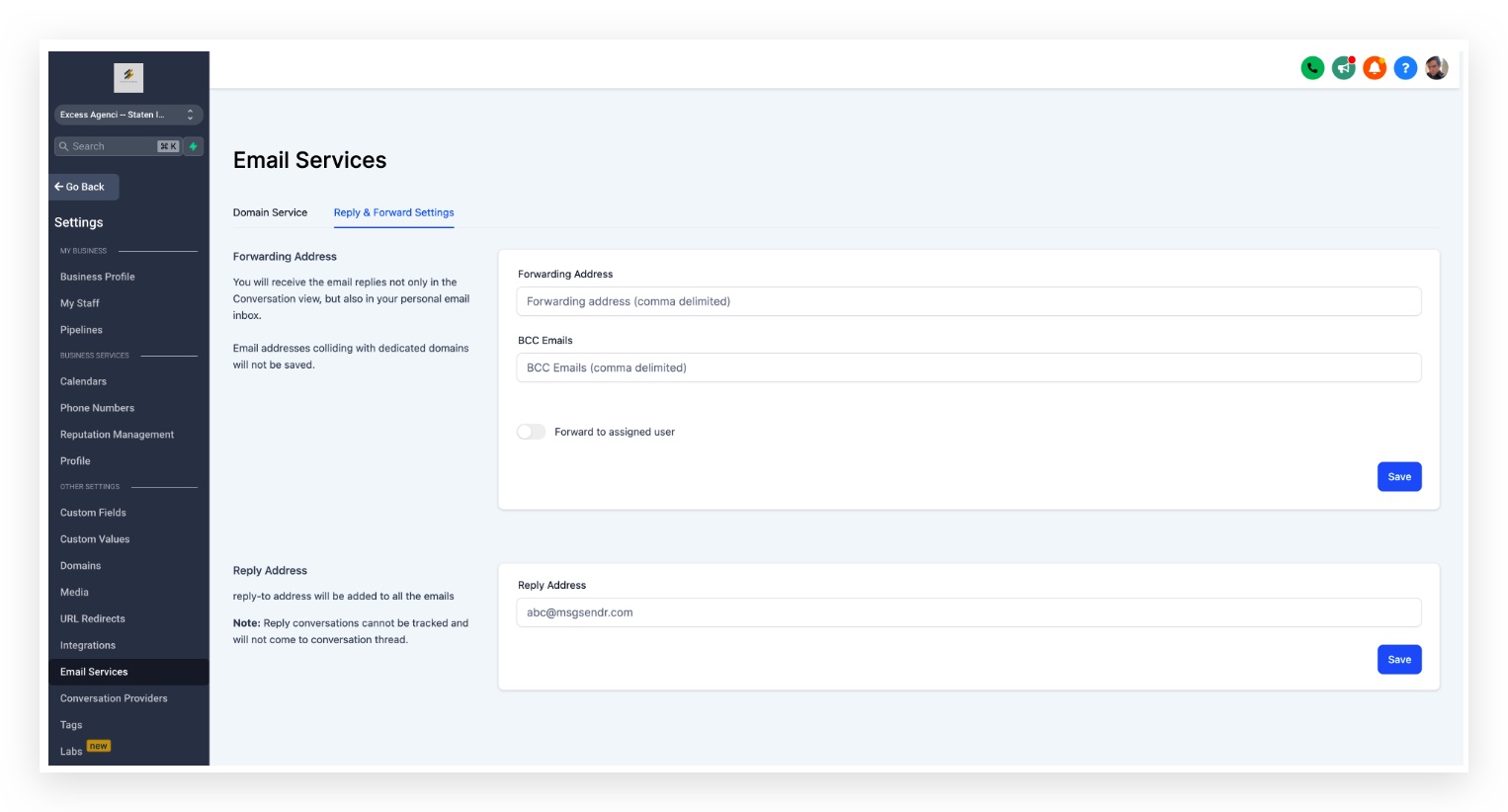
⚠️ Important: Forwarding addresses only work with Mailgun and LC Email as your SMTP provider. Other SMTP providers are not supported for this feature. Each forwarded email incurs a per-email charge, similar to sending a regular outgoing email.
Use a shared team inbox as a forwarding address to ensure multiple team members can see and act on lead replies, even if the primary assigned user is unavailable.
Setting a Custom Reply-To Address
The Reply Address setting changes where replies are directed when a lead responds to your emails. By default, replies go to your GoHighLevel Conversations tab. However, if you add a custom reply-to address, all incoming replies will be routed to that specified external inbox instead. Be aware that replies sent to an external inbox will not automatically sync back to your GoHighLevel CRM.
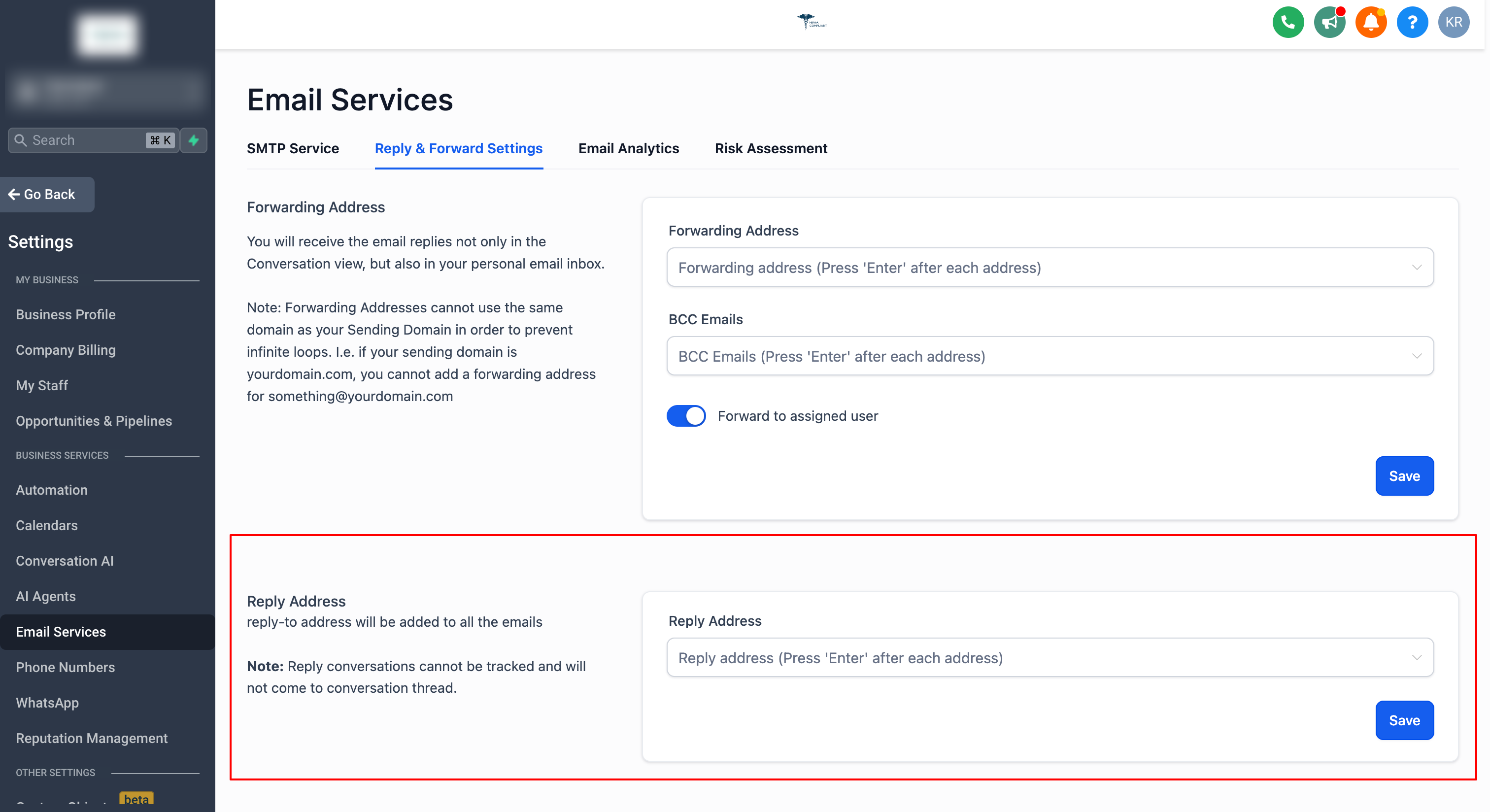
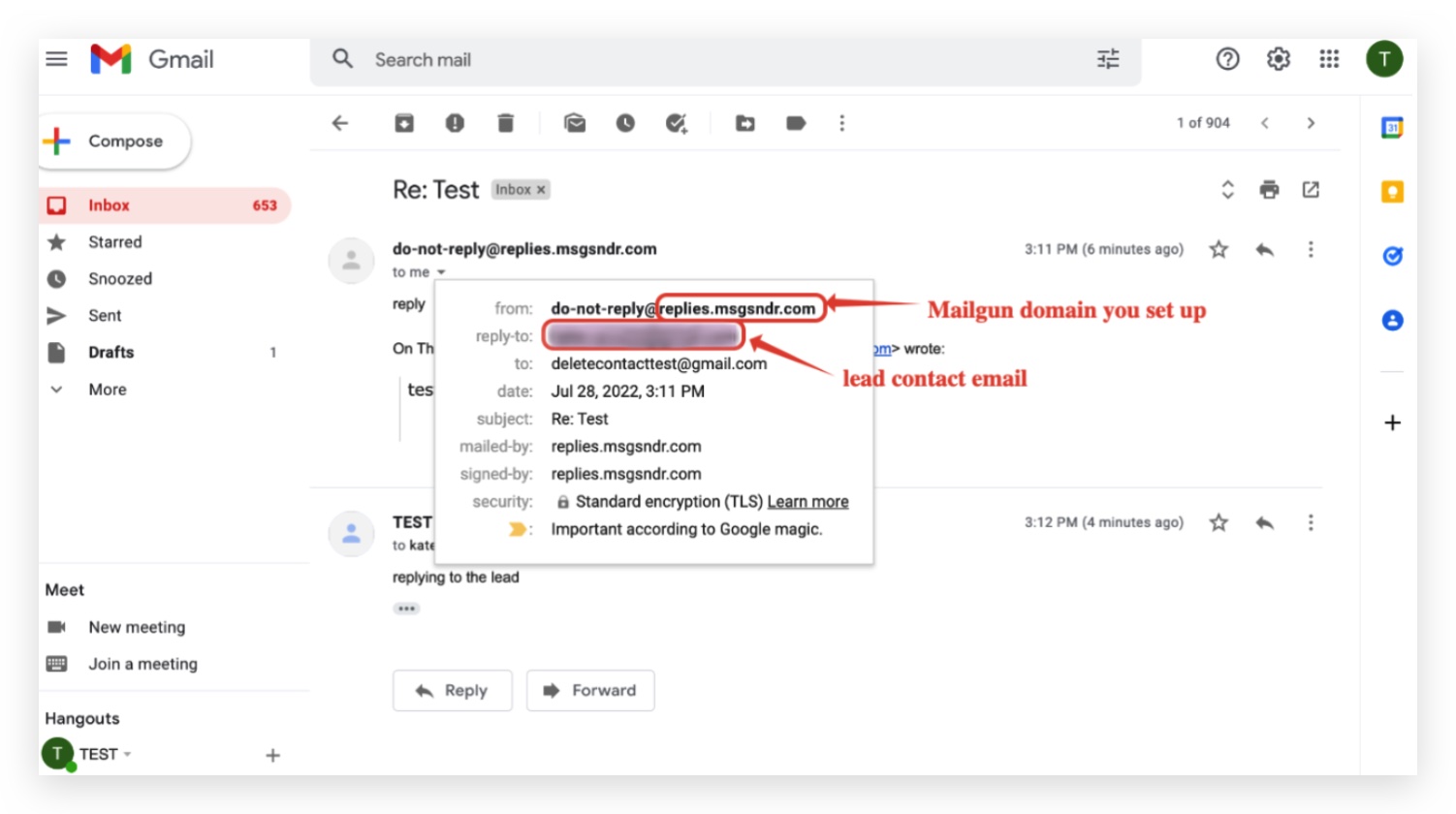
⚠️ When you use a custom reply address, any replies you send from your external inbox will not sync back into your GoHighLevel Conversations tab. This can lead to incomplete conversation histories within the CRM.
Only use a custom reply address if you prefer managing replies entirely outside GoHighLevel and do not need them tracked in the Conversations tab or for workflow triggers. For most users, keeping replies within the CRM is best for full visibility and automation.
Using BCC Emails for Internal Tracking
BCC (Blind Carbon Copy) emails provide an invisible copy of specific outbound messages to a designated email address. This feature allows you to maintain an internal record of communications without the recipient knowing. In GoHighLevel, you can BCC 1-on-1 emails, workflow emails, and billing emails, ensuring you have an external archive for compliance or record-keeping purposes.
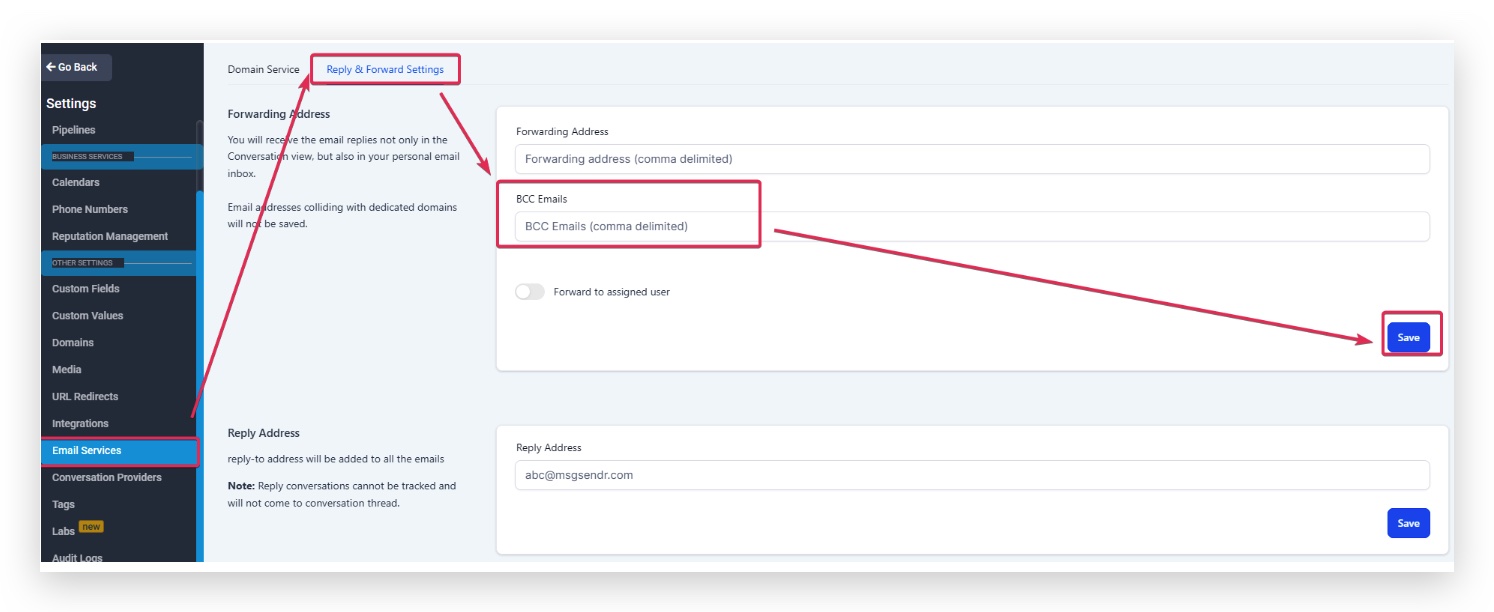
⚠️ Similar to forwarding, the BCC Emails feature only works with Mailgun and LC Email as your SMTP provider. Other SMTP providers do not support this functionality. Each BCC'd email also counts as an outgoing email for billing purposes.
✅ BCC Scope: BCC is supported only for 1-on-1 emails, workflow emails, and billing emails. It does not apply to bulk email campaigns or mass broadcast emails.
Use a dedicated archive email address for BCC copies to keep your primary inbox clean while still maintaining a complete record of all important communications.
Start your 30-day GoHighLevel free trial
Everything in this guide is in your free trial. 30 days, no credit card — the platform behind 78+ revenue systems.
Some links are affiliate links — if you sign up we may earn a commission, at no extra cost to you. We only recommend GoHighLevel because we build on it every day.
Automatically Forwarding to the Assigned User
The 'Forward to Assigned User' feature provides a convenient way to ensure that the specific team member responsible for a lead receives email replies directly in their personal inbox. This streamlines communication and helps assigned users stay on top of their lead interactions without constantly checking the GoHighLevel platform. The email address used for forwarding is pulled from the user's profile.
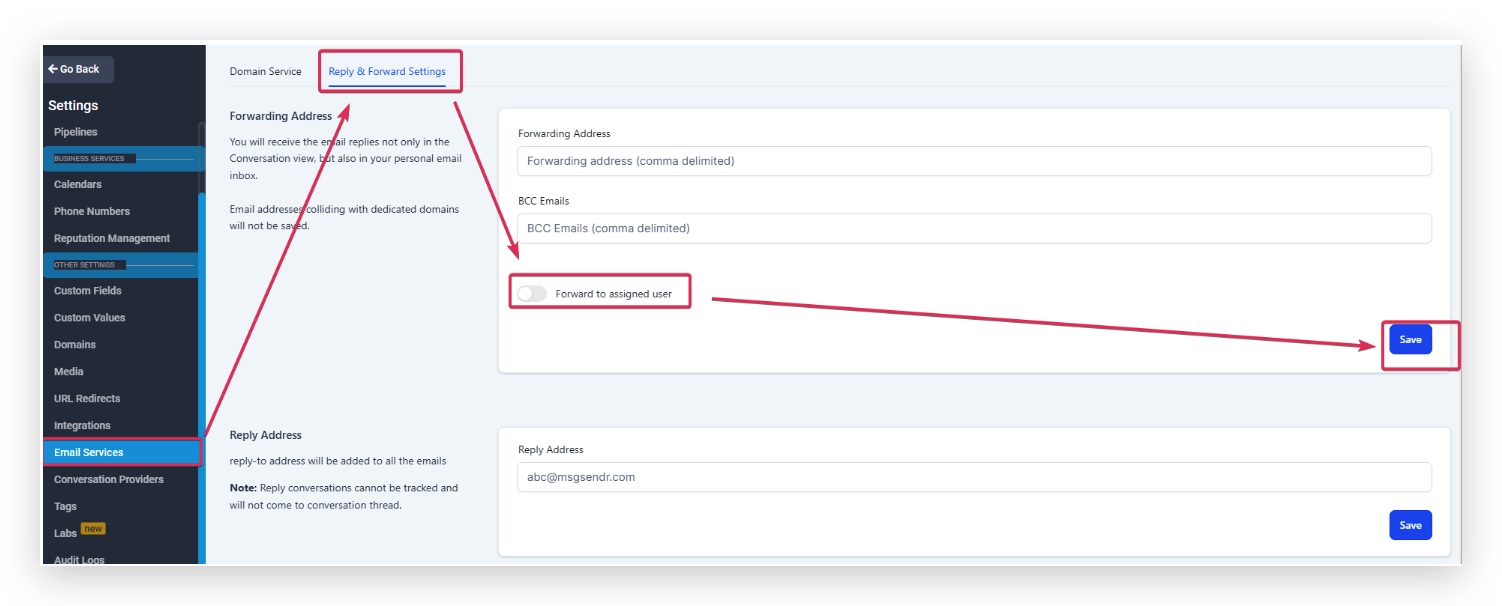
Combine this setting with the general forwarding address if you want both the assigned user and a general team inbox to receive copies of replies, ensuring no communication is missed.
Ensuring Reply Tracking for All Email Providers
Reply tracking is vital for capturing all lead responses within your GoHighLevel Conversations tab. This ensures a complete communication history, allows you to trigger automated workflows based on replies, and provides a centralized place for your team to manage interactions. While Mailgun is deeply integrated and handles reply tracking automatically, other SMTP providers require explicit activation.
⚠️ If reply tracking is not enabled for non-Mailgun/LC Email SMTP providers, all replies will go directly to the sender's email inbox and will NOT appear in your GoHighLevel Conversations tab. This means you will lose valuable conversation history and the ability to trigger automated workflows based on replies.
Always verify that reply tracking is active, especially if you switch SMTP providers. A quick test email can confirm replies are correctly appearing in your GoHighLevel Conversations tab.
Understanding Email Billing for Forwarded Messages
It's important to understand the cost implications of forwarding and BCC'ing emails within GoHighLevel. While these features offer significant benefits for communication and tracking, each forwarded or BCC'd email incurs a charge. This billing structure ensures transparency and accurately reflects the resources used by your account, especially when rebilling is enabled for sub-accounts.
⚠️ Each forwarded email and each BCC'd email is treated as a separate outgoing email for billing purposes. This means if you send an email to a lead and it's forwarded to two addresses and BCC'd to one, it counts as three additional outgoing emails beyond the original send, incurring charges for each.
Regularly monitor your email usage in GoHighLevel to stay aware of billing costs, especially if you have a high volume of forwarded or BCC'd emails.
Troubleshooting Common Issues
Common Mistakes to Avoid
- →Attempting to use forwarding or BCC features with an SMTP provider other than Mailgun or LC Email.
- →Setting a custom 'Reply Address' and then expecting replies to still appear in the GoHighLevel Conversations tab.
- →Forgetting to enable 'Reply Tracking' for external SMTP providers, leading to missed lead responses in the CRM.
- →Not clicking the 'Save' button after making changes to any of the Reply & Forward settings.
- →Overlooking the billing implications of forwarded and BCC'd emails, leading to unexpected charges.
Frequently Asked Questions
Start your 30-day GoHighLevel free trial
Everything in this guide is in your free trial. 30 days, no credit card — the platform behind 78+ revenue systems.
Some links are affiliate links — if you sign up we may earn a commission, at no extra cost to you. We only recommend GoHighLevel because we build on it every day.

Arsalan writes GHL guides from real build experience — 78+ systems, $9.2M in client pipeline. Wharton, CXL & Google certified.
Connect on LinkedIn