Revset
Book a Free Audit

30-minute call · No obligation

HomeGHL HubSettings & AdminBrand Your GoHighLevel Web App: Set Up a Custom Domain
REVSET LABS · EXPERT GUIDE·Settings & Admin

Brand Your GoHighLevel Web App: Set Up a Custom Domain

787 words·3 min read·Updated 27 April 2026·beginner·
Arsalan ZaffarArsalan ZaffarLinkedIn

👉 Start your 30-day GoHighLevel free trial.

Start 30-Day Free Trial
Quick Answer

To brand your GoHighLevel desktop web app with a custom domain, create a CNAME record at your DNS provider pointing to `whitelabel.ludicrous.cloud`. Then, add this full subdomain in Agency View → Settings → Company → Whitelabel → Whitelabel Domain and click Update. This process typically takes 15-30 minutes for DNS propagation and SSL issuance.

Key Takeaways
  • Always use a subdomain (e.g., `app.yourdomain.com`), not your root domain, for the web app.
  • Point your CNAME record to `whitelabel.ludicrous.cloud` exactly for proper setup.
  • Ensure no other DNS records (like A records) conflict with your chosen subdomain.
  • Upload your agency logo and specify legal links in **Agency Settings** for a complete branded experience.
  • If using Cloudflare, set the CNAME to 'DNS only' (grey cloud) to allow SSL provisioning.

What is a Custom Domain for Your GoHighLevel Web App?

A custom domain for your GoHighLevel desktop web app allows you to brand the login portal and the application's URL with your own subdomain. Instead of clients seeing `app.gohighlevel.com`, they will use an address like `app.yourdomain.com`. This setup provides a professional, consistent experience for your clients. GoHighLevel securely hosts the application, while your custom domain ensures your brand remains front and center throughout their usage.

✅ A Custom/Whitelabel Domain is the domain you own and your customers will use to log into the desktop app (e.g., `app.yourdomain.com`). The GoHighLevel Default Domain is the temporary address provided by GoHighLevel (e.g., `yourcompany.gohighlevel.com`).

Why Use a Custom Domain for Your GoHighLevel Web App?

Using a custom domain for your web app offers significant benefits that enhance your agency's professionalism and client experience. It is a critical step in fully branding your GoHighLevel platform. This configuration ensures brand consistency by displaying your name, logo, and URL across the entire login and application experience. It builds trust and professionalism, reassuring clients they are in the right place when they log in. Your clients benefit from simplified access with a memorable URL, and GoHighLevel automatically issues an SSL certificate for secure HTTPS access once your DNS settings are correct. Moreover, it keeps your login and app domain distinct from your marketing websites and email sending domains, maintaining a clear separation of concerns.

Try GoHighLevel Free

Start your 30-day GoHighLevel free trial

Everything in this guide is in your free trial. 30 days, no credit card — the platform behind 78+ revenue systems.

Start 30-Day Free Trial

Some links are affiliate links — if you sign up we may earn a commission, at no extra cost to you. We only recommend GoHighLevel because we build on it every day.

How Do You Set Up Your Custom GoHighLevel Web App Domain?

Setting up your custom domain for the GoHighLevel web app involves a few crucial steps. Follow them in order to ensure quick DNS propagation, automatic SSL issuance, and a smooth launch of your branded login portal.
1
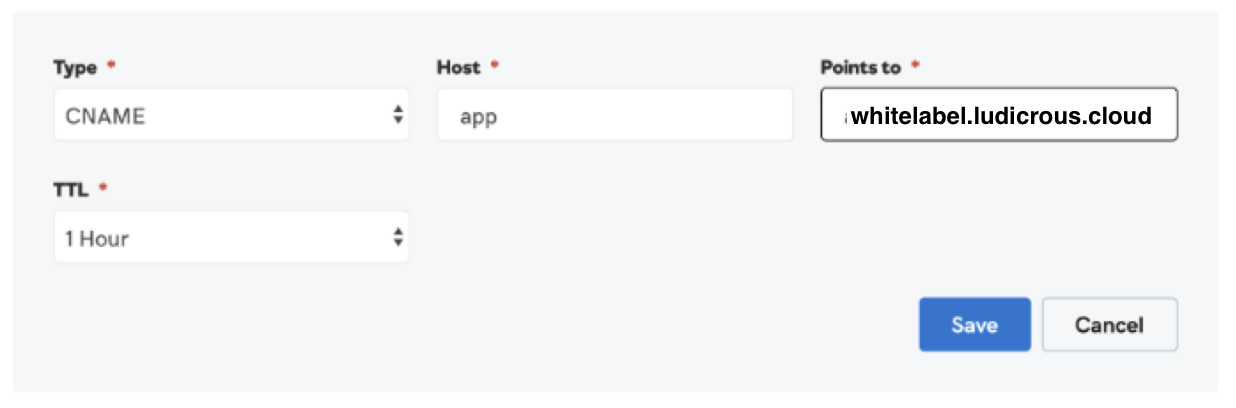
Create Your CNAME Record at Your DNS ProviderLog in to your domain registrar or DNS hosting provider (e.g., GoDaddy, Cloudflare, Namecheap). Navigate to your domain's DNS management settings to add a new record. Create a CNAME record with the Host/name as your desired subdomain (e.g., `app` for `app.yourdomain.com`) and the Value/target as `whitelabel.ludicrous.cloud`. You can typically leave the TTL (Time To Live) setting at its default value.
GoHighLevel screenshot
0
2
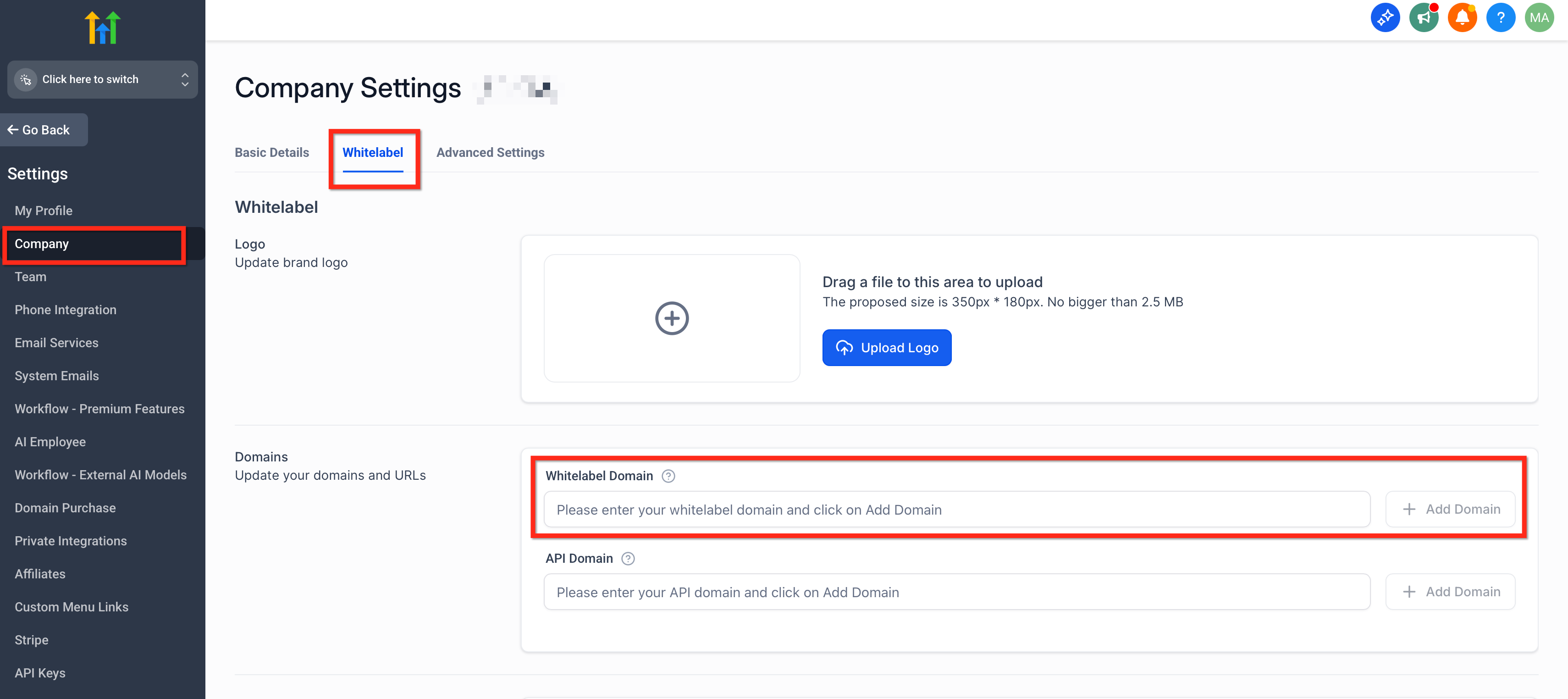
Add Your Domain in GoHighLevel Agency SettingsIn your GoHighLevel agency account, go to Agency View → Settings → Company. Scroll down to the Whitelabel section and locate the Whitelabel Domain field. Enter your *full* subdomain (e.g., `app.yourdomain.com`) into this field, then click the Update button to save your changes.
GoHighLevel screenshot
1
3
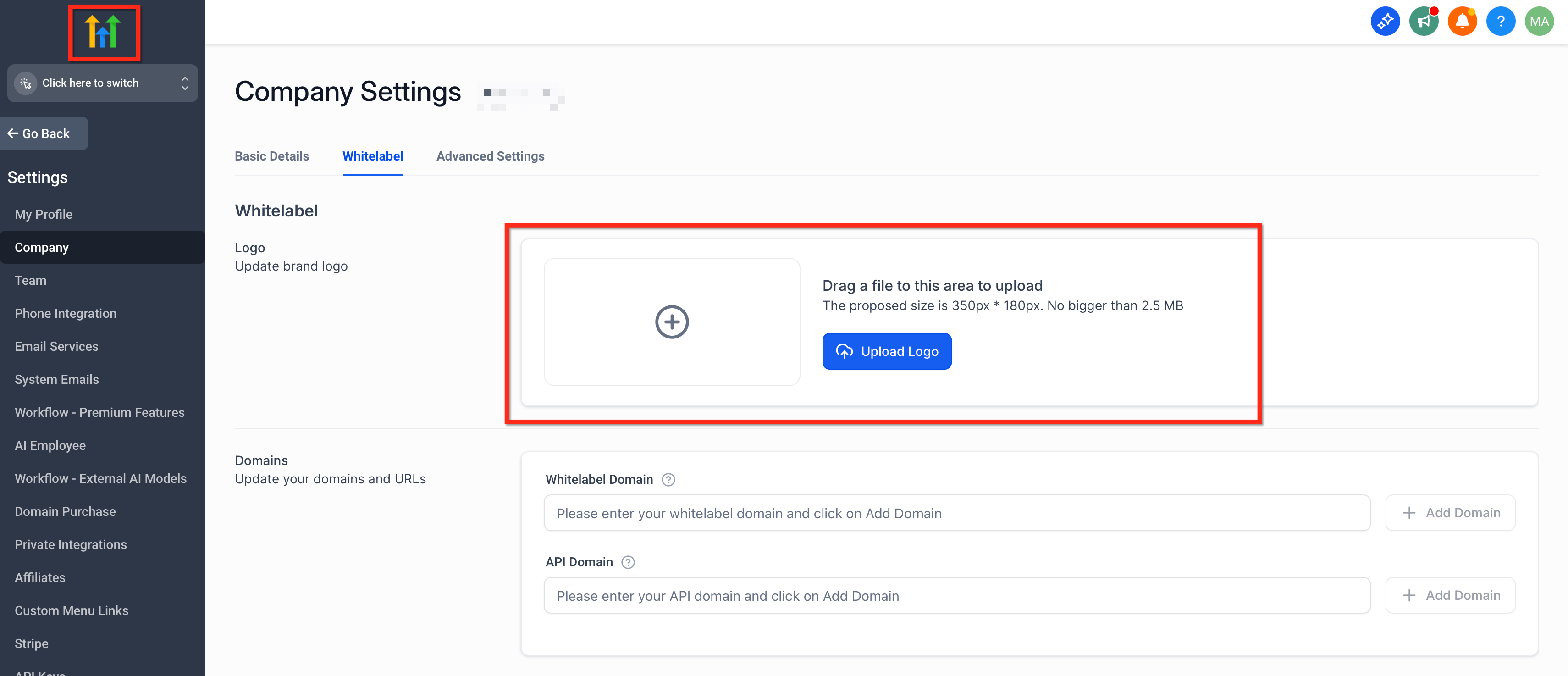
Upload Your Agency Logo and Add Legal URLsWhile still in Agency View → Settings → Company, ensure you upload your agency logo. The recommended size is up to 350x180 pixels and under 2.5 MB. Additionally, paste the full URLs for your Privacy Policy and Terms & Conditions into their respective fields. This ensures your branded login page includes essential legal links.
GoHighLevel screenshot
2
4
Verify Domain Propagation and SSLAllow some time for DNS changes to propagate globally, which can take up to 30 minutes. After waiting, open your branded URL (e.g., `http://app.yourdomain.com`) in a web browser. Confirm that the branded login page loads correctly with your logo and that HTTPS is active, indicating that the SSL/TLS certificate has been automatically issued.
GoHighLevel screenshot
3

✅ NOTE: If you are updating an existing custom domain, you must first delete the old value in the Whitelabel Domain field using the trash icon. Click Update Company to save, then re-enter your new subdomain and save again. This clears the old configuration and allows the new settings to apply.

Custom Web App Domain vs. API Domain: What's the Difference?

Understanding the distinction between the Custom Web App Domain and the API Domain is crucial for comprehensive branding within GoHighLevel. While both contribute to a branded experience, they serve different purposes.

🔥 Pro Tip

For a truly seamless brand experience, ensure you also configure your API Domain. This brands all system-generated links in emails and SMS, completing your agency's professional look and preventing clients from seeing generic GoHighLevel links.

Troubleshooting Common Issues

⚠️ "The client and server don't support a common SSL protocol version or cipher suite"
This error means your browser or device is using outdated security protocols. GoHighLevel supports only TLS 1.2 and 1.3. Update your web browser to the latest version. Also, verify you have no conflicting DNS records (like both an A record and a CNAME record for the same subdomain), as this can block SSL provisioning.
⚠️ Your custom domain is not loading or shows a generic error page.
Double-check that your subdomain's CNAME record is pointed *exactly* to `whitelabel.ludicrous.cloud` at your DNS provider. Any typo will prevent it from working. Allow up to 30 minutes for DNS changes to propagate globally across the internet before retesting.
⚠️ "Your Connection Is Not Private" or HTTPS is not working (only HTTP loads).
This typically indicates that your SSL certificate has not yet been issued. Ensure your DNS is fully propagated and that your subdomain has *only* the CNAME record pointing to `whitelabel.ludicrous.cloud`. Remove any other conflicting records. Once DNS is correctly configured, SSL is automatically issued by Let's Encrypt.
⚠️ After updating my custom domain, the old login page still appears.
You must first clear the old value. Go to Agency View → Settings → Company → Whitelabel Domain, click the trash icon next to the field, then click Update Company. Once saved, re-enter your new subdomain into the field and click Update Company again. Allow time for DNS and SSL to refresh, then clear your browser cache and retest.
⚠️ Using Cloudflare, my custom domain shows SSL errors or doesn't load correctly.
If you are using Cloudflare, ensure your CNAME record for the custom domain is set to 'DNS only' (represented by a grey cloud icon). Do not use the 'Proxied' option (orange cloud), as Cloudflare's proxy interferes with GoHighLevel's automatic SSL provisioning.

Common Mistakes to Avoid

  • Attempting to use a root domain (e.g., `yourdomain.com`) instead of a subdomain (e.g., `app.yourdomain.com`) for the web app.
  • Incorrectly typing the CNAME target value (`whitelabel.ludicrous.cloud`) at the DNS provider.
  • Having conflicting DNS records, such as both an A record and a CNAME record for the same subdomain.
  • Forgetting to clear the old custom domain value in GoHighLevel settings when attempting to update an existing setup.
  • Leaving the Cloudflare proxy (orange cloud) enabled for the CNAME record, which prevents SSL provisioning.

Frequently Asked Questions

QCan I use my root domain (e.g., `yourdomain.com`) for the custom web app login?
No, you cannot use your root domain directly for the custom web app login. You must use a subdomain, such as `app.yourdomain.com`, `login.yourdomain.com`, or `portal.yourdomain.com`. This subdomain is configured via a CNAME record at your DNS provider, which points to the GoHighLevel target `whitelabel.ludicrous.cloud`.
QHow long does it take for SSL to be issued after setting up my custom domain?
Once your DNS changes have fully propagated and your CNAME record correctly points to `whitelabel.ludicrous.cloud`, the SSL certificate is automatically issued by GoHighLevel. DNS propagation can take up to 30 minutes, but in some cases, it might be faster. After this period, your custom domain will load securely with HTTPS.
QWhat is the main difference between the Custom Web App Domain and the API Domain?
The Custom Web App Domain is specifically for branding your GoHighLevel desktop login page and the application's URL (e.g., `app.yourdomain.com`). The API Domain, on the other hand, brands all system-generated links within GoHighLevel, such as links for forms, surveys, calendars, trigger links, and review requests, which are sent via email or SMS. Both are crucial for a complete branded experience.
QDo I need to upload my agency logo and legal links again for custom branding?
Yes, you need to explicitly upload your agency logo and add your Privacy Policy and Terms & Conditions URLs within **Agency View → Settings → Company** in GoHighLevel. These settings ensure that your custom-branded login page displays your agency's branding and complies with legal requirements, providing a professional and trustworthy experience for your clients.
QWhat should I do if my custom domain isn't loading or showing an SSL error after setup?
First, meticulously verify that your CNAME record at your DNS provider points *exactly* to `whitelabel.ludicrous.cloud`. Ensure there are no other conflicting DNS records (like A records) for the same subdomain. If you're using Cloudflare, confirm the CNAME is set to 'DNS only' (grey cloud). Allow at least 30 minutes for DNS propagation and for the SSL certificate to be automatically issued. Clear your browser cache and try again.
Try GoHighLevel Free

Start your 30-day GoHighLevel free trial

Everything in this guide is in your free trial. 30 days, no credit card — the platform behind 78+ revenue systems.

Start 30-Day Free Trial

Some links are affiliate links — if you sign up we may earn a commission, at no extra cost to you. We only recommend GoHighLevel because we build on it every day.

Arsalan Zaffar
Arsalan Zaffar
Revset Labs · Revenue Systems · 78+ GHL Builds

Arsalan writes GHL guides from real build experience — 78+ systems, $9.2M in client pipeline. Wharton, CXL & Google certified.

Connect on LinkedIn
Tags:GoHighLevelwhitelabelcustom domainbrandingDNS setupSSLagency settingsdesktop app