
Revset
Book a Free Audit

30-minute call · No obligation

HomeGHL HubConversations & MessagingFix: Incoming SMS Not Forwarding in GoHighLevel Conversations
REVSET LABS · EXPERT GUIDE·Conversations & Messaging

Fix: Incoming SMS Not Forwarding in GoHighLevel Conversations

1,065 words·4 min read·Updated 28 April 2026·beginner·
Arsalan ZaffarArsalan ZaffarLinkedIn

👉 Start your 30-day GoHighLevel free trial.

Start 30-Day Free Trial
Quick Answer

To ensure incoming SMS messages are forwarded from GoHighLevel Conversations, create a new workflow triggered by 'Customer Replied' via SMS. Set up an 'Internal Notification' action to send the message body to your desired forwarding number. This process typically takes about 5-7 minutes.

Key Takeaways
  • Always test your SMS forwarding workflow after creation to confirm messages are delivered correctly.
  • Use custom values like 'Message Body' and 'Contact First Name' to make forwarded notifications informative.
  • Be aware that sending internal SMS notifications incurs standard SMS charges per message.
  • Regularly review your workflow settings to ensure they align with your current communication needs.
  • Prioritize using the 'Customer Replied' trigger with 'Reply Channel: SMS' for precise control over incoming SMS forwarding.

Why Isn't My Incoming SMS Forwarding in GoHighLevel?

GoHighLevel's Conversations tab is excellent for managing client communication. However, you might notice that while incoming SMS messages appear there, they aren't automatically forwarded to your designated number. This typically happens because a specific workflow for SMS forwarding hasn't been configured. Without an active workflow, GoHighLevel doesn't know where to send these replies outside of the platform. This guide helps you set up a robust system to ensure you never miss an important customer text.

🔥 Pro Tip

Before you begin, make sure you have the forwarding phone number readily available. This ensures a smooth setup process without interruptions.

How to Create a New Workflow for SMS Forwarding

The foundation of fixing this issue lies in creating a dedicated workflow. This workflow will listen for incoming SMS replies and then take a specific action: forwarding that message to your desired number. Starting a new workflow ensures a clean slate and dedicated functionality for this crucial task.
1
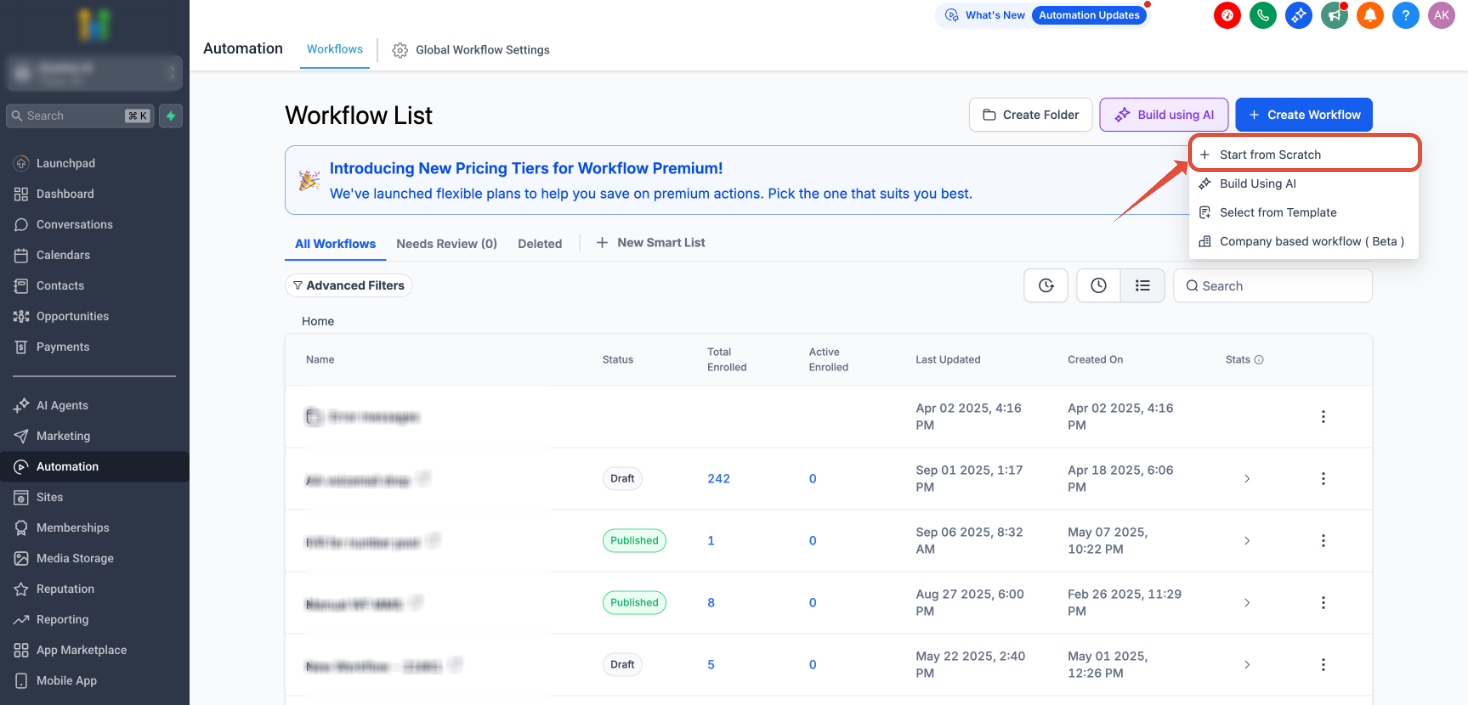
Access the Automation SectionFrom your GoHighLevel dashboard, click on Automation in the left-hand menu. This is where you manage all your automated processes.
2
Navigate to WorkflowsWithin the Automation section, select Workflows to view your existing workflows or create new ones. This central hub controls how your system reacts to various events.
3
Initiate New Workflow CreationClick the Create Workflow button, usually found in the top right corner. This action begins the process of building your custom automation.
4
Start from ScratchChoose Start from Scratch from the template options. Then, click Create New Workflow to confirm your selection, providing a blank canvas for your specific forwarding logic.
GoHighLevel screenshot
0
🔥 Pro Tip

Give your workflow a clear, descriptive name immediately, such as 'Incoming SMS Forwarder' or 'Customer Reply SMS Notification'. This helps with organization and future troubleshooting.

Setting Up the Workflow Trigger for Incoming SMS

The trigger is the 'event' that starts your workflow. For forwarding incoming SMS, the most accurate trigger is when a customer replies. This ensures the workflow only activates when a new message is received from a contact via text.
1
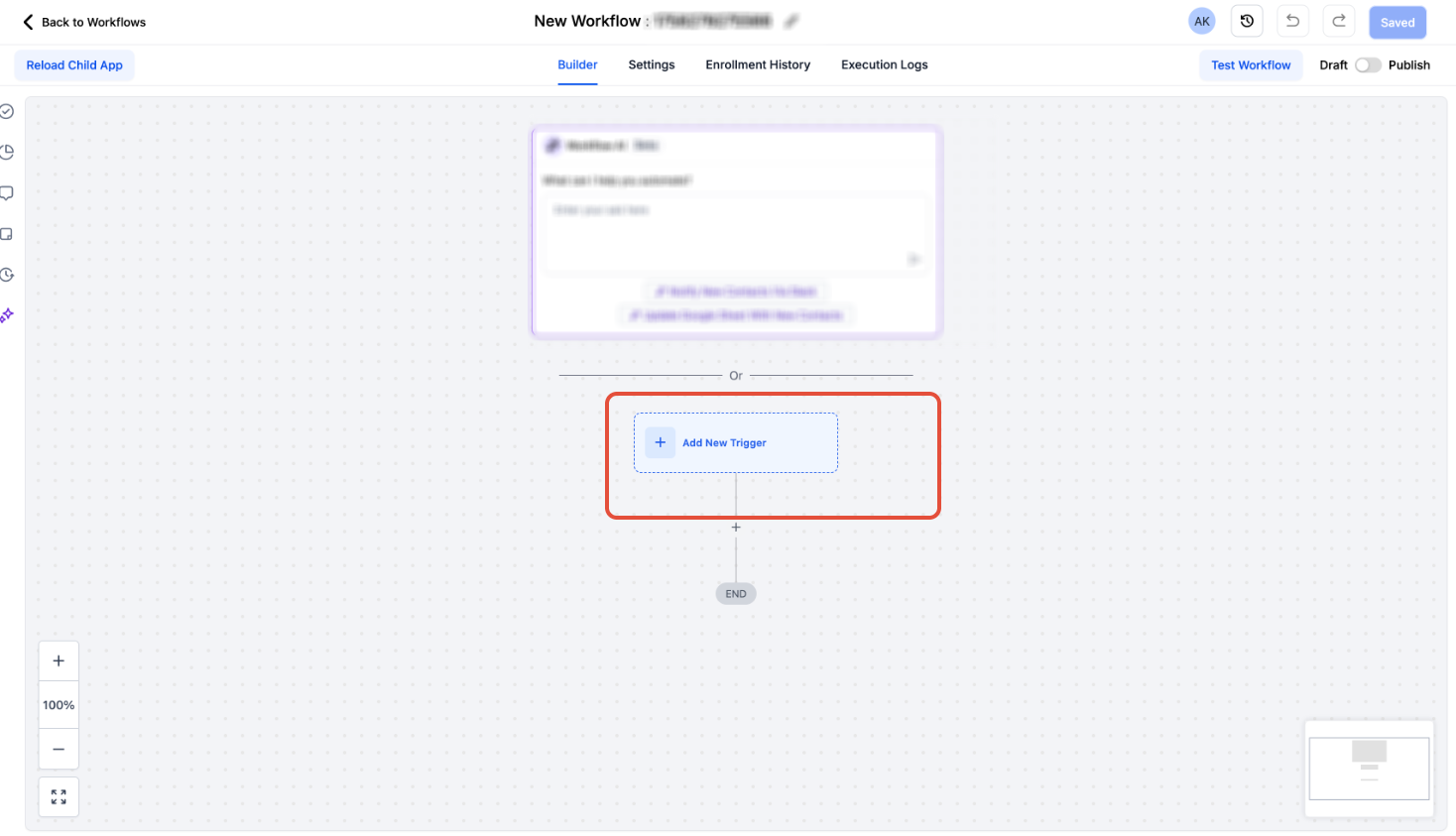
Add a New Workflow TriggerInside your new workflow, click Add New Workflow Trigger. This opens the menu where you select what event will start your automation.
2
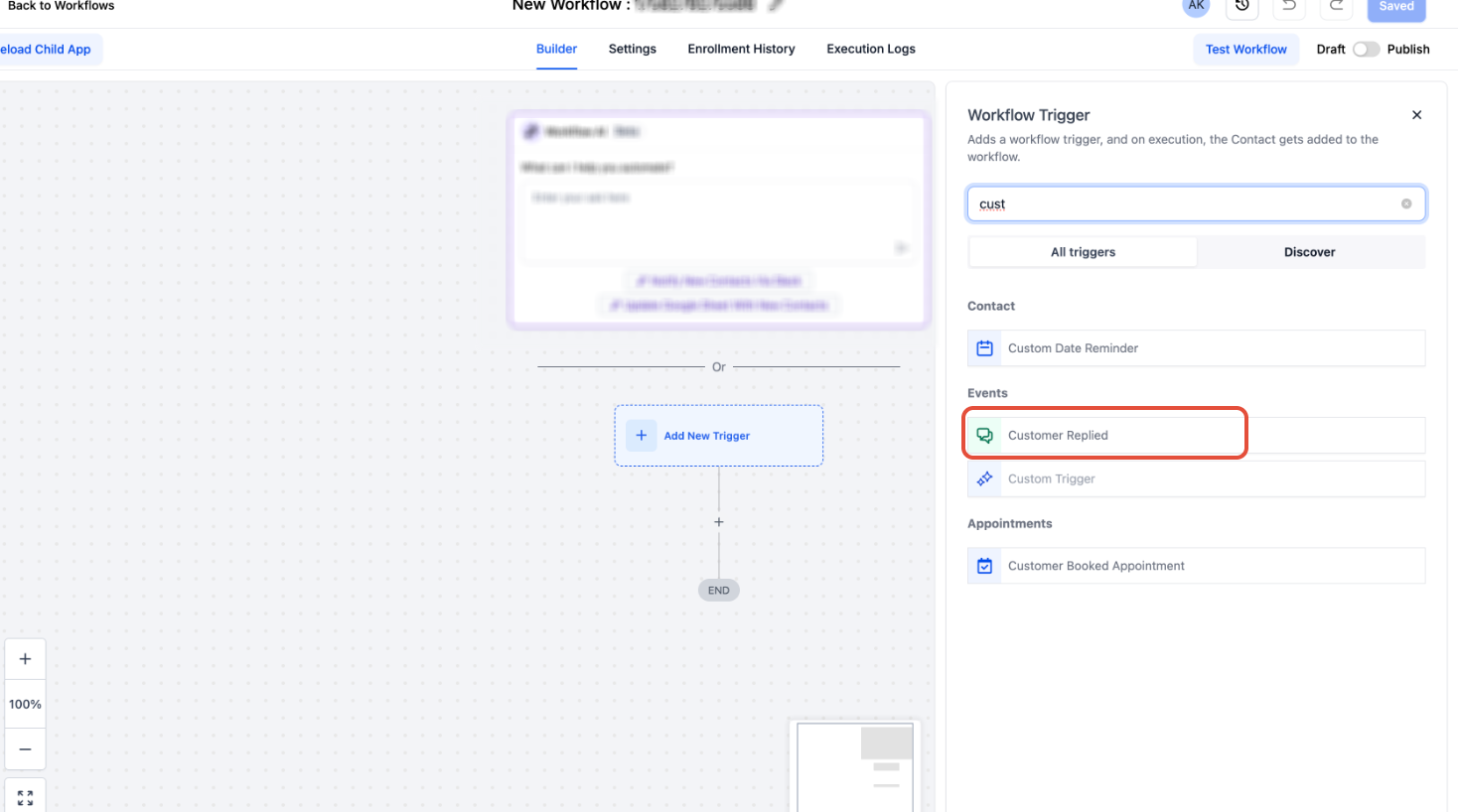
Select 'Customer Replied'From the list of available triggers, choose Customer Replied. This trigger is specifically designed to detect responses from your contacts.
3
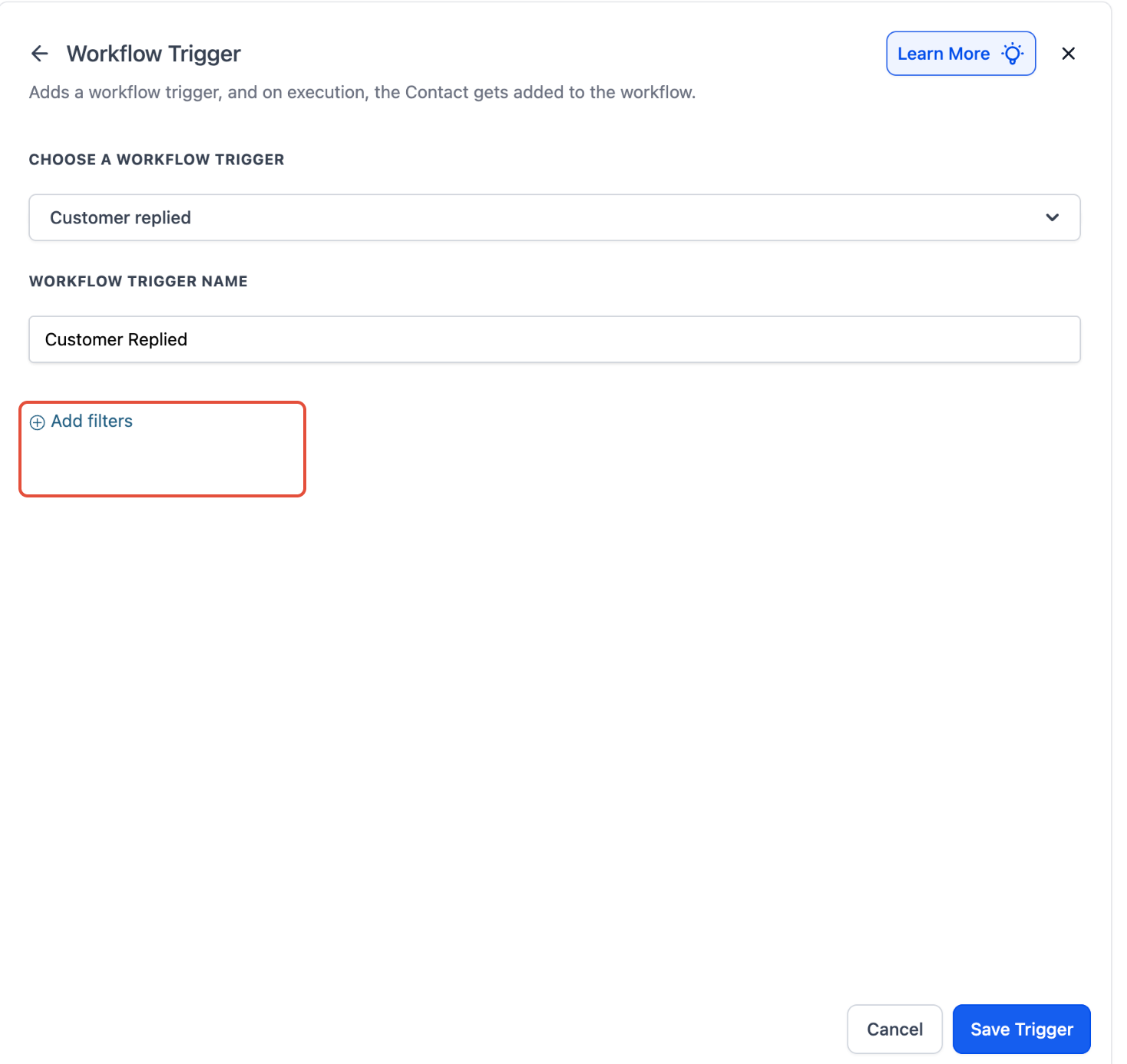
Apply Filters for SMS ChannelClick Add Filters to refine when this trigger should activate. Filtering is crucial to ensure only SMS replies trigger this specific workflow.
4
Choose 'Reply Channel'In the filter options, select Reply Channel. This filter allows you to specify the communication method used by the customer.
5
Specify 'SMS' as the ChannelFrom the 'Reply Channel' dropdown, choose SMS. This ensures the workflow only runs when a customer replies specifically via text message, ignoring emails or other channels.
6
Save the Workflow TriggerClick Save Trigger to apply these settings. Your workflow is now configured to start whenever a customer sends an SMS reply.
GoHighLevel screenshot
0
🔥 Pro Tip

Always save your trigger settings immediately after configuring them. This prevents accidental loss of your setup if you navigate away or experience an interruption.

Try GoHighLevel Free

Start your 30-day GoHighLevel free trial

Everything in this guide is in your free trial. 30 days, no credit card — the platform behind 78+ revenue systems.

Start 30-Day Free Trial

Some links are affiliate links — if you sign up we may earn a commission, at no extra cost to you. We only recommend GoHighLevel because we build on it every day.

Configuring the 'Send Internal Notification' Action

Once the workflow is triggered by an incoming SMS, the next step is to define the action: sending an internal notification. This notification will contain the customer's message and be sent to your forwarding number, effectively bridging the gap between GoHighLevel Conversations and your external device.
1
Add a Workflow ActionBeneath your saved trigger, click the ' + ' icon or Please select action to add a new step. This opens the action menu for your workflow.
2
Select 'Send Internal Notification'From the list of actions, choose Send Internal Notification. This action allows you to send alerts or messages to internal team members or specific numbers.
3
Set Notification Type to SMSIn the 'Send Internal Notification' settings, select SMS as the 'Notification Type'. This ensures the forwarded message arrives as a text.
4
Enter Forwarding NumberIn the 'Send To' field, enter the exact phone number you want the incoming SMS messages forwarded to. Ensure this number is correct to avoid missed messages.
5
Compose the Notification MessageIn the 'Message' body, type a descriptive prefix like 'New SMS from: ' to identify the message source. This helps you recognize forwarded texts easily.
6
Add Contact's First NameClick the Custom Values icon (often a tag symbol) next to the message body. Navigate to Contact → First Name to automatically include the sender's first name.
7
Include the Original Message BodyAgain, click the Custom Values icon. Navigate to Message → Message Body to insert the full content of the customer's original SMS. This ensures the complete message is forwarded.
8
Save the ActionClick Save Action to finalize the internal notification setup. Your workflow now knows what to do with incoming SMS messages.
GoHighLevel screenshot
0

⚠️ ⚠ SMS notifications incur charges for each SMS sent. Factor these costs into your budget, especially with high volumes of incoming messages.

🔥 Pro Tip

Consider adding the contact's phone number using Custom Values > Contact > Phone to the forwarded message. This allows you to easily reply directly to the customer from your personal device if needed.

Activating Your SMS Forwarding Workflow

After meticulously setting up your trigger and action, the final crucial step is to activate the workflow. Until it's published, it remains inactive and won't forward any messages. Make sure to review everything one last time before making it live.
1
Set Workflow to 'Active'In the top right corner of the workflow builder, locate the toggle switch labeled Draft or Inactive. Click it to change its status to Active.
2
Publish the WorkflowClick the Save or Publish button to confirm your changes and make the workflow live. Once published, it will immediately start forwarding incoming SMS messages.
GoHighLevel screenshot
0

✅ Congratulations! Your GoHighLevel system is now configured to forward all incoming SMS messages to your specified number, ensuring you never miss a vital customer communication.

🔥 Pro Tip

Always perform a test after activating your workflow. Send a test SMS from an external number to the GoHighLevel number to confirm the forwarding works as expected.

Troubleshooting Common Issues

⚠️ I sent a test SMS, but no notification arrived on my forwarding number.
First, check if your workflow is set to Active and Published. Next, verify that the 'Send To' phone number in the 'Send Internal Notification' action is entered correctly without typos. Finally, confirm your GHL account has sufficient SMS credits.
⚠️ The forwarded message only contains 'New SMS from:' but no actual message content.
Revisit the 'Send Internal Notification' action. Ensure you correctly added the Custom Values → Message → Message Body to the notification message. It's often missed or incorrectly placed.
⚠️ I'm getting SMS notifications for all replies, including email, not just SMS.
Go back to your workflow trigger. Ensure you have correctly added the filter Reply Channel is SMS. If this filter is missing or set incorrectly, the workflow will trigger for all reply types.
⚠️ The forwarded SMS arrives, but the contact's name is missing or shows 'null'.
This usually means the contact sending the SMS doesn't have a first name recorded in GoHighLevel. While the workflow is correct, update the contact's profile in GHL with their first name for future messages.
⚠️ The workflow shows as 'Active' but still isn't working after saving.
Sometimes, a quick refresh of the GoHighLevel page or even logging out and back in can resolve minor caching issues. Also, double-check that your GHL location has a valid Twilio number assigned and active for SMS.

Common Mistakes to Avoid

  • Forgetting to set the workflow to 'Active' after building it.
  • Not adding the 'Reply Channel is SMS' filter, leading to forwarding non-SMS replies.
  • Typing the forwarding phone number incorrectly in the 'Send To' field.
  • Failing to include the 'Message Body' custom value, resulting in empty forwarded messages.
  • Not testing the workflow with a real incoming SMS after setup and activation.

Frequently Asked Questions

QWill forwarding SMS messages incur additional costs?
Yes, sending an 'Internal Notification' via SMS from GoHighLevel will incur standard SMS charges, similar to sending any other outbound text message from your account. Each forwarded message is treated as a new outgoing SMS. It's important to monitor your SMS credit usage, especially if you anticipate a high volume of incoming customer replies, to avoid unexpected charges or service interruptions.
QCan I forward incoming SMS to multiple phone numbers or email addresses?
Absolutely. Within the 'Send Internal Notification' action, you can add multiple phone numbers to the 'Send To' field, separated by commas, to forward the SMS to several recipients. If you prefer to forward to email, you would add an additional action step, 'Send Email', after the 'Send Internal Notification', using the 'Message Body' custom value within the email content.
QWhat if my customer replies with an MMS (media message) instead of plain text?
This workflow specifically targets 'Reply Channel: SMS'. While GoHighLevel's Conversations tab supports MMS, this workflow's 'Message Body' custom value primarily captures text content. For comprehensive MMS forwarding, you might need a more advanced workflow or integration, potentially involving a webhook to capture media URLs, which is beyond the scope of this basic SMS forwarding setup.
QHow can I personalize the forwarded notification beyond the contact's first name?
You can add more custom values to your notification message. For instance, you could include **Custom Values → Contact → Last Name**, **Custom Values → Contact → Phone**, or even **Custom Values → Location → Name** to indicate which GoHighLevel location received the message. This provides richer context for the recipient of the forwarded SMS, making it easier to identify the sender and their origin.
QIs there a way to only forward SMS messages during specific hours?
Yes, you can add a 'Wait' step and 'If/Else' condition to your workflow to control forwarding times. After the 'Customer Replied' trigger, add an 'If/Else' condition that checks the current time. If it's within your desired hours, proceed to 'Send Internal Notification'. If not, you could choose to end the workflow or send a different type of notification, like an email, instead.
Try GoHighLevel Free

Start your 30-day GoHighLevel free trial

Everything in this guide is in your free trial. 30 days, no credit card — the platform behind 78+ revenue systems.

Start 30-Day Free Trial

Some links are affiliate links — if you sign up we may earn a commission, at no extra cost to you. We only recommend GoHighLevel because we build on it every day.

Arsalan Zaffar
Arsalan Zaffar
Revset Labs · Revenue Systems · 78+ GHL Builds

Arsalan writes GHL guides from real build experience — 78+ systems, $9.2M in client pipeline. Wharton, CXL & Google certified.

Connect on LinkedIn
Tags:GoHighLevelSMS ForwardingWorkflowsAutomationInternal NotificationsCustomer Communication