To customize your review request messages (SMS & Email) in GoHighLevel, navigate to Reputation → Settings. Here, you will configure your primary review link, then create and assign specific templates for both SMS and Email requests. This entire setup typically takes about 15-20 minutes.
Key Takeaways
✓Always configure your primary review link under **Reputation → Settings** first, choosing between balancing or a custom URL.
✓Enable SMS and Email requests separately and define their initial send times and retry sequences.
✓Create distinct templates for your initial "Live" message and subsequent "Retry" messages to maintain engagement.
✓Utilize the `{{reputation.review_link}}` token for SMS and the "Review Link" element in the email builder to ensure dynamic link insertion.
✓Regularly test your review request sequences to confirm messages send correctly and direct customers to the intended review platforms.
Setting Up Your Primary Review Link
Before you customize any messages, you must first define where your customers will leave their reviews. GoHighLevel allows you to either balance reviews across multiple platforms or direct all traffic to a single custom link. This initial setup ensures all your review requests lead to the correct destination.
1
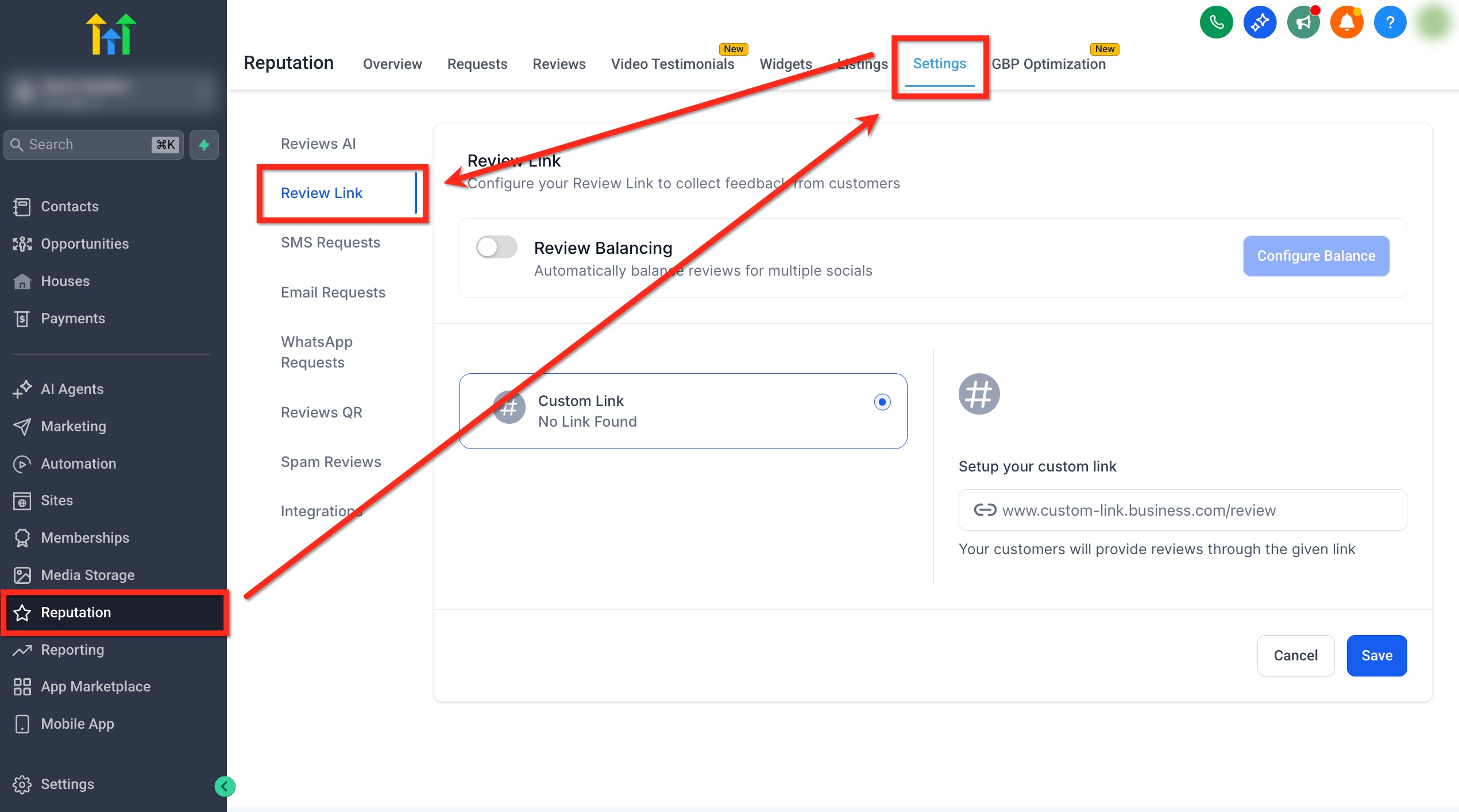
Access Review Link Settings — From the main dashboard, click Reputation in the left sidebar. Then, select the Settings tab at the top to access your reputation management configurations.
2
Choose Review Balancing or Custom Link — Locate the 'Review Link' section. You have two options: toggle Review Balancing ON to distribute reviews across connected platforms like Google, or select the Custom Link radio button to specify a single URL.
3
Configure Google Business Profile (for Balancing) — If you enabled Review Balancing, ensure your Google Business Profile is connected under the 'Get Reviews on Google' option. This directs traffic to your Google listing and allows balancing with other platforms.
4
Paste Your Custom Review Link (if applicable) — If you selected Custom Link, paste your desired review URL into the 'Setup your custom link' field. This link will be used for all review requests, overriding any balancing settings.
✅ If using Review Balancing, verify your integrations (e.g., Google Business Profile) are correctly connected. An unconnected platform cannot receive balanced reviews.
🔥 Pro Tip
Always test your custom review link in a browser to confirm it opens directly to the review form, not just the general business page. This reduces friction for your customers.
Customizing Your SMS Review Requests
SMS review requests are highly effective due to their direct and immediate nature. GoHighLevel lets you fully customize these messages, set their timing, and manage follow-ups to maximize your review collection. You will define when the first text sends and how often to retry if the link isn't clicked.
1
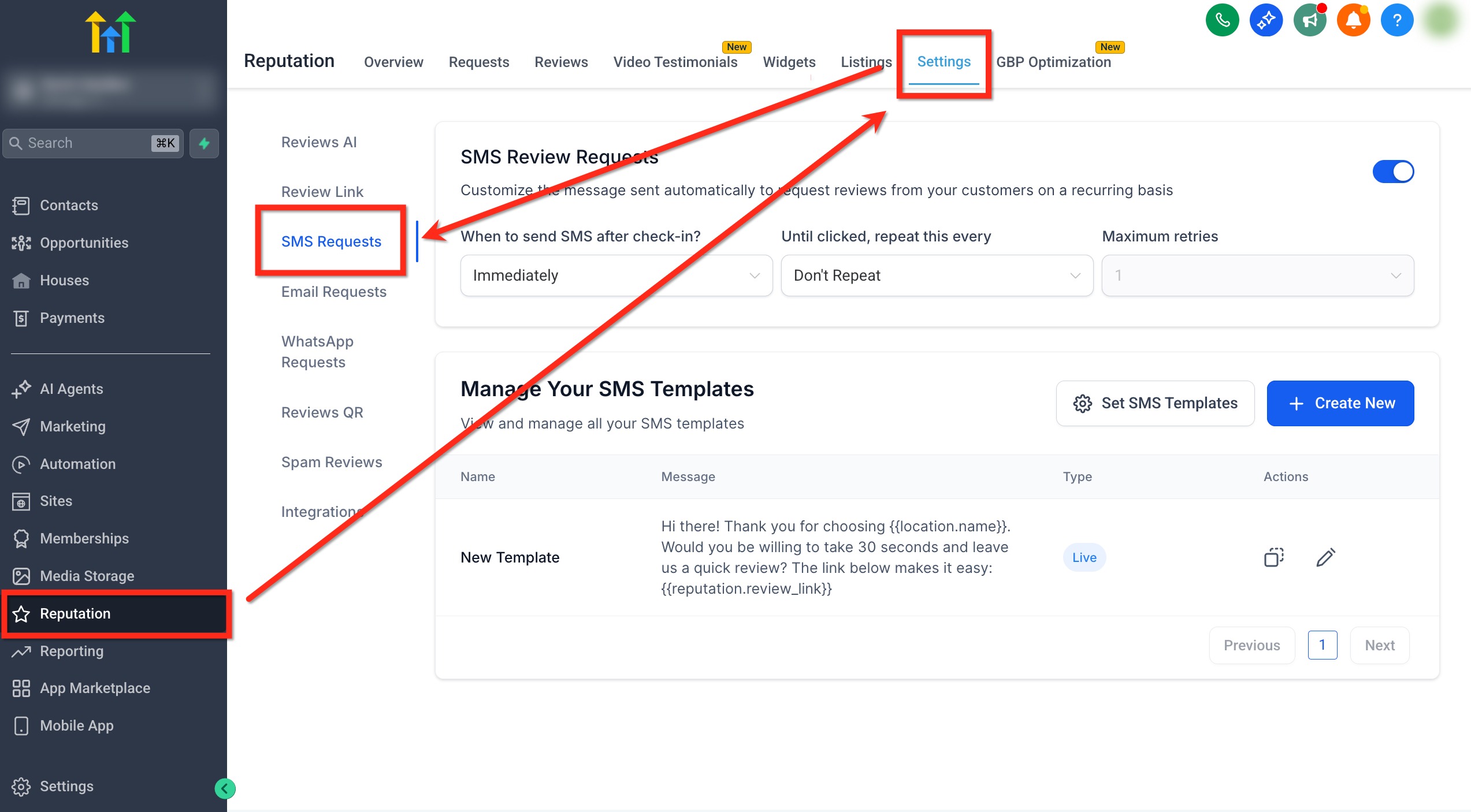
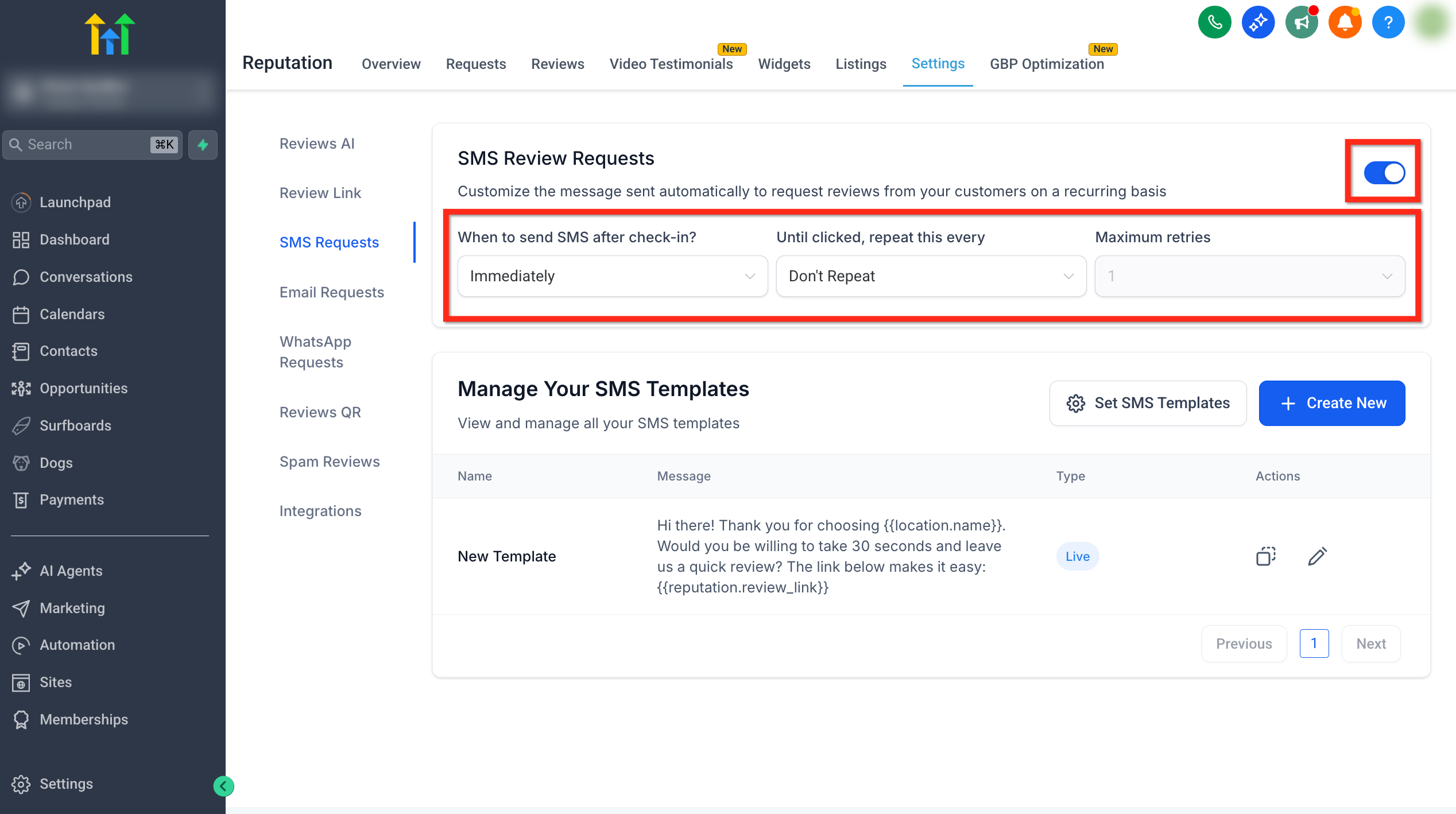
Enable SMS Review Requests — In Reputation → Settings, scroll down to the 'SMS Requests' section. Toggle the switch in the top-right corner to ON to activate automated SMS review requests.
2
Define Send Timing and Retries — Set 'When to send SMS after check-in?' to control the initial delay (e.g., 'Immediately' or '1 Hour'). Then, configure 'Until clicked, repeat this every' (e.g., '1 Day') and 'Maximum retries' to manage follow-up messages.
3
Create a New SMS Template — Click the Create New button within the 'SMS Requests' section. Choose 'Create New from Scratch' for full control or 'Select from Pre-Built Templates' to start with an existing design.
4
Design Your SMS Message — Enter a clear 'Template Name'. Write your message in the text editor, ensuring it includes the dynamic review link token: `{{reputation.review_link}}`. Optionally, enable 'Request with Image' and upload an image if you wish to send an MMS.
5
Save Your SMS Template — Review your message using the live phone preview on the right side of the screen. Once satisfied, click Save to store your customized SMS template.
⚠️ If you enable 'Request with Image', your message may send as an MMS instead of an SMS. MMS messages can incur different, often higher, carrier fees. Confirm costs with your messaging provider.
🔥 Pro Tip
Keep SMS messages concise and to the point. Customers are more likely to click a short, clear message than a lengthy one.
Try GoHighLevel Free
Start your 30-day GoHighLevel free trial
Everything in this guide is in your free trial. 30 days, no credit card — the platform behind 78+ revenue systems.
Some links are affiliate links — if you sign up we may earn a commission, at no extra cost to you. We only recommend GoHighLevel because we build on it every day.
Customizing Your Email Review Requests
Email review requests offer more space for branding, richer content, and multiple review destinations. GoHighLevel's email builder allows you to design professional, engaging emails that encourage customers to leave feedback. You can set the initial send time and manage a sequence of retries just like with SMS.
1
Enable Email Review Requests — In Reputation → Settings, scroll to the 'Email Requests' section. Turn the top-right toggle switch ON to activate automated email review requests.
2
Define Send Timing and Retries — Set 'When to send Email after check-in?' to specify the initial delay (e.g., '30 Minutes'). Then, configure 'Until clicked, repeat this every' and 'Maximum retries' to manage your email follow-up sequence.
3
Create a New Email Template — Click the Create New button within the 'Email Requests' section. Choose 'Create new Template' for a blank canvas or 'Import from Template Library' to use a pre-designed layout.
4
Design Your Email Message — Use the drag-and-drop email builder to add text, images, and branding. Crucially, drag the Review Link element from the 'Elements' panel into your email layout. This element automatically uses your configured primary review link.
5
Save Your Email Template — Ensure your email looks professional and contains a clear call to action using the Review Link element. Click Save in the top-right corner to store your customized email template.
0
✅ The 'After check-in' timing refers to the delay after the 'Send Review Request' action is triggered. This action can be manual (from a contact record) or automated via a Workflow.
🔥 Pro Tip
Utilize personalized merge fields (e.g., `{{contact.first_name}}`) in your email subject lines and body to increase open rates and engagement.
Assigning Live and Retry Templates (The Review Sequence)
Activating SMS and Email requests is only part of the process. You must explicitly tell GoHighLevel which specific template to use for the initial 'Live' message and for each subsequent 'Retry' message. This sequence ensures your customers receive the correct, customized message at every step of your review request cadence.
1
Assign SMS Templates — Within the 'SMS Requests' section, click Set SMS Templates. This opens a modal where you can select your templates for the initial 'Live' send and for each 'Retry' slot.
2
Select SMS Live and Retry Templates — From the dropdown menus, choose the template you want to send first as the 'Live' template. Then, select different templates for 'Retry 1', 'Retry 2', and so on, based on your configured maximum retries. Click Save.
3
Assign Email Templates — Within the 'Email Requests' section, click Set Email Templates. This opens a similar modal for assigning your email templates.
0
4
Select Email Live and Retry Templates — Use the dropdowns to select your 'Live' email template and specific templates for each 'Retry' slot. You can also review or edit the subject lines for each email directly from this screen. Click Save.
5
Confirm Your Sequence is Active — After saving both SMS and Email template assignments, your customized review request sequences are fully active. GoHighLevel will now use your chosen templates at the defined intervals.
⚠️ If you do not assign templates for 'Live' and 'Retry' slots, GoHighLevel will not send any review requests, even if the feature is enabled. Always confirm these assignments.
🔥 Pro Tip
Consider creating unique retry templates that offer a slightly different message or angle to encourage clicks, rather than just sending the exact same message again.
Troubleshooting Common Issues
⚠️ Review requests are not sending at all.
Check if the main 'Enable SMS Review Requests' and 'Enable Email Review Requests' toggles are set to ON in Reputation → Settings. Also, ensure you have assigned 'Live' and 'Retry' templates in their respective 'Set Templates' sections.
⚠️ The review link in my messages doesn't go to the correct page.
Go to Reputation → Settings → Review Link. Verify that your 'Custom Link' URL is accurate and leads directly to the review form, or confirm your Google Business Profile is correctly connected if using 'Review Balancing'.
⚠️ SMS messages are too long or costing more than expected.
Review your SMS template content. Long messages or those with images often convert to MMS, which has different pricing. Keep SMS concise, typically under 160 characters for a single segment, and be mindful of image usage.
⚠️ My email template looks broken, or the review button doesn't work.
Re-open your email template in the drag-and-drop builder. Ensure you used the dedicated Review Link element for your call-to-action button or link. Avoid manually pasting the `{{reputation.review_link}}` token into text fields within the email builder.
⚠️ Review requests are sending too often or at the wrong times.
Check the 'When to send after check-in?', 'Until clicked, repeat this every', and 'Maximum retries' settings under both 'SMS Requests' and 'Email Requests' sections in Reputation → Settings. Adjust these timings to your desired cadence.
Common Mistakes to Avoid
→Forgetting to enable the main SMS and Email review request toggles after creating templates.
→Not assigning specific templates for both the initial "Live" send and all subsequent "Retry" slots.
→Using a generic link for the "Custom Link" instead of a direct link to the review submission form.
→Ignoring the "When to send after check-in" timing, leading to immediate or delayed sends that don't match expectations.
→Failing to test the entire review request sequence (SMS/Email, initial send, and retries) on a test contact before going live.
Frequently Asked Questions
QWhat is the key difference between Review Balancing and using a Custom Link?
Review Balancing automatically distributes your review requests across multiple connected platforms, like Google Business Profile. A Custom Link, however, directs all customers to a single, specific URL you provide, overriding any balancing. Choose the option that best fits your strategy for gathering reviews.
QCan I use different templates for the initial review request and the follow-up retries?
Yes, GoHighLevel specifically allows you to assign unique templates for your initial 'Live' message and for each 'Retry' slot in both SMS and Email sequences. This enables you to craft varied messages to encourage engagement over time.
QHow do I ensure the review link token works correctly in my messages?
For SMS, always use the `{{reputation.review_link}}` token directly in your message body. For emails, use the dedicated 'Review Link' element from the drag-and-drop builder. Both methods ensure the link dynamically pulls from your configured primary review link settings.
QWhat happens if a customer clicks the review link but doesn't leave a review?
Once GoHighLevel detects a click on the review link within a specific channel (SMS or Email), the retry sequence for that channel stops for that contact. This prevents further follow-up messages, regardless of whether a review was ultimately submitted.
QAre there any cost implications for adding images to SMS review requests?
Yes, adding an image to an SMS message typically converts it into an MMS (Multimedia Messaging Service). MMS messages often have different and potentially higher carrier fees compared to standard SMS messages. Always check with your messaging provider for exact pricing details.
Try GoHighLevel Free
Start your 30-day GoHighLevel free trial
Everything in this guide is in your free trial. 30 days, no credit card — the platform behind 78+ revenue systems.
Some links are affiliate links — if you sign up we may earn a commission, at no extra cost to you. We only recommend GoHighLevel because we build on it every day.
Arsalan Zaffar
Revset Labs · Revenue Systems · 78+ GHL Builds
Arsalan writes GHL guides from real build experience — 78+ systems, $9.2M in client pipeline. Wharton, CXL & Google certified.