
Revset
Book a Free Audit

30-minute call · No obligation

HomeGHL HubConversations & MessagingControl Which Twilio Number Sends SMS to Leads in GoHighLevel
REVSET LABS · EXPERT GUIDE·Conversations & Messaging

Control Which Twilio Number Sends SMS to Leads in GoHighLevel

924 words·4 min read·Updated 28 April 2026·beginner·
Arsalan ZaffarArsalan ZaffarLinkedIn

👉 Start your 30-day GoHighLevel free trial.

Start 30-Day Free Trial
Quick Answer

To explicitly control which Twilio number sends SMS, configure the 'From Number' dropdown within a Send SMS workflow step. If not specified, GoHighLevel uses a set of fallback rules, prioritizing conversation continuity via the Channel Number, then the account's Default Outbound Number. You can always verify the exact sender number by checking message details in the conversation view.

Key Takeaways
  • Always set a specific 'From Number' in your **Send SMS** workflow actions for predictable communication.
  • Understand GoHighLevel's fallback sequence: User's Assigned Number > Channel Number > Default Outbound Number.
  • The Channel Number is crucial for maintaining conversation continuity and preventing confusion for your contacts.
  • Regularly verify the actual sender number for critical messages by checking the SMS details in the conversation view.
  • Ensure all GoHighLevel users who send SMS have an active Twilio number assigned to them for consistent outbound messaging.

Take Control: Setting the SMS Sender in Workflows

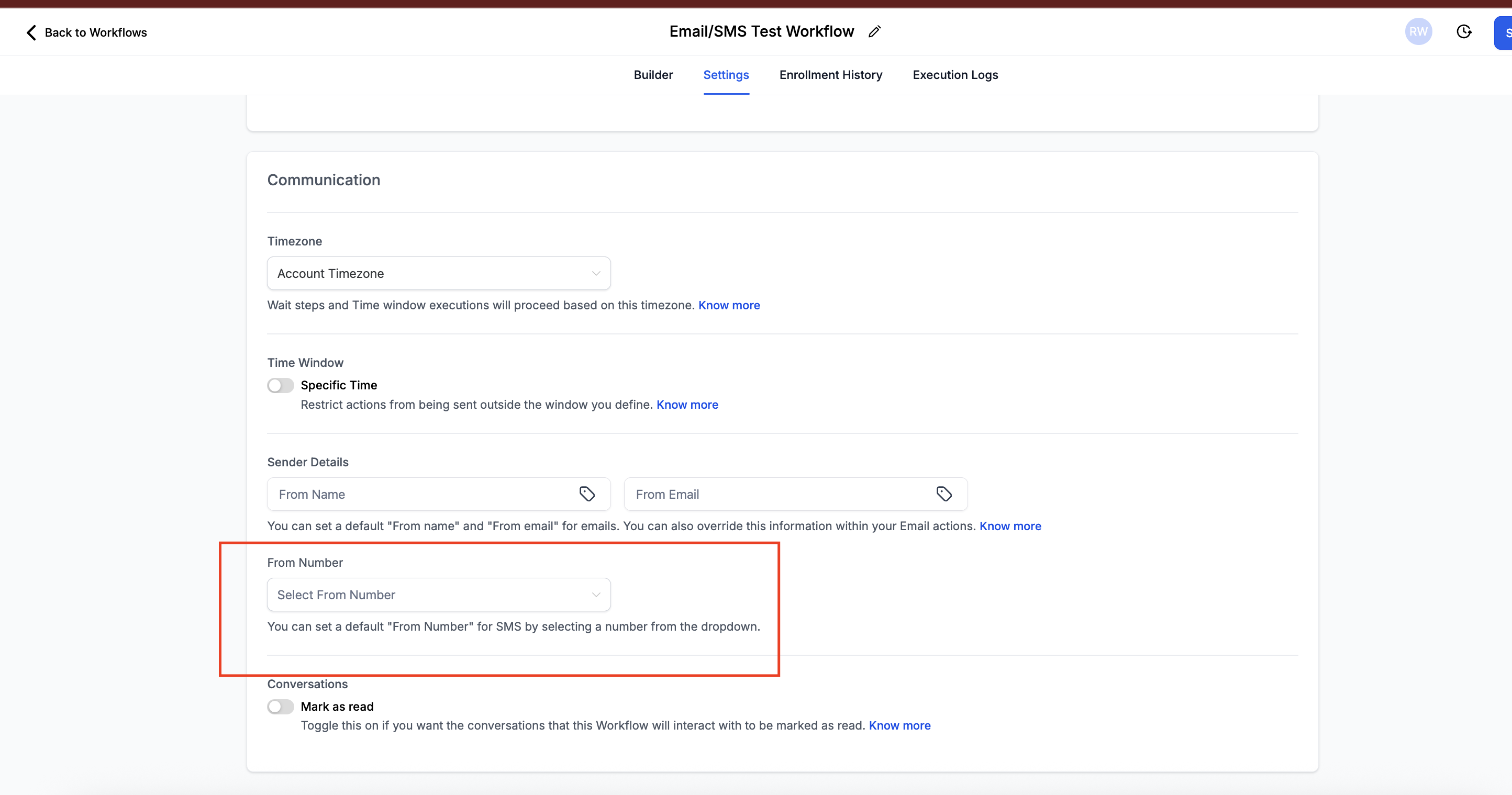
GoHighLevel offers you direct control over which Twilio number sends an SMS message within your automated workflows. This is the most reliable way to ensure your leads receive messages from a specific, branded, or campaign-specific number, overriding any default system rules. Explicitly setting the 'From Number' in your workflows guarantees consistency and avoids confusion for your contacts.
1
Access Your WorkflowsFrom the GoHighLevel dashboard, click on Automation in the left-hand menu. Then, select Workflows to view your existing automation sequences.
2
Open or Create a WorkflowClick on an existing workflow you wish to edit, or click + Create workflow to build a new one. This opens the workflow builder where you define your automation steps.
3
Add or Edit a 'Send SMS' ActionLocate an existing Send SMS action, or click the + icon to add a new action. Search for and select the Send SMS action type to configure your message.
4
Select the 'From Number'Inside the Send SMS action settings, find the From Number dropdown menu. Click it to reveal a list of all active Twilio numbers associated with your sub-account.
5
Choose Your Desired Sender NumberSelect the specific Twilio number you want to use for this particular SMS message. This selection will override any other system defaults or fallback rules for this workflow step.
6
Save Your Workflow ChangesAfter configuring the 'From Number' and other SMS details, click Save action. Then, click Save in the top right corner of the workflow builder to apply all changes.
GoHighLevel screenshot
0
🔥 Pro Tip

For multi-location businesses or specific campaigns, assign unique Twilio numbers to each location or campaign. Then, consistently select these dedicated numbers in your workflows to maintain clear branding and message context.

Understanding GoHighLevel's SMS Sender Fallback Logic

When you don't explicitly specify a 'From Number' in a workflow, or if an SMS is sent outside of a workflow (e.g., manually by a user), GoHighLevel follows a specific hierarchy to determine which Twilio number to use. Understanding this fallback sequence is crucial for predicting sender IDs and troubleshooting unexpected numbers. This system aims to maintain conversation continuity and ensure messages are always sent, even if a preferred number isn't available.

1
Priority 1: User's Assigned NumberIf the GoHighLevel user initiating the SMS (or associated with the contact) has an active Twilio number assigned to their user profile, the system will first attempt to use this number. This ensures personal communication from a specific team member.
2
Priority 2: The Channel NumberIf no user-assigned number is available or specified, GoHighLevel checks for the 'Channel Number'. This is the first Twilio number ever used to communicate with that specific contact. Using the Channel Number maintains conversation continuity, ensuring all messages with a contact come from the same number.
3
Priority 3: The Default Outbound NumberIf neither a user-assigned number nor a Channel Number is active or available, GoHighLevel will use the 'Default Outbound Number'. This is a pre-set Twilio number configured at the sub-account level, acting as a final fallback to guarantee messages are sent.

⚠️ If the Twilio number chosen by any of these fallback rules is inactive, disconnected, or lacks sufficient balance, the SMS will fail to send. Always ensure your numbers are active and funded.

✅ The Channel Number is critical for a smooth customer experience. If it changes unexpectedly, contacts might miss messages or become confused, potentially impacting your engagement rates.

🔥 Pro Tip

Regularly review and update your account's 'Default Outbound Number' in Settings → Phone Numbers to ensure it's an active, appropriate number. This acts as your safety net for all unassigned SMS communications.

Try GoHighLevel Free

Start your 30-day GoHighLevel free trial

Everything in this guide is in your free trial. 30 days, no credit card — the platform behind 78+ revenue systems.

Start 30-Day Free Trial

Some links are affiliate links — if you sign up we may earn a commission, at no extra cost to you. We only recommend GoHighLevel because we build on it every day.

Confirming the Exact SMS Sender Number Used

Even with careful planning, sometimes you need to confirm exactly which Twilio number sent a particular SMS. GoHighLevel provides a straightforward way to check this directly within the conversation view. This is invaluable for auditing, troubleshooting, or simply understanding the customer's experience.

1
Navigate to ConversationsFrom your GoHighLevel dashboard, click on Conversations in the left-hand menu. This takes you to the unified inbox where all communications with your contacts are displayed.
2
Locate the Specific SMS MessageFind the contact and the specific SMS message you want to investigate within the conversation thread. Scroll through the messages until you pinpoint the exact text.
3
Hover Over the MessageMove your mouse cursor over the SMS message you want to inspect. A small icon with three dots will appear next to the message.
4
Access Message DetailsClick on the ... (three dots) icon that appears when you hover. A small menu will pop up; select Details from this menu. This action opens a window with comprehensive message information.
5
Identify the 'From Number'In the 'Details' window, look for the 'From Number' field. This field displays the exact Twilio phone number that was used to send that specific SMS message to your contact.

Troubleshooting Common Issues

⚠️ SMS is sending from an unexpected Twilio number.
First, check the 'From Number' setting in the specific Send SMS workflow action. If it's not set, review the fallback rules: ensure the GoHighLevel user has the correct number, check the contact's Channel Number, and verify your account's 'Default Outbound Number'.
⚠️ New Twilio number isn't being used for outbound messages.
Ensure the new number is active and set as the 'Default Outbound Number' in Settings → Phone Numbers. If specific contacts are still receiving messages from an old number, their 'Channel Number' might be stuck. You may need to manually reset the channel number via support or by initiating a new conversation from the desired number.
⚠️ SMS fails to send, with no clear reason.
Verify that the selected or fallback Twilio number is active, linked correctly to GoHighLevel, and has sufficient credit/balance to send messages. Also, check for any Twilio API errors in your Audit Logs within GoHighLevel.
⚠️ Conversation continuity is broken; contacts receive messages from different numbers.
This often indicates an inconsistent Channel Number or varying 'From Number' settings across workflows. Explicitly set the 'From Number' in all relevant Send SMS workflow steps to a consistent number. If a new number is desired for continuity, start a new conversation with the contact from that number to establish it as the new Channel Number.

Common Mistakes to Avoid

  • Not explicitly setting the 'From Number' in critical workflow SMS actions, relying solely on fallback rules.
  • Underestimating the importance of the 'Channel Number' for maintaining consistent communication with contacts.
  • Failing to configure a reliable 'Default Outbound Number' at the account level as a safety net.
  • Not assigning active Twilio numbers to individual GoHighLevel users, leading to unpredictable sender IDs for manual messages.
  • Neglecting to verify the actual sender number by checking message details, missing potential issues until contacts report them.

Frequently Asked Questions

QHow does GoHighLevel decide which number to send SMS from?
GoHighLevel follows a specific hierarchy. It first checks if a 'From Number' is explicitly set in the workflow's **Send SMS** action. If not, it attempts to use the GoHighLevel user's assigned number. Next, it looks for the 'Channel Number' (the first number used to communicate with that contact). Finally, if none of these are available, it defaults to the account's 'Default Outbound Number'.
QWhat is a 'Channel Number' in GoHighLevel and why is it important?
The 'Channel Number' is the first Twilio number that initiated or received communication with a specific contact. It's crucial because GoHighLevel prioritizes sending subsequent messages from this number to maintain conversation continuity. This ensures your leads receive messages consistently from the same number, building trust and preventing confusion.
QCan I force all SMS from a specific workflow to use one particular number?
Yes, absolutely. The most direct way to ensure all SMS from a specific workflow use one number is to explicitly select that number in the 'From Number' dropdown within every **Send SMS** action in that workflow. This setting overrides all fallback rules for those specific workflow steps, giving you full control.
QWhat happens if my assigned Twilio number is removed or inactive?
If the Twilio number GoHighLevel attempts to use (whether from a workflow setting, user assignment, Channel Number, or Default Outbound Number) is removed or inactive, the SMS message will fail to send. It's essential to regularly monitor your Twilio numbers and ensure they are active and have sufficient balance to prevent message delivery failures.
QHow can I verify which number sent a specific SMS message?
You can easily verify the sender number by going to the **Conversations** section in GoHighLevel. Locate the specific SMS message, hover over it, click on the **... (three dots)** icon that appears, and then select **Details**. The 'From Number' field in the details window will show the exact Twilio number used for that message.
Try GoHighLevel Free

Start your 30-day GoHighLevel free trial

Everything in this guide is in your free trial. 30 days, no credit card — the platform behind 78+ revenue systems.

Start 30-Day Free Trial

Some links are affiliate links — if you sign up we may earn a commission, at no extra cost to you. We only recommend GoHighLevel because we build on it every day.

Arsalan Zaffar
Arsalan Zaffar
Revset Labs · Revenue Systems · 78+ GHL Builds

Arsalan writes GHL guides from real build experience — 78+ systems, $9.2M in client pipeline. Wharton, CXL & Google certified.

Connect on LinkedIn
Tags:GoHighLevelTwilioSMSWorkflowsCommunicationPhone Numbers